The Multi-context tab in the details view enables users to view, compare, edit, and approve data across multiple contexts. Instead of switching between contexts to review and update values, users can work with data from multiple contexts in a single tab. The tab displays context-specific values side by side, making it easier to review and maintain data across contexts. Users can perform cross-context updates and approval actions directly within the tab and customize the displayed contexts to suit their needs.
Configuring a Multi-context tab
To configure the Multi-context tab:
-
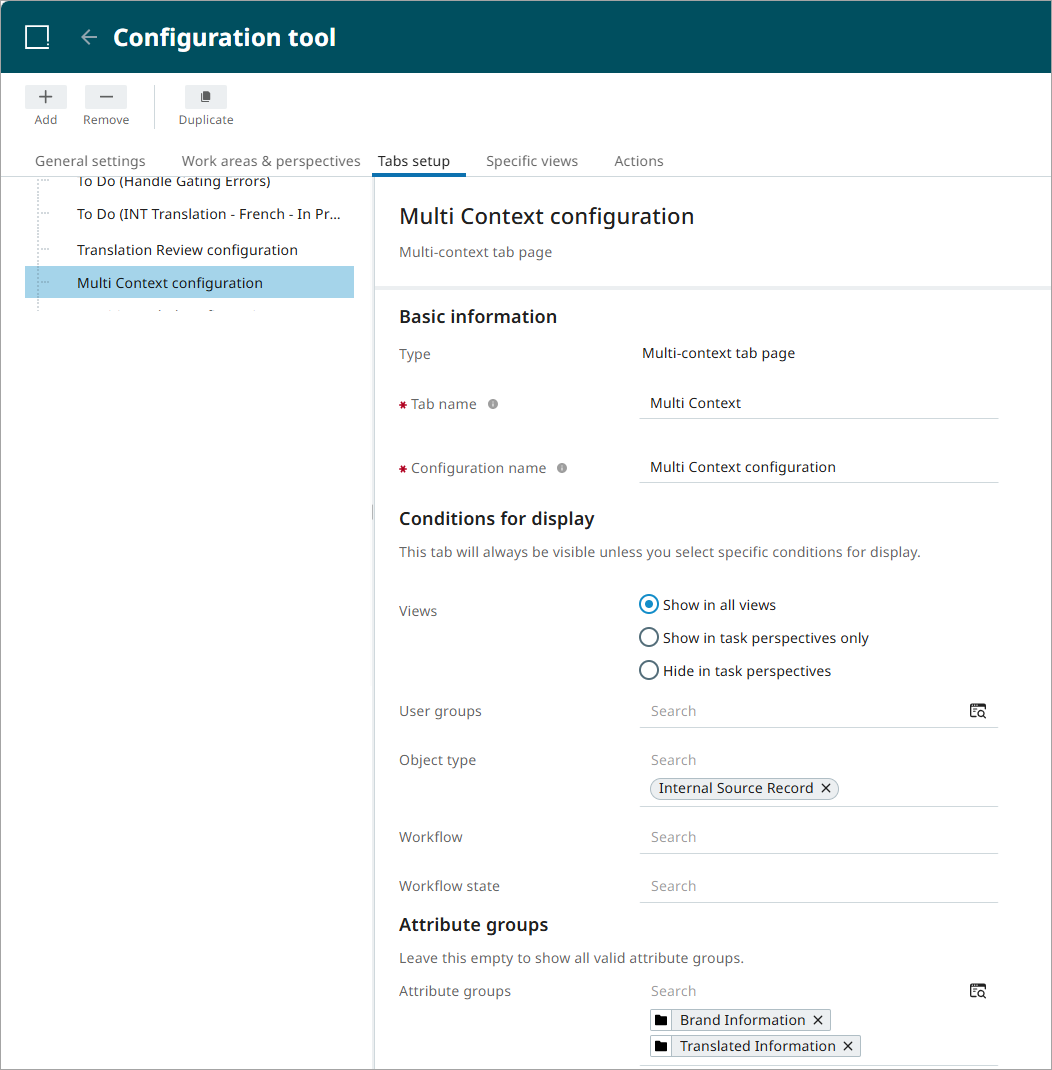
Add a new tab in the Configuration tool. Select Multi-context as the tab type, and then specify a name and any required display conditions. For more information about these settings, refer to the Configuration Tool topic.
-
In the Attribute groups section, select the attribute groups to display in the tab. If no attribute groups are specified, all valid attribute groups are displayed.
-
Save the changes.
Understanding the Multi-context tab
The following example shows a Multi-context tab displayed in the details view.
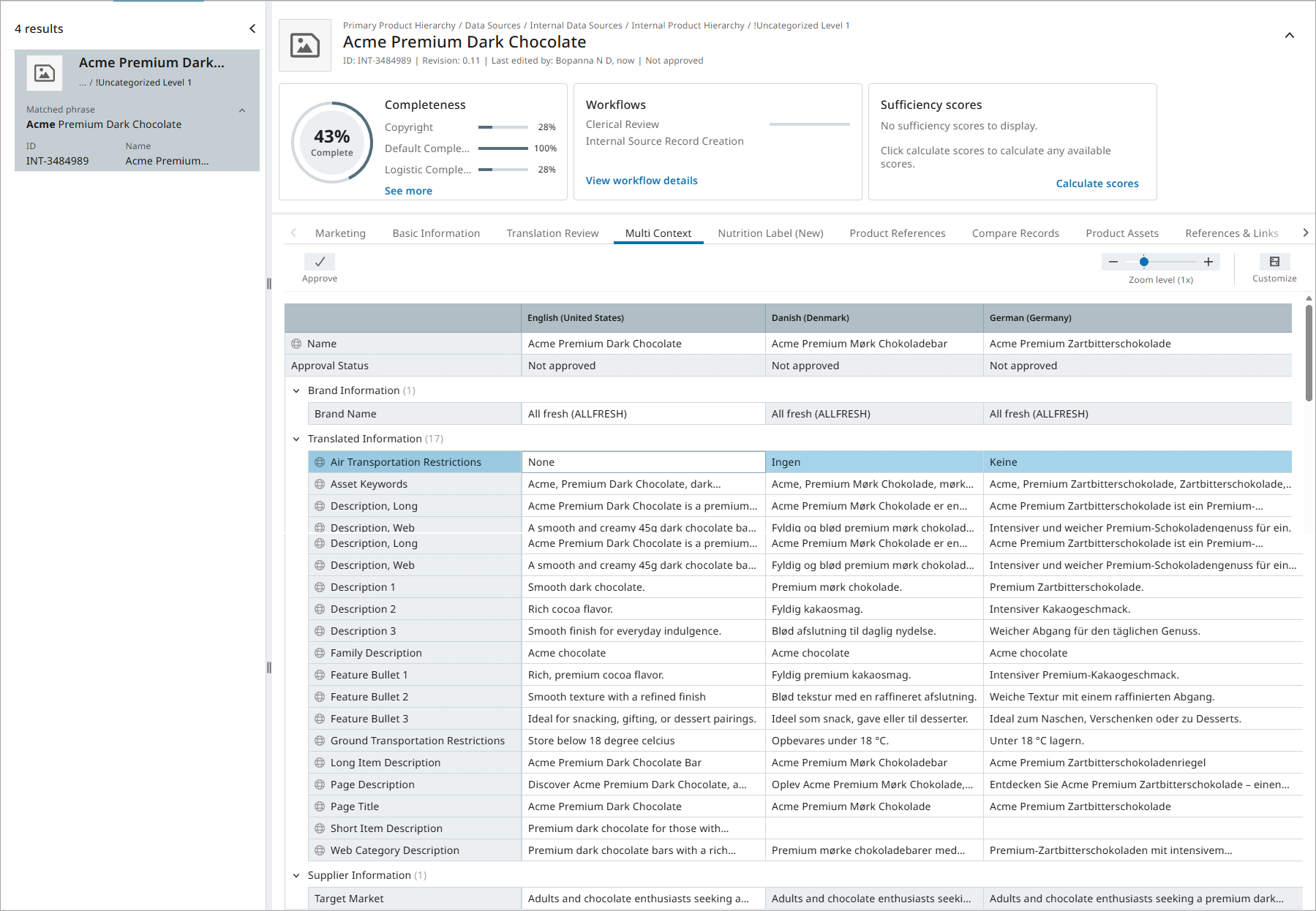
The Multi-context tab displays the object name, approval status, and the attribute groups configured in the Configuration tool. When you open the tab for the first time, no data is shown because no contexts are selected. To display data, use Customize button in the upper-right corner of the tab and select at least one additional context. After you configure the view, the New UI saves your selections and automatically displays the previously applied Multi-context view the next time you open the tab.
Note: References are not displayed in the Multi-context tab.
The following example shows the 'Add columns to Multi Context' dialog.
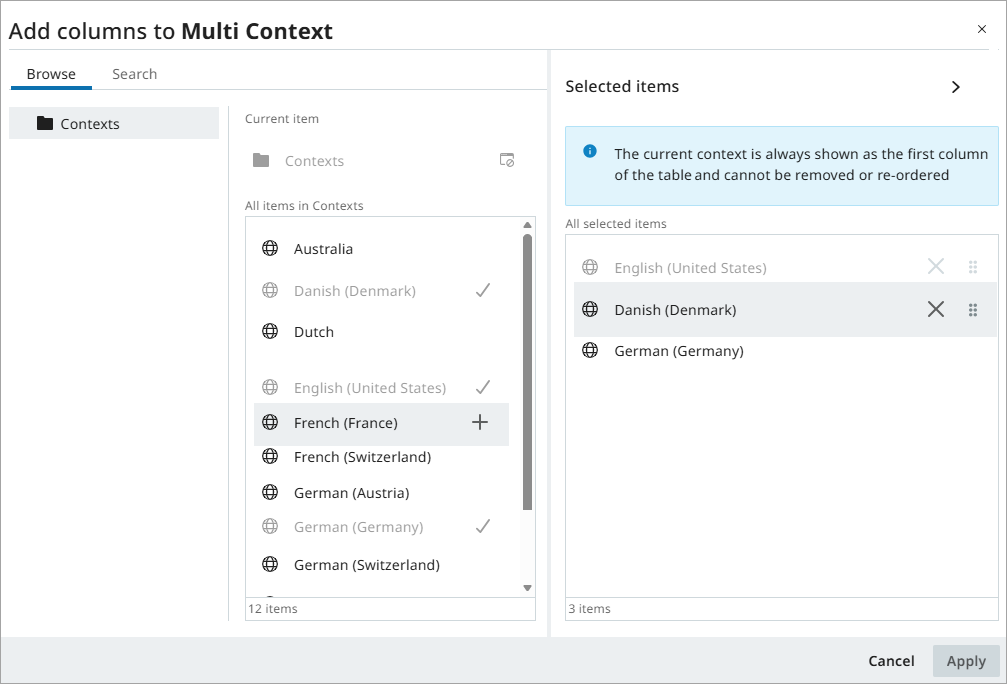
Hover over a context in the 'Current item' column and click the add  icon to include the context in the table. In the example above, Danish and German are selected and displayed in the 'Selected items' column. Click the remove icon
  to remove a context, and use the drag handle
  to change the display order of contexts in the Multi-context table. The current context (English in this example) is always displayed as the first column and cannot be removed or reordered.
After making the required changes, click Apply to update the Multi-context table.
Within the Multi-context tab, you can perform the following actions:
-
Edit attributes - You can edit values in unshaded cells of the Multi-context table. Changes are saved automatically, so you can navigate away from the tab without losing your edits.
All editable attribute values for the selected object can be modified regardless of the Dimension Dependencies configuration. For attributes that are configured as dimension dependent, values can be edited independently in each context. For attributes that are not configured as dimension dependent, values can be edited only in the current context. The corresponding cells in other contexts remain read-only. When you update the value in the current context, the value is automatically propagated to all displayed contexts.
-
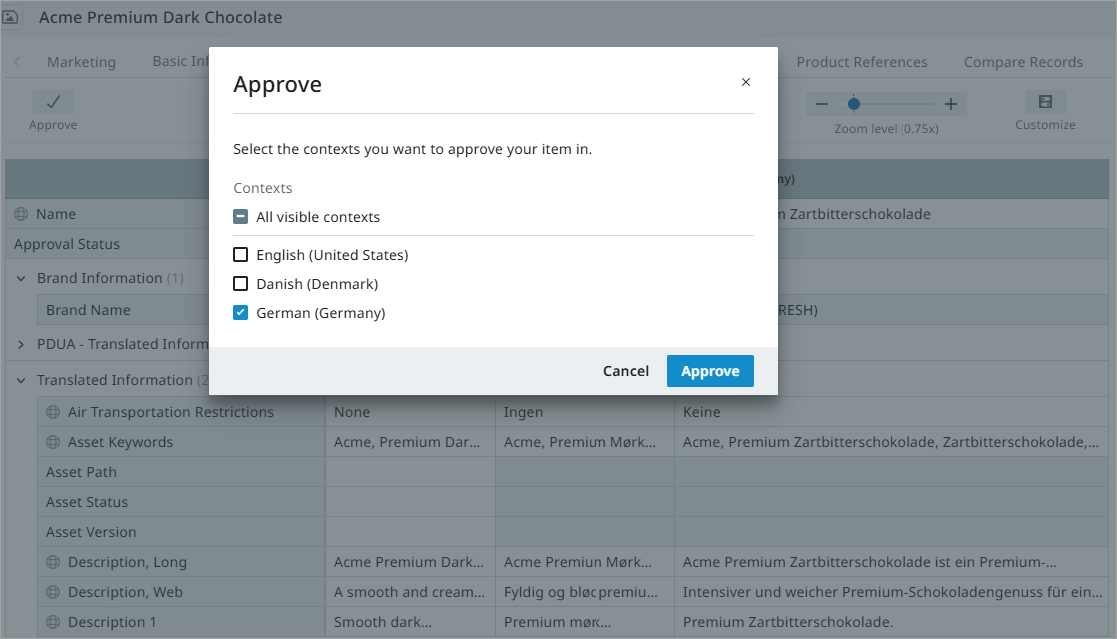
Approve object - Click Approve in the upper-left corner of the tab to approve the selected object in one or more contexts. The Approve dialog allows you to select the contexts in which to approve the object.