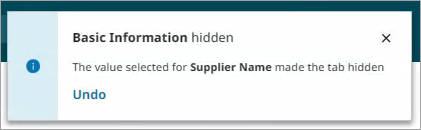
A business condition applied to a tab in the New UI, controls the visibility of the tab. When the condition evaluates to true for the current object, the tab is displayed. When it evaluates to false, the tab is hidden. Changes to an element bound to the condition, trigger the condition to be reevaluated and the tab visibility to be updated. This includes, but is not limited to attribute, reference type, and data container type.
Configure a Tab to Use a Business Condition
Follow the steps below to apply a business condition to a tab:
-
Create a business condition in the workbench. For more information on creating a business condition, refer to the Creating a Business Rule, Function, or Library topic in the Business Rules documentation.
-
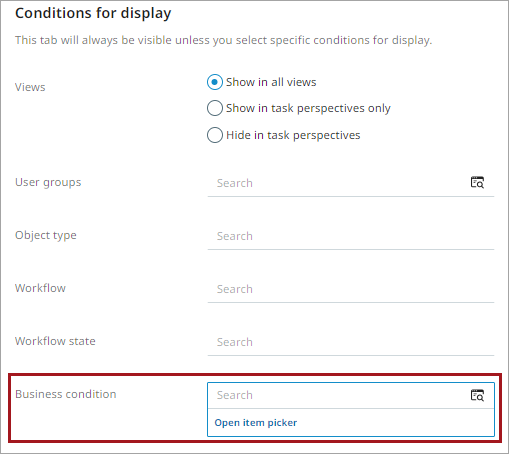
Navigate to the relevant tab configuration in the 'Tabs setup' tab in the Configuration tool. Under 'Conditions for display', use the 'Business condition' field and from the item picker, select the condition to apply.
-
Click the Save (
 ) button in the top right corner.
Hiding an Active Tab
It is possible for a change to be made on the active tab that causes the active tab to be hidden. In that scenario, a message pops up on the top right corner informing the user of the reason that the tab has been hidden.
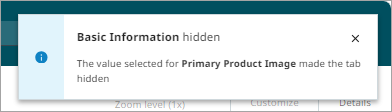
For some conditions, it is possible to undo the change that caused the active tab to be hidden. The undo feature is not available for the Reference tabs or Asset tabs.