Decisions are created and maintained in the 'All rules' view of the 'Match tuning UI'. To support accurate decision-making, review record pairs from the pair export in a spreadsheet and filter them by specific rule IDs.

To add a decision:
-
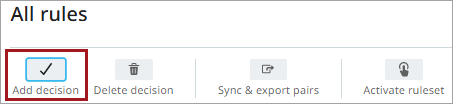
In 'All rules', click Add decision.
-
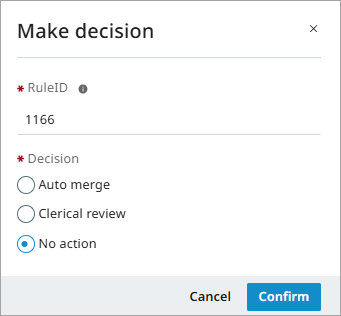
In the dialog, enter one or more rule IDs.
-
Select the decision type (for example, 'Auto merge' or 'No action').
-
Click Confirm.
You can add decisions in bulk by pasting large sets of rule IDs copied from a rules export in a spreadsheet, for example after filtering on a specific user decision.
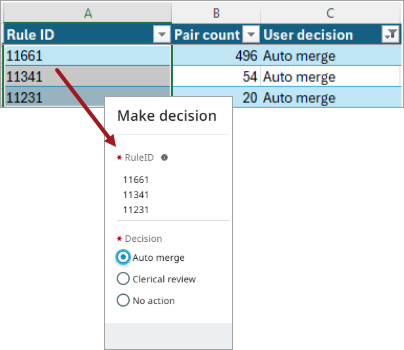
You can also add decisions directly from the 'All rules' view by selecting decisions using the checkboxes and clicking Add decision. A confirmation dialog opens, allowing you to review the selected rule IDs and the decision before confirming.
If a decision already exists for the same matcher combination, it is overwritten.
Note: Matching decisions are stored outside the STEP database. As a result, reverting a ruleset revision does not revert its decisions. Similarly, restoring a STEP database - for example, when restoring a production database to a development environment - does not include matching decisions.
When importing or exporting a Matching Ruleset, decisions are included.
For more information, refer to the topics All Rules and Match Tuning UI.