The information below outlines how you can use the comparison tool to compare a source and target system.
Select Source and Target
To use the comparison tool:
-
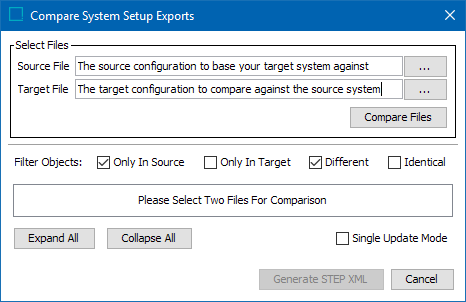
From the File menu, click Export, and choose Compare System Setup Exports.
-
Click the ellipsis button (
 ) and select the exported XML file from the source system.
 -
Click the ellipsis button (
) and select the exported XML file from the target system.
Select Filter Options
Once the XML files are selected, the user selects how the comparison tool should filter the differences.
-
Only in Source – Filter on configurations that only exist on the source system.
-
Only in Target – Filter on configurations that only exist on the target system.
-
Different – Filter on what is different between the source and target system.
-
Identical – Filter on what is identical between the source and target system.
-
Compare Files – Once selected the relevant configuration will be highlighted depending on the filter options selected above.
If you need to change the filter options selected, change them and click Compare Files to update
View Differences
Below is an example of how to filter what is only in the source XML file.
The comparison tool gives an overview of the following:
-
Only In Source
-
Only in Target
-
Different
-
Identical
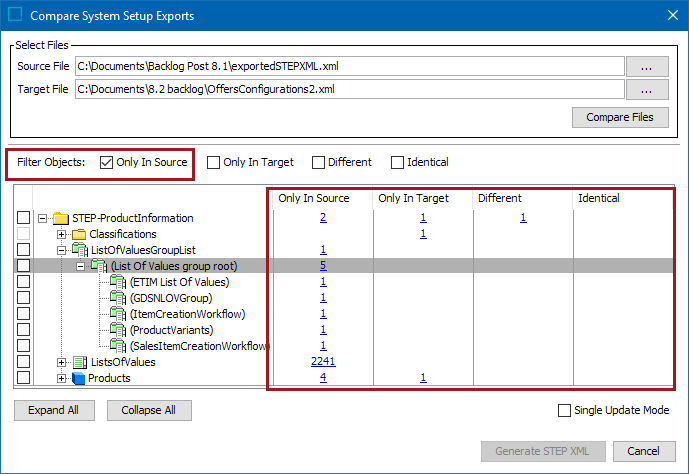
In this example, the user has selected to filter on ‘Only In Source.’ When the user opens the business libraries node, only the business libraries in the source system display.
Note: If you select the Expand All option the user is shown all configurations related to the filter selected i.e., Only In Source.
XML file differences
Within the comparison tool users can view the differences between the XML files from source and target systems.
If there are differences for each of the filters between the source and target systems users can view them by selecting the hyperlink for each difference
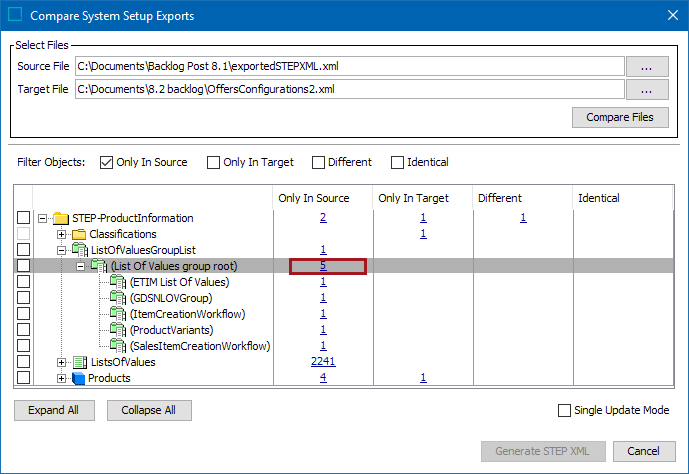
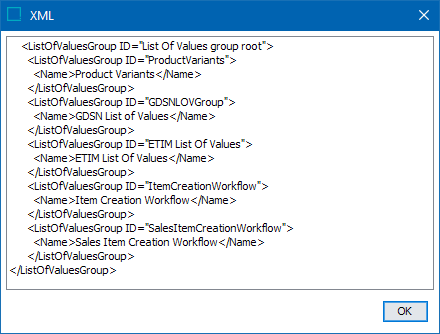
Click a hyperlink highlighted to display the STEPXML for the items that only exists in the source system as follows:
Generate STEPXML
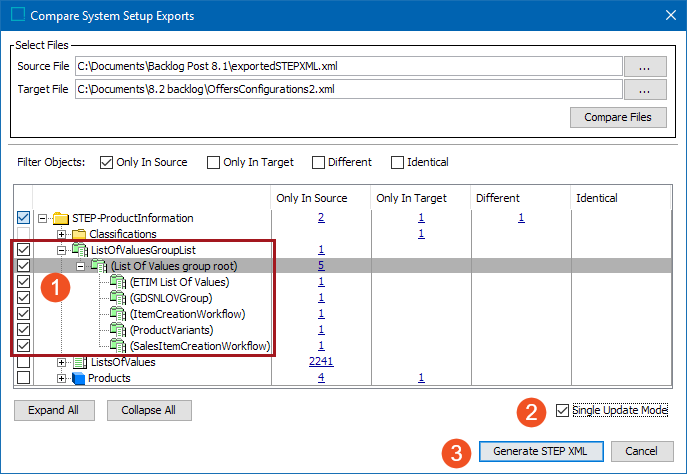
To generate a STEPXML file with configuration to be exported:
-
Select the configuration required to be moved to the target system.
-
Check Single Update Mode option if the generated STEPXML will make updates that require single update mode. Refer to the Single-Update Mode topic in the System Setup documentation for examples of operations that require Single Update Mode.
-
Click the Generate STEP XML button.
-
Save the XML file.