Business rule JavaScript operations can be edited externally in Visual Studio Code (VS Code) version or another editor via the Edit Externally action found on the Business Rule / Business Function tab.
VS Code is the recommended external editor because it includes the following verified functionality:
-
auto-completion and embedded documentation (defined in the Temporary files used for testing section below)
-
testing functionality via the 'STEP Business Rule Test' VS Code plugin (defined in the Testing JavaScript Externally section below)
-
an AI Agent that makes it possible to generate new JavaScript code
Prerequisites
The recommended program for external editing is Visual Studio Code (VS Code) version 1.99.0 or higher.
-
Verify the default program on your system for JavaScript (.js) files:
-
If VS Code is installed, it is used for external editing, even if no default is set for .js files.
-
If VS Code is not installed, you can choose an app for the editing process.
-
-
To test a business rule in VS Code, you must download and install the 'STEP Business Rule Test' VS Code plugin (a VSIX file), as outlined in the 'JavaScript Business Rule Test Functionality' section of the Technical Documentation, available at [SaaS Environment URL]/sdk or accessible from the Start Page.
Using an External Editor
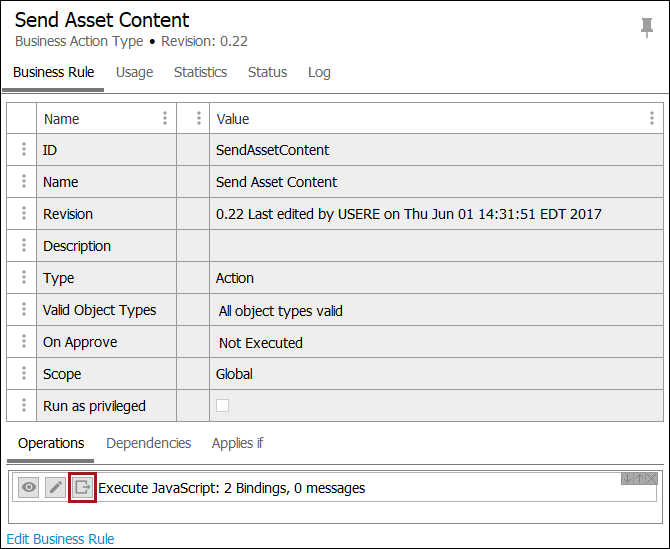
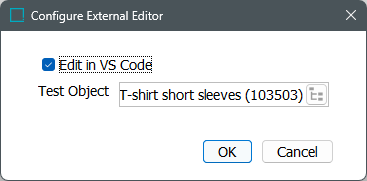
After clicking Edit Externally button, on the Configure External Editor dialog, set the following options.
-
Edit in VS Code - if Visual Studio Code is installed, check this box to open the business rule in VS Code. When this box is not checked, the JavaScript is opened with the default program assigned to .js files, and if no default is set, a list of programs is presented.
-
Test Object - only enabled when the 'Edit in VS Code' checkbox is checked. Click the selector button (
 ) and choose the default object for the current business rule to be used when validating the JavaScript.
Note: The settings on the 'Configure External Editor' dialog apply only to the current business rule. Each time you click OK with the 'Edit in VS Code' option checked, a new VS Code window opens.
Temporary files used for testing
In the desired editing program, a temporary JavaScript file is generated and opened. VS Code is shown in the screenshots below.
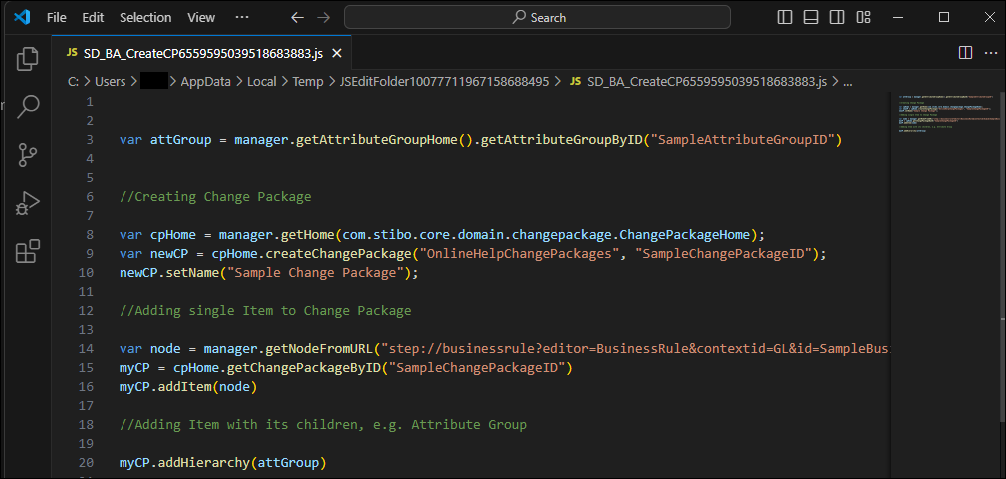
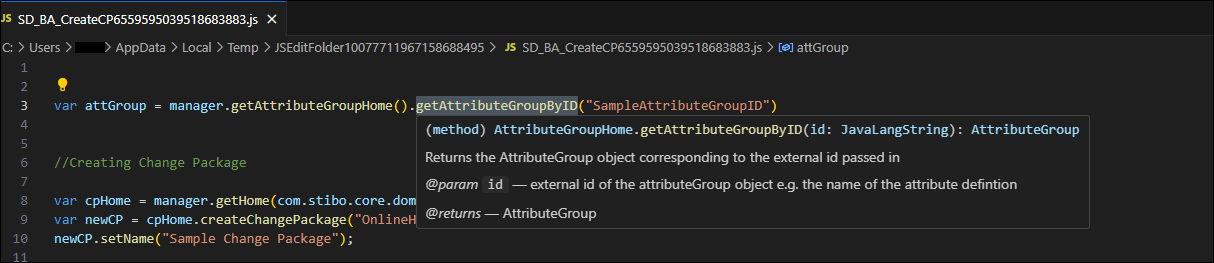
This temporary file has access to additional features, such as code auto-completion and embedded documentation, which can assist users that are not familiar with the Public API. Code auto-completion is generated from STEP JavaScript API content, as well as from binds and associated business libraries (if any dependencies are defined on the business rule), and assists the user with writing JavaScript code relevant to business rules.
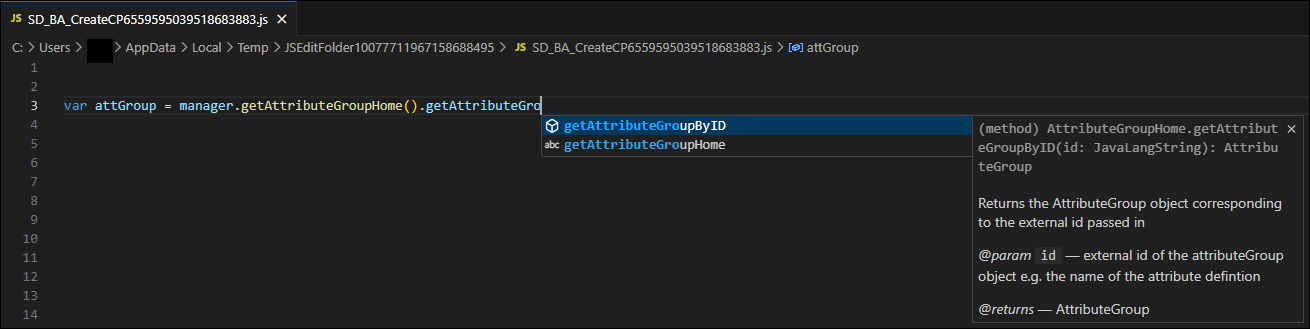
Note: Auto-completion may not be available for every method.
Embedded documentation provides the user with additional context for elements in their JavaScript code, such as parameter type, method descriptions, return type, and any exceptions that may be encountered.
Note: If elements are associated with a library for which a dependency has been defined in STEP, the associated information will only display if the library code has been documented.
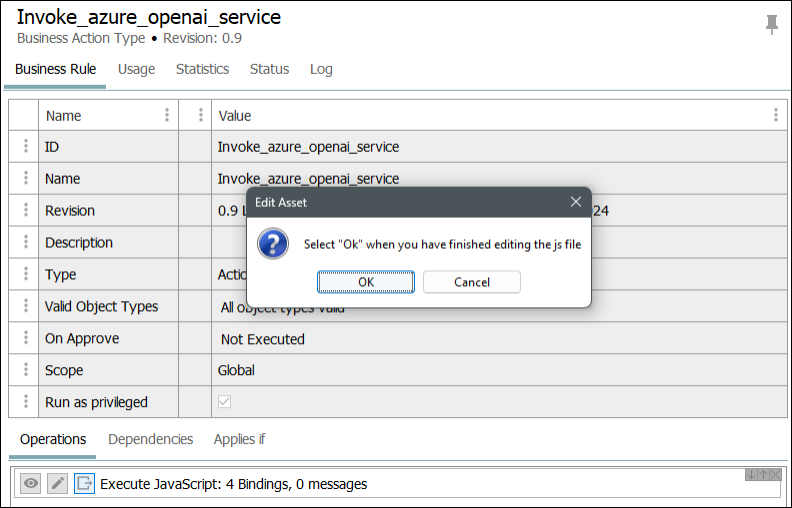
After opening an operation in VS Code, an 'Edit Asset' prompt displays in STEP and remains open until the user either clicks OK to accept changes made to the JavaScript file or clicks Cancel to disregard changes.
Important: Closing the 'Edit Asset' dialog deletes the temporary file. Save any desired changes to the file in the external editor before clicking OK in STEP.
Important: JavaScript binds should be defined in STEP; however, they are recognized in VS Code because of the auxiliary files downloaded along with the .js file. You should not edit those files (e.g., .js doc, .js file, library .js file, etc.) since only the business rule .js operation file is saved back into STEP.
Note: To facilitate easier editing of the code, the JavaScript classes available in VS Code are JavaScript stubs. These stubs contain the public API method names and java docs of the java classes that are used at runtime when executing the business rule. However, these stubs are not executable, and while they are treated as root level classes in the VS Code editor’s environment, they do not exist at runtime when the business rule is executed.
For example, writing 'var product = new Product();' might look correct in the editor but will yield a runtime error during execution because 'Product' does not exist as a root level class at runtime. Almost all Public API object instances are obtained at runtime using the bindings defined for the business rule, or through methods called on other Public API object instances originating from a binding.
Testing JavaScript Externally
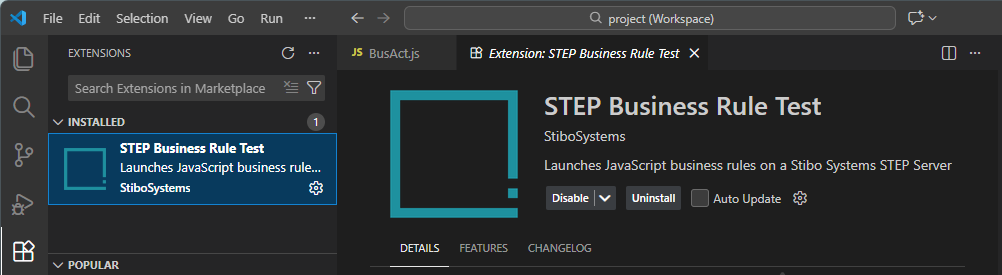
As described in Prerequisites section above, the latest version of the VS Code ‘STEP Business Rule Test’ must be installed. When properly installed, the plugin is listed in the plugins section of VS Code.
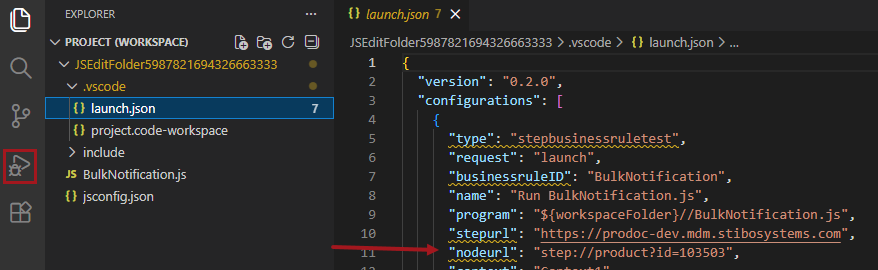
To test and validate the JavaScript in VS Code against a different node than the one selected on the 'Configure External Editor' dialog in the workbench, open the .vscode folder and change the node by editing the launch.json file in and updating the value for the nodeurl element.
Note: Ensure the object selected is valid for the business rule being tested. Selecting an invalid object type results in a 'NON_APPLICABLE' message.
If the 'STEP Business Rule Test' VS Code plugin is installed, the VS Code run button ( ) executes the code as it is being edited. Refer to the Prerequisites section above for installation instructions.
The first time you click the ‘Run and debug’ button for a STEP business rule, a prompt is displayed to open an external website for security reasons. Click the Open button to verify successful authentication. The authentication check is renewed every hour.
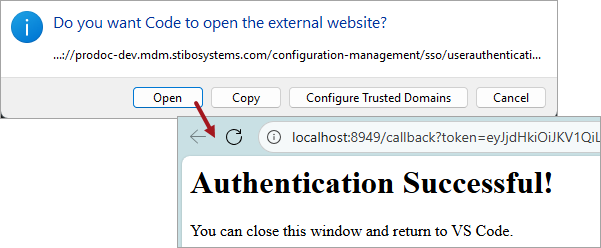
Close the browser tab or window to return to VS code. Select the .js file for the business rule (not one of the auxiliary files) and click the 'Run and Debug' button.
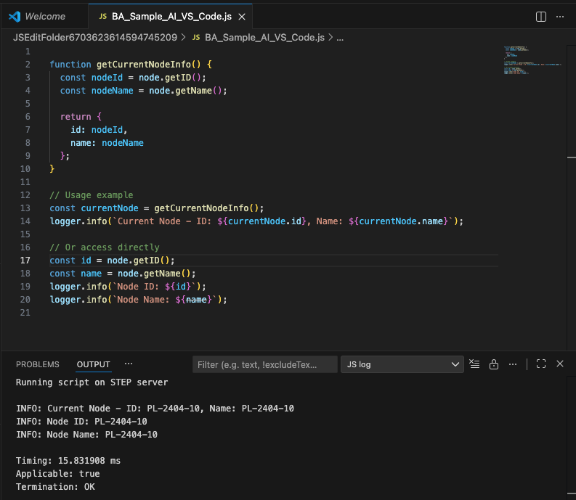
The OUTPUT tab (in the panel below the main code editor) displays the results of the tests including logs, timing, applicability, and termination state. After attempting to test a business rule, the output also includes if the plugin is not synched with the STEP update for the environment. To resolve an out-of-sync plugin, download the latest version of STEP, replace the plugin (as defined in the Prerequisites section), and then test business rules again.
Note: Unlike the 'Test & Time Business Rule' dialog in the workbench, there is no rollback option since all tests run from VS Code are rolled back automatically.
Depending on results, if necessary, adjust the business rule code and test again. Save your work in VS Code before closing the 'Edit Asset' dialog in the workbench.