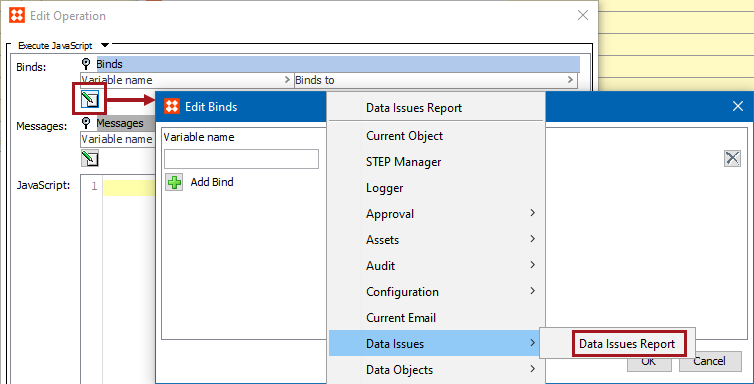
The Data Issues Report bind allows users to insert custom messages related to attribute issues into the Web UI through business actions and conditions. Configured error and warning messages display beneath the affected field on Node Details screens and in the Corner Bar Warning Notification Panel. Error messages will display beneath the field and in a pop-up at the top of the screen if no Warning Notifications side panel is configured. This bind is found within the 'Binds to' dropdown, as shown below.
Configuration
To use any bind:
Example
The following is an example JavaScript that uses this bind.
Important: The example scripts should not be used as-is without thorough testing, including updating the script to match object and link types that exist on your system. Javascript variable names are case-sensitive.
As an example, a Node Details screen is set up with a number of business conditions that apply validation to a series of attributes configured on that screen. One of those business conditions is configured to ensure that the correct attribute value for the attribute 'Producer1' is 'Acme.' If any other value besides 'Acme' is entered in this field, an error should be shown. The Data Issues Report bind can be used to create a customized error or warning message to show in the Web UI.
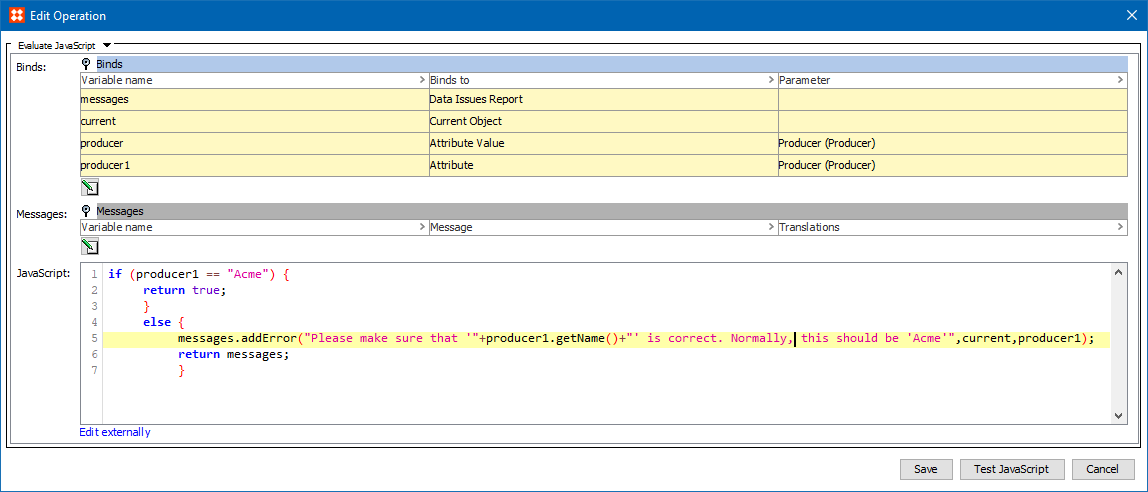
In the screenshot example above, the text 'addError' directs the system to prepend to the text an error icon when the notification displays beneath the 'Producer1' field. If the user instead uses 'addWarning,' the custom text will follow a warning icon below the 'Producer1' field. In addition to this visual treatment of messages, 'addError' and 'addWarning' also dictate how the system handles a given issue. An 'addError' message disallows saves until the described issue is addressed, and an 'addWarning' message allows users to save on-screen data.
2020, Stibo Systems – Confidential