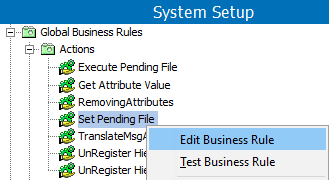
The Business Rule editor allows you to edit settings for a business rule and handles Global and Local business rules differently. For more information, see the Global and Local Business Rules section of the Business Rules documentation
There are two ways to open the Business Rule editor in System Setup:
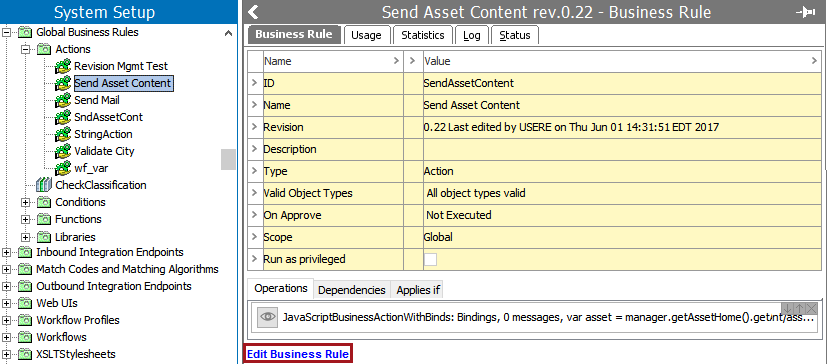
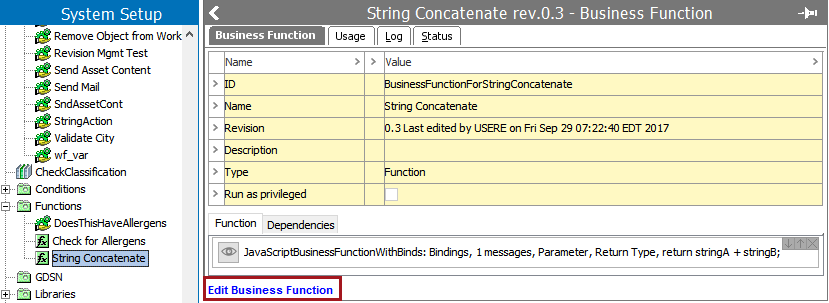
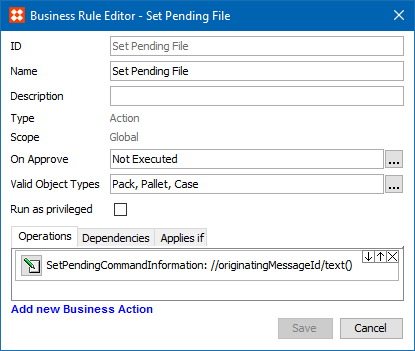
The Business Rule Editor for actions and conditions allows you to modify most parameters on a business rule. However, the ID, Type, and Scope, which are all shown with read-only text below, cannot be edited.
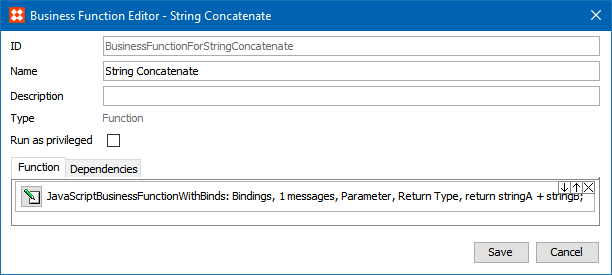
The business function editor has few options to specify since all of the work is done via the included JavaScript editor. For more information on setting up business functions, see Calling a Business Function from a JavaScript Business Rule topic in the Business Function documentation here.
Note: Global business rules can also be edited via workflows where the same global Business Rule Editor is used. For more information, see the Business Rules and Workflows topic in the Workflows documentation
The Business Rule Editor parameters are defined below and can be set on a condition, an action, or a function business rule:
ID Parameter
Read-only display to indicate the business rule ID assigned while creating the business rule.
Name Parameter
Displays the business rule name assigned while creating the business rule and can be modified.
Description Parameter
Displays the business rule description assigned while creating the business rule and can be modified.
Type Parameter
Read-only display to indicate the type of business rule being edited. This can be action, condition, a function, or a library.
Scope Parameter
Read-only display to indicate if the business rule is global or local.
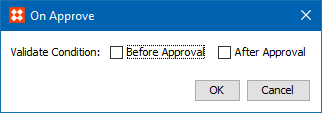
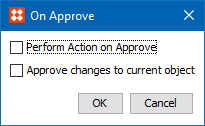
On Approve Parameter
In the On Approve field, specify if the business rules should be run during an approval process. This only applies to global business rules. For local business rules, the setting of the workflow determine this parameter.
For details on these options, see Business Rules on Approval here.
Click the ellipsis button ( ) to display the On Approve dialog. The 'Valid Object Types' and 'Applies if' settings determine if the condition will be tested when attempting to approve a revisable object.
Valid Object Types Parameter
Specify the object type or types for which the business action or condition is valid. This only applies to global business rules. For local business rules, the setting of the workflow determine this parameter.
Note: Business functions do not require a Valid Object Type.
Click the ellipsis button () to display the Select Valid Object Types dialog. Select one of the following options:
Use the Browse or Search tab to identify and select the desired object type, Click the move right button ( ) until all object types are displayed in the panel on the right. Use the move left button (
 ) to remove an object type from the list.

Run as Privileged Parameter
Check the Run as privileged checkbox to allow the business rule to execute functions that the user is not authorized to execute.
Operations Tab
The Operations tab allows you to add or modify the actions or conditions that apply to a business rule.
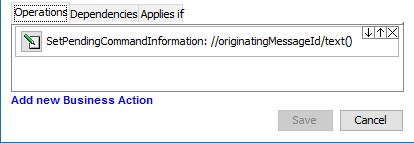
 ) button.
For more information about actions, conditions, and functions, see the Business Actions topic (here), the Business Conditions topic (here), and the Business Functions topic (here).
Dependencies Tab
The Dependencies tab allows you to reference business rules to business libraries.
) and select a business library that contains JavaScript, and click OK.
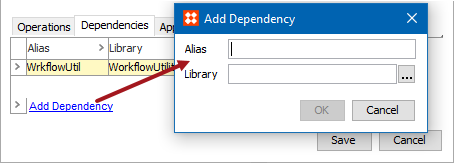
For more information, see Business Libraries here.
Applies If Tab
The Applies if tab allows you to specify a precondition (a condition) to be evaluated before the business rule is applied.
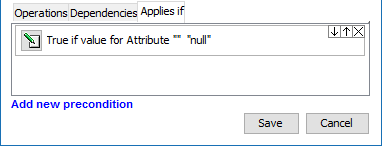
) button.For more information about conditions, see the Business Conditions topic here.
2020, Stibo Systems – Confidential