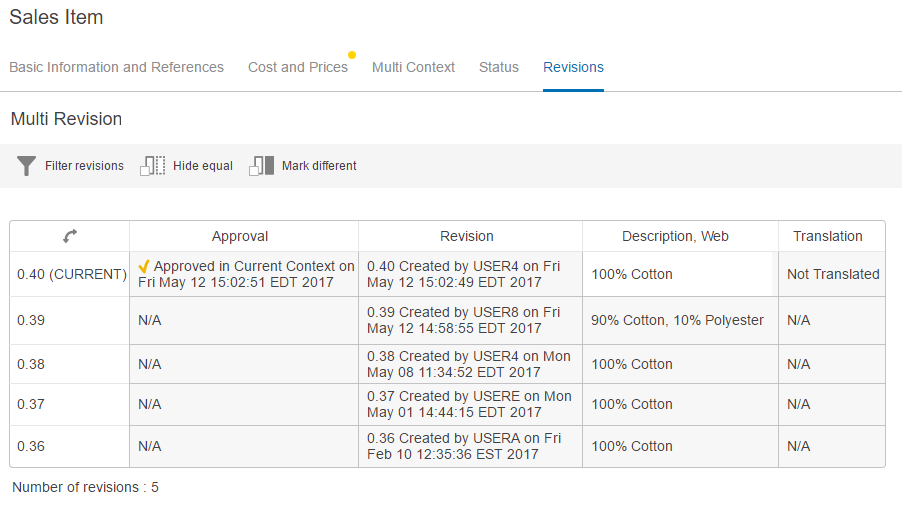
The Multi Revision Screen is a screen designed to show revision information on the attribute values and outbound references of an object. This screen and its child component, the Multi Revision Editor table, need to be configured to display the desired attributes and references to compare.
By default, a Multi Revision screen displays the last five (5) object revisions, including the current revision. If less than five revisions exist, fewer revisions will display.
Users can filter all revisions that exist for an object, not just those shown, using various options.
If an admin user has configured the Multi Revision Screen Properties, then the user may also see the hide equal and/or the mark different action icons, which can be especially useful to quickly evaluate an object for approval. Additionally, if enabled, the user will also have the option to filter all revisions based on the user group (of the user) that made a change and created a revision and use the hide equal and/or the mark different actions. Examples of the different filtering options appear at the end of this topic.
Careful consideration should be taken when using the Multi Revision Screen. If objects contain a large number of attributes or filtering revisions returns numerous revisions, users may experience system slowness as they work in Web UI.
It is expected that anyone configuring the Multi Revision Screen component is familiar with the Web UI Designer as basic concepts for working with the designer are not covered in this section. In addition, the user must have appropriate privileges to access the designer. Additional information can be found in the Designer Access section of the Web User Interfaces / Web UI Getting Started documentation here.
It is also advisable to review the Revisions topic in the System Setup / Super User Guide documentation here.
Steps for creating a new screen are outlined in the Creating a New Screen section
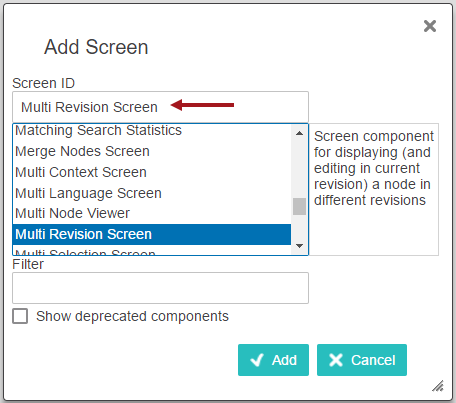
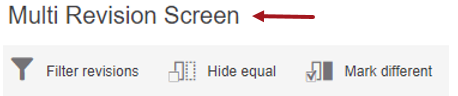
Steps for configuring the Multi Revision Screen Properties are below.
Details regarding what these parameters do can be found in the Comparing Data Using Hide Equal and Mark Different section here.
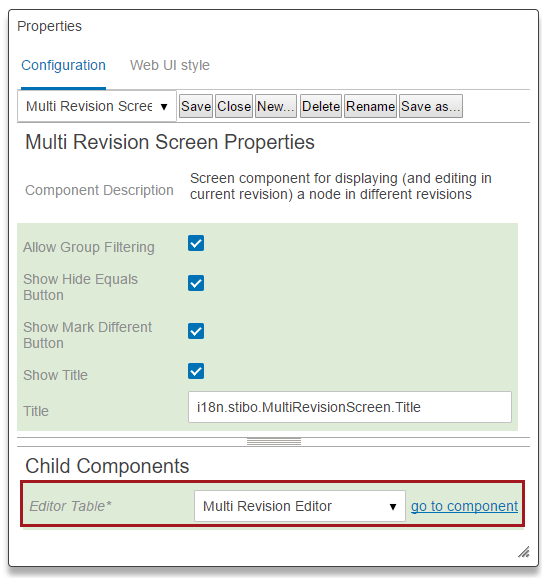
The Multi Revision Editor Properties now need to be configured.
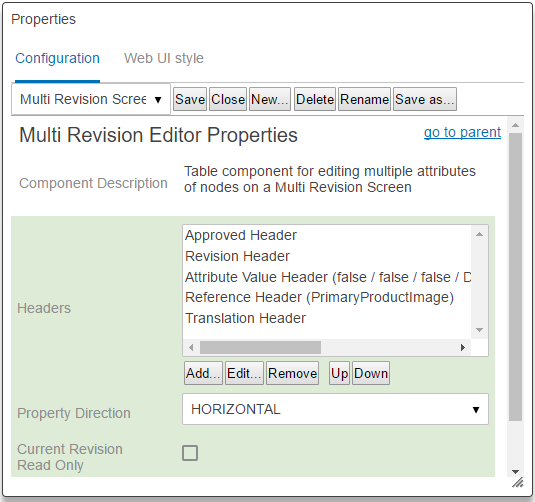
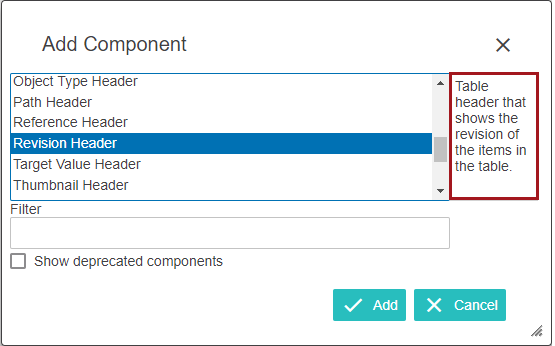
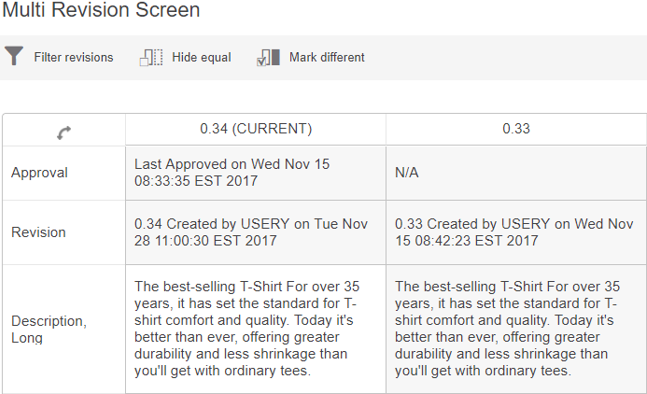
VERTICAL means that the data (determined by the headers selected) will appear in rows and the column headers will be the revision numbers.
HORIZONTAL means that data will appear in columns, while the revision numbers are listed as the row headers. If no direction is selected, HORIZONTAL will populate the field once the screen is saved.
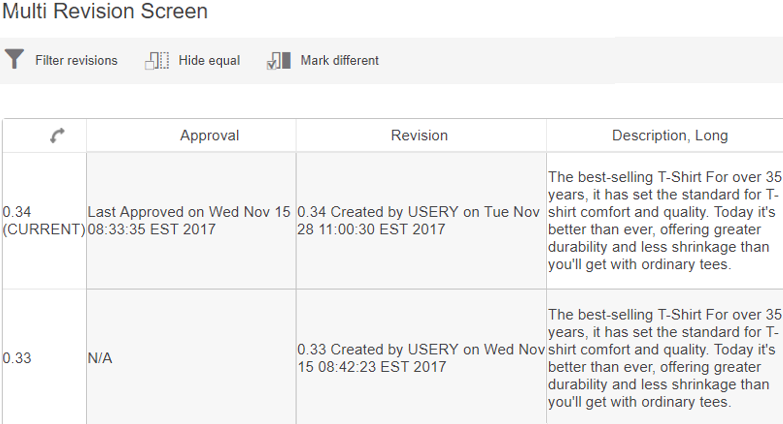
To interchange the Data and Revision numbers on the Multi revision screen as rows to column or vice versa, select the flip table, , icon.
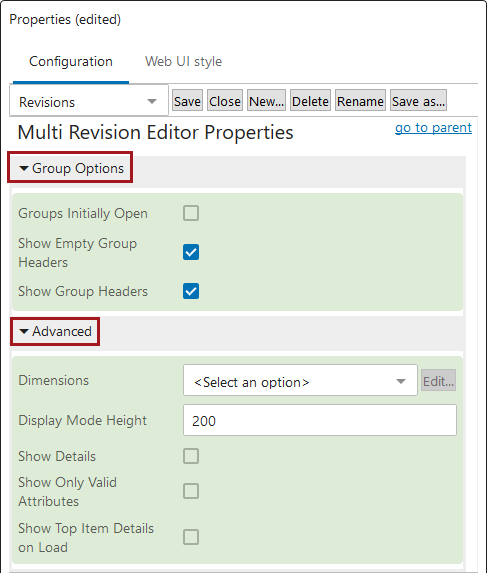
For more information on the options available under Group Options heading and/or the Advanced heading, refer to the Configuring a Multi Language Screen in the Web User Interfaces / Web UI Setup and User Guide documentation here.
Note: The Advanced 'Show Details' parameter is not applicable to the Multi Revision Screen and enabling / disabling has no impact.
For more information about mapping, see Configuring the Parameters in the Main Properties topic here, and for more information about sub screen tab pages, see the Tab Pages topic in the Node Details Component section of the Web User Interface / Web UI Setup and User Guide documentation here.
This is an example of a Multi Revision Screen configured to display as a Sub Screen Tab Page on a Node Details screen.
Note: Enabling 'Allow Group Filtering' will not change the look of the screen. The setting impacts the Filter Revisions dialog. When enabled, the Group selection is available. If disabled, 'By Date' and 'By Revision' filtering are the available selections. Examples of the filtering feature appear in the next section.
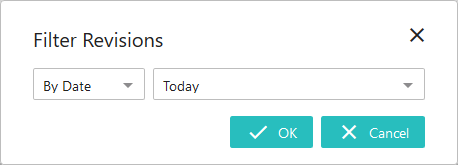
When a user is on the Multi Revision screen and clicks the 'Filter revisions' action icon, the Filter Revisions dialog displays. If 'Allow Group Filtering' is enabled, then the user will have three filtering options: By Date, By Groups, and By Revision (as shown in the examples that follow).
Filtering By Date
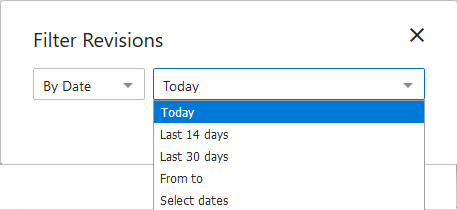
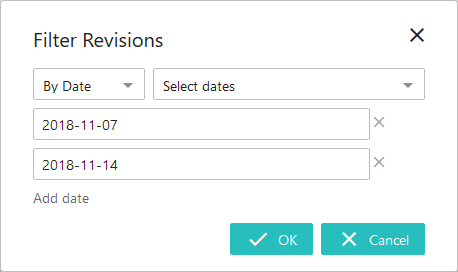
With By Date selected (default option), revisions can be filtered based on date ranges, a single date, or multiple (single) dates can be selected for comparison searches (using the 'Select multiple dates' option and adding additional dates by 'Add date' and deleting dates by using the X button).
Using the filtering options shown below, any revisions created 2018-11-07 and any revisions created on 2018-11-14 will be displayed to the user after they click OK. The user can compare data using the hide equal / mark different selections to compare the data.
Filtering by Groups
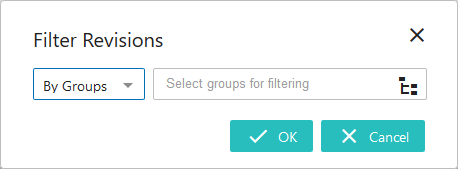
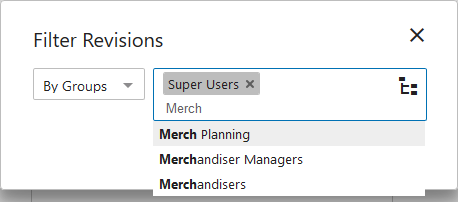
Alternatively, if the Allow Group Filtering parameter is enabled in the Multi Revision Screen Properties, users can filter revisions by user group or user groups. Revision results are returned if a revision was created by a user within one of these groups.
User groups can be selected by putting the cursor in the 'Select groups for filtering' value field and choosing from the list that displays. Users can also start typing and allow typeahead functionality to suggest applicable groups, or the user can also click the Node Picker icon and make a selection from the 'Select User Groups' dialog that displays. Upon clicking OK, the revision screen will display revisions based on the group or groups entered.
Filtering By Revision
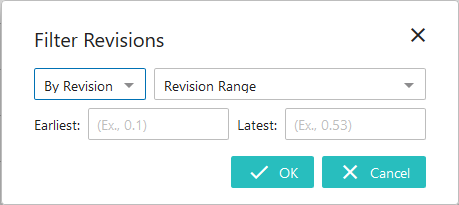
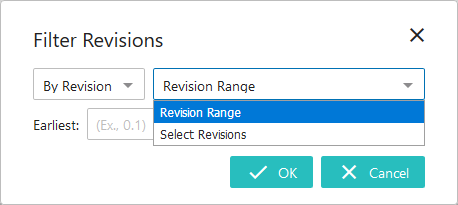
When the By Revision filtering option is selected, users can filter revisions by either defining a range of revisions, or by selecting individual revisions.
The Revision Range filtering option allows users to set a range of revisions that will display in the Multi Revision screen.
In the 'Earliest' field, enter the number of the earliest revision that should display in the list. This establishes the beginning of the range. In the 'Latest' field, enter the most current revision that should display. This establishes the end of the range. As soon as valid numbers are entered into either the 'Earliest' or 'Latest' fields, a dropdown of viable revision numbers displays beneath the field from which the user can select. When the filter is approved by clicking 'OK', all revisions between the entered revision numbers, including the entered revisions, will display in the Multi Revision screen.
Select Revision enables users to select only those revisions that should be listed in the Multi Revision screen.
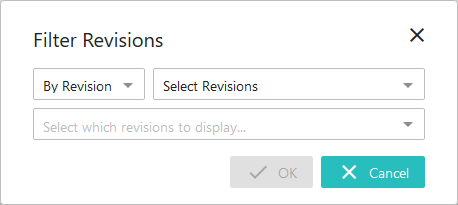
Users can either enter revision numbers, at which point a dropdown of viable revision numbers will display beneath the field from which the user can select, or they can click the arrow at the far right of the field which prompts display of a scrollable dropdown listing all revisions for the object (as shown in the screenshot below). As revision numbers are selected from this dropdown or entered manually, they disappear from the dropdown.
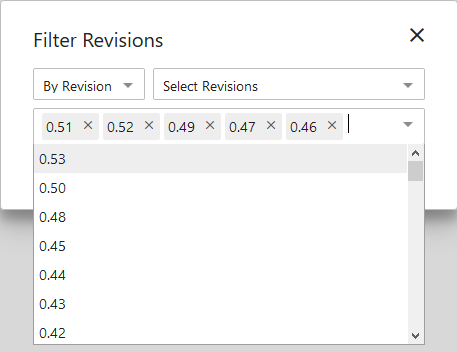
If, for instance, a user selected all revisions from the dropdown, the dropdown would display with no revision options. When the filter is approved by clicking 'OK', only the revisions selected will display in the Multi Revision screen.
2019, Stibo Systems – Confidential