The Merge Equal Cells transformation merges adjacent cells that contain identical / equal values. It can be applied to merge equal cells in the entire table or in specific rows or columns. Both horizontally and vertically adjacent cells can be merged. The transformation also merges adjacent spanned cells that contain identical values.
If two equal cells appear from merging other cells, they are also merged. The transformation repeats the merging process until there are no more cells to merge.
Note: The cells must be adjacent to one another in the table before they can be merged. This means that additional transformations, such as Standard Sorting, may need to be applied to position the cells next to each other so they can be merged.
The instructions in this topic assume that you have already added the Merge Equal Cells transformation to your table by following the instructions in the Add a Transformation to a Table or Table Type subsection of the Table Transformations topic here.
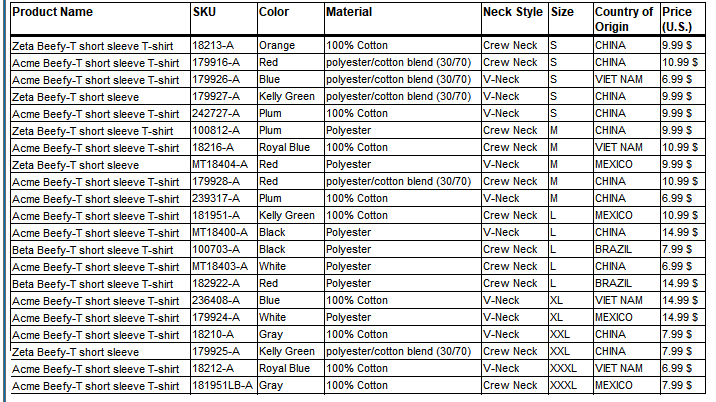
Before
This is how the table appears before applying the Merge Equal Cells transformation:
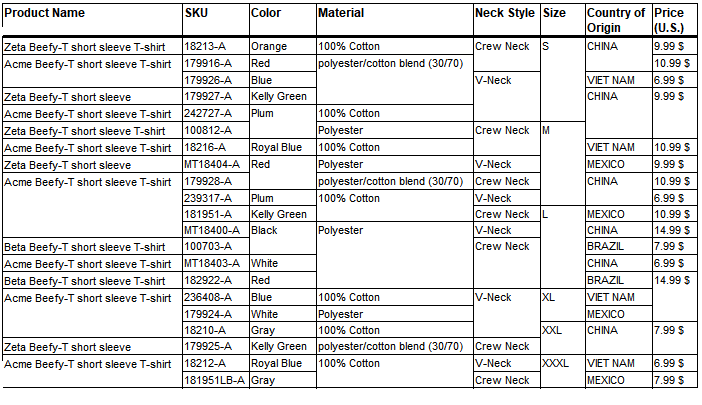
After
This is how the table looks after.
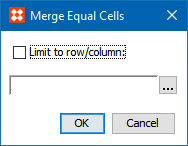
 ) under Parameters to launch the Merge Equal Cells dialog.
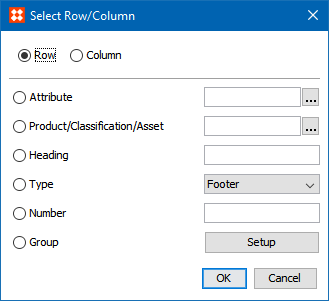
) to launch the Select Row/Column dialog. The options available in this dialog have already been explained in the Row/Column Text Formatting section of the Formatting Transformations topic (here); refer to that topic for more information.
2019, Stibo Systems – Confidential