This topic serves as a 'how-to' primer for working with a sample Flatplanner workflow and illustrates some common tasks that are performed as a Planned Page moves through the various workflow states. The example is simple but is examined on a state-by-state basis to provide you with a working knowledge of how a Flatplanner workflow actually functions, not just how to configure one.
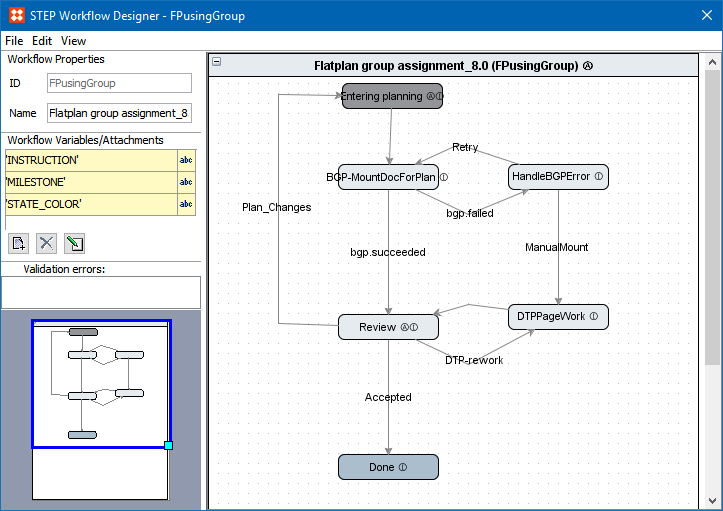
The following screenshot shows a very simple Flatplanner workflow configuration in the STEP Workflow Designer. This is the example used in this tutorial.
This topic does not explain how to create or configure a Flatplanner workflow and assumes the following:
Note: As with any STEP Workflow, individual user requirements will determine the exact configurations. This sample merely illustrates some standard uses of Flatplanner workflows in general.
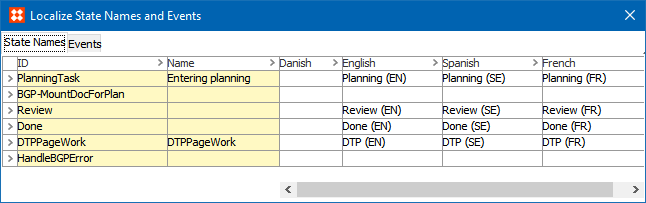
The first state of the example workflow is named Entering Planning. The name that displays on the STEP Workflow tab under Tasks is determined by locale. In this instance, the Entering Planning state is named Planning (EN) since this example uses an English version of STEP.
The typical task performed during this state is for a workbench user—for example, a merchandiser who determines product placement in catalogs—to plan the Flatplan pages. The central task of planning a page involves linking products into frames on a Flatplanner page spread (Planned Page). Page planning can be done without using a Flatplanner workflow, but the workflow enables you to receive your page planning assignments as tasks.
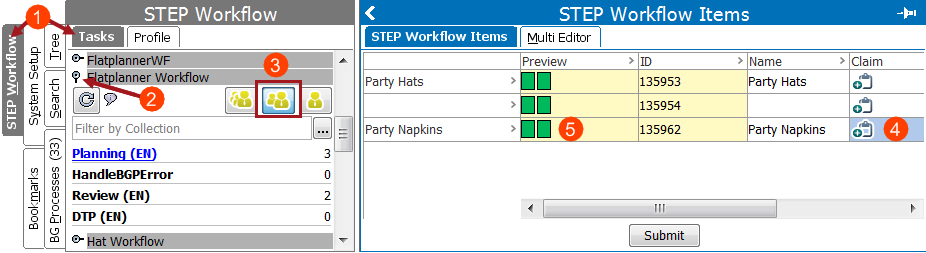
If you are a page planning user, follow these steps to plan a page in conjunction with this sample Flatplanner workflow.
 to view the tasks for the workflow.
 ) or 'Show all items assigned to me or any group I am a member of' icon (
 , outlined below in red frame) to view all available tasks to your User Group.
 in the toolbar to save the changes.
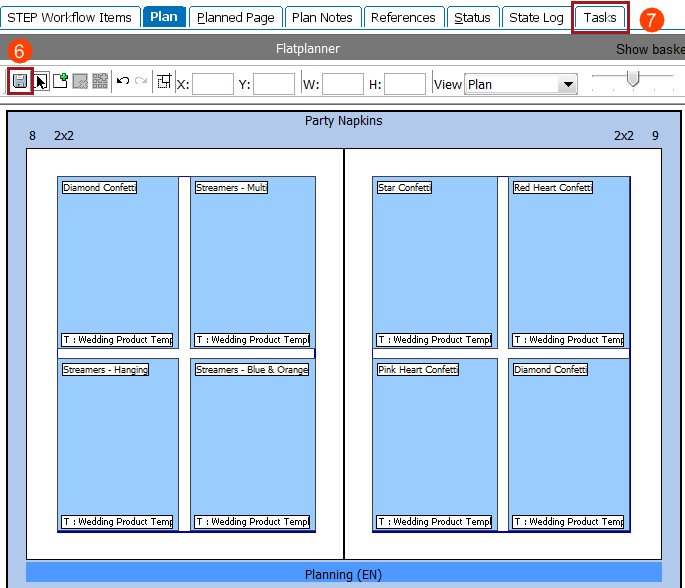
When viewing multiple planned pages from the publication, section, or subsection level on the Plan tab, the same workflow assignment icons that display in the Tasks tab display in the upper right corner of the Flatplanner pane, as shown in the below screenshot.
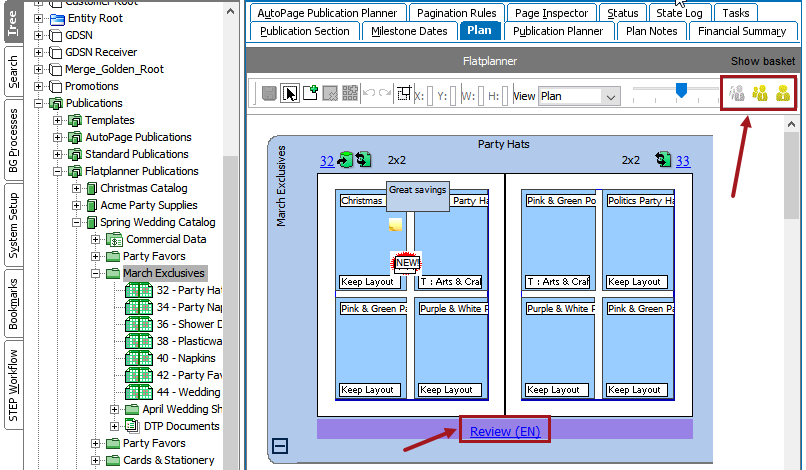
Click on the Show All Plans icon ( ) to view all plans. Click on Show Group Assigned Plans (
 ) to only view plans that are assigned to a user group. Click the Show Assigned Plans icon (
 ) to only view plans that are assigned to you.
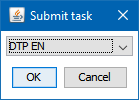
When a plan is assigned to you, the name of the state will be hyperlinked, as shown in the above screenshot, e.g., Review (EN). This hyperlink enables you to submit the page to another workflow state.
In the BGP-MountDocForPlan state, a background process calls the InDesign server. The InDesign server then generates (mounts) the actual pages based on the information linked to the Flatplanner page spread. When completed, the InDesign server saves these actual pages into STEP.
Note: An InDesign server (sidecar) must be connected to your STEP system in order for this background process to run. For more information on the deployment of an InDesign server, contact Stibo Systems.
Once the InDesign server saves the actual pages to STEP, the actual pages are routed to the Review state.
If the background process fails (for reasons that could include the InDesign server being offline), and the actual pages are not generated by the InDesign server, then business rules may be put in place that will route the planned pages into the DTPPageWork state in order for a DTP (Desktop Publishing) operator to manually mount the Flatplan onto actual pages in InDesign.
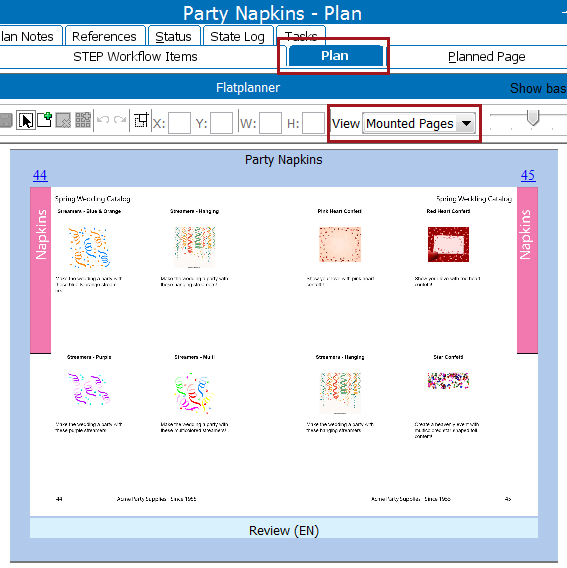
In a typical page reviewing state, you will look at the mounted actual pages to determine if the pages are OK as-is or if they need additional layout work performed in InDesign.
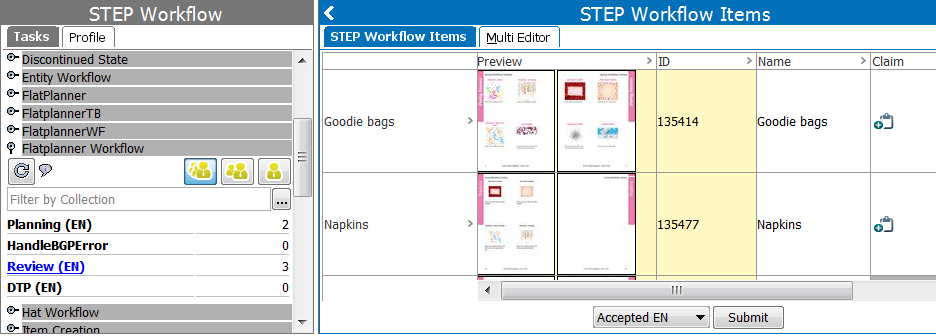
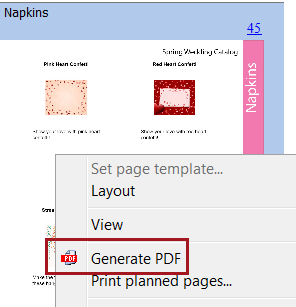
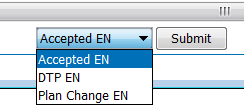
If the page reviewer chose the DTP EN transition from the Review state in the workbench, the page is routed to the DTPPageWork state [DTP (EN)] in this sample Flatplanner workflow. Tasks in the DTPPageWork state must be accepted from within InDesign.
To accept a Flatplanner workflow task from within InDesign:
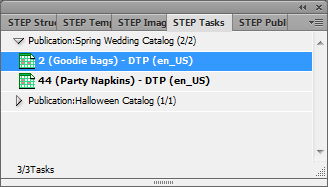
 next to the relevant publication to expand all tasks that are available for that publication.
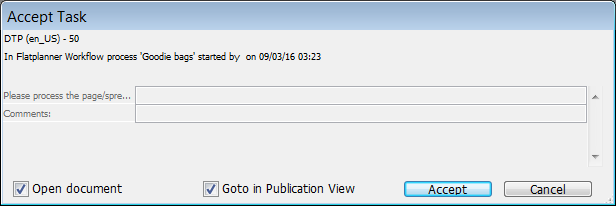
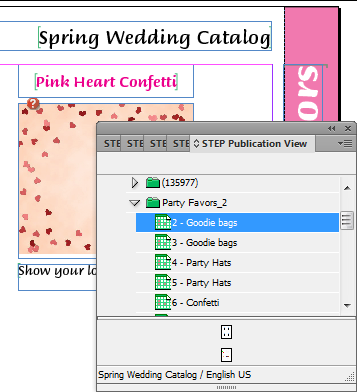
Note: Open document and Goto in Publication view are checked by default in the Accept Task dialog. Uncheck Open document if you would like to finish claiming the task but open the document later. Uncheck Goto in Publication View if you do not want the STEP Publication View panel to automatically display when the page is opened.
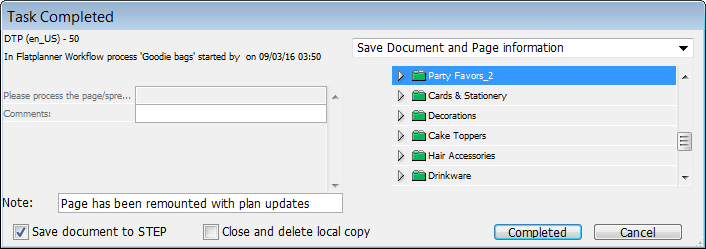
If you prefer to not save your documents locally and only save them in STEP, then check Close and delete local copy before clicking Completed.
Note: The page must first be saved locally, regardless, before it can be saved back to STEP.
If, after you claim the task in InDesign, you determine that you need to release it back to your user group so another user can claim it, you may cancel the task. To cancel the task, follow these steps:
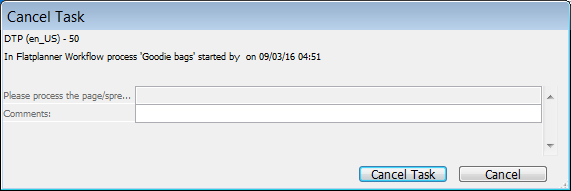
If your workflow has been configured with a Comments variable, you may optionally leave a comment in this field. For more instruction on how to configure the Tasks view in InDesign, see the Configuring Flatplanner Workflows section of the Flatplanner documentation
When the InDesign page has been completed, or if it never needed to be updated in the first place, the page will be in the Review state of this sample Flatplanner workflow. To complete the journey of the page, follow these steps:
2019, Stibo Systems – Confidential