A Flatplanner workflow is built and configured like any other workflow in STEP, though it has a few features that are unique to it, such as:
The available options for a Flatplanner workflow will vary depending on how the workflow has been configured and will vary from user to user.
General workflow topics such as configuring workflow states, transitions, views, etc., are not covered in this topic, as they are not unique to the Flatplanner workflow.
Note: If you are using a Flatplanner workflow for the first time on a STEP system that is version 8.0 or higher, the following property must be added to the sharedconfig.properties file on your application server: Workflow.FlatPlanner.SelfContained=true. For users who have upgraded to STEP 8.0 but need to continue using an existing (pre-STEP 8.0) Flatplanner workflow, this property should either be omitted from the sharedconfig.properties file altogether or set to false. Contact Stibo Systems if you need assistance with this configuration.
A Flatplanner workflow is created by the same method as any other workflow in STEP. For instructions, see the Getting Started with STEP Workflows section of the STEP Workflows documentation
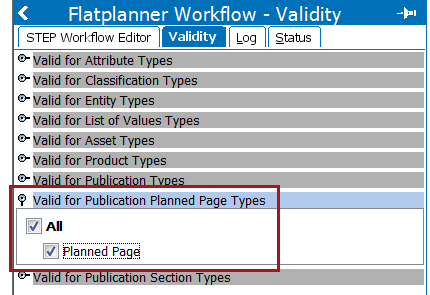
Flatplanner workflows must be made valid for the Planned Page object type.
Note: Only one object type is available in STEP for Planned Pages. Additional Planned Page object types cannot be created.
In addition, at least one state must be configured for use by DTP users in InDesign. See the Configuring DTP Task Views for InDesign topic
In Flatplanner workflows, workflow states can be configured with color coding that displays in the Publication Planner, on planned pages, and on actual pages. This color coding gives workbench users a quick way to obtain an overview of which states each planned page is currently in.
The following screenshot shows how these state colors display in the Publication Planner.
Note: If the Status column is not visible in your Publication Planner view, it must be added. See the Configuring the Publication Planner Column View topic
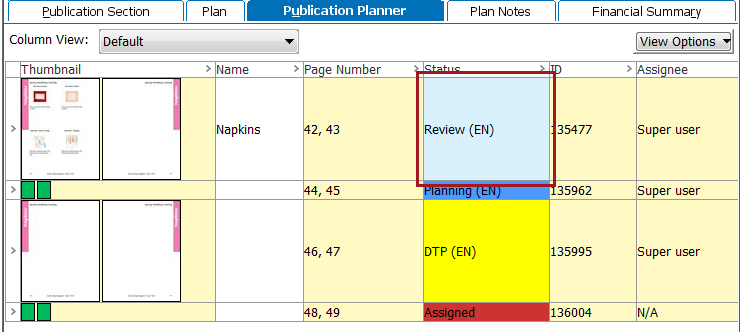
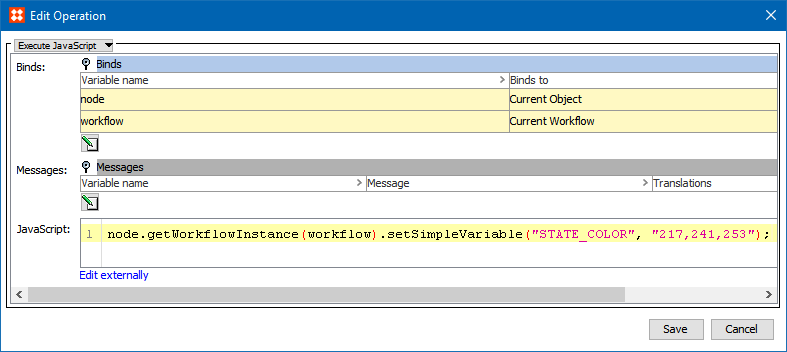
Each status may be assigned a custom color. These status colors are configured by adding an RGB value to an On Entry business action for each state that should receive a color code. This is achieved by setting the value of a workflow variable called STATE_COLOR in the following business rule:
node.getWorkflowInstance(workflow).setSimpleVariable("STATE_COLOR", "217,241,253");
In this example, 217,241,253 is the RGB value of the light blue Review state shown in the previous screenshot.
Note: The Assigned status cannot be assigned a color by this method, since it is not a workflow state. If you require a different color for the Assigned status, contact Stibo Systems.
To configure the business rules that set status colors, follow these steps:
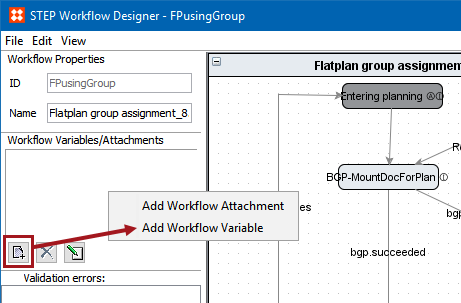
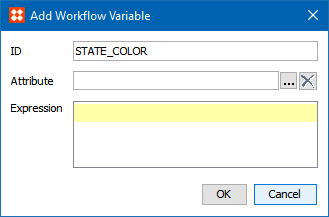
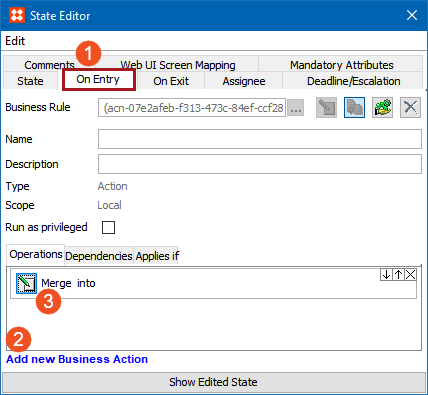
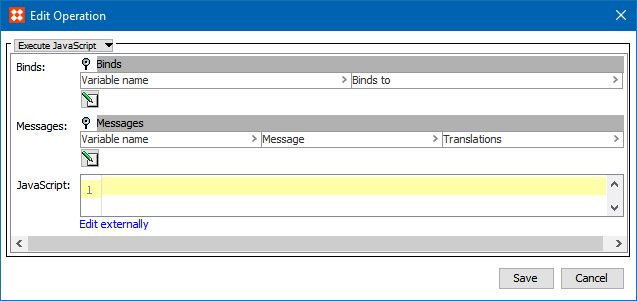
 ) under the Binds flipper. The Edit Binds dialog displays.
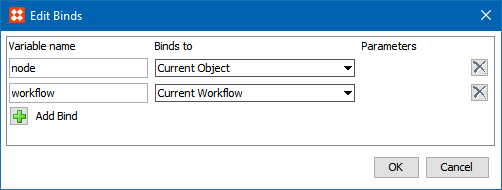
  ). Type node in the Variable name field, then select Current Object from the Binds to dropdown list. ) again. Type workflow in the Variable name field, then select Workflow > Current Workflow from the Binds to dropdown list.
node.getWorkflowInstance(workflow).setSimpleVariable("STATE_COLOR", "217,241,253");
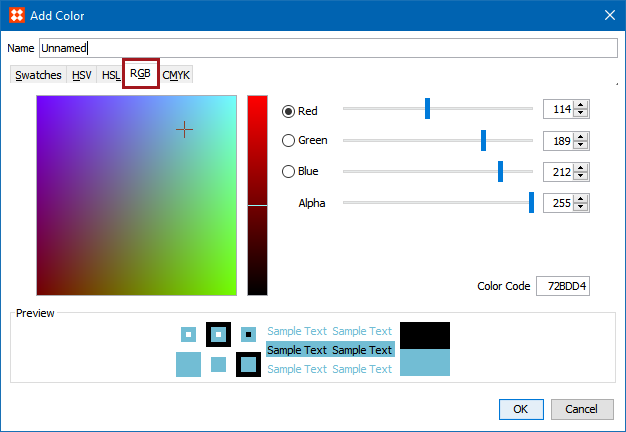
Note: Though RGB values must be entered manually in the JavaScript string to configure state / status colors, an AddColor dialog exists in STEP that can be used as a guide when deciding on a color. This guide displays the numeric values for RGB colors, which can be copied and pasted into the relevant area of the JavaScript string. For information on how to access the Add Color dialog, see the Defining Table Colors in STEP section of the Tables documentation
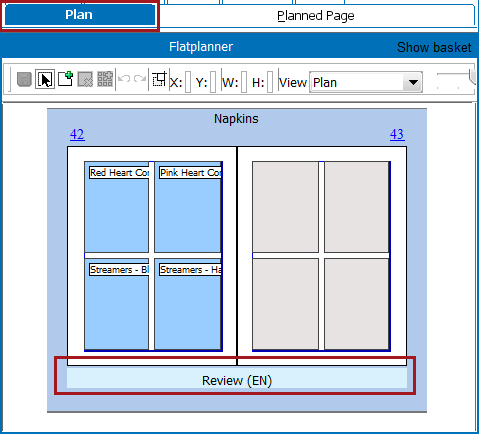
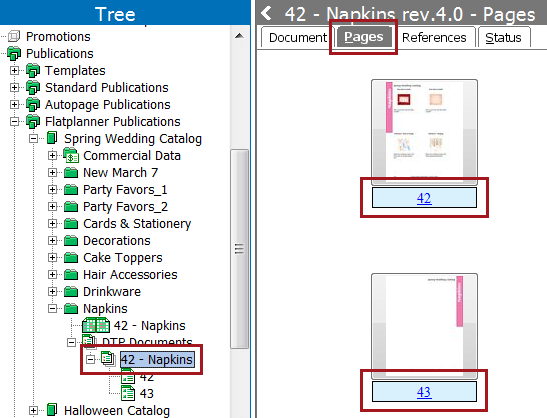
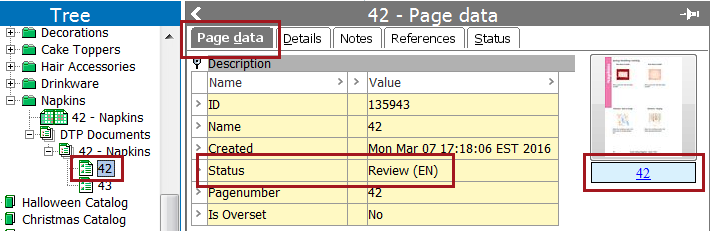
State colors for Flatplanner workflows also appear in the workbench in the following locations:
2019, Stibo Systems – Confidential