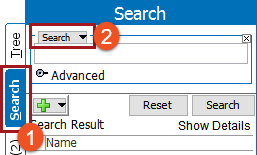
The Data Containers search criterion allows users to limit search results to only objects for which data containers exist for the specific data container types, or those objects for which specific attributes are linked via data containers.
Searching for objects with information in data containers is available using the standard search criterion and also using the specific Data Containers criterion. Each method is defined below.
For more information on data containers and the terminology used in this topic, see the Data Containers topic of the System Setup / Super User Guide documentation here.
Standard Search Including Data Containers
This option searches data containers and other identified objects for the defined values. For more information, see the Examples section below.
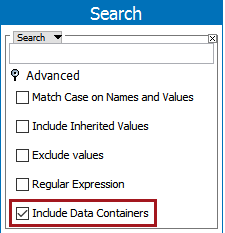
 ) to add additional search criteria.
Data Containers Only Search
This method requires that the searched data exist in a data container. Matching data outside of data containers is not displayed. For more information, see the Examples section below.
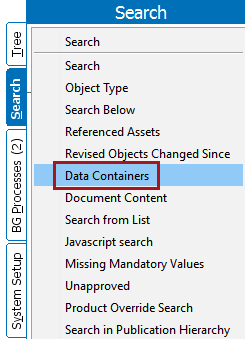
 ) for the Data Container Type parameter to limit the search results to only those objects for the selected data container type. Click Select and then click Search. The search returns a list of objects for which the data container type has been added, even when no attribute values exist in the data container. For more information, see the Examples section below.
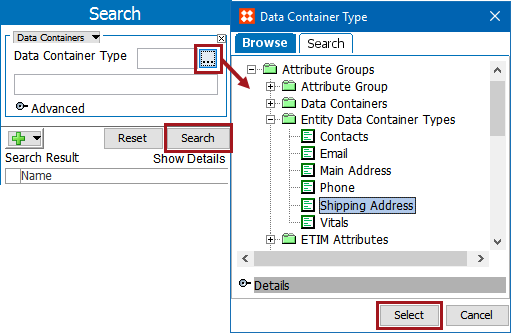
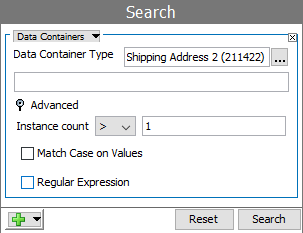
) to add additional search criteria.Examples
The following examples show a variety of searches for values in data containers.
Standard Search for Product Data Container Value
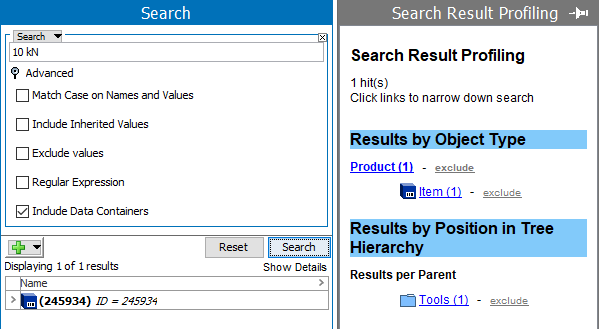
The dataset includes an object with a Flat Crush Test value of '10 kN'. This value is in a product data container.
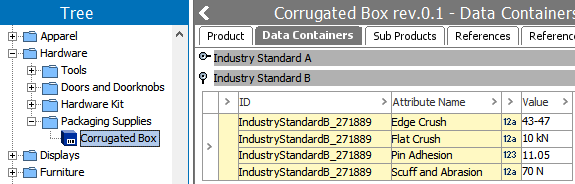
Searching for the value '10 kN' with the standard Search criterion returns 0 results.
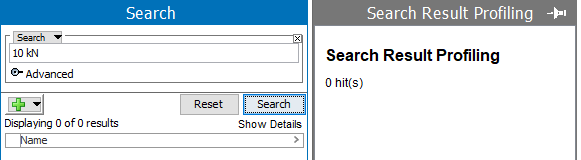
Checking the Advanced option to 'Include Data Containers', and searching again, displays the object as a result.
Standard Search for Entity Data Container Value
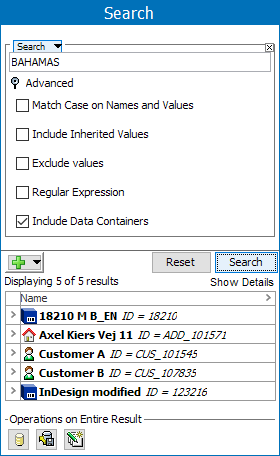
In this example, a user searches for all instances of the value 'BAHAMAS' in STEP. Select the standard 'Search' from the dropdown, add 'BAHAMAS' into the text input parameter, open the advanced flipper and check the 'Include Data Containers' option, and click Search. The results includes Customer A and Customer B entity objects where 'BAHAMAS' occurs inside a data container, and also includes the 'BAHAMAS' values that appear outside of data containers.
Data Container search for Entity Data Container Type
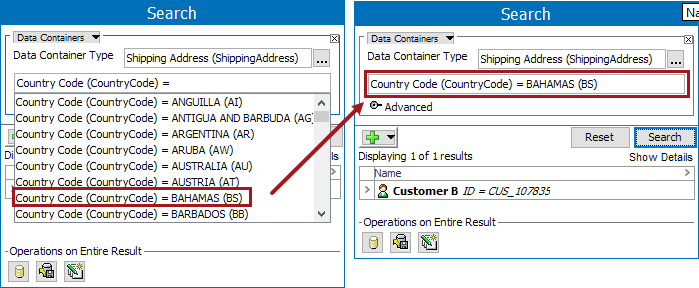
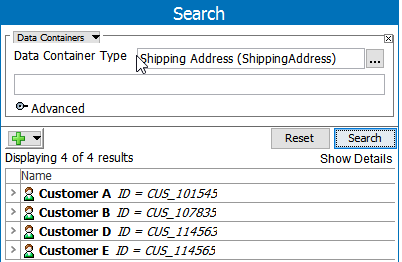
In the example below, a user searches for a data container type called 'Shipping Address' without refining the search any further. If the user selects 'Shipping Address' as the Data Container Type and clicks Search, a list of entities for which a data container has been added to an entity under the data container type 'Shipping Address' will display. In this instance, four entities are listed.
The entity with the ID 'CUS_107835' has an attribute 'Country Code' with the value of 'ARGENTIAN' in the Contact tab, but with the value of 'BAHAMAS' on the Data Containers tab.
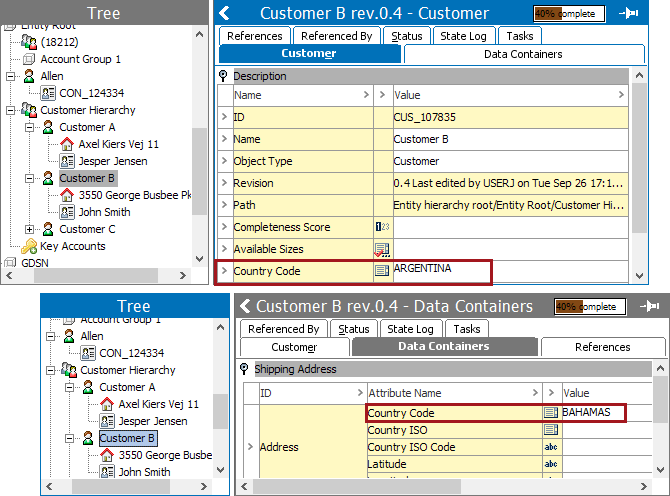
When a search is performed on the ‘Shipping Address' data container and the attribute 'Country Code' is selected, all of the values are displayed. The search result will display the entity ‘Customer B’ only if the value is ‘BAHAMAS.’ The search result will return ‘0’ if the value selected is ‘ARGENTINA’
Data Container search for Entity Data Container Type and Value
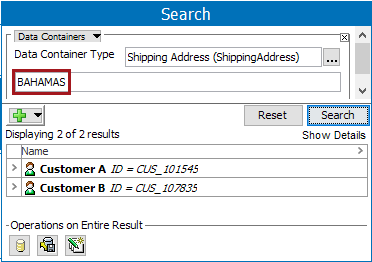
To continue the previous example, if the user refines the search for entities with a 'Country Code' data container type to only include those data containers containing the value 'BAHAMAS', the user would enter 'BAHAMAS' in the input field. In this example, results returned from the search show two of the original four entities. This means that a 'Shipping Address' data container has been added to these two entities, and an attribute within those data containers also contains the value 'BAHAMAS'.
2019, Stibo Systems – Confidential