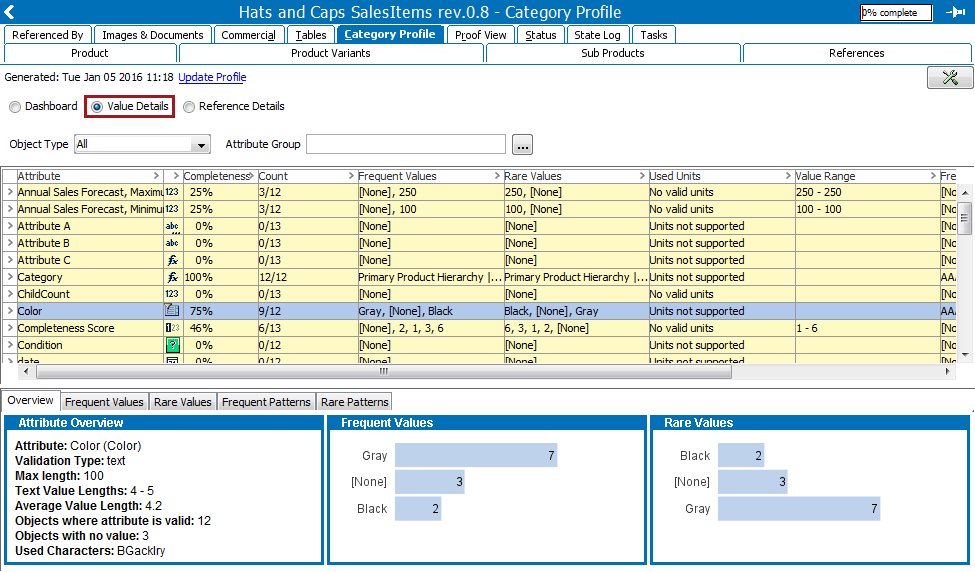
The Value Details view provides information about all attributes found within a category / data profile. As described below, this view provides users with multiple ways to display attribute data, including tables, bar graphs, and lists.
The Value Details page is divided into two areas, though at first only the upper area displays. The upper area lists all the attributes that are valid for the objects in the data profile. When selecting a row, detailed information about the selected attribute appears in the lower area.
 ) and select the attribute group from the list that appears.
 Note: Valid attributes are attributes that are valid on the object types used in the data profile. This includes specification attributes that are linked into the hierarchy in or above the profiled nodes. Specification attributes that are only made valid through the classification hierarchy are not profiled. Attributes and values on references and links, as well as orphan attributes and values, are not profiled.
For information on the tabs in the lower area of this view, see the Value Details Tabs section of the Data Profiling documentation here.
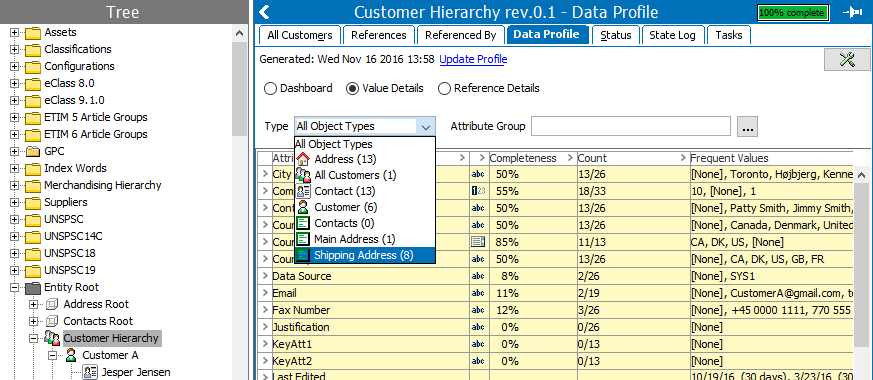
When profiling entities, it is possible to filter the attribute values based on Data Container types.
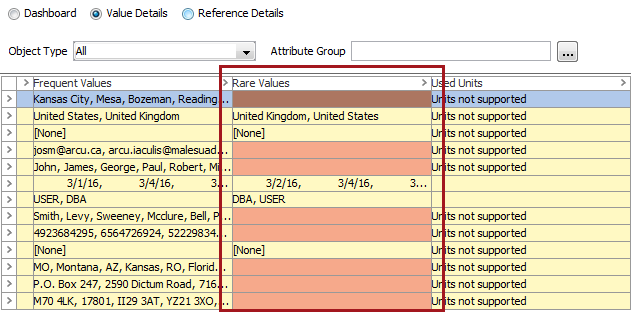
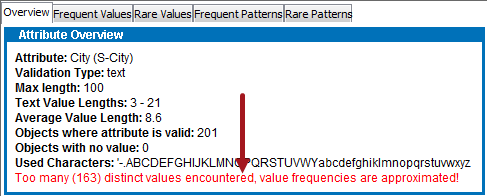
It is possible for an attribute to have too many values to display. In these cases, the applicable rows will turn red and a message will appear in the Attribute Overview section.
By default, the system limits the amount of values the functionality will consider to 100. This limit can be changed by changing these properties via the sharedconfig.properties file:
DataProfile.MaxDistinctAttributeValuesConsideredDuringProfileGeneration
Additionally, altering this property changes the maximum number of different reference targets that will be considered:
DataProfile.MaxDistinctTargetsConsideredDuringProfileGeneration
The following list details the columns found in the attribute list table. All columns can be filtered and sorted.
|
Column |
Description |
|---|---|
|
Attribute |
Displays the name of the attribute. When clicking the name, the attribute definition in System Setup appears. |
|
Column 2 |
Shows the Attribute Validation Base Type icon. |
|
Completeness |
Shows the degree to which the attribute is populated in the profile rounded to the nearest whole percent. Inherited values are included in the calculation. |
|
Count |
Lists the number of objects in the profile where the attribute has a value (including inherited values) and the number of objects where the attribute could possibly have a value. |
|
Frequent Values |
Displays a comma-separated list of the most frequently appearing values for the attribute in the profile. The list is sorted in ascending order based on the frequency of that value's appearance. The list includes inherited values. Tags are stripped. |
|
Rare Values |
Comma-separated list of the least frequently appearing values for the Attribute in the profile. The list is sorted descending on frequency. Includes inherited values. Tags are stripped. |
|
Used Units |
Displays which units are used for the attribute. Contains the following information:
|
|
Value Range |
Shows the value range for attributes with the validation base type "Integer" or "Number." If units that share the same base validation are used, the value ranges are shown with Units. For example: 123 cm - 2 m." |
|
Frequent Patterns |
Displays the most frequent patterns of the values of a given attribute in addition to the number values that match the pattern. More information can be found in the Value Details Tabs section of the Data Profiling documentation |
|
Rare Patterns |
Displays the most uncommon patterns of the values of a given attribute in addition to the number values that match the pattern. More information can be found in the Value Details Tabs section of the Data Profiling documentation |
2019, Stibo Systems – Confidential