 .
.The lower area of Value Details is divided into a number of tabs that contain detailed attribute information.
With the exception of the Overview tab, all tabs contain a table where three different actions are possible. From left to right, the icons represent the following actions: Bulk Update, Search, and Save as Collection .
The Bulk Update wizard opens on the Operations step with the attribute selected in the Set Value operation.
This functionality can be used to fix data errors. Since the input data set is the result of a search, you will not accidentally update the wrong data due to running the operation from an outdated profile.
If viewing value details for a specific object type, the search is filtered so that only objects of the selected type are used as input data set for the Bulk Update operation. Likewise, if you have selected "Only show values entered as local values", the search only includes local values.
For more information about the Bulk Update wizard, see the Creating a Bulk Update section of the Bulk Updates documentation here.
Important: If "Only show values entered as local values" is not checked before you run the bulk update, you run the risk of creating local instances of data from before the operation was inherited through the hierarchy.
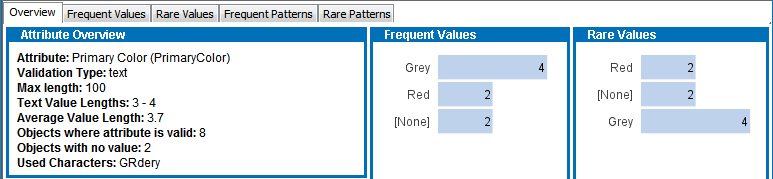
The Overview tab contains a number of widgets that each present different information about the selected attribute. Users cannot customize this view.
|
Widget |
Description |
|---|---|
|
Attribute Overview |
Displays information retrieved from the attribute definition in System Setup and information generated in the profiling. You can, for example, see which characters are used, the value length span, and the numerical value span of number and integer attributes. |
|
Frequent Values |
Bar chart that displays the ten most frequently appearing values or words. Includes inherited values. Tags are stripped. Values with an equal count are presented in the order they are retrieved from the database. |
|
Rare Values |
Bar chart that displays the ten least frequently appearing values or words. Includes inherited values. Tags are stripped. Values with an equal count are presented in the order they are retrieved from the database. |
|
Used Units |
This widget is only displayed for attributes of validation base types that support units. The widget can contain the following content:
Inherited values are included in the pie chart calculation. |
On this tab, the 100 most common values in the profile of the selected attribute are listed. Tags are resolved.
The default view includes inherited values, however, if you check "Only show values entered as local values", inherited values are excluded. Values inherited from other contexts are still displayed. Values with an equal count are presented in the order they are retrieved from the database.
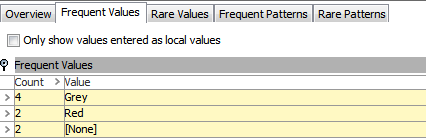
On this tab, the 100 least common values in the profile of the selected attribute are listed. Tags are resolved.
The default view includes inherited values, however, if you check "Only show values entered as local values", inherited values are excluded. Values inherited from other contexts are still displayed. Values with an equal count are presented in the order they are retrieved from the database.
This tab lists all units used in the values of the selected attribute, such as length in centimeters (cm), weight in pounds (lbs), price in dollars ($), etc. This tab only appears for those attributes with values containing units.
This tab lists the most frequent patterns of the values of a given attribute and the number values that match the pattern.
A value pattern is a way of describing the structure of a value in terms of characters, numbers, and symbols. When the patterns of the values in a set are compared, certain types of errors can be detected by finding values whose patterns are different from the rest. For example, phone numbers with missing digits or numbers that are mixed with letters, and so on.
A pattern for a given value is created by replacing any letter with A, any number with 9, and any unrecognized character with X. Other symbols are left as they are.
The following is an example of a value pattern:
| Value | Pattern |
|---|---|
|
123-ABB |
999-AAA |
|
234.23 |
999.99 |
|
mail@mail.com |
AAAA@AAAA.AA |
The pattern [None] represents an empty value.
This tab resembles the Frequent Patterns but lists the least frequently used patterns rather than the most frequent. This information is useful when searching for faulty values.
Full text indexed attributes and multi-valued attributes are handled specially.
For attributes configured as full text indexable, the most frequent or rare words are listed with the exception of words on Oracle's English Default Stoplist. However, if attribute values have units, the attribute is not profiled as full text indexable.
For multivalued attributes, the entries in each value are split out. In the following example, only three products in the profile have a value for the multivalued attribute color:
The order of the frequent values information is:
Red, Blue, Green, Yellow
If a value consists of an inline reference only, and the reference does not resolve to any value, the value appears as an empty string. In overview charts, however, the text "EMPTY" is displayed.
Empty attribute values and empty reference values are handled as ordinary values. Empty values show up in detail views and graphs as [None].
2019, Stibo Systems – Confidential