Category Profiles can be configured with strict profiling parameters via the Profile Configuration screen. From this view, users can select a preexisting (saved) profile configuration to use or create one specifically for the selected object / node. If you choose to create a local configuration for the selected object / node, additional configuration options are made available.
Note: If using a saved profile configuration, all relevant parameters will already be defined.
These configuration options allow users to:
Note: The relevant profile(s) must be updated manually every time changes are made to any of the parameters.
Some setup is required to make profile configurations available for use in multiple objects / nodes.
Note: It is possible to skip this setup if you intend to use a local profile configuration for each individual data profile.
Before you can create and use Profile Configuration setup entities, a setup group must first be created to house the configurations. For more information, see the Creating Setup Groups in System Setup section of the System Setup / Super User Guide documentation here.
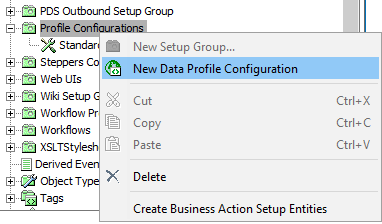
In order to create a new profile configuration for use in multiple different profiles, navigate to System Setup in workbench, right-click the Profile Configurations root node, and select New Data Profile Configuration.
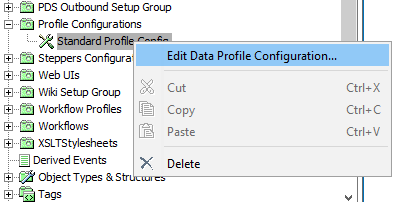
To edit the newly created profile configuration, right-click the node and select Edit Data Profile Configuration....
In the window that appears, make any desired changes to the configuration and then click Save.
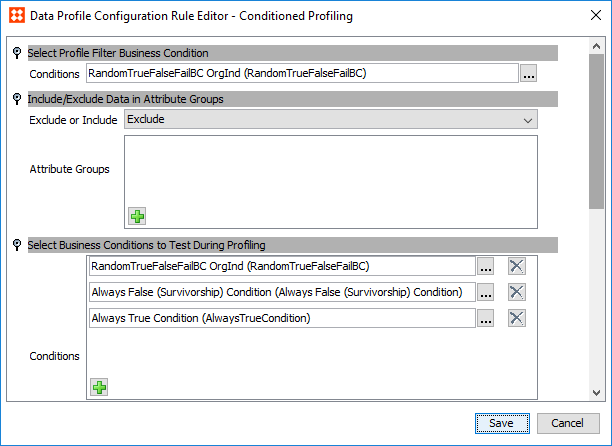
For more information on the available configuration options, see the Editing a Profile Configuration section below.
If you have several different profile configurations in your system it may be necessary to set one as the default. This is useful whenever a configuration is not specified on a node / object, as this default configuration will automatically be chosen when a profile is run.
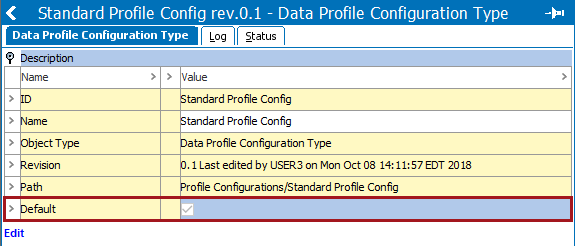
To set a configuration as the default, navigate the configuration node in System Setup, and on the Data Profile Configuration Type tab, check the box labeled Default.
 Tools icon in the upper right corner, and then select Profile Configuration.
 Whether editing a saved profile configuration or editing a local profile configuration on an individual object / node, the configuration options detailed in this section apply to both.
When editing a local configuration on an object / node, however, one additional parameter called Select Configuration is available. This parameter allows you to select between a local configuration and any saved profile configurations from a dropdown menu.
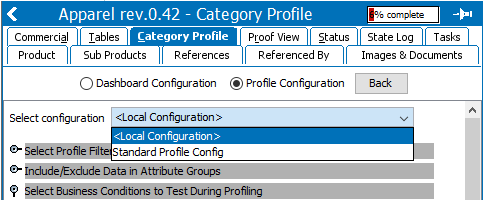
Selecting <Local Configuration> opens the rest of the Profile Configuration parameters for editing, allowing you to create a unique profile configuration for the currently selected object / node.
If you instead wish to apply a saved profile configuration to the selected object / node, select the desired configuration from the dropdown.
Note: Any examples detailed below assume you are editing a local configuration and have relevant dashboard widgets configured. The actual configuration steps of each parameter also apply to editing profile configuration setup entities (saved profile configurations).
The Select Profile Filter Business Condition parameter allows users to filter the data being profiled with the specified business rule. This can be particularly useful if only objects of a specific type should be profiled or objects with specific attribute values should be left out.
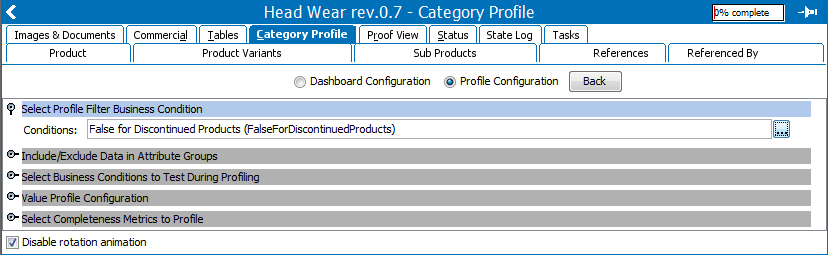
 ), then browse or search for the relevant business condition.
 As an example, in the following screenshot a business condition that excludes discontinued products is selected:
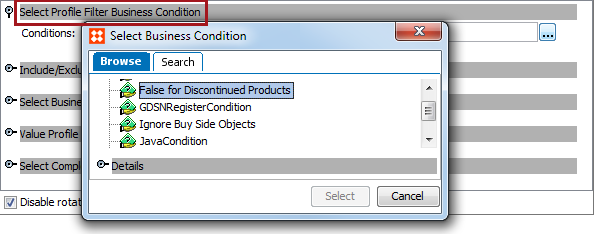
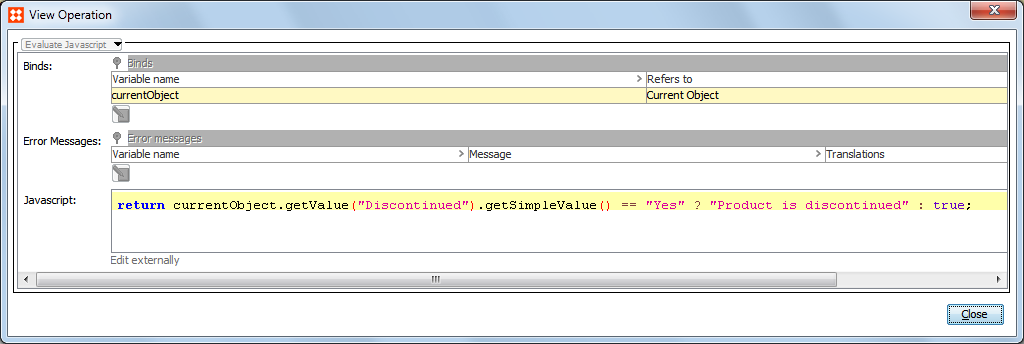
The selected condition specifies that if the attribute Discontinued is set to Yes, the object is excluded from the profiling. The selected business condition is pictured below:
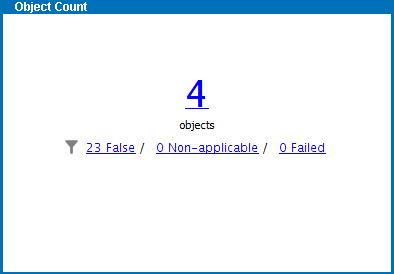
For more information on how to configure the Object Count widget, see the Category Profile Dashboard section of the Data Profiling documentation
The Include / Exclude Data in Attribute Groups parameter allows users to filter the data being profiled via attribute group.
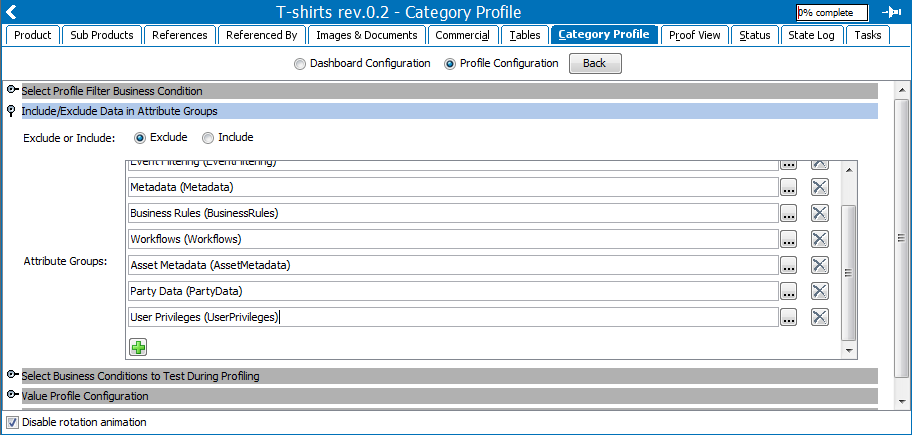
Note: To include all attribute groups in the system, the user can select Exclude and leave the Attribute Groups field blank.
), then browse or search for the relevant attribute group. The Select Business Conditions to Test During Profiling parameter allows users to test business conditions for all products, entities, classifications, and assets when profiling a selected hierarchy. The result of the tests can be displayed in Business Condition Status widgets on the dashboard.
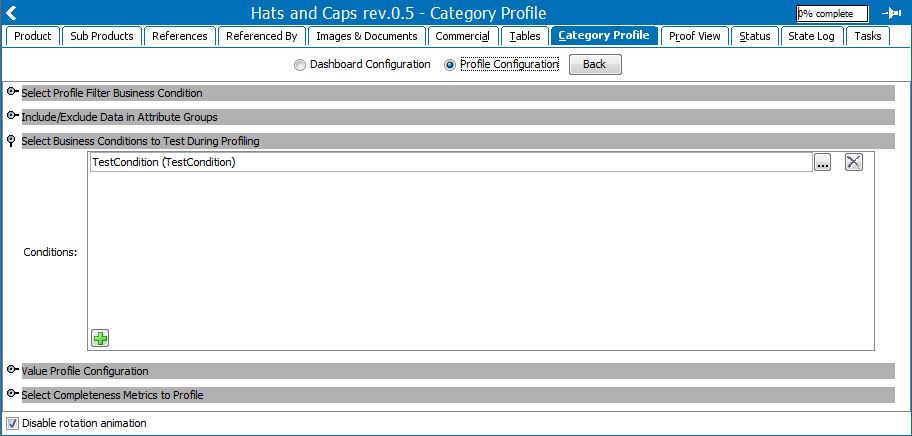
), then browse or search for the relevant business condition.
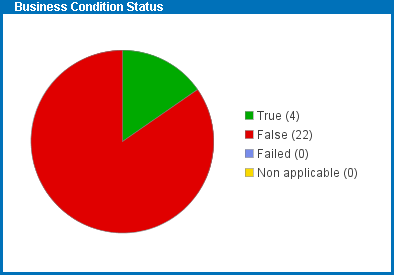
For more information on how to configure the Business Condition Status widget, see the Category Profile Dashboard section of the Data Profiling documentation
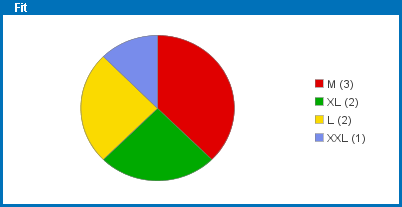
The Value Profile Configuration parameter allows users to profile the individual words of an attribute's value. As an example, an attribute 'Fit' with validation base type 'Text' lists all applicable shirt sizes for a product. These individual sizes can be profiled separately so that the attribute value 'M L XL' is profiled as three different values, 'M', 'L', and 'XL.'
Attribute value as seen on the product node:

Profiled values as seen in the Value Detail view:
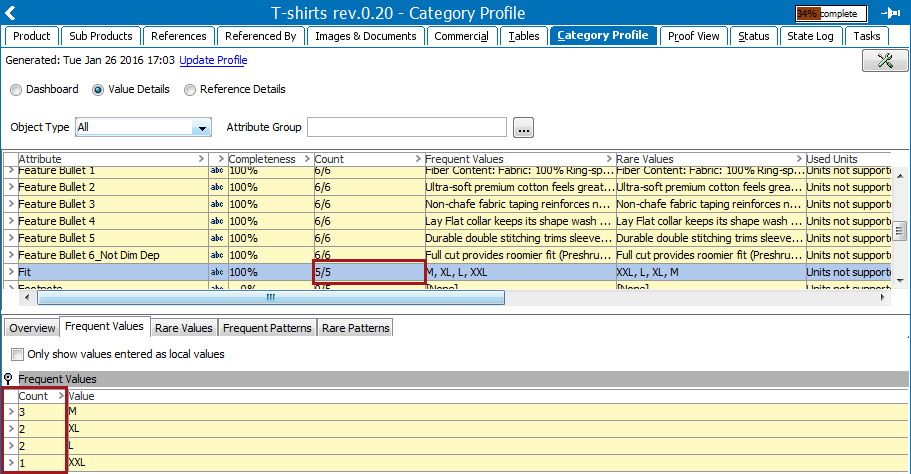
In addition to the Value Details view, this separation of values is also reflected on all applicable dashboard widgets. For more information on the Value Details view, see the Value Details section of the Category Profile documentation here.
Select the attributes whose values should be profiled separately.
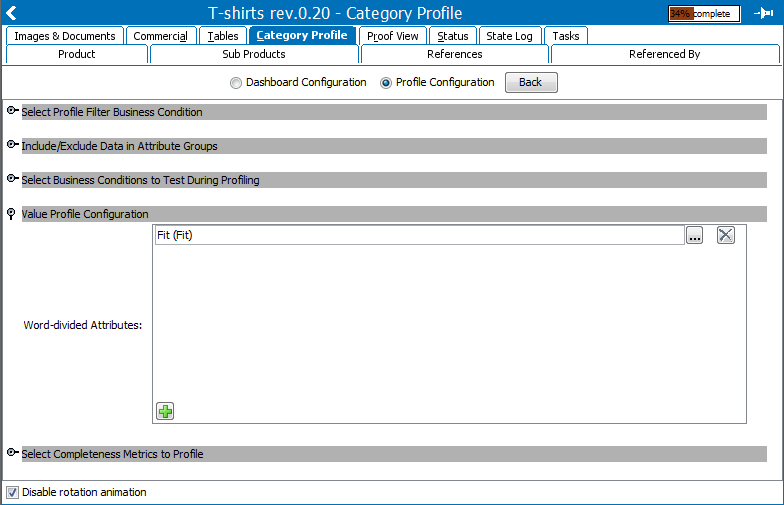
), then browse or search for the relevant attribute.
The Select Metrics to Profile parameter allows users to specify which metrics to use when profiling the data.
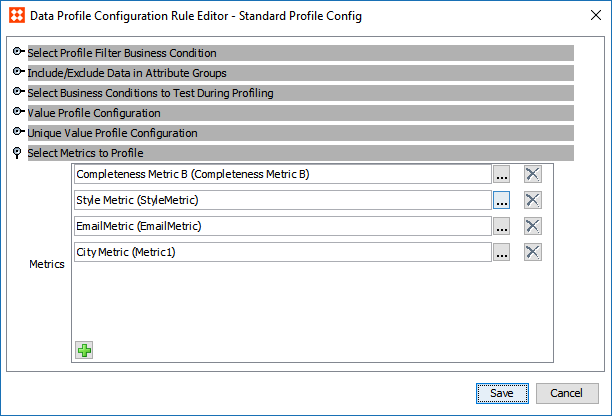
), then browse or search for the relevant metric.If using the Metric Result widget, ensure that this field includes whichever metric is configured on the widget. If they do not match, a 'no data available' message will appear in place of the data on the widget.
Important: Even if the metric specified by the widget is the same as the system default, it will still display the 'no data available' message. To use this widget, the proper metric must be specified in the Profile Configuration.
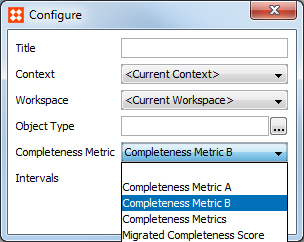
For more information see the Metrics section of the System Setup documentation here.
2019, Stibo Systems – Confidential