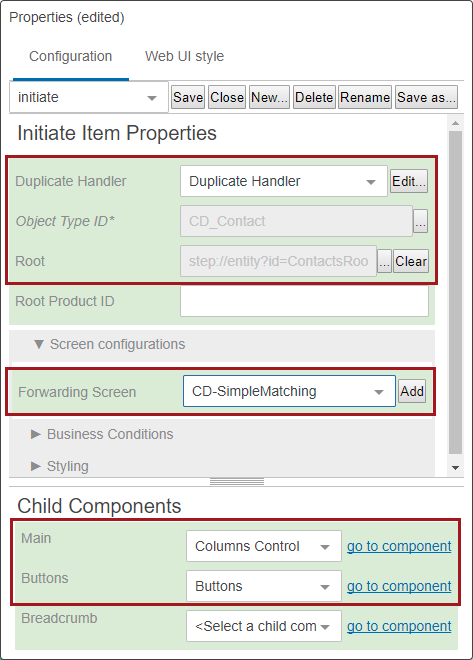
In an effort to prevent users from creating duplicate objects in the STEP system, users can use the Find Similar Action to identify similar objects prior to initiating new ones when working in Initiate Item screens in Web UI. Also, users can use Find Similar functionality to search for and identify similar objects prior to adding references and creating target objects within a Multi-Reference Editor. Using Find Similar allows users to search for potential duplicates on a more granular level.
The key to Find Similar functionality is the matching setup that the customer creates and uses for duplicate handling. Every time a user enters data into the search fields and clicks OK, the Find Similar search checks the match code values involved, executes the relevant matching algorithm, and provides a set of results, if any are found. If a user is not getting the results set they expect, then the first place to check is the algorithm configured in the Duplicate Handler parameter in the Add Reference Action Properties. Two bind types work with the Find Similar functionality. They are: First Match Object and Second Match Object. A relevant Match Code and Matching Algorithm needs to be set up before attempting to use the Find Similar Search tab. For more information about setting up and using matching algorithms, see the Configuring Matching Algorithms section of the Matching, Linking, and Merging documentation
All the steps provided in this topic assume the Web UI designer is in design mode and on the applicable Properties screen prior to starting the configuration process. It is also assumed that all users (designers and end users) have the proper privilege to work with these features. For more information about privileges and user setup, see the Users and Groups section (here) and Adding User Privileges for a Group section (here) of the System Setup / Super User Guide documentation.
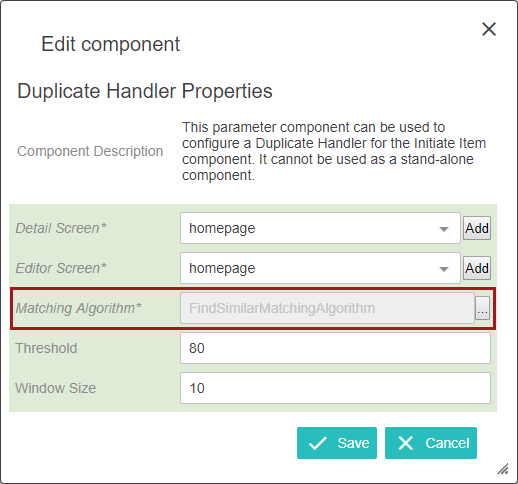
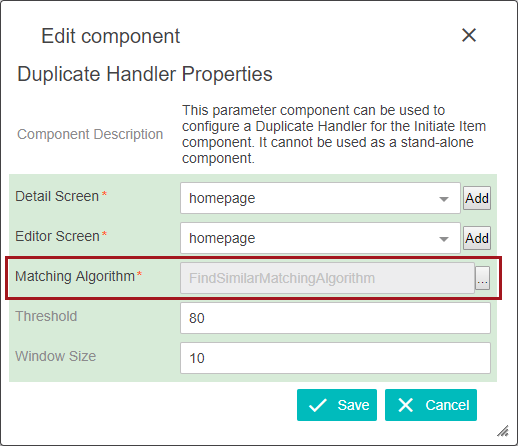
 ) to the right of the value field and select a matching algorithm. Click Save.
) to the right of the Object Type ID parameter to select the object type of the objects that will be initiated in to STEP.) to select a Root. New items will be created below the designated root.
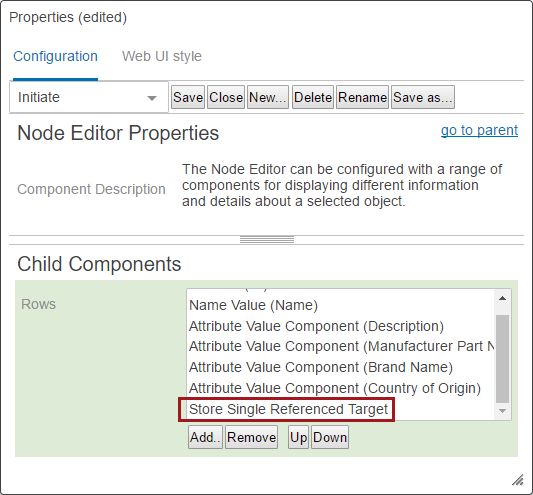
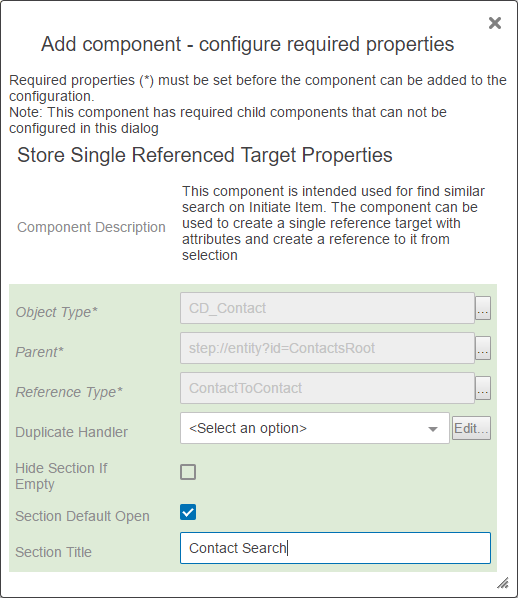
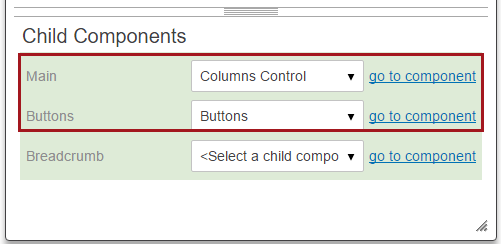
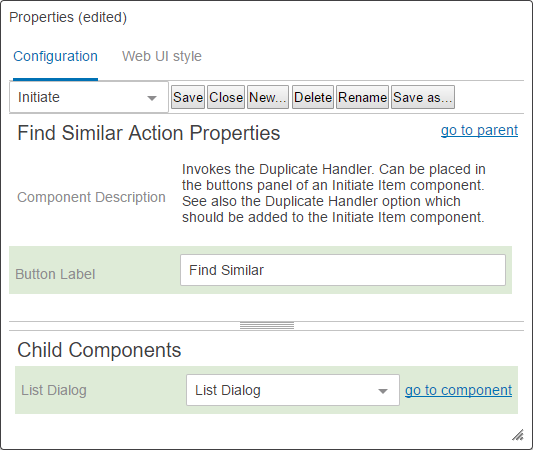
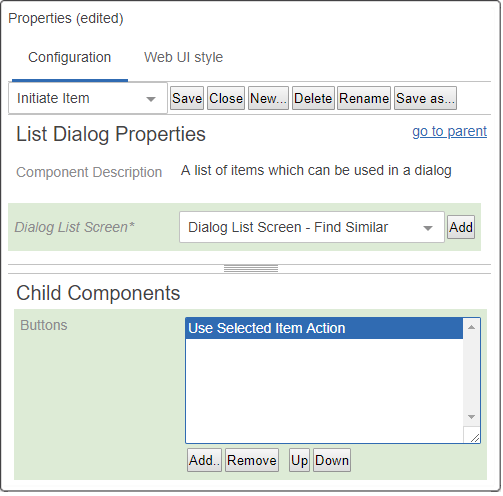
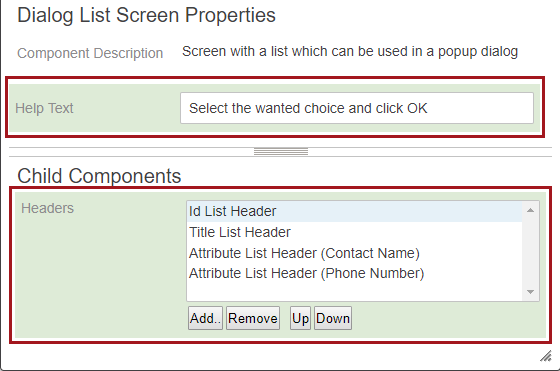
This is a very basic example of how Find Similar is used on an Initiate Item screen.
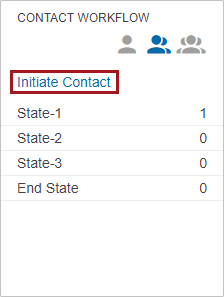
The end user begins the object (Contact) initiation process by clicking Initiate Contact on the Status Selector Homepage Widget. On the Initiate Screen, the user enters data into the direct object search fields and also into the referenced object search fields and then clicks the Find Similar button.
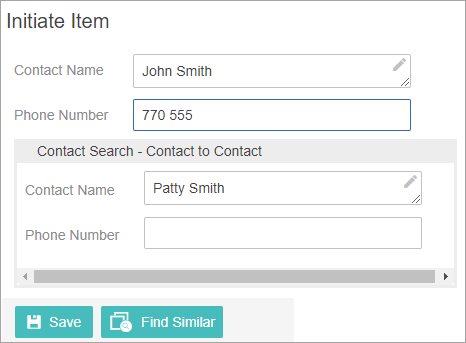
The algorithm runs in the background and the configured Dialog List Screen displays. Remember that this is not a standard search and results are based on the matching algorithm running in the background.
Important: As stated at the beginning of this topic, the key to Find Similar functionality is the matching setup that the customer creates and uses for duplicate handling. This is important because the attributes being searched must be part of the list of attributes that Match Codes are generated for. If not, the search will not work as expected.
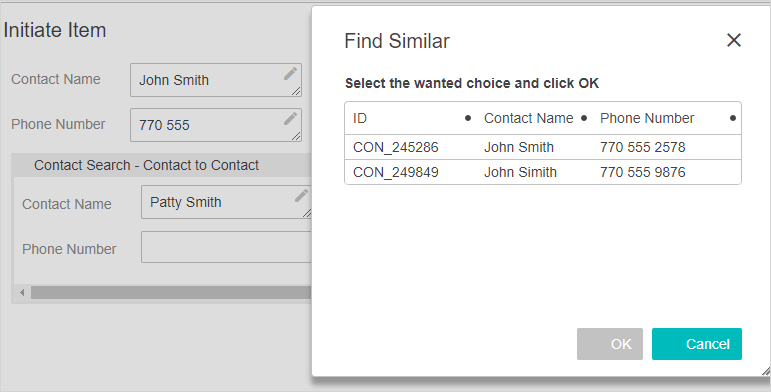
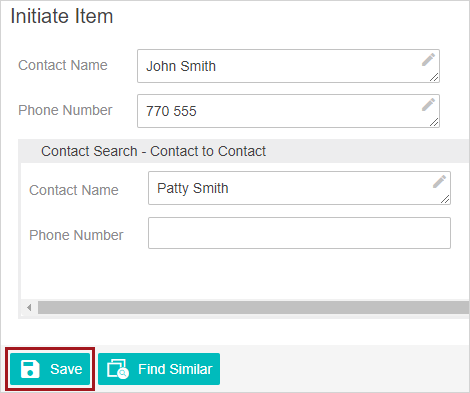
A maximum of fifty (50) objects are shown at one time on the results list. The user can select one of the objects shown in the results list. Once a selection is made, the OK button is engaged. Clicking OK takes the user directly to that object via the appropriate Web UI screens. If the user wants to create a new object with the search data entered, the user clicks Cancel to exit the results list. Back on the Initiate Screen, the user will click Save and be taken directly to the new object. The data entered into the attribute value fields (configured in the Store Single ReferencedTarget Properties) is also used to create the referenced object and the reference between these objects is also created.
If applicable, the new object will automatically be initiated into a workflow or workflows based on existing workflow rules. For more information about workflows and auto-initiation, see the Auto-Initiation of Tasks in Workflows topic in the Workflows documentation
This setup information is also available in the Add Reference Action section of the Web User Interfaces / Using a Web UI documentation
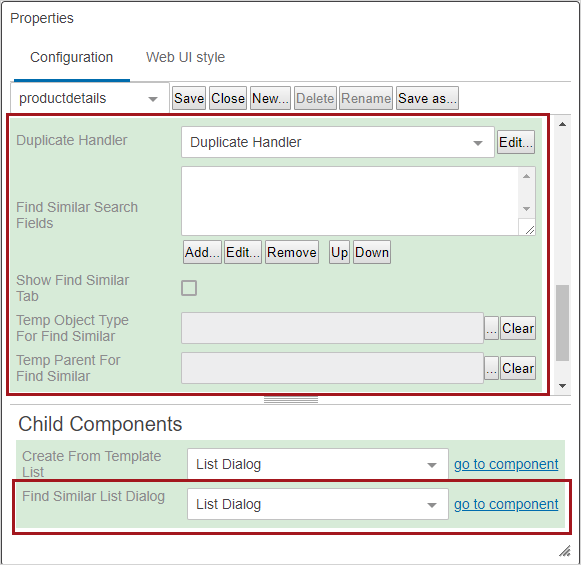
) to the right of the value field and select a matching algorithm. Click Save.
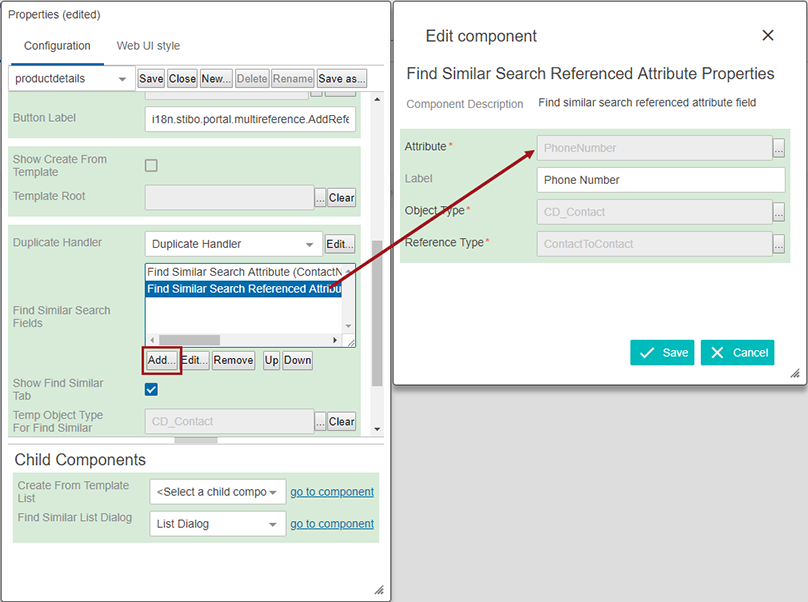
) to make a selection for the Temp Object Type For Find Similar parameter and the Temp Parent For Find Similar parameter. (When the matching algorithm is run, it creates temporary objects based on the input in the search fields. These objects are then used in the algorithm to compare and find similar objects. The temporary objects need a parent and object type to be created. After the user finishes the operation, the temporary objects are deleted by the system. These parameters have to be configured for the functionality to work. The object types of both the direct objects and the referenced objects need to be made valid under the location used for the Temp Parent For Find Similar parameter.)Important: The node selected for Temp Parent For Find Similar in the configuration, must also be included in the category specified in the match code definition, if a category is specified. If this is not done, the match codes will not generate properly and the match results will be incorrect.
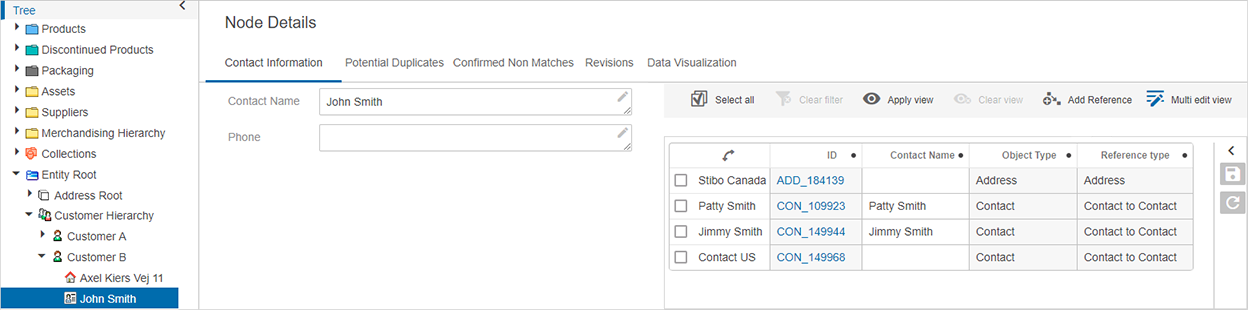
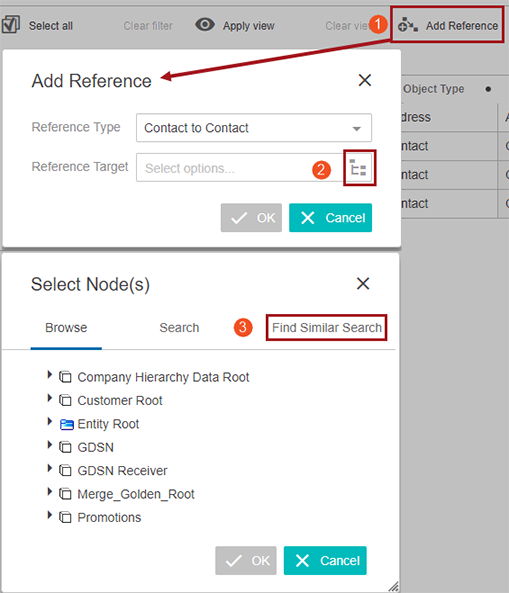
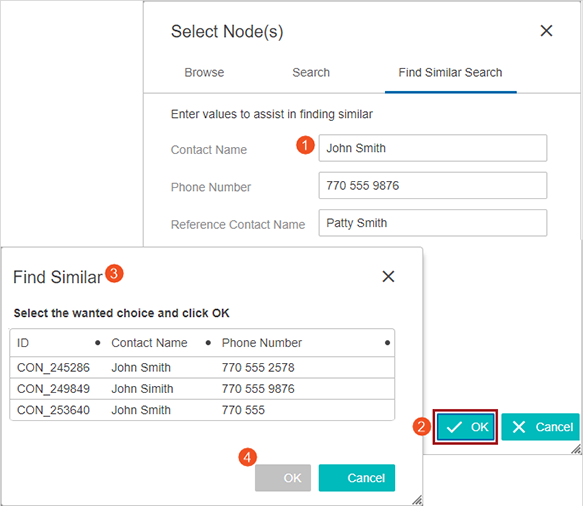
This is an example of a configured Find Similar Search tab. While using a Multi-Reference Editor component, the end user clicked 'Add reference' and then clicked the node picker icon on the 'Add reference' dialog that appeared. The Find Similar Search tab is displayed in the 'Select Node(s)' dialog. The end user enters data into the configured attribute fields and clicks OK. The algorithm runs in the background and the configured Dialog List Screen displays. Remember that this is not a standard search and results are based on the matching algorithm running in the background.
Important: As stated previously in this topic, the key to Find Similar functionality is the matching setup that the customer creates and uses for duplicate handling. This is important because the attributes being searched must be part of the list of attributes that Match Codes are generated for. If not, the search will not work as expected.
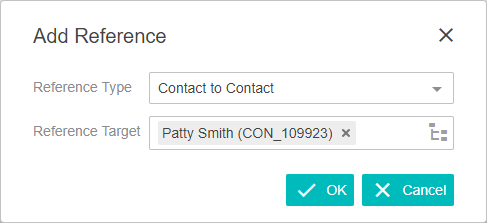
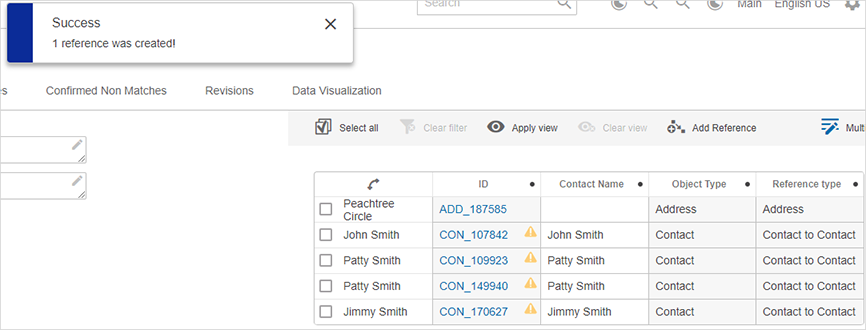
A maximum of fifty (50) objects are shown at one time on the results list. If the end user finds a reference on the results list that they want to use, they click in the row they want. When that selection is made, the OK button will be available. The end users clicks OK and now that reference is saved. If the user does not find a result to use, they can click cancel and create a new reference using the Create or Create from Template functions (both described previously in this topic).
Note: Find Similar functionality is also available when working with company data hierarchies via the Hierarchy Representations component (found in Main (Screen) Properties). For more information on the setup, which is similar to Add Reference, see the Optional Configurations for the Hierarchy Representation Component topic
2019, Stibo Systems – Confidential