This topic covers information specific to the Classification super type that is important to know when working with classifications. For general object maintenance information (applicable to all object types rather than specific to classifications), see the All Objects topic within this guide here.
Classifications are used to build hierarchies and objects that bundle other objects into organized groupings. For example, images, manuals, and icons could be uploaded to STEP as assets and stored in appropriate subfolders under the 'Assets' classification folder. Product objects could also be linked into classifications to provide alternative categorizations of objects that vary from the product hierarchy structure.
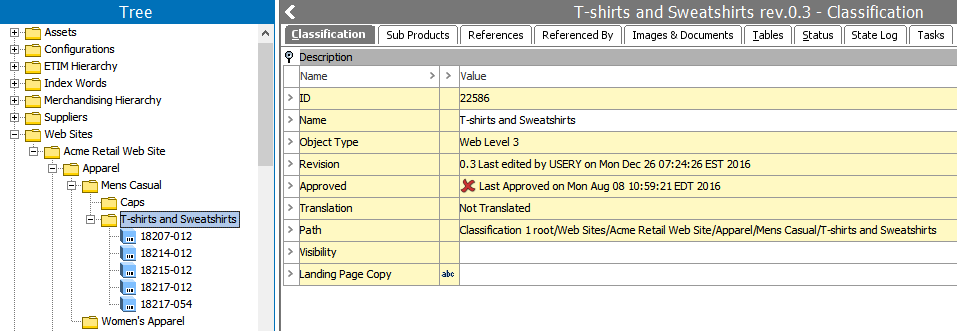
The primary editor for classification objects is the Classification tab.
This tab will display all description attributes that are valid for the classification. Note that only description attributes are available on classifications (as opposed to products, which can also have specification attributes). More information on description attributes is available in the Description Attributes topic of the System Setup / Super User Guide here.
When on a classification, the Sub Products tab is used to display objects of the product super type that are linked into the classification via Product to Classification links. When the selected classification does not have product children (e.g., classifications used to house assets or configurations), the Sub Products tab does not provide any meaningful information.
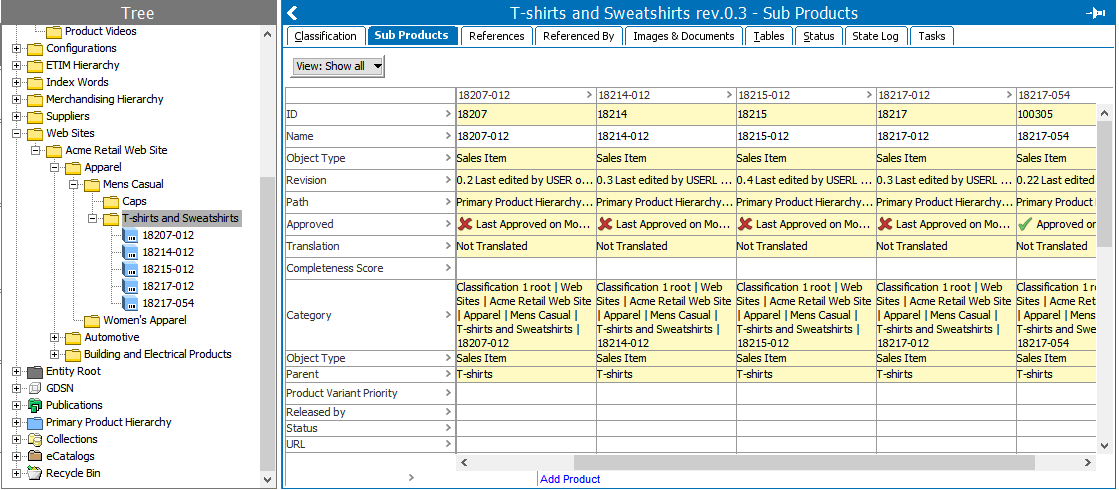
Data can be edited on the products linked into a classification from the Sub Products tab by clicking directly into any editable field. Standard editing capabilities are available within this interface (as described in the Editing Objects in Tree topic within this guide here), including copy / paste functionality using Crtl + C and Crtl + V. Right-clicking on any field within the table will expose additional options, including Copy, Paste, Hide Equal, and Mark Different selections - all of which are self-explanatory and can be especially useful when editing multiple objects.
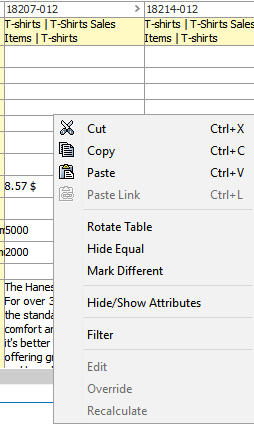
Note that two views are available using the Rotate Table option. As shown above, the view can be organized to have attributes on the vertical axis. As shown below, the table can also display products on the vertical axis. Also note that right-clicking within the header field exposes different options than within the data fields, including options to add and remove products.
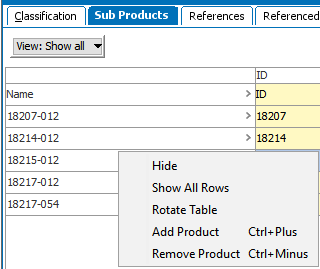
Selecting Remove Product deletes the product to classification link between the objects, but does not delete the product itself. Selecting Add Product opens a dialog allowing the user to browse hierarchies to select a product to link, as well as specifying the link type to be applied.
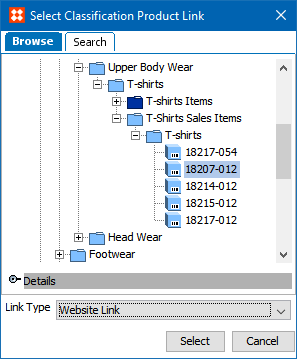
Note that the same functionality is available using the Add Product link at the bottom of the Sub Products editor.
The References tab is where all references of which the selected object is the source can be viewed and edited (assuming proper privileges are in place). In addition, if the object has privileges applied, has objects visible in other contexts, or has any linked attributes, that information can be viewed (and in some cases edited) on this tab.
The display of the References tab on a classification will vary slightly from system to system, based on the data model. If the selected object has classification reference types for which the object is a valid source, those will appear on this tab, in addition to the default flipper options.
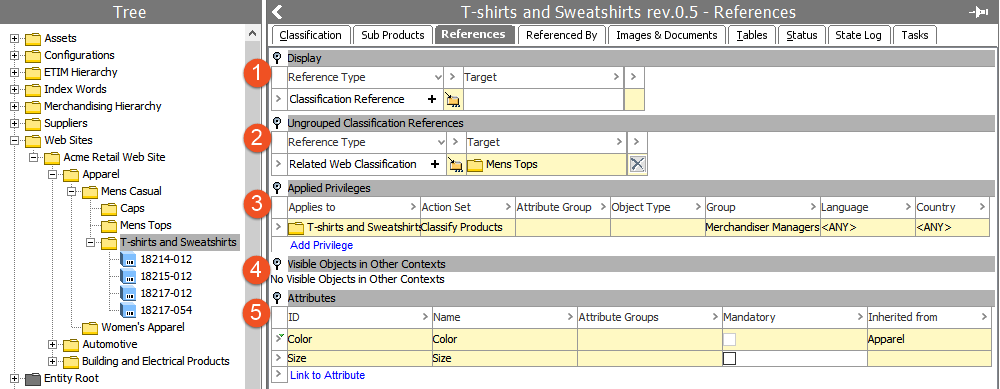
 , in the row indicator), the 'Inherited from' column will display the parental node where the attribute has been linked, which is hyperlinked for easy navigation. More information on linked attributes is available in the Inheritance in the Product Hierarchy topic within this guide here and in the Attribute Links topic in the System Setup / Super User Guide here.
The Referenced By tab is where all references of which the selected object is the target (e.g., all the objects that the selected object is referenced by) can be viewed and edited (assuming proper privileges are in place). In addition, if the object is used by a match code or is used by any publication, that information can be viewed on this tab.
The display of the Referenced By tab on a product will vary slightly from system to system, based on the data model.
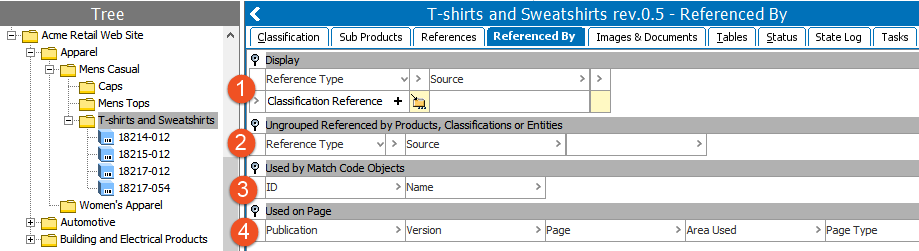
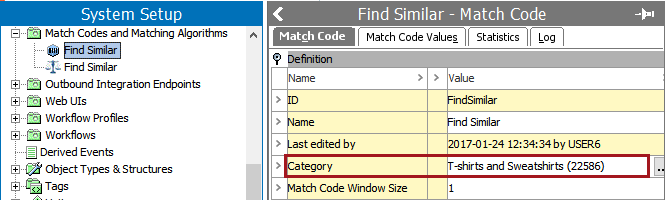

More information on match codes is available in the Matching, Linking, and Merging guide here.
The Images & Documents tab displays all assets that are child to the selected classification (e.g., all assets that are housed within that classification). Note that assets can be tied to classifications in two ways: as child products, or via image and document references. Assets are typically referenced to classifications only when the classification contains non-asset children for which the asset is relevant. In any case, assets referenced to classifications are not visible on the Images & Documents tab. This is in contrast to how the same tab functions for products, where the tab displays all assets referenced to the selected product. However, for the displayed assets (those that are child to the classification), the functionality available for interacting with the assets is the same as what is available for referenced assets on a product, which is described in the Images and Documents Tab topic in the Products section of this guide here.
The Tables tab allows users to view and edit the tables defined for the object. Tables are generally used to present consolidated data across multiple objects, such as object name, part number, and price. For more information, see the Tables guide here.
The Status tab provides information about the status of the object, including revision history, translation status, and approval status. Products and classifications share a common Status tab, which is described in the Status Tab topic in the Products section of this guide here.
The State Log tab displays the history of the selected object across all workflows. If the object has ever been in a workflow, a flipper is displayed per workflow and the history of transitions of the object within that workflow can be viewed. Detailed information on the State Log tab is available in the State Log Tab topic in the Workflows guide here.
The Tasks tab displays all active tasks across all workflows for the selected object, subject to the user's privileges (only tasks that the user has the rights to address are visible). When relevant tasks and privileges are in place, the user is able to act on the tasks from this editor, including to edit data and move tasks through the workflow. More information on the Tasks tab is available in the Moving Tasks through a Workflow in Workbench topic in the Workflows guide here.
2019, Stibo Systems – Confidential