It is often the case that certain attributes are considered critical to all processes, or to a particular process, and therefore there is a desire to make them mandatory (e.g. to enforce that they are populated). There are a variety of methods for doing this, ranging from simple visual cues prompting users to populate value, or going so far as to prevent approval and/or processing of an object until the required values are populated.
This topic describes:
An attribute can be set to be mandatory directly on the attribute, which enables a visual indicator in the workbench to prompt users to populate the value. This can optionally be used in conjunction with a system setting to enforce that attributes marked as mandatory are populated prior to approval of any object on which the attribute is valid.
Attributes can be configured to provide a visual indicator within the workbench to prompt users to enter a value.
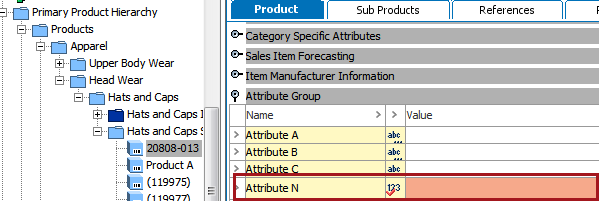
The attribute indicator has a red check mark and the value field is highlighted red for attributes marked as mandatory. Note that the red highlighting is present regardless of the workbench interface (e.g. the standard object editor in Tree navigator, the Tasks tab on an object in Tree, or the STEP Workflow Items tab when using the STEP Workflow navigator). This is effective in calling attention to key attributes that users generally populate within the STEP Workbench.
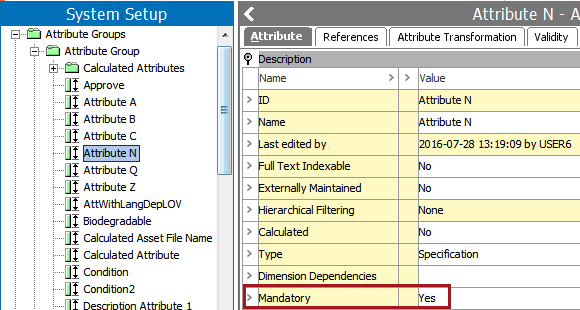
To configure this, set the Mandatory setting on the attribute to Yes.
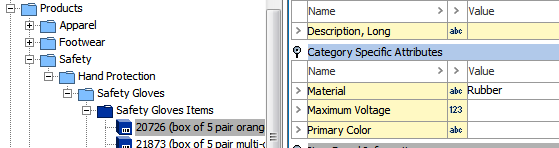
Alternatively, the attribute can be set as mandatory on an attribute link (available on product and classification super types). Attributes set as mandatory in this way behave in the same manner as described above, though at a more granular level as the indicators are only present on objects or their children where the attribute is linked. For example, a Maximum Voltage attribute is linked to an Electrical & Electronics category, and marked as mandatory on that link.
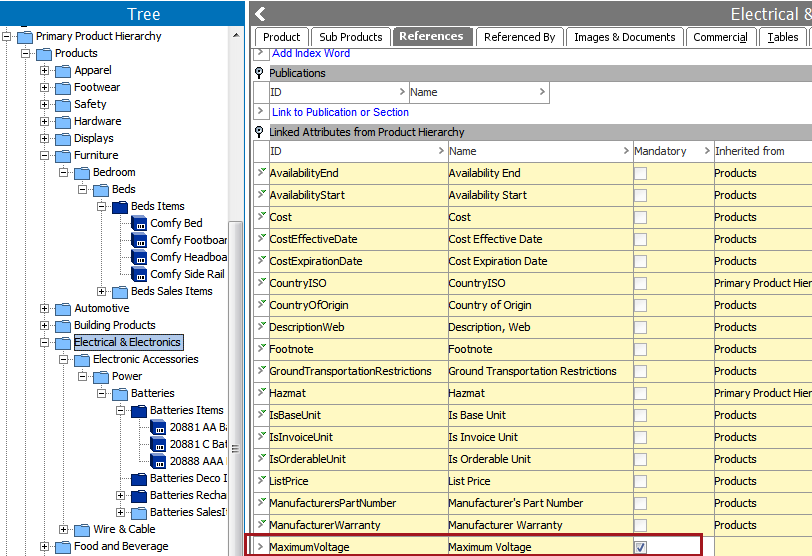
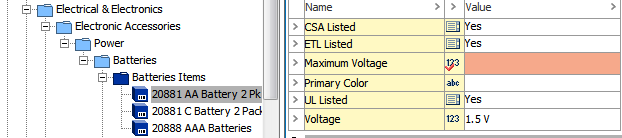
Child objects of the Electrical & Electronics category have the attribute shown as mandatory, while objects under other categories that also have the attribute linked but do not have it marked mandatory do not display any visual indicator.
It is important to note that attributes set to mandatory using either of the methods described above will cause those attributes to also display as mandatory in the Web UI, regardless of how those attributes might be configured for display in the Web UI.
In addition to visual indicators, the system can be configured to enforce that the attribute is populated prior to the attribute being approved. This option is most often used only as a final "safety check" and is applied only to attributes that are required for ALL objects of a particular type or category, with no exceptions. As approval is usually a final step in a larger process, it is more common to enforce that values be present at the time that they are actively populated (e.g. within workflows or imports). Additionally, this setting is global and oftentimes mandatory requirements are more granular than that.
For example, if all 'Item' object types require a UPC or GTIN, attributes for those could be made mandatory. Note that validity is taken into account, so the mandatory requirement is only enforced for the object types on which the attribute is valid. Alternatively, consider an 'Address' object type. It might make sense to make an attribute mandatory that holds the street name, but not zip code as not all countries use zip codes.
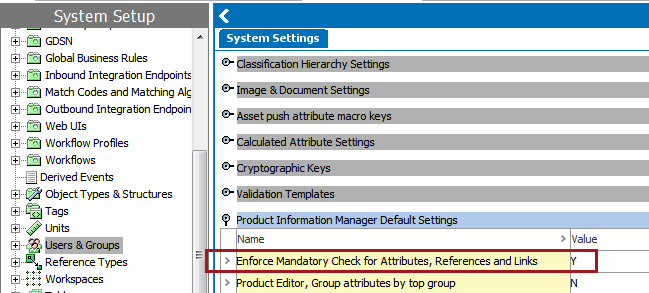
To configure this, the visual indicators must be configured as described above (e.g. relevant attributes must be set to Mandatory=Yes). In addition, a system setting must be configured to enforce the mandatory checks prior to object approval. To do this, navigate to System Settings > Users & Groups > Product Information Manager Default Settings > Enforce Mandatory Check for Attributes, References and Links and set the value to Y.
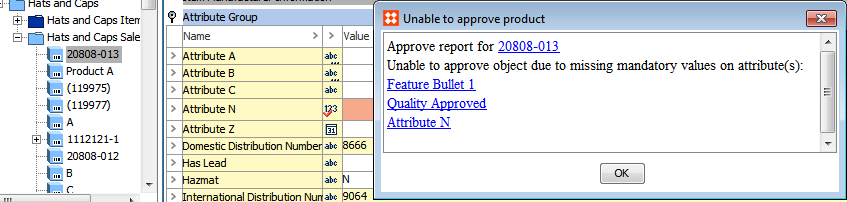
With the above setting in place, the system will display an error to any user attempting to approve an object with one or more unpopulated mandatory attributes. The below shows an example of the error in workbench, as encountered when a user attempts to approve an object. A similar error is shown in Web UI upon attempted approval, though note that visual indicators are not present unless configured on the screen the user is approving from. See the Web UI Screen Mandatory Attributes section below for more information on configuring visual indicators for mandatory attributes in Web UI.
The above settings have no impact on mandatory attributes in Smartsheets as Smartsheets do not contain an approval action. In addition, attributes marked as mandatory for approval do not have any visual indicators in Smartsheets. See the Smartsheet Mandatory Attributes section below for more information on this.
Business rules can be used to enforce complex and/or granular use cases for specifying mandatory attributes. Whenever possible, standard process-based mandatory settings should be used (e.g. workflow mandatory or Web UI screen mandatory, described below), but when those options are insufficient for the requirements, business rules can be used to close the gap. For example, a list price could be required only if the object has a reference to a web classification. Note that workflow mandatory attribute functionality optionally includes the use of business rules so that attributes are only made mandatory under specific conditions. However, the mandatory enforcement is only applied as part of a workflow, so if it is needed elsewhere (e.g. upon approval, import, or save in Web UI), standard business rule functionality may be necessary.
For more on business rules, see the Business Rules documentation
Attributes can be made mandatory within a Smartsheet, providing both a visual indicator and error reporting on missing values. This is considered a process-based mandatory setting, preferred over general business rules or approval settings as it allows for specific attributes to be indicated as required at the time that they should be provided (rather than at a later approval stage).
Attributes marked as mandatory for Smartsheets have their value cells highlighted blue to prompt the user to populate the field.

If the user validates the sheet and has not populated the mandatory values, an error is reported. In this case, the row indicator, as well as the missing field, are highlighted red.
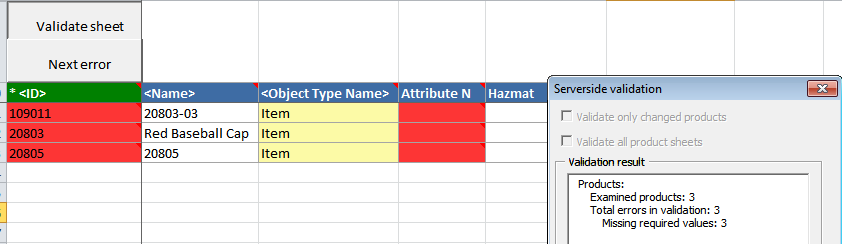
Users may still choose to import the sheet without populating the mandatory values, though this method is generally effective at enforcing population of data when users are instructed not to import until validation of the Smartsheet completes without errors.
To configure this functionality:
Details on how to make an attribute valid as metadata on an attribute are available in the Attribute Metadata on Attributes topic
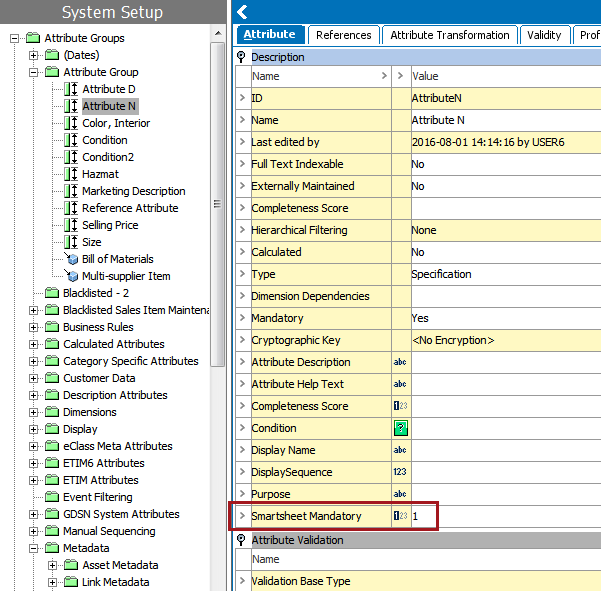
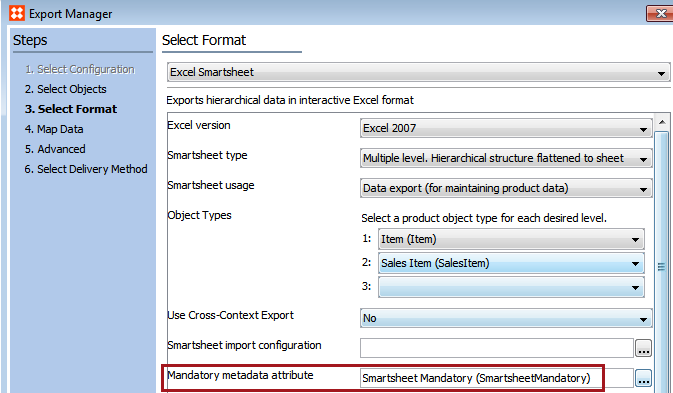
More information on configuring Smartsheet exports is available in the Smartsheet Data and Template Configurations section of the Smartsheets documentation here.
In addition to the above option to make attributes mandatory, it is also possible to do so in the Export Manager. See the Smartsheet Data and Template Configurations topic in the Data Exchange documentation here.
Mandatory attributes can be designated as mandatory either from the globally mandatory setting in workbench or through configuration in Web UI (as described below).
Attributes can be made mandatory in Web UI on a screen-by-screen basis, providing a visual indicator that data should be populated, as well as an optional enforcement of the setting that prevents users from saving or submitting data until mandatory attributes are populated. This provides a more granular level of enforcement than global approval-mandatory attributes, and when configured for single-use screens, is considered a process-based mandatory setting. However, when screens are shared, this option has larger-scale implications that should be considered. It is also important to be aware that an attribute may be marked as mandatory on one screen, but not on another. Therefore, even when mandatory attribute population is enforced on a particular screen, that does not equate to a global mandatory setting.
Mandatory attributes shown in a Web UI Node Editor appear in black text followed by a red asterisk.
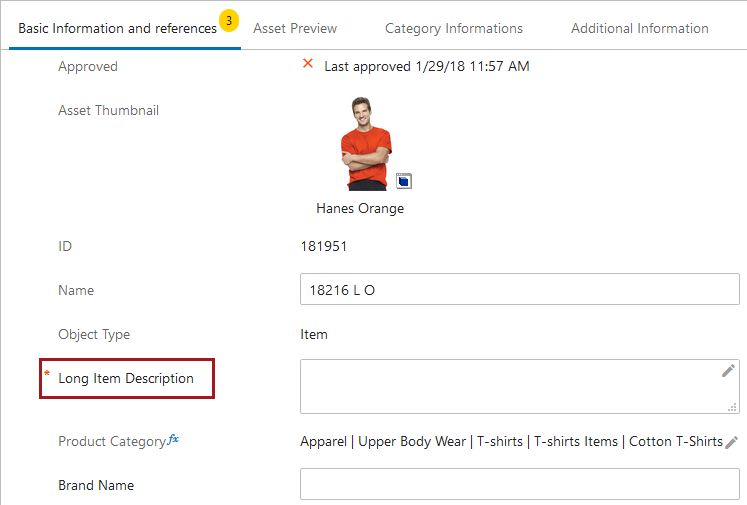
To configure attributes to be mandatory, simply check the Mandatory parameter in any Attribute Value or Attribute Value Group component.
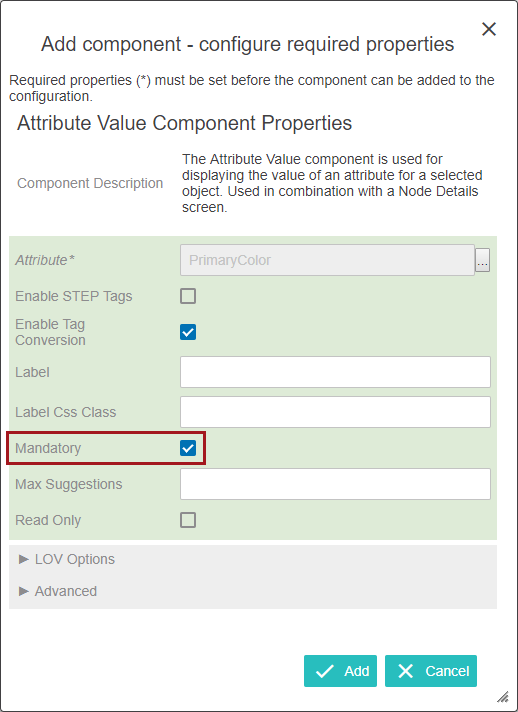
This setting alone does not enforce that the attribute must be populated - it simply provides a visual indicator to prompt the user to provide a value. To enforce population of the value, additional configuration is required, which is described in the Enforcement of Mandatory Attributes section below.
Column headers in a Web UI Node List can also be made to display as mandatory through a configuration setting in the designer. Mandatory headers display in bold text followed by a red asterisk.
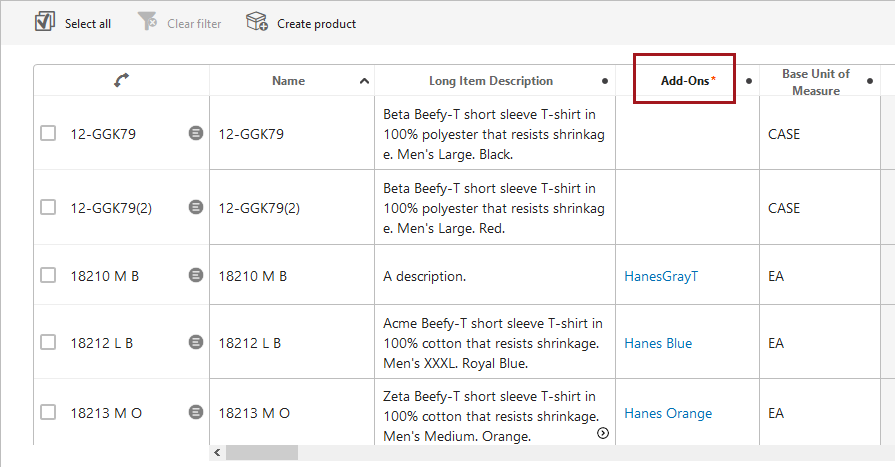
To configure headers in a tabular view to display as mandatory, set the Mandatory parameter on the header component to 'VisuallyMandatory'.
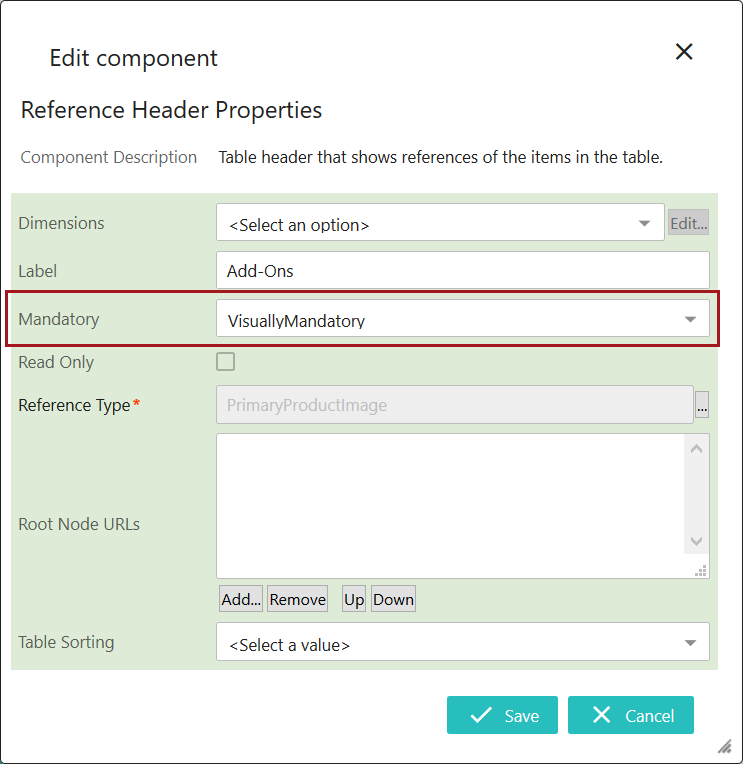
Headers that display as mandatory indicate to a user that cells under the header should contain a value, but this setting does not subject the column to validation enforcement. This means that, for example, even if the parameter 'Enforce Validation' is checked on the 'Save' button, empty cells under mandatory headers will not trigger an error upon saving.
Mandatory attributes can come from the globally mandatory setting in workbench or through configuration solely in Web UI (as described below).
More information on the Attribute Value Component
Important: The information that follows about the enforcement of mandatory attributes in Web UI is applicable regardless of how an attribute is set to mandatory (via workbench or during Web UI screen-by-screen configuration).
In order to enforce that mandatory attributes are populated on the selected screen, the attributes must first be set as mandatory (as described above). In addition, any actions available on the screen that should enforce that mandatory attributes are populated must have the Enforce Validity parameter selected. Typically this is applied to Save, Submit, or Approve actions.
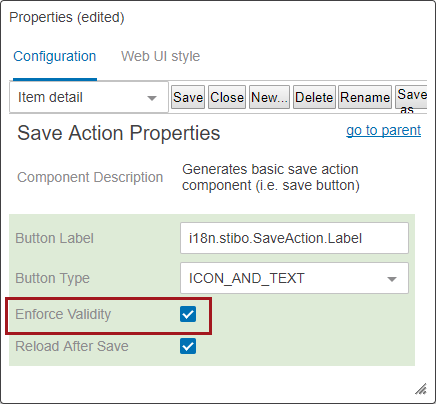
When Enforce Validity is selected, the relevant action button will not be enabled until all mandatory attributes are populated. It is important to consider whether or not this is truly desired before making this selection. For example, when Enforce Validity is applied to the Save action, users cannot save any data until all mandatory attributes are populated. In addition, the implications for shared screens should be considered. For example, if the same screen is reused for both onboarding and maintenance of objects, different data may be required at different times. However, both the mandatory and enforcement settings are applied to the screen itself, not to particular instances where the screen is used, and therefore it cannot be differentiated to make an attribute mandatory in only one of the cases. This situation can be managed by creating separate Web UI screens for the processes, or by having the screens tied to workflows and using the workflow mandatory settings (described below).
Note: Mandatory attributes configured in either the Data Container Table View Editor or the Data Container Attribute View Editor must have a value for the data container to be saved.
It is often necessary that certain attributes or attribute groups be set as mandatory for a state or transition in a STEP Workflow. This means that the object can pass further in the workflow only if the indicated attributes have values. To facilitate this, the STEP Workflow Designer includes an option to specify mandatory attributes or groups on both states and transitions, requiring that the indicated attributes are populated prior to the task exiting the state, or taking a particular transition. In addition, attributes and groups can be set to be conditionally mandatory, meaning they are only required if specific conditions are met.
Workflow mandatory attributes are one of the most common ways to setup mandatory attributes. The primary benefits to using this functionality are:
Essentially, workflow mandatory attributes provide a combination of the functionalities described above as they provide both visual indicators and enforcement, and do so across workbench, Web UI, and Smartsheets, as well as allowing for attributes to be conditionally mandatory in all of these interfaces. Because of this, workflow mandatory is the preferred method for handling mandatory attributes. However, this method is of course only available when data is being populated within a workflow so when this is not the case, the other mandatory attribute settings described in this topic can be used.
Detailed information on the configuration and use of workflow mandatory attributes is available in the Mandatory Attributes in Workflows section
2019, Stibo Systems – Confidential