The Remove Empty Rows/Columns transformation removes empty rows or columns from a table. This is useful, for example, if several product ranges use the same table definitions but some attribute columns only apply to a few of the actual tables. Another example is if another transformation is applied to the table that ends up leaving an empty row or column. Removing the row or column helps to de-clutter the table.
The instructions in this topic assume that you have already added the transformation to your table by following the instructions in the Add a Transformation to a Table or Table Type subsection of the Table Transformations topic here.
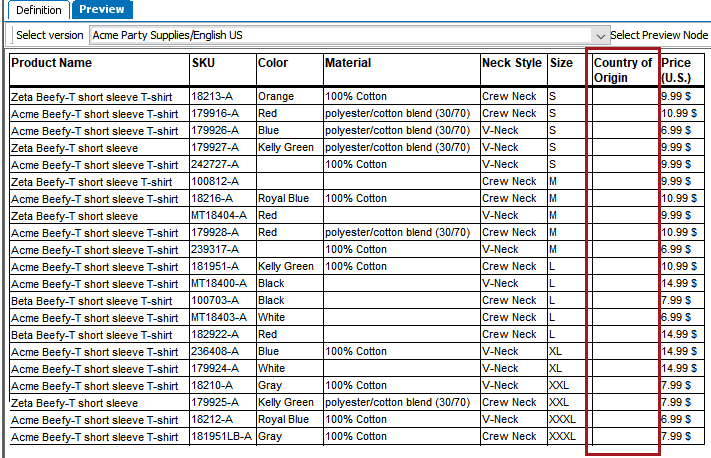
Before
This is how the table appears before applying the Remove Empty Rows/Columns transformation. The Country of Origin column is blank, though note that it still has a header.
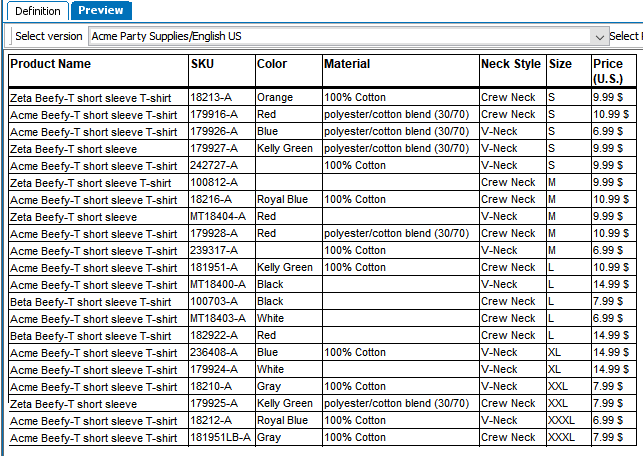
After
This is how the table looks after the transformation is applied. The column is removed even though there was a value for the header. This is because 1 was entered in the Heading Rows field of the Remove Empty Rows/Columns dialog and the Remove Columns box was checked. See the below steps for more information.
 ). The Remove Empty Rows/Columns dialog displays.

2018, Stibo Systems – Confidential