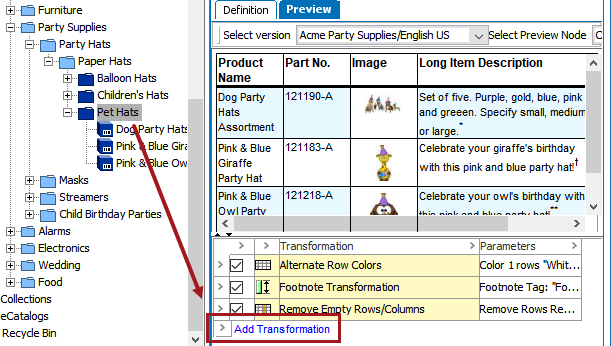
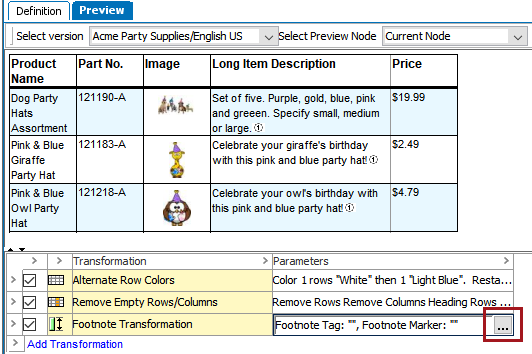
Table transformations are used to manipulate the content and appearance of a table. A table transformation can perform operations on an entire table or part of a table, such as applying color to certain rows or merging cells with equal values. Transformations are added and configured on the tables Preview tab, allowing their effects on the table to be viewed in real-time.
For a list of all available transformations, see the List of Transformations topic here.
When you use transformations, be aware of the following:
You can apply table transformations locally in the product or classification hierarchy of the Tree, and/or globally in System Setup. Any transformation added globally can be overridden later at the local level

Important: You can only change the sequence of table transformations on a table type from the table type itself in System Setup. When you change the sequence of transformations on the table type, it affects all tables that are based on the table type.
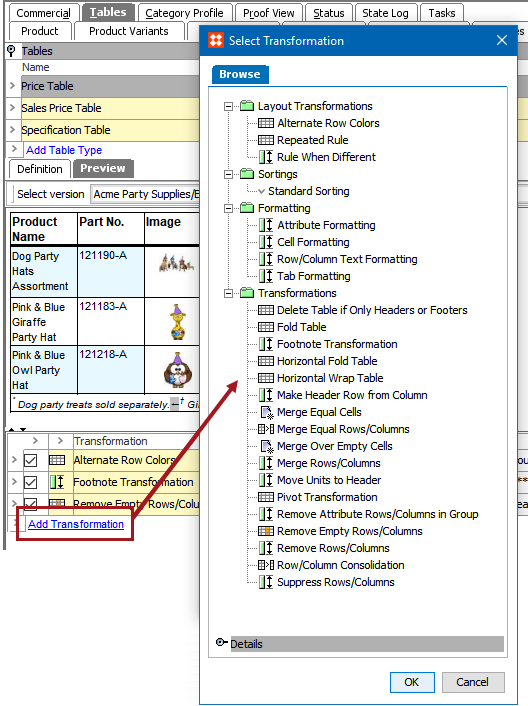
The following steps describe how to add transformations to an individual table. However, the process for adding transformations to a table type is similar, except that you add the transformation on the table type in System Setup.
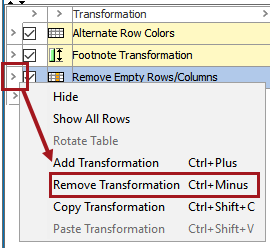
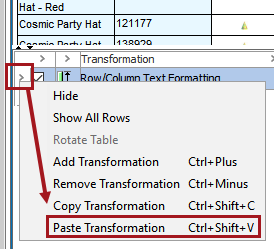
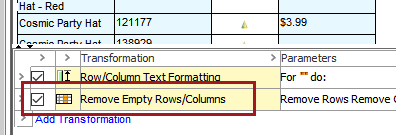
To save effort, transformations can be copied and pasted. To copy and paste to a different table means that the transformation does not have to be created again from scratch. To copy and paste within the same table could also be useful since transformations are applied accumulatively and sequentially. For example, a Remove Empty Rows/Columns transformation might be applied to remove empty rows or columns, then another transformation applied later removes additional values that create new empty rows or columns. So, the Remove Empty Rows/Columns transformation would need to be applied again, below the transformation that created new empty rows / columns.
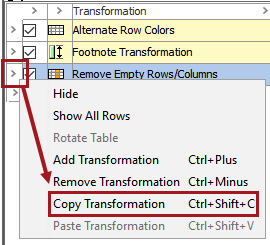
Note: To paste a transformation to a different table, at least one transformation must already exist on the target table.
2018, Stibo Systems – Confidential