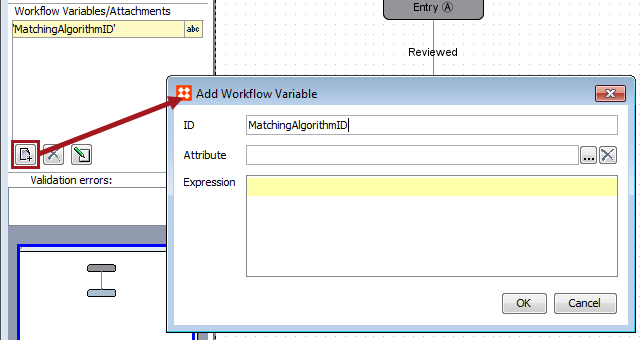
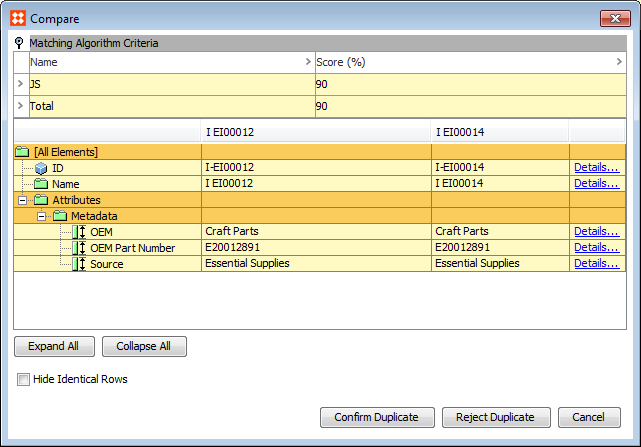
After running a matching algorithm, some paired objects may need to be manually reviewed to determine whether or not they are actual duplicates. An object is flagged for clerical review if its equality metric falls between the 'Clerical Review Threshold' and the 'Auto Threshold', as defined by the algorithm's golden record match action. It is subsequently placed into a workflow for review by an end user.
When configured for clerical review, a workflow allows users to easily review and confirm or reject potential duplicate objects.
For more information about the golden record match action, see the Configuring Golden Records documentation here.
Note: Items in a Clerical Review workflow are typically handled by data stewards.
To configure a workflow that can handle clerical review, the following steps need to be followed:
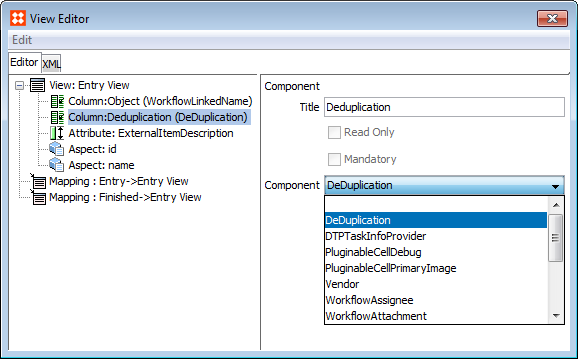
 ) and choose the workflow you configured from the selector. Click Save to save changes to the algorithm.

To view any items placed into the workflow configured for clerical review, navigate to the STEP Workflow tab and expand the flipper for the appropriate workflow.
Note: Only one record is actually submitted into the workflow when a match is found. A reference is created that links the matched records to the one entered in the workflow and they all appear together within the workflow task. From the perspective of the data steward, this nuance is typically unimportant.
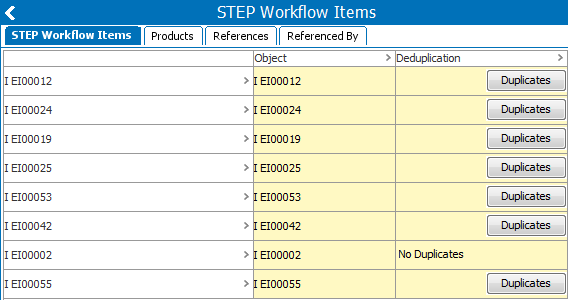
Note: This can also be accessed via the 'Tasks' tab of the relevant object in Tree.
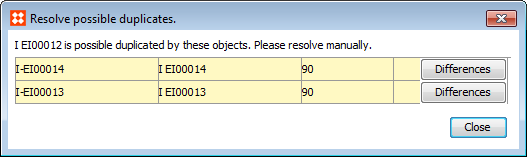
Note: It is not recommended to perform any workbench clerical review actions on matches generated through a Merge Golden Record match action. Instead, these clerical review tasks should be handled in Web UI. For more information, see the Golden Record Clerical Review Task List section of the Web User Interfaces documentation here.
Clerical reviews can also be performed via workflows in Web UI. For use in a Merge Golden Record solution specifically, see the Matching and Merging in Web UI documentation here.
For more information on configuring a deduplication clerical review for Potential Duplicate and Link Golden Record solutions, see the Configuring a Deduplication Clerical Review documentation here.
2018, Stibo Systems – Confidential