
Once Advanced Search has been configured (e.g., criteria renamed, unused criteria removed, hierarchy nodes ere-selected and added), the search is ready to use.
Drag and drop each search criteria button and operator button over to left side of the page. Or simply click on each search criteria button to build the search. Building search queries visually helps the user better understand the data.
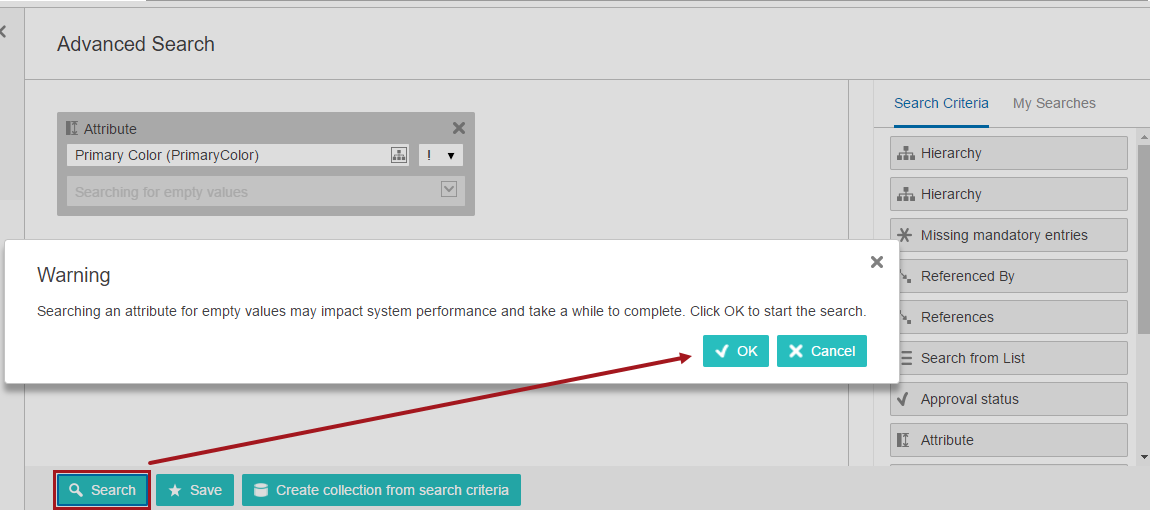
Note: Using the Attribute criterion for searching (! and !! operators) attributes that have empty values is an easy way to identify objects in STEP that are not yet complete. It is important to note that performing these searches can be time consuming depending on the number of attribute values being searched and the complexity of the assembled search criteria. Because of this, when starting an empty-value search (either alone or with other criteria), users are presented with a message asking them to confirm that they want to move ahead given the potential resource and time constraints. When the end user clicks OK, the search is performed.
Examples
The following examples with screenshots that show basic searches with different operators: And, Or, and Exclude. The example screenshots do not show every search criteria available. For more information on adding / removing criteria shown to users, see Advanced Search Initial Configuration in the Web User Interfaces documentation
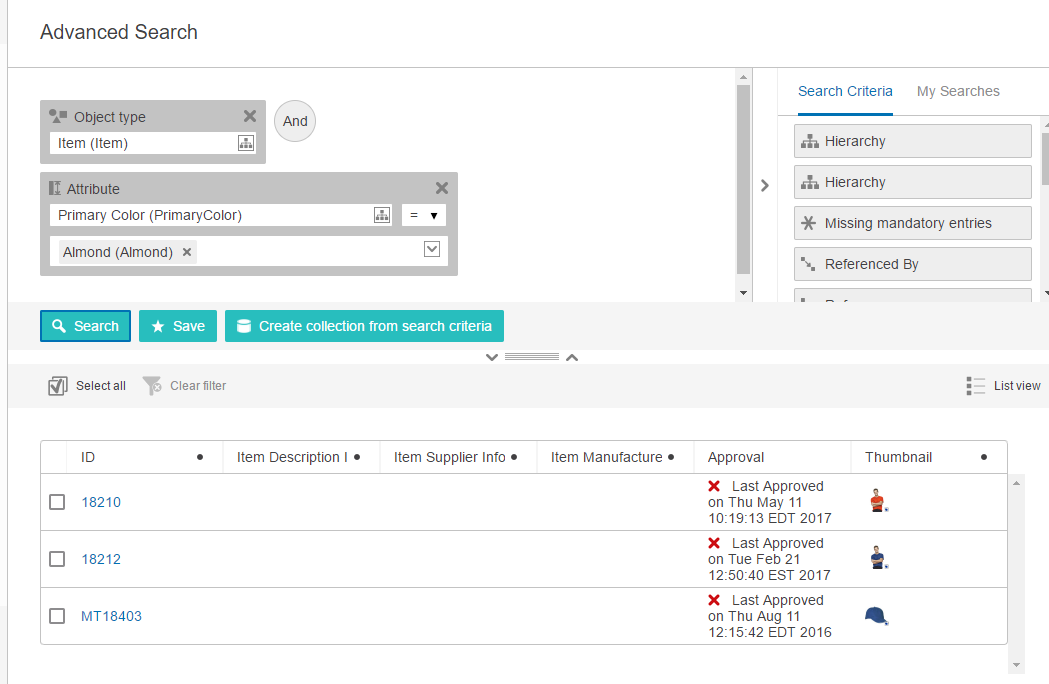
Example 1: Object type (Item) And Attribute (Primary Color)=Almond
Results include items that have the color 'Almond' as an attribute value.
While only one value is being searched, multiple values can be searched at one time (if applicable to the search). And, if searching an LOV-based attribute, users can use the a dropdown to access the actual list of values to enter an attribute value.
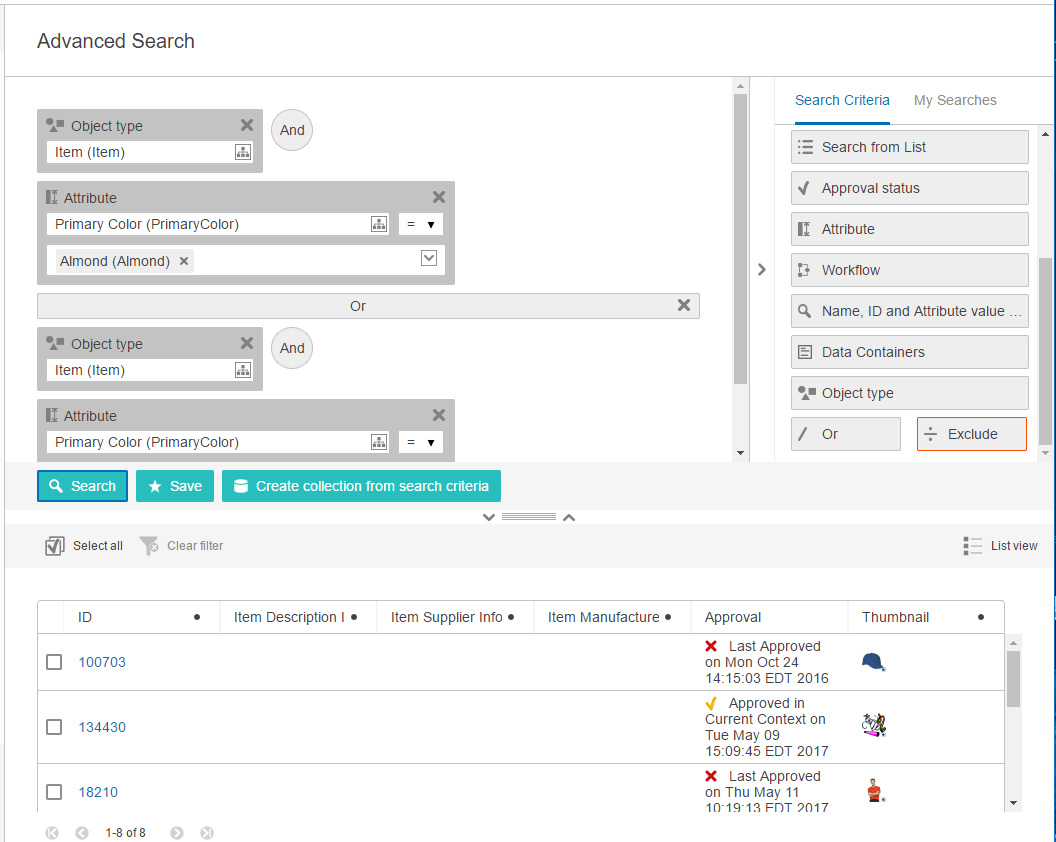
Example 2: [Object type (Item) And Attribute (Primary Color=Almond)] Or [Object type (Item) And Attribute (Primary Color=Apricot)]
The search pulls items that have the primary color 'Almond' as an attribute value and combines those results with items that have the primary color 'Apricot' as an attribute value.
Example 3: [Object type (Item) And Attribute (Primary Color=Almond)] Or [Object type (Item) And Attribute (Primary Color=Apricot)] Exclude Approval status (Never approved or modified)]
The search pulls items that have the primary color 'Almond' as an attribute value. It combines those results with items that have the primary color 'Apricot' as an attribute value, with any object types that have never been approved excluded from the Item / Primary Color= Apricot results.
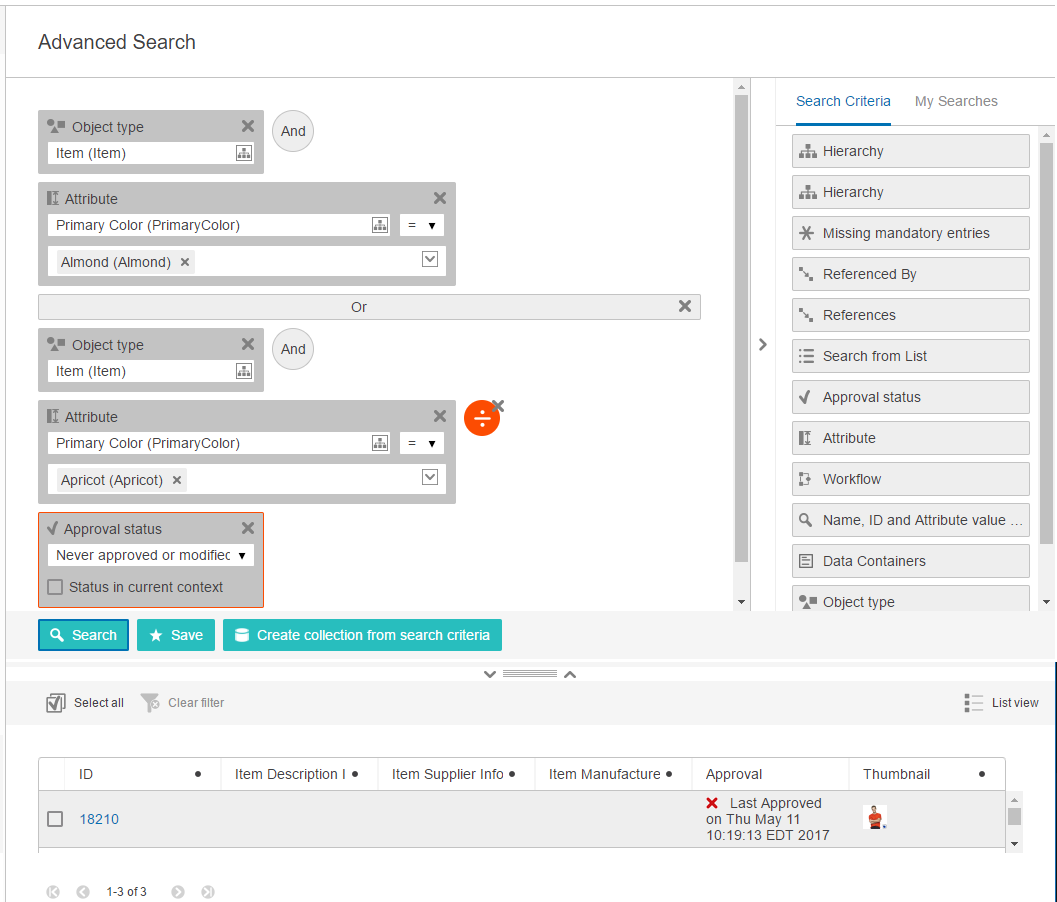
In Example 3, if the user also wants to exclude unapproved object types from the Item / Primary Color=Almond portion of the query, they would go back and add the Exclude operator and the 'Approval status (Never approved)' criteria in front of the Or operator.
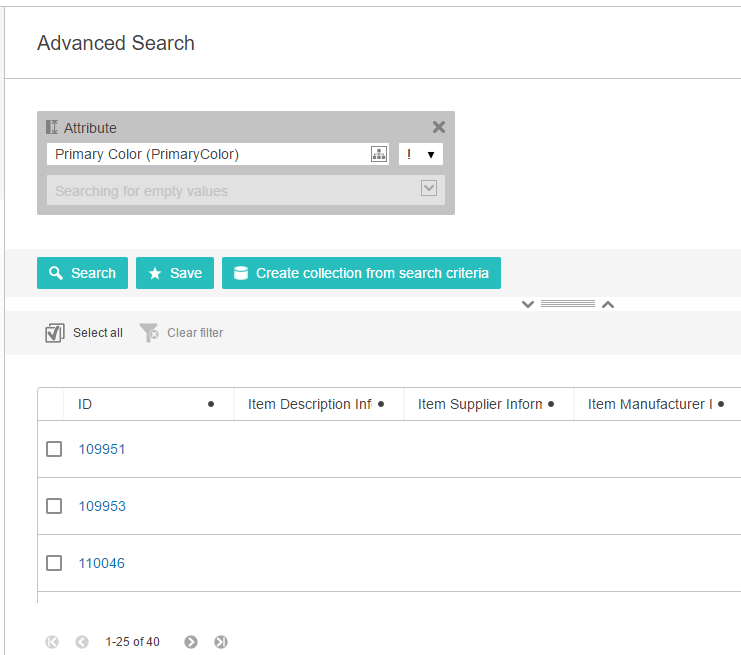
Example 4: Empty value search for [Attribute (Primary Color)]
The search pulls objects that do not have a value for the Primary Color attribute within the current context (English US). A warning dialog is presented upon clicking the Search button. After pressing OK to confirm you want to continue, the search will process.
Example 5: Data Container Type searches
Example 5.1: Data Container Type search for [Main Address]
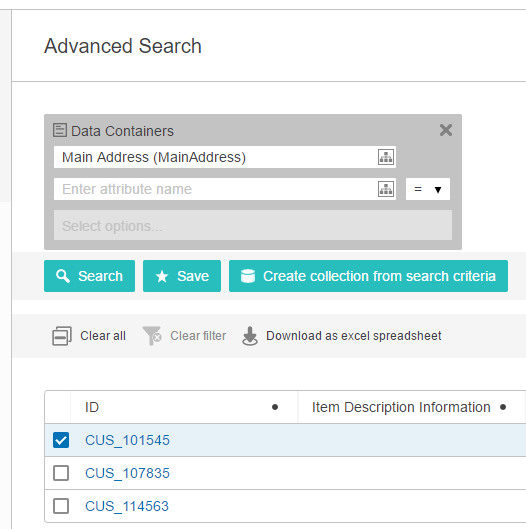
By clicking the Node Picker icon (  ) in the 'Enter data container type' field (in the screenshot above, the data container type 'Main Address (MainAddress)' displays in this field), users may either browse through or search for the data container types that have been created in the system. Once a selection is made and Search is clicked, a list of all applicable entities for which a data container has been created / added of the data container type specified will populate.
Example 5.2: Data Container Type search for [MainAddress] and [Attribute (City)]
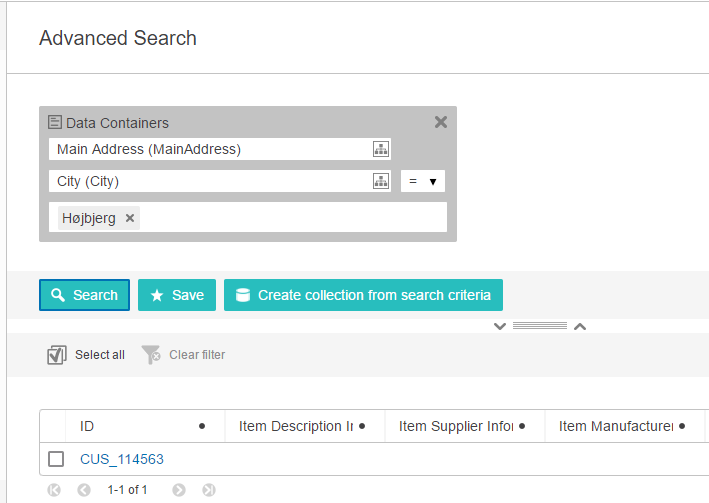
Users may narrow the search further by also selecting an attribute linked to a data container of the specified data container type. To execute this kind of search, users must select an attribute by clicking the Node Picker icon in the 'Enter attribute name' field, or by typing the attribute into the field. Once the user makes their attribute selection, selects a search operator (equals (=), in this example), enters an attribute value, and then clicks Search, a list of all entities that have a data container added of the type specified, which also contain the selected attribute / attribute value combination, will populate.
Example 5.3: Data Container Type search for [Attribute (City)]
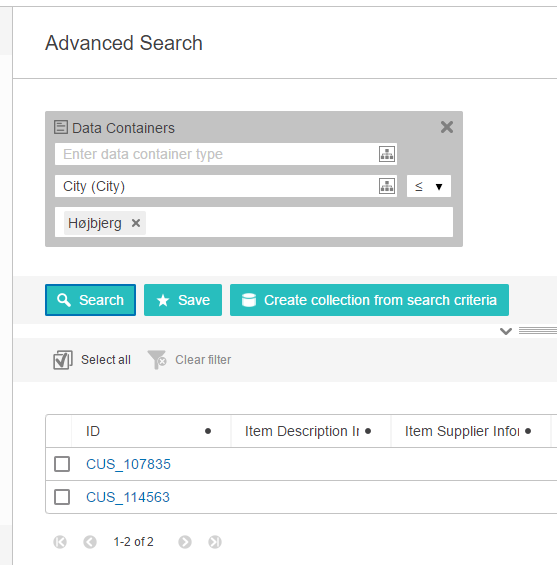
Users can elect to search for attribute values that exist in attributes contained in any data container, irrespective of type. To execute this kind of search, user must select an attribute by clicking the Node Picker icon in the 'Enter attribute name' field, or by typing the attribute into the field. Once the user makes their attribute selection, selects a search operator ('less than or equals ( )', in this example), enters an attribute value in the 'Select options' field, and then clicks Search, a list of all entities with an attribute value that matches the value specified for the selected data container-linked attribute will populate. By leaving the 'Enter data container type' field blank, the user is searching for attribute values within any existing data container.
Note: When a user clicks on the 'x' to remove an 'Exclude' or 'Or' operator symbol, the system changes it to 'And'. To entirely remove a particular operator, remove the search parameters that come after that operator.
Building searches within the Web UI is very similar to the functionality found within the STEP Workbench Search tab. For additional information on this process, go to the STEP Documentation and refer to Getting Started, Navigation and Searches.
When an Advanced Search is built, a user may want to save the search to use again. Searches can be saved once parameters have been added. There is no need to run a search before saving it. However, it is a good idea to make sure the designated criteria are set up effectively and meet data / business needs prior to saving.
Values may be pre-populated for each search parameter prior to saving.

Click Save, and name the search. Press OK to save it.
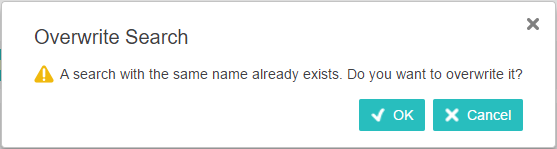
If saving a new search using a name that is already used by an existing saved search, an overwrite notification will appear and require user action. If overwriting a search that has been previously shared, the search is overwritten for all users.
Access saved searches by clicking on the 'My Searches' tab.
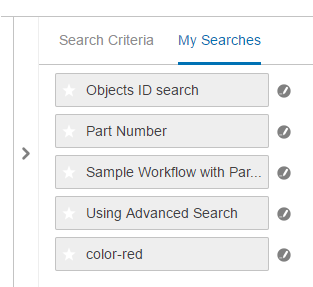
Drag and drop the gray button to the left side of the screen to open a saved search. Or, simply click on the applicable search name. To complete the search, click the Search button. The results will show at the bottom of the page. If there are no results returned, a zero (0) will show at the left, bottom corner of the page.
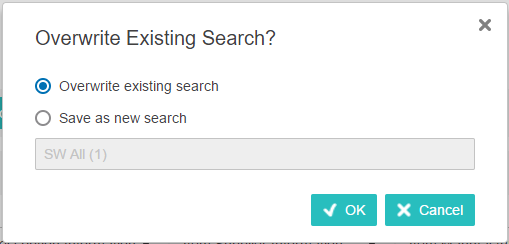
Users in unrestricted user groups can overwrite existing saved searches within Advanced Search. After opening an existing saved search from the My Searches tab, modifying it, and then clicking the Save button, a notification dialog appears in which the user can choose to overwrite the search or save the search with a new name. If the search is overwritten and has previously been shared with other users, then the search will also be overwritten for those users.
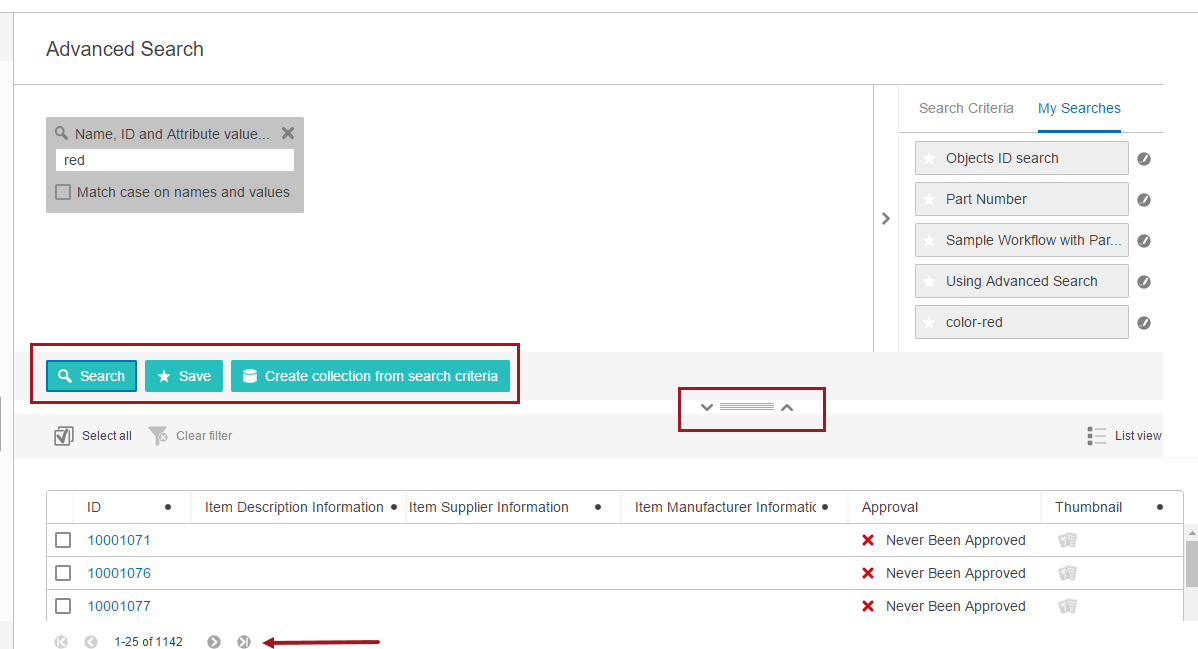
The individual panels on the Advanced Search screen are collapsible and expandable through the use of a collapsible splitter feature (shown in the preceding screenshot).
When the screen is configured with a horizontal split panel, a drag handle splits up the panels / components on the screen. The drag handle displays a down arrowhead to the left and an up arrowhead to the right.
Clicking the up arrowhead removes the main component (Advanced Search build / criteria) from display, allowing more screen space to focus on the Node List. This is useful if the user wants to focus on the results set only. For example, a user may choose to display the results set in Multi Edit Display Mode to make edits and no longer needs to see the criteria or the way the search was built.
Clicking the down arrowhead returns the hidden component back to the screen display.
Similarly, if the user first clicks the down arrowhead, the child component is hidden from display so the user can focus on using the criteria and setting up an Advanced Search.
Note: By default, the collapsible splitter is typically in the middle of the screen and the Search Criteria panel / tab is automatically displayed once a user is on the Advanced Search screen. However, if the Advanced Search Task List is used as a result screen for any Status Selector Widget, the criteria panel is collapsed and the splitter moves up under the search criteria used in the search. This allows more room to view the Task List once a user gets on the Advanced Search page. The Search Criteria panel can be expanded by clicking the arrowhead on the right of the screen (shown expanded in the following screenshot) and the splitter can manually be dragged down to expand the Search Criteria list and area, if desired.
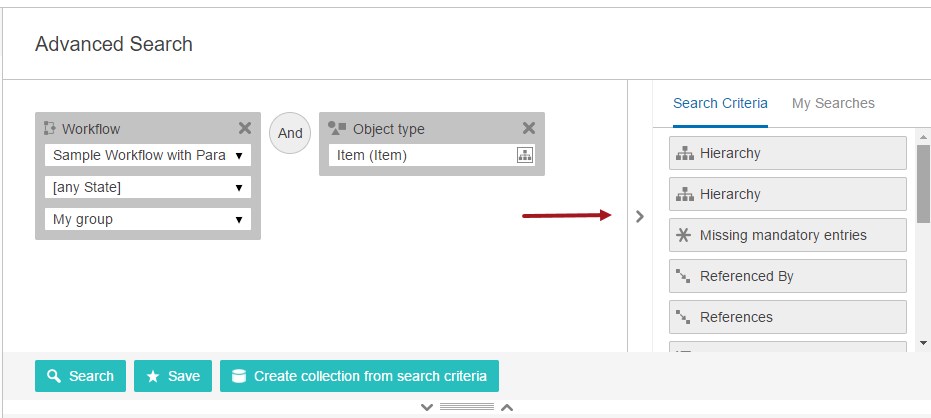
 in a saved search, the word 'exclude' does not show on the screen. The end user should be familiar with the symbol so they understand the search process and results.
 2018, Stibo Systems