 found on the homepage (in the user widget).
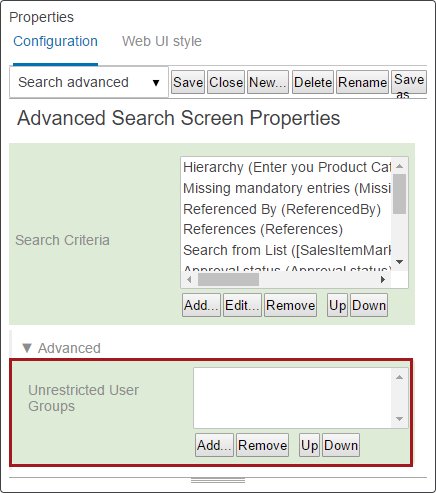
Creating and performing searches in Advanced Search can be a complex process for users with limited knowledge about the underlying data structure in STEP. For that reason, users with 'unrestricted access' (administrators) are able to pre-configure an Advanced Search in the Web UI and share it with other users. Experienced users can tailor Advanced Search to specific purposes and share with end users who do not have as much STEP experience.
found on the homepage (in the user widget).
The admin - or anyone who will be creating and sharing the saved searches - needs to be added to the Unrestricted User Groups. All other groups are considered to be restricted and, therefore, cannot create and save Advanced Searches themselves.
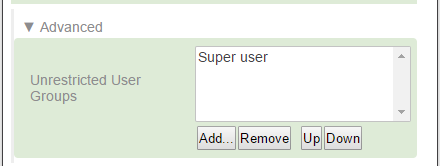
Important: If there are no groups added as Unrestricted User Groups, everyone will get access to the Advanced Search tab and the criteria. However, users who are not privileged to share searches will not be able to save searches. As soon as a group is added as an Unrestricted User Group, all other groups become restricted users until added as unrestricted. It is best to drop the Web UI admin group into this selection to avoid any issues that may come up if users with limited STEP experience try an all-encompassing search using large amounts of data.
First, a 'Share search with group' action will need to be created if it doesn't already exist as a standalone item or as part of an existing Action Set.
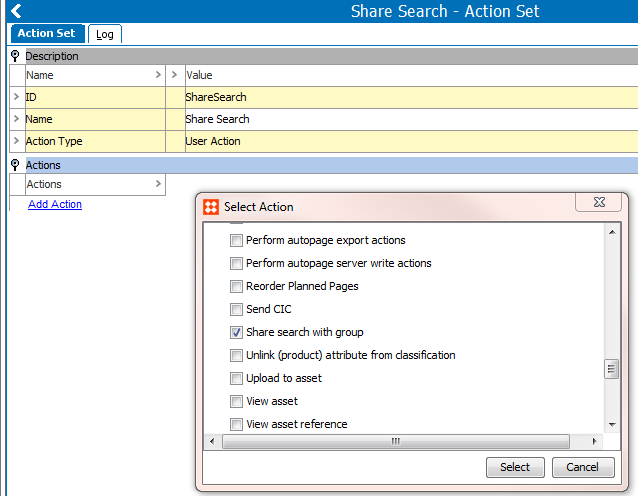
Next, the user or group that has unrestricted Advanced Search Web UI access, typically Web UI administrators, will need to have updated Privilege Rules before being able to share pre-configured searches.
In the following example, Super Users is the unrestricted group. And Buyer Group is the user group that will be able to access the shared search(es).
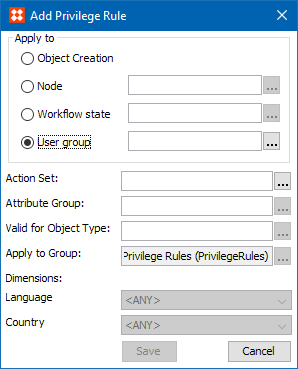
Important: The 'Privilege' to share pre-created searches should be added to the group who will be setting up the searches and sharing them, not to the user or group who will receive the shared searches.
Setup in the STEP Workbench is now complete.
The group or groups designated as Unrestricted User Groups may run searches and also create searches, save them, and share with the user(s) designated in the Workbench as privileged users.
The administrator (unrestricted user) will need to log in to the Web UI to create an Advanced Search or access an existing saved search. Saved searches can only be shared with the privileged users. See the 'Applying a Share Search Action Set' section in this documentation.
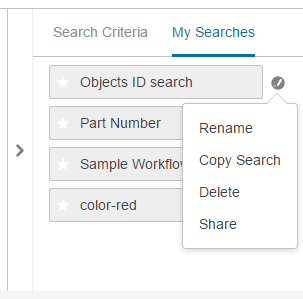
To share a saved search, the administrator (a member of the Unrestricted User Group) can click on the  icon to the right of each saved search to see the options available:
When the Share link is clicked, a menu of available users / groups is shown.
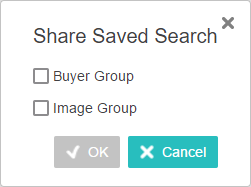
Make a selection and click OK. The user / group picked will have the saved search available under the Advanced Search My Searches tab the next time they access and/or refresh their Advanced Search page.
User groups without explicit access to create, share, save, and maintain advanced searches will experience a redesigned layout that is more simplistic and user friendly when they access the Web UI Advanced Search. End users who receive shared searches will not have the Search Criteria tab in Advanced Search. They will only see the 'My Searches' tab. In addition to increasing usability, this also reduces the risk of broad searches being unintentionally performed and depleting system resources.
End users cannot change or move the parameters of a saved search. However, they may change the values within a search, even if the search is already pre-configured with values.
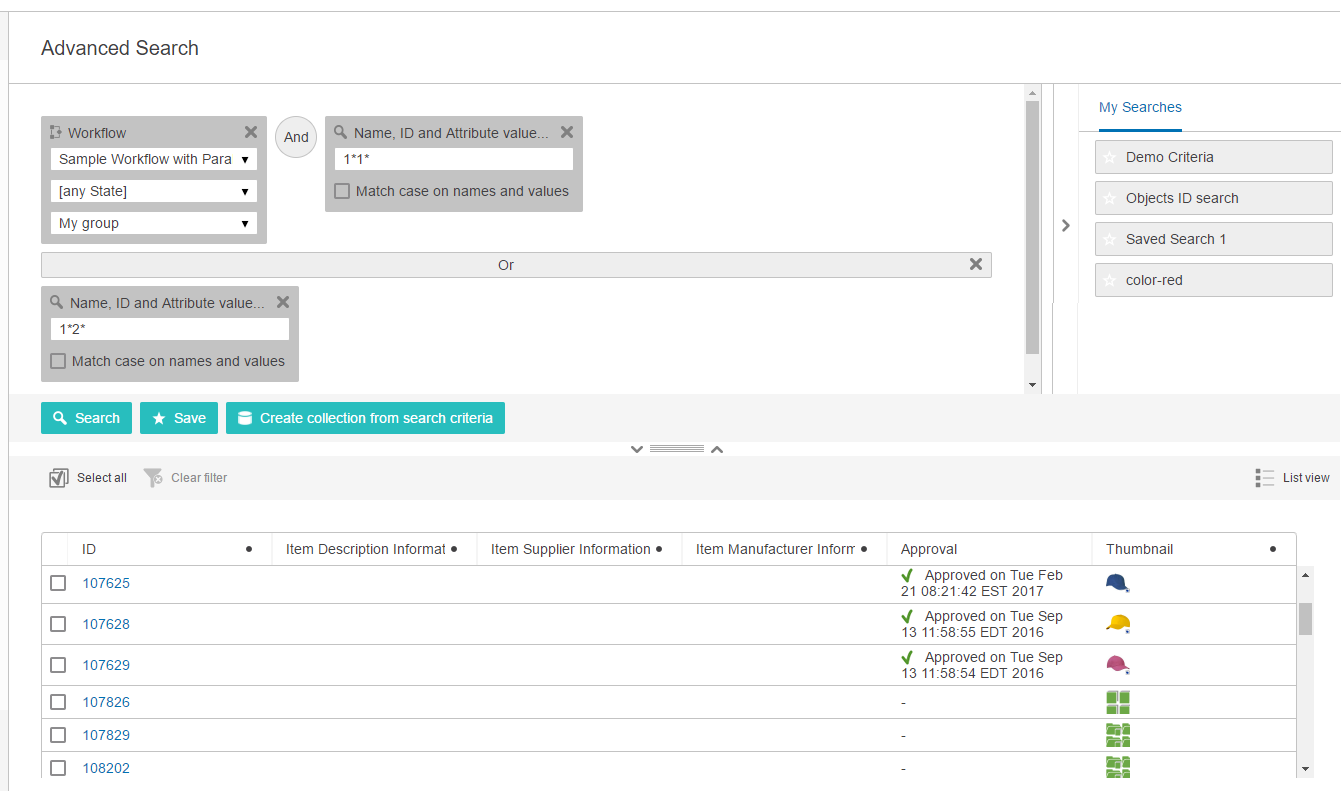
 in a saved search, the word 'exclude' does not show on the screen. The end user should be familiar with the symbol so they understand the search process and results.
 2018, Stibo Systems