
The Horizontal Fold Table transformation is used to 'fold' wide tables that contain a large number of columns into a taller, vertically oriented table. Users may have a need for the Horizontal Fold Table transformation if the table is so wide that it either cannot fit within a single InDesign page column or page, or if a vertical layout is desired.
This transformation works similarly to the 'Horizontal Wrap Table' transformation (documented in the Table Transformation: Horizontal Wrap Table topic
Though there are many combinations of configurations that can be applied within the transformation, the following two screenshots show a sample 'before' and 'after' of a table (as previewed within the workbench) after applying the Horizontal Fold Table transformation.
Before:
After (preview only pictured):

In order to take full advantage of this transformation, the table should meet these conditions:
Required:
Optional:
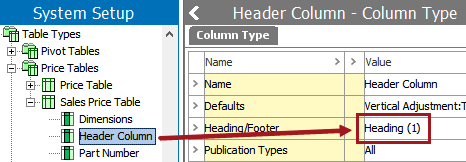
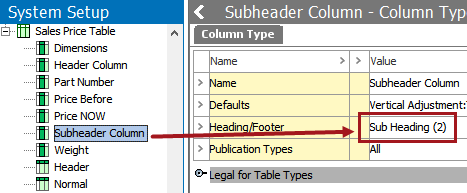
This topic assumes the following:
For this topic, the example table has eight columns, two of which are headers (a header column and subheader column), and the remainder of which are 'Normal Row' columns. (Even though the setting is Normal 'Row,' this setting applies to both rows and columns and simply means that the column / row is not used as a header, a subheader, or a footnote column / row.)

The Preview of the table looks like this before any transformations are applied:

To apply the Horizontal Fold Table transformation:


Sometimes a 'Normal' (non-header) column can end up by itself on a fold when the headers are repeated, causing it to be 'orphaned,' as such:

Note: Number of folds takes precedence over orphan protection, so this option is more of a 'protect if possible' option. In addition, this option only works when Sub Heading (2) columns are repeated; it will not work if only Heading (1) level columns are repeated.
For the table pictured in the previous screenshot, ticking 'protect against orphans' will move the orphaned column (Sale Price) up to the previous fold so it is no longer by itself. For this configuration, (1) has been entered for Orphans to move.

The 'orphan' Sale Price column is now moved to the previous fold:

As illustrated in the preceding section, moving an orphaned 'Normal' column can sometimes create an orphaned header. In this example, it is the 'Part Number' Heading (1) column that has been orphaned and now appears by itself on the last fold. Removing it will require a separate table transformation. (It is not unusual, however, to have multiple transformations stacked on one another, as this is common with tables in order to manipulate them to their final form.)
To remove this 'empty' header, the 'Remove Empty Rows/Columns' transformation must be added after the Horizontal Fold Table transformation. Full instructions on how to configure this transformation are described in the Table Transformation: Remove Empty Rows/Columns topic

The table now looks like this:

2018, Stibo Systems