Multiple InDesign queues may be created in STEP in order to sequence and prioritize jobs that are sent from STEP to an InDesign server, such as autopagination and proof view requests. InDesign queues allow jobs to be queued in the STEP server instead of within the InDesign server, allowing more control and prioritization of job requests. Such prioritization can ensure that foreground tasks (smaller tasks that do not use a background process, such as product proof views and Flatplanner page previews) are handled before background tasks (larger tasks that use background processes, such as autopagination) so users do not have to wait for a large job to finish before starting another.
Note: InDesign queues are not relevant unless your STEP system is linked to at least one InDesign server sidecar. For more information on deploying an InDesign server sidecar, contact Stibo Systems.
Use cases for needing different InDesign queues include:
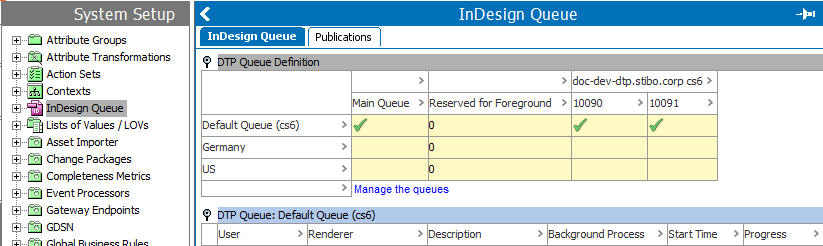
InDesign queues in STEP are created under System Setup > InDesign Queue.
In the above screenshot, the last two columns display the InDesign server renderers that are running, the port numbers to which they are connected (for example, 10090), and the version of InDesign they are running (for example, CS6).
Queues designated as 'default' (for example, Default Queue (CS6)) are created automatically for any InDesign server renderers that are not assigned to a user-defined queue. A system-generated 'default' queue, however, is not necessarily the 'main' queue. The main queue is used when a specific queue has not been assigned to the publication from which you are generating pages. Any queue can be selected as the main queue, depending on your business needs. There is no limit to the number of InDesign queues that can be created.
Note: The initial connection of InDesign servers to your STEP system must be performed by Stibo Systems. However, once the servers are connected, end users may create InDesign queues to prioritize the order in which pagination and proof view jobs are sent to these servers.
To create a new InDesign queue, follow these steps:
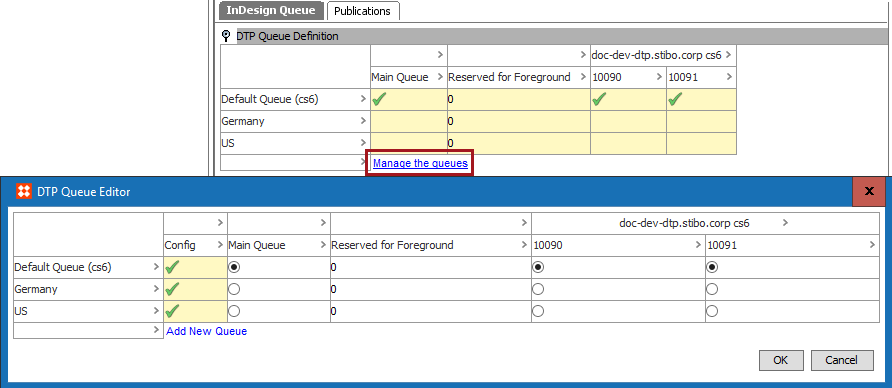
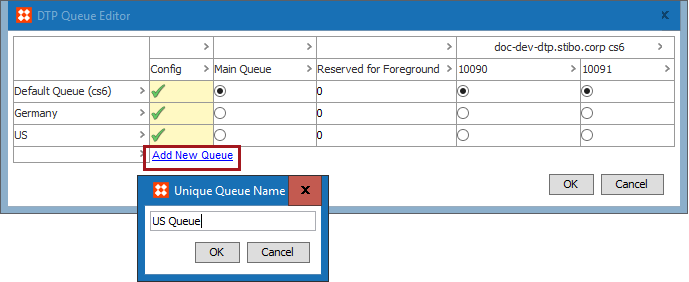
By default, all new queues are set to 0. Leaving a value of 0 means that a foreground task may have to wait until a renderer has finished processing a background task before the foreground task can complete. (If a background and foreground task are both waiting for a free renderer, the foreground task always get the first free one. However, not reserving a renderer for foreground tasks means that the possibility exists for all renderers to be busy with background tasks, causing a wait for a foreground task.)
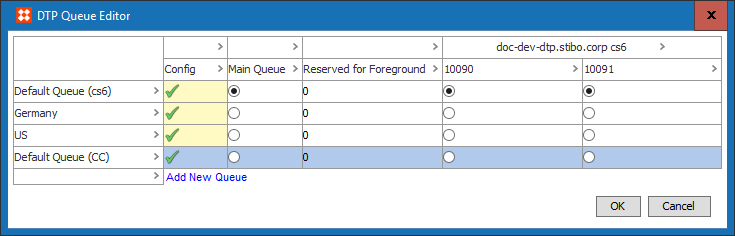
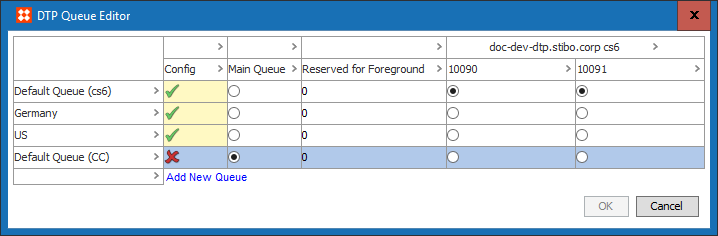
Foreground tasks are given higher priority over background tasks—otherwise the oldest task has higher priority.
Some background jobs are able to run in parallel—for example, generating a PDF of a large publication section can retrieve multiple documents in parallel and stitch them into a single PDF as each document is returned.
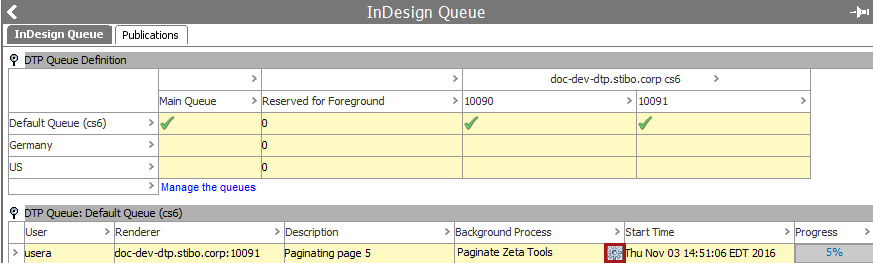
When requests are sent to the queues, the InDesign Queue screen displays the jobs in progress for each queue. The following screenshot shows an autopagination task that is being handled by the 'Default Queue (cs6)' queue. To view the associated background process as the task is in progress, click on the Background Process button.
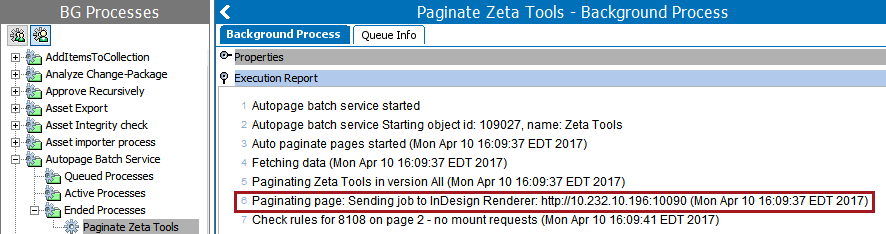
Background processes for jobs sent to the InDesign server appear in the Autopage Batch Service queues on the BGProcesses tab. The Execution Report for these processes displays the IP address of the InDesign server and the port number of the renderer that is processing the job.
For more information on background processes, see the Background Process Queues section of the System Setup / Super User Guide documentation here.
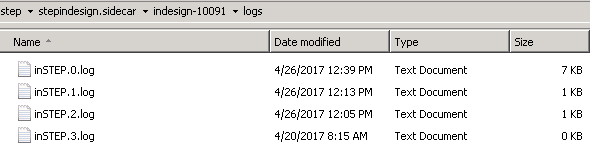
Each time a job is sent to an InDesign renderer, log files are generated and stored on the InDesign server in a 'logs' folder for that renderer. The below screenshot shows a standard 'logs' location on a Windows-based InDesign server (for example, E:\step\stepindesign.sidecar\indesign-10091\logs). However, you do not need to log in to the IDS to view and/or download these logs, as they are easily accessed from the IDS Logging tab in the Admin Portal. For more information, see the IDS Logging topic in the Administration Portal documentation here.
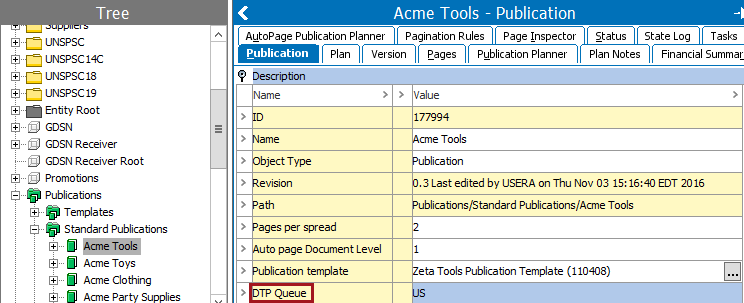
Publications and publication groups can be set to use a particular queue via the DTP Queue list, which, for publications is located on the Publication tab and for publication groups is located on the Publication Group tab. If only one queue exists, or if no queue is specified on the publication or publication group, the queue designated as the Main Queue in the DTP Queue Editor will be used.
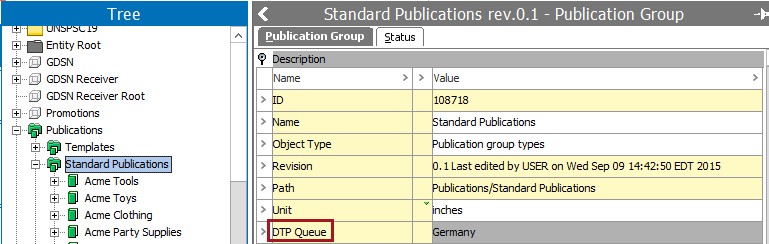
Queues set at the publication group level will inherit to all publications inside the group. This selection can be overridden at the individual publication level by selecting a different DTP queue for the publication, or by selecting no queue at all, in which case the main queue will be used for that publication.
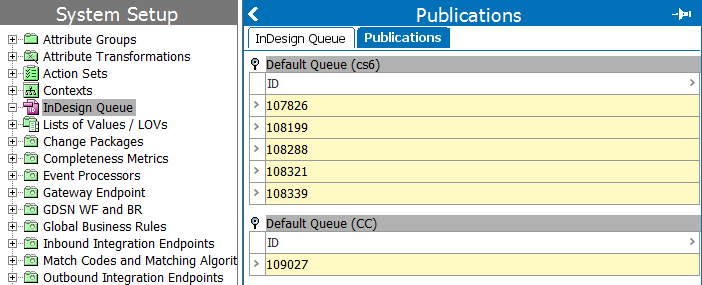
The publications assigned to each queue are displayed on the Publications tab in the InDesign Queue editor:
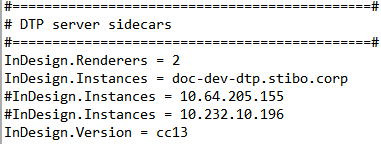
InDesign server instances are controlled via the sidecar, which uses the following information from the sharedconfig.properties file on the STEP application server. (Note that these settings are typically configured by Stibo technical support rather than super users or system administrators.)
The following screenshot shows a sample configuration for a Windows- based InDesign server instance:
2018, Stibo Systems