Open topic with navigation
Running an Inbound Integration Endpoint
After configuring an inbound endpoint, it must be enabled before it can run on schedule or be invoked manually.
The following icons are used to indicate the status of the inbound integration endpoint. The endpoint status is displayed in the System Setup hierarchy and on the endpoint editor in the Description flipper.
|

|
Enabled
|
The integration endpoint is active, connected, and running.
|
|

|
Disabled
|
The integration endpoint has stopped and no data is being imported. Newly created endpoints, and endpoints that have been manually disabled, will have this status.
|
|

|
Failed
|
An error occurred during processing that caused the integration endpoint background process to fail. No data will be imported until the endpoint has been manually resumed / reactivated. For more information, see Handling Failed IIEP Background Processes documentation here.
|
Enable and Invoke an Inbound Integration Endpoint
Once configured, use the following steps to run the endpoint.
- On System Setup expand the Inbound Integrations Endpoints node to display all existing inbound endpoints.
- Select a
 disabled inbound endpoint or a failed endpoint, right-click, and select Enable Integration Endpoint from the menu.
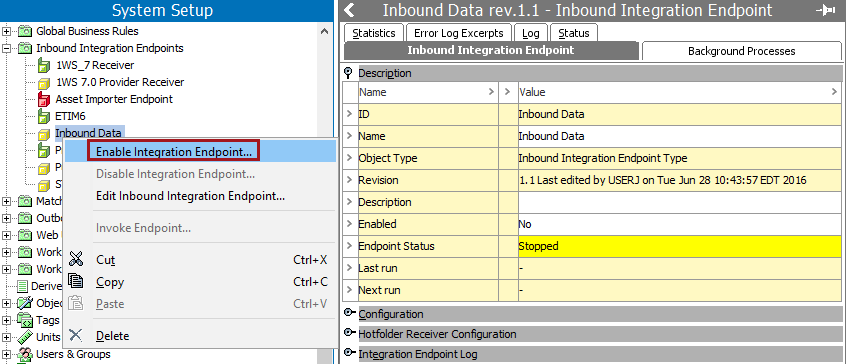
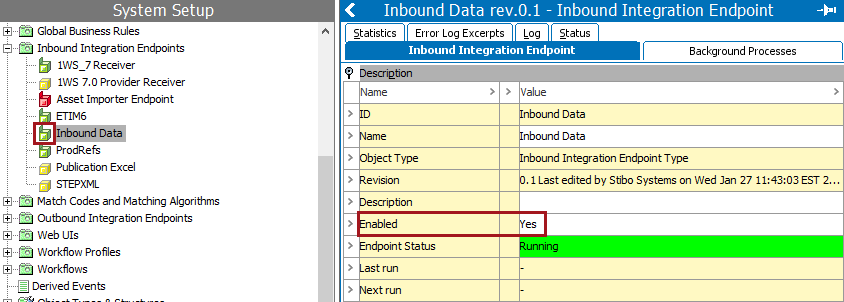
The tree navigator icon now shows enabled. On the Inbound Integration Endpoint tab, the Description flipper includes the 'Enabled' parameter, which now displays 'Yes'.
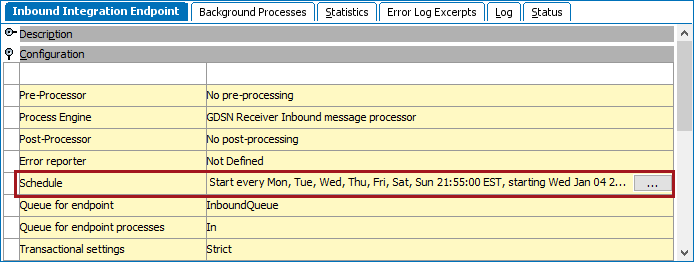
- Open the Configuration flipper to view the Schedule parameter.
- If scheduled, the Schedule parameter shows when the IIEP will be invoked automatically.
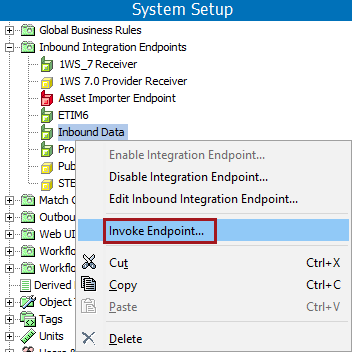
- If the endpoint is not scheduled, or if the IIEP needs to be invoked on demand, right-click the enabled IIEP and click Invoke Endpoint.
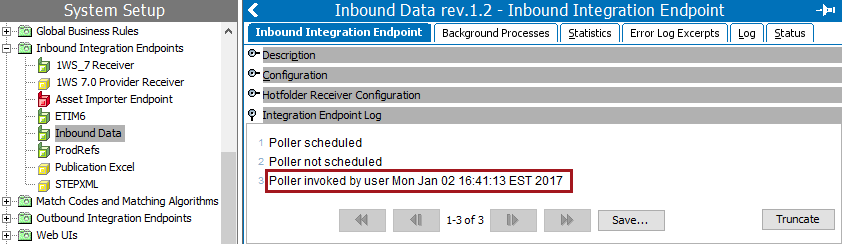
- When invoked on schedule and manually, files or messages available in the location identified by the IIEP receiver configuration are processed. The Integration Endpoint Log flipper displays the time the endpoint was invoked. For scheduled IIEPs, the log includes a link to the background process that was started. For more information, see Maintaining an Inbound Integration Endpoint here.
Disable an Inbound Integration Endpoint
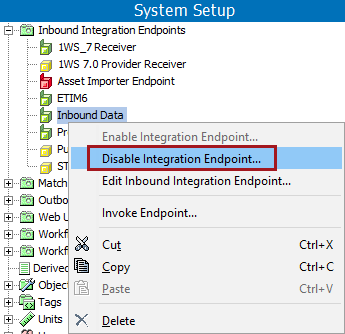
When an IIEP displaying the enabled icon () should be stopped from processing data, you can disable it. The configuration remains unchanged and no further data is processed. After selecting the IIEP, right-click and select Disable Integration Endpoint to set the IIEP to disabled and display the disabled icon ().
Once disabled, the inbound integration endpoint can be restarted using the Enable Integration Endpoint step defined above.
Additional information about restarting a failed endpoint, indicated by the failed icon () can be found in Handling Failed IIEP Background Processes documentation here.
2018, Stibo Systems