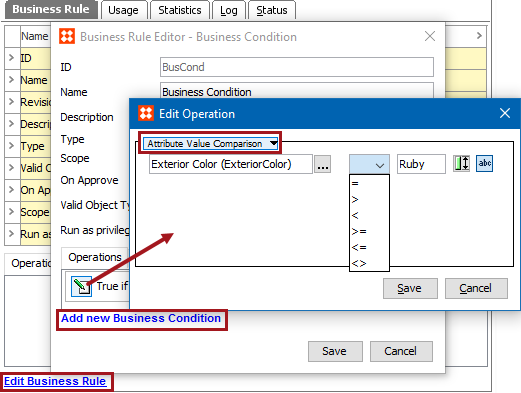
The 'Attribute Value Comparison' operation allows users to compare an attribute value on a selected object in relation to whatever the business condition is testing, be it a constant value or another attribute value on the same object. Alphanumeric comparison is used in most cases, except for dates (date, ISO date, and ISO date and time) and numbers.
For example, consider an attribute named ‘Active’ on products which has value ‘Yes’ and ‘No.' If the value is ‘Yes,’ then they are active products, and they should be approved. If value is ‘No,’ then consider the objects as non-active products and do not approve them.
Another example would be classifying products based on the product attribute ‘Color.' If the value of the ‘Color’ attribute is ‘Red,’ then classify the products into ‘Red’ classifications. However, if the value of the ‘Color’ attribute is ‘Blue,’ then classify the products into ‘Blue’ classification.
Special Comparisons
Prerequisites
Before using this business condition:
Edit the business rule to configure the operation as defined in Editing a Business Rule topic here.
 ) to compare the attribute value with a constant value. Enter a constant value in the text box. 'Ruby' is shown in the image above.
 ) to compare the attribute value with a different attribute value. Click the ellipsis button (…) next to the text box to display the Attribute 2 dialog. Use Browse or Search and select the attribute to be compared against. Click the Select button to close the Attribute 2 dialog.
 2018, Stibo Systems