It is possible to configure a grid of widgets that display useful information on the Web UI homepage, where users are directed after logging in. The purpose of the widget grid is to display a customizable overview of common tasks or information a user needs to more easily work in STEP. The widgets are meant as a quick way of getting an overview of a user's tasks and an easy way to reach actions that are often used.
Below is a list of some of the most commonly used widgets and instructions for adding widgets to a homepage. To add / configure homepage widgets, users must have appropriate privileges to access the Web UI designer and are expected to be familiar with the Web UI Designer, as basic concepts for working with the designer are not covered in this section.
The Asset Importer widget allows users to import assets via an asset import configuration. Multiple asset importer configurations can be mapped to the same widget. The widget can also be set up to not specify a configuration at all, allowing users to choose from a full list of all configurations available in the system upon initiating an import.
For more information on the Asset Importer widget, see the Asset Importer Widget section of the Web User Interfaces / Using a Web UI documentation here.
The HTML asset widget is a versatile component that will load an asset from STEP assuming that it contains an HTML document an insert it within the widget. This can used to display a rich message that can be updated by replacing the asset content from the STEP Workbench.
The KPI widget can be configured with a range different data profiling content. The dashboard widgets available in the Web UI can all be configured as content in the KPI widget.
For more information on what data profile widgets are available, see the Data Profile Widgets in Web UI section of the Web User Interfaces / Using a Web UI documentation here.
The links widget can be configured with a list of links to Web UI screens (e.g., upload screen or processes screen), a node in STEP (product, asset, classification, entity, or publication) or to an external URL outside the Web UI. In addition small sections of text can be placed in the list by adding a StaticText or StaticHtml component. The text components can be used to write descriptive text for the links.
Once configured, the Mass Creation Widget enables users to start the process of creating new objects in Web UI. This widget is used in conjunction with the Mass Creation screen type, which allows users to onboard multiple objects into STEP using Web UI screens instead of more complex import methods such as Smartsheets.
For more information, see the Mass Creation Widget section of the Web User Interfaces / Using a Web UI documentation here.
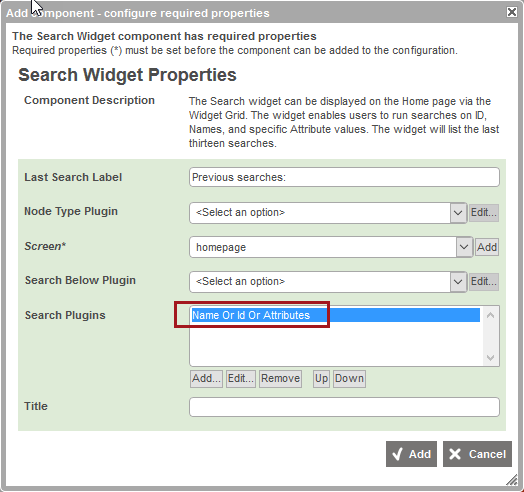
The Search Widget allows for a quick (and configurable) search of objects in the STEP system. The Search Widget can be configured to search widely through STEP, or it can be configured to search only a narrow segment of STEP, depending on the needs of the user. The results of a search can be displayed on either a screen of type generic Search or of type Node List Browser. The generic search screen can be configured with one or more display modes to show the results, and the Node List Browser screen will show a detail screen with the first result and the option of paging through the result list.
The Search Widget can also be configured to search within data containers. Editing the Search Widget Properties in the designer, the user must first add the 'Name Or Id Or Attributes' value in the Search Plugins field, and then click on the value to open the Edit component window.
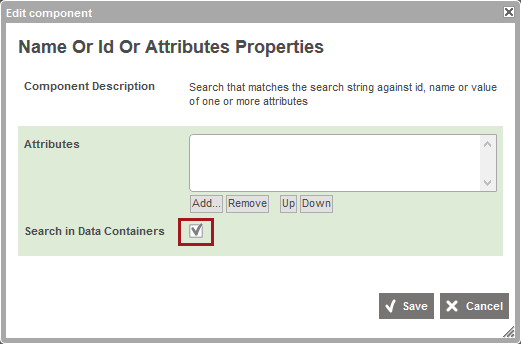
In the Edit component window, add attributes and check the box beside Search in Data Containers. Once this configuration is saved, any search initiated in the Search Widget will also search through data containers and return applicable entities within the search results.
A Simple Importer Widget allows Web UI users to initiate an import on demand from the homepage screen. Users can easily update or create products, entities, classifications, and attribute values by dragging and dropping a CSV or Excel format file onto a Simple Importer Widget. If desired, a Simple Importer Widget can also provide more advanced on demand import functionality when configured to utilize saved import configurations.
For more information , see the Simple Importer documentation
The Smartsheet Export Widget allows users to easily download smartsheets. Depending on how the chosen template is configured, this can be used for both data and template exports.
For more information, see the Smartsheet Export Widget section of the Web User Interfaces documentation here.
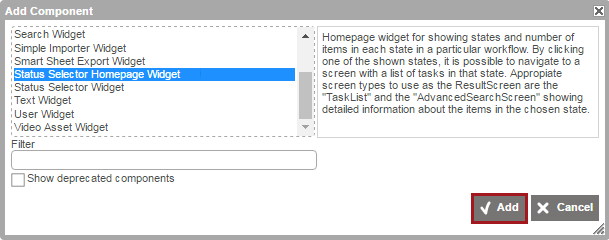
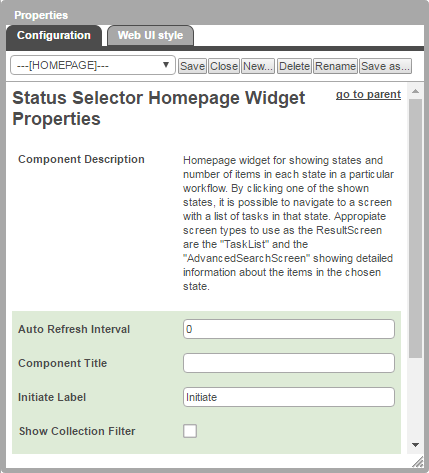
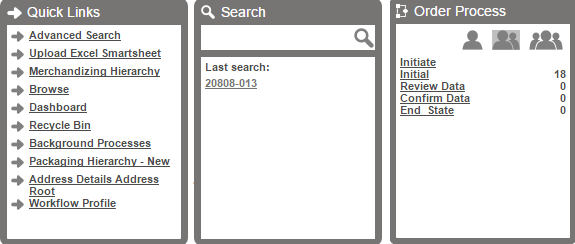
The Status Selector Homepage Widget allows a user to view tasks associated with the states of a particular workflow. If desired, the widget can also be configured to allow users to initiate objects into a workflow. Similar functionality is available on the Status Selector Sidebar Widget in Main.
For more information, see the Status Selector Homepage Widget section of the Workflows in Web UI documentation
The Text Widget allows for the display of text on the Web UI homepage. Since all users are directed to the homepage after login, the Text Widget is a great way to display a custom welcome message and/or instructions to users regarding next steps after logging in.
For more information, see the Text Widget documentation
The user widget shows the username of the currently logged in user, and has a logout button to let the user log safely out of the Web UI.
The Workflow Profile Historical Data widget displays historical data of the specified Workflow Profile as a line chart. This data must be generated on-demand via the Workflow Profile itself (in either workbench or Web UI).
For more information on the Workflow Profile Historical Data widget, see the Workflow Profile Historical Data Widget section of the Web User Interfaces / Web UI Getting Started documentation here.
The Workflow Profile Live Data widget displays live data of the specified Workflow Profile as a pie or bar chart.
For more information on the Workflow Profile Live Data widget, see the Workflow Profile Live Data Widget section of the Web User Interfaces / Web UI Getting Started documentation here.
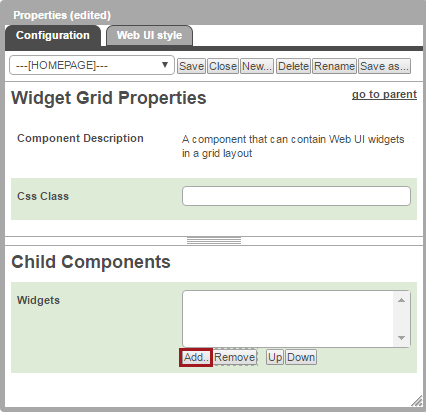
Any number of widgets can be added to a Widget Grid. Web UI designers can choose to add all widgets to a single Widget Grid component, but they can also add multiple Widget Grids to a homepage.
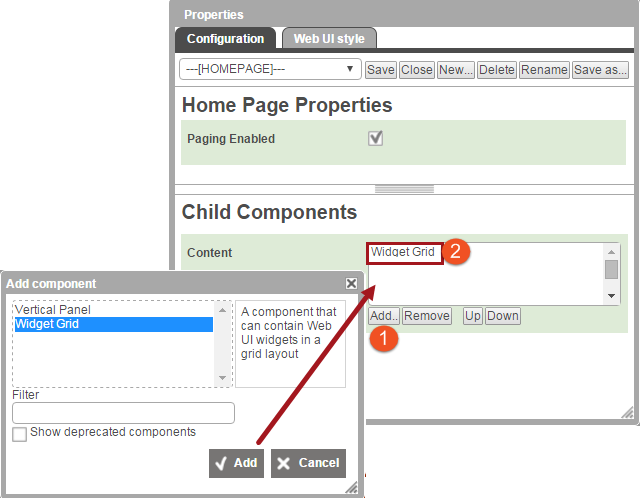
If more than one Widget Grid or Vertical Panel is listed, and a new Widget Grid is added, the new Widget Grid will appear at the bottom of the list.
2017, Stibo Systems