Open topic with navigation
Function Editor
With the Function Editor, in addition to writing functions manually, you can create complex functions by using one or more predefined templates. In addition, you can choose to automatically highlight function names, automatically indent lines in the function, and evaluate part of a function or an entire function against objects in the Tree.
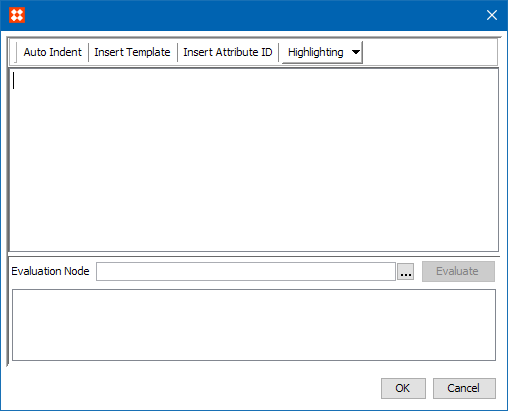
Accessing the Function Editor
The Function Editor is available in the following locations:
- Attribute editor
- In System Setup, navigate to an attribute that has been configured as calculated.
- On the Attribute tab, under the Description flipper, click the 'Value template' field for editing.
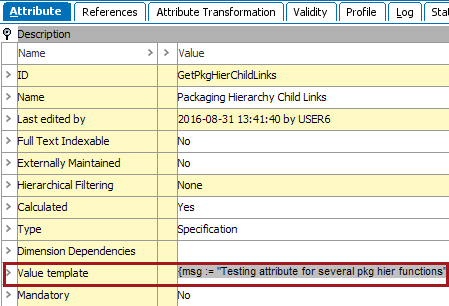
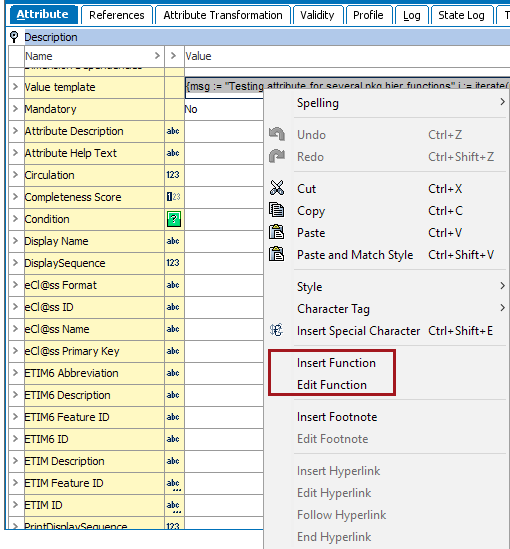
- Double click and right-click the 'Value template' field and choose Insert Function.
Note: If there is a pre-existing function, select 'edit Function'.
Note: The value template can consist of one or more functions, and it can also contain hardcoded text.
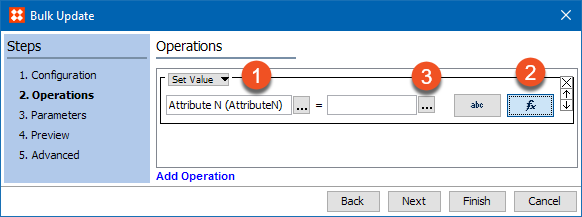
- Bulk Update wizard
- On step 2 Operations, select the 'Set Value' operation, click the Function button (
 ), and then click the ellipsis button (…).
- Flatplanner
- When working with Flatpanner publications, you can add a calculation option to the Basket view, Financial Summary view, and/or the Sticker Book view. For more information, see the Customized Views section of the Flatplanner documentation here.
Using the Function Editor
If you know the name and required arguments of the needed function, type directly into the upper text field. For more information on the available functions and their syntax, see the Calculated Attributes documentation for Calculated Attributes Functions here or for Inserting Templates here.
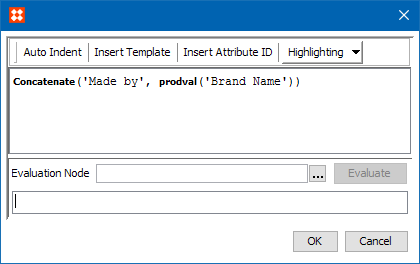
Function Editor Options
The following options can be accessed in the Function Editor either by clicking on the menu tabs across the top or by right-clicking inside the upper text box and choosing from the popup menu.
- Auto Indent: Displays the function in a typical coding layout. Indents and hard returns are added for an easier-to-read format, as shown below.

- Insert Template: Allows a preconfigured calculated attribute function template to be inserted at the current location of the cursor. For more information, see the Calculated Attributes documentation for Inserting Templates here.

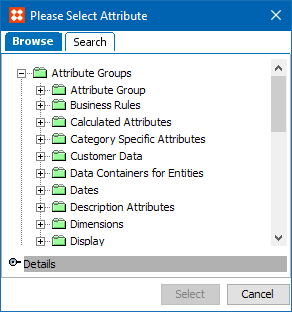
- Insert Attribute ID: Displays an attribute browse / search dialog, and inserts the attribute ID of the selected attribute at the current location of the cursor. For more information, see the Calculated Attributes documentation for Inserting Attribute IDs in Functions here.
- Highlighting: Displays or removes highlighting for parentheses and/or bold for function names.
- Evaluate: Tests part of a function or an entire function against objects in the Tree. For more information, see the Calculated Attributes documentation for Evaluating Functions here.
2017, Stibo Systems