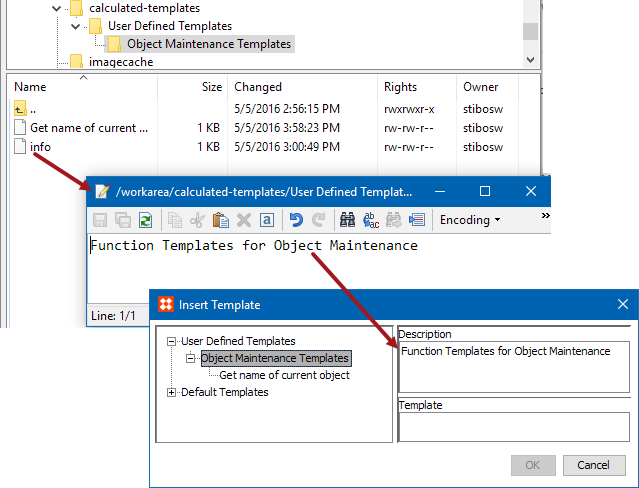
STEP includes default function templates, which appear when 'Insert Template' is clicked on, but STEP also allows you to create your own.
User-defined function templates are stored in the directory identified by the 'Calculated.TemplateRoot' system property in the sharedconfig.properties file. The directory is on the application server, or when using a clustered setup, on a shared drive. For example, on a Linux system, the property could look like this:
Calculated.TemplateRoot=/shared/calculated-templates
For Windows, the folder is normally found in a drive with the path similar to below:
E:\stibo\step\calculated-templates
Note: The name of the drive that the path is found in may vary from system to system. In this example the drive 'E' was used.
The following images show the relationship between the folder / file levels and the information displayed in the Insert Template dialog. Within the function template directory, create as many levels with corresponding descriptions as needed.
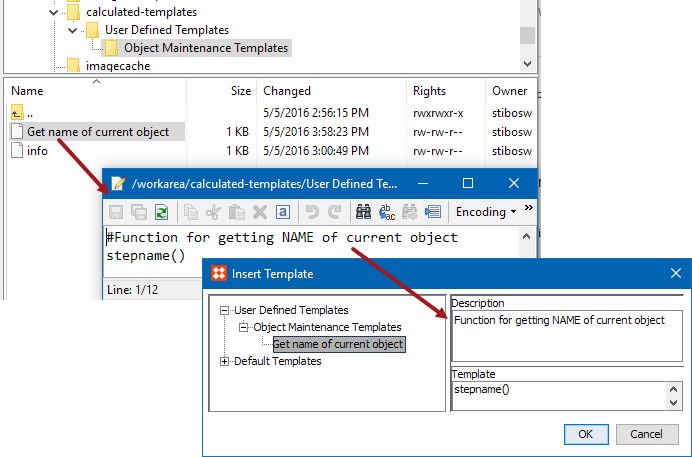
The following images show the relationship between the template file and the information displayed in the Insert Template dialog. Within the function template directory, create a template file as follows:
The following image shows the template setup and details in the Insert Template dialog.
System Setup for Users & Groups includes a global setting to make all calculated attributes dimension dependent. This allows value templates to differ across contexts by using a different formula template for the same attribute, based on the selected dimension.
Note: If translation of a value template is required, ensure that the expression syntax is valid.
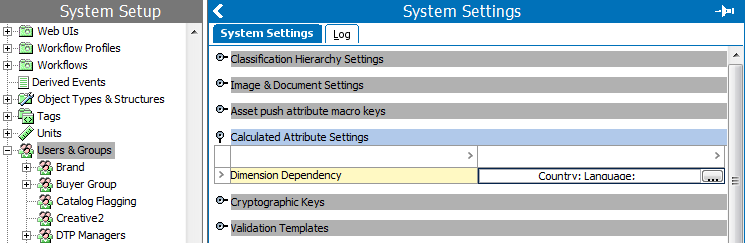
For example, when calculating 'width x depth x height' using the language dimension dependency,
Concatenate(prodval('Width'),'W x ', prodval('Depth'), 'D x ', prodval('Height'), 'H')
Concatenate(prodval('Width'),'l x ', prodval('Depth'), 'p x ', prodval('Height'), 'h')
For more information about setting a calculated attribute to be dimension dependent, see the Calculated Attribute Settings within the Users and Groups > System Settings section of the System Setup / Super User Guide documentation
2017, Stibo Systems