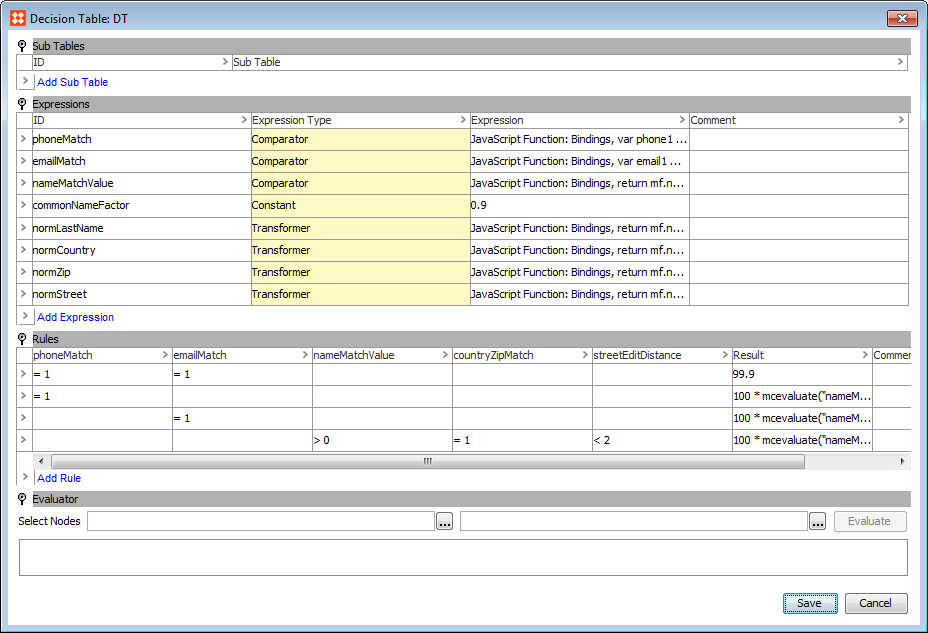
The Decision Table match criterion is a flexible method of defining a matching algorithm. Like the other available criteria, a decision table can compare two objects and indicate to what degree they are similar. The algorithm is defined using various comparisons between two objects and a set of rules governing the conditions for the outcome.
In the example table below, separate comparisons are being handled simultaneously via a single decision table.
|
phoneMatch |
emailMatch |
nameDistance |
Result |
|---|---|---|---|
|
TRUE |
TRUE |
|
100 |
|
TRUE |
|
< 1 |
95 |
|
|
TRUE |
< 1 |
95 |
|
TRUE |
|
< 3 |
85 |
|
|
TRUE |
< 3 |
85 |
In the above case, the phone numbers and emails of customers, as well as the Damerau-Levenshtein distance of their names are all compared using the same table. The rows in a decision table represent different 'rules' and are evaluated from top to bottom. In the above example, the top rule states that if both phone and email return true (meaning they match in this case) it should return '100' (100% chance of a match). If 'phoneMatch' returns true but 'emailMatch' does not, the result would be '95'. If no matches are found after running through all of the rules in the table it will result in a '0'.
Decision tables in STEP cannot handle Boolean values, so the logic must be expressed using 0’s and 1’s instead (e.g., if there is a match on phone, 1 is returned, otherwise 0). Thus, the above table would look like this in STEP:
|
phoneMatch |
emailMatch |
nameDistance |
Result |
|---|---|---|---|
|
= 1 |
= 1 |
|
100 |
|
= 1 |
|
< 1 |
95 |
|
|
= 1 |
< 1 |
95 |
|
= 1 |
|
< 3 |
85 |
|
|
= 1 |
< 3 |
85 |
A decision table consists of four major sections: Sub Tables, Expressions, Rules, and Evaluator.
Sub Tables are optional decision tables used for breaking a complex algorithm down into smaller, more manageable parts. A decision table within a decision table, essentially. A matching algorithm for a customer record can, for example, be split into sub tables for name, address, and phone number, leaving the details of matching these aspects in the sub tables.
To create a sub table, click the Add Sub Table link in the 'Sub Tables' area. Next to the newly created sub table, click the ellipsis button (…). A configurable decision table will appear.

The output from sub tables can be referenced via the mcevaluate (STEP function) and evaluate (JavaScript) methods. Furthermore, the result value for each rule can be a STEP function.
Expressions form the foundation of a decision table and can be used to evaluate one or two specific objects.
To create an expression, click the Add Expression link in the 'Expressions' area. In the dialog that appears, specify an ID for the expression, as well as it's expression type (see expression types below), and whether it is to be written as a JavaScript function or a STEP function.
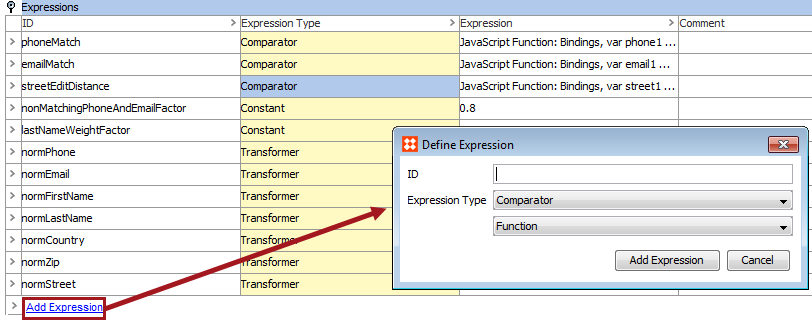
There are three kinds of expressions: 'Transformers' that operate on a single object, 'Comparators' that evaluate multiple objects, and 'Constants' which always return a constant value.
Transformers are primarily used for retrieving and normalizing attribute values and only focus on one object at a time. They can be configured using either JavaScript, STEP functions, or an option called 'Attribute Value' that simply lets you reference the value for a specific attribute.
Transformer expressions can work with the results from other transformer expressions. With STEP functions, the result of another transformer or a global bind can be obtained via the mcevaluate ('ExpressionID') function. In JavaScript, a 'Match Expression Context' object can be bound using the function evaluate ('ExpressionID'), allowing you to reference the result of other transformers or global binds in a similar way.
A Comparator Expression works on two objects at a time and is, as the name implies, the piece of functionality doing the actual comparison. Comparators can be formulated using either STEP Functions or JavaScript. In STEP Functions, you can again, reference the output of transformers using the mcevaluate function, but will have to specify which of the two objects being compared you want the value for.
For comparators, to get the value from a transformer expression, mcevaluate takes two arguments: the first being the ID of a transformer expression, and the second, a string 'first' or 'second', specifying from which of the two objects being compared you want the expression rendered.
A constant expression is an expression that returns a constant value. Constants can be used to externalize constant values for use in other match expressions. Fine-tuning the matching algorithm can then be done by modifying the constant values, without the need to change or even understand the inner working JavaScript and functional based expressions.
Rules determine the comparison result for the decision table based on any existing sub tables, as well as the comparators defined in the expressions table. Each sub table and comparator is represented with a column in the rules table. As mentioned earlier, a row in this table represents a rule. A rule consists of two major parts:
To add rules to the table, click the Add Rule link in the 'Rules' area. A new row will appear in the table, allowing for the creation of a new rule by populating the relevant fields in the new row.
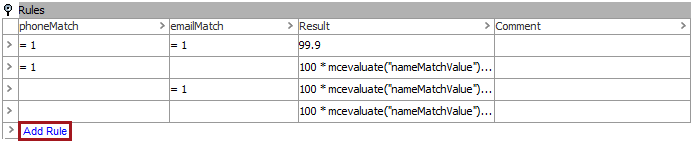
A condition applies to the result of a sub table or a comparator. For example, if a rule column is defined by a comparator that is the textual edit distance between a value in the two compared objects, a condition for that rule could be that the edit distance is less than five. This is specified by writing '<5' in the column of that comparator for this rule. If the edit distance is greater than five, the rule will not have fulfilled the condition. If no condition is specified for a given rule, the sub table or comparator for that column is not taken into account for that rule.
The result column of a rule is either a number or a function that calculates the result. If the result is based on a function, it can be based on the results of sub tables and comparators. To do this, apply the same mechanism as for function-based comparators.
The evaluator is a tool for diagnosing unexpected results that may be encountered. In the evaluator, select two objects that you want to compare. It reports the results and provides detailed information about how the result was obtained. If additional details are required, the evaluators of the sub components can be used.
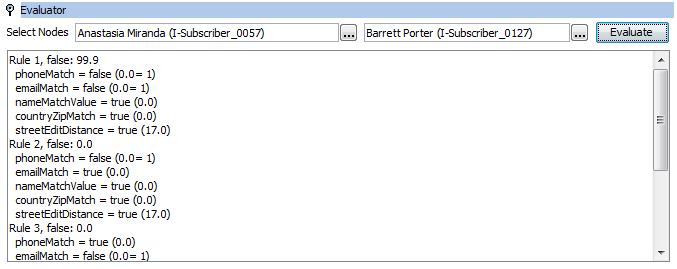
The evaluator is also available in expressions. If a transformer is evaluated, select one or two objects for evaluation. If you select two objects, a result is displayed for each selected object.
2017, Stibo Systems