Open topic with navigation
Business Condition: LOV Cross-Validation
For Web UI only, this condition allows a user to specify legal relationships between the values in two List of Values (LOV) attributes, meaning that the value of the defining LOV attribute determines the valid values for the dependent LOV attribute. This cross-validation is not applicable in workbench.
- Verify that the Allow Users to Add Values option is set to No for both the Defining attribute LOV and the Dependent attribute LOV. For more information, see Creating an LOV in the System Setup documentation here.
- Verify that the Use IDs on values option is set to Yes for both the Defining attribute LOV and the Dependent attribute LOV. For more information, see Adding IDs to Values in LOV in the System Setup documentation here.
- Verify that the Defining attribute is single-valued and of the validation type LOV.
- Verify that the Dependent attribute is of the validation type LOV. This attribute can be single or multi-valued.
- For Defining attribute, click the ellipsis button (…) and select the attribute that will determine valid values for the dependent attribute.
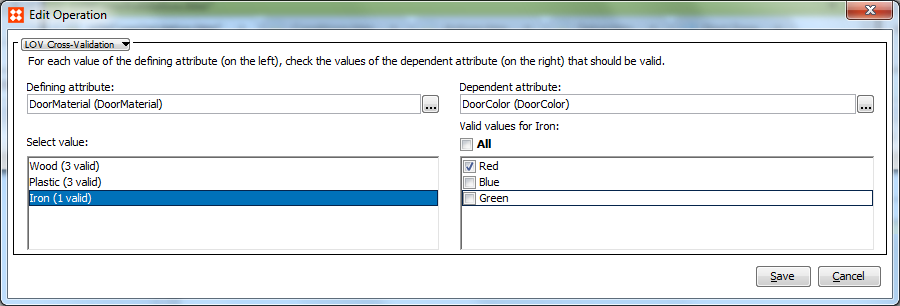
- For Dependent attribute, click the ellipsis button (…) and select an attribute that will have limited valid values.
- In the Select value area, highlight a value and then in the Valid values for area, select the values you want to be valid for the currently selected defining attribute value.
Note: The number in the parentheses next to each attribute name specifies how many values of the dependent attribute are configured to be valid. This provides an overview of the configuration without clicking through every defining value.
- Review the additional values in the Select value area and repeat the previous step as necessary.
- Follow the steps described in Using Business Conditions in Web UI to set up the LOV cross-validation in Web UI here.
2017, Stibo Systems