Stibo Systems' solutions enable organizations to turn master data into a trusted asset by more effectively managing, gathering, sharing, and publishing master data across the information supply chain. To learn more about all we have to offer, visit the Stibo Systems' website.
The online documentation accessible on this site is organized into the following main categories:
-
Documentation Updates - record of changes made to documentation supporting STEP, PDX, and the SSUI, including links to the latest update notes and the updated online help topics.
-
Self-Service UI Documentation - explanation and overview of the Self-Service UI (SSUI), which enables administrators to monitor and maintain SaaS STEP environments (including upgrades), grant and restrict access, create sandbox environments and modular services, and programmatically access and monitor the STEP platform.
-
PDX Documentation - explanation and configuration information for Product Data Exchange (PDX), a solution that allows manufacturers and brand owners (vendors) to share data with retailers, distributors, data pools, and content service providers, regardless of each recipient's data format or requirements.
-
STEP Documentation - explanation and configuration information for the Stibo Systems Enterprise Platform (STEP), our master data management (MDM) platform, as well as its add-on components and functionality specific to product lines.
Note: This documentation is revised with each update to provide the most current information. For the best experience, always access documentation from your Start Page or from the Help menu in the workbench to ensure that the documentation version matches your STEP version. Using outdated documentation is not recommended.
Our platforms and solutions are under continuous development. Because of Stibo Systems' dedication to improving its software offerings to meet our customers' evolving needs, it is possible your system may contain additional functionality not yet described in this online help. As with our software, the online help is under continuous development.
Important: Our online help site is designed for administrators and users of our platforms and solutions. The screenshots and interface images in this documentation showcase key features of our products, though the interface may have been further enhanced or refined since they were captured. We continually improve our user experience, and while we strive to keep our documentation up to date, the latest version may include additional updates. We encourage you to explore the most current features and functionality of our product for the best experience.
Additional considerations:
-
Some functionality is controlled via licenses and therefore may not be available on your specific system. For additional information on licensing, contact Stibo Systems.
-
Styling on the images within the online help vary based on the operating system. While the same dialog in your own system may not look exactly like the one in online help, the functionality is not altered by the cosmetic differences.
-
Email address hyperlinks within online help require that you have a default email program / app. For assistance in assigning a default email application, search for the 'default email client' on your computer or the web.
-
The language used for the STEP Start Page can be changed at any time via the 'Webstart.I18NLanguage' configuration property in the SSUI. For more information, refer to the Environments - Configuration Properties Tab topic in the SSUI documentation.
Note: In addition to the update notes and online help available from Stibo Systems Online Help Documentation, PDX update notes and online help are available within the PDX solution. Once logged into PDX, use the left navigation panel and click Help Center > Documentation.
Enhanced Content Syndication information can also be accessed after logging into Enhanced Content, on the left navigation panel, click Documentation to open it in a new tab.
Searching Online Help
When looking for documentation within online help, the following tips and tricks will help you find the information that you need:
-
Explore the topics in the left navigation panel, which are organized with descriptive headings, and are grouped by an umbrella topic (e.g., 'Sidebar' in the PDX Documentation and 'Workflows' in the STEP Documentation). Clicking a heading can display additional topics (e.g., 'Dashboard', 'Channels' in the PDX Documentation and 'Creating a Workflow', 'Workflow Terminology' in the STEP Documentation).
Use the 'Previous' and 'Back' buttons (in the red box below) to browse topics before and after the one currently displayed.

-
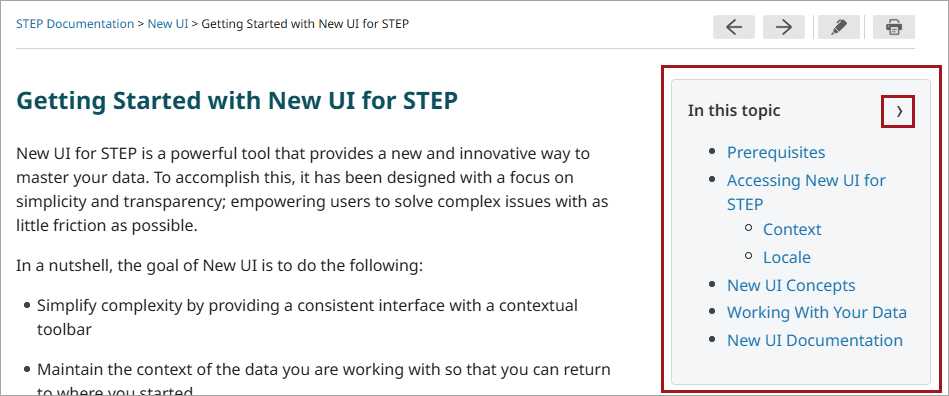
Review the topic-specific table of contents at the top of each online help topic in the 'In this topic' panel (shown in the large red box in the screenshot below). This panel provides users with an overview of the topic's subheadings and quick access to specific information within the topic. Click a link in the panel to auto-scroll to the selected heading. To copy a link to a section for sharing or saving, right-click the link and select 'Copy Link' from the menu. Click the '>' button (shown in the small red box in the screenshot below) to collapse the panel. For topics with no subheadings, the panel is automatically collapsed.
-
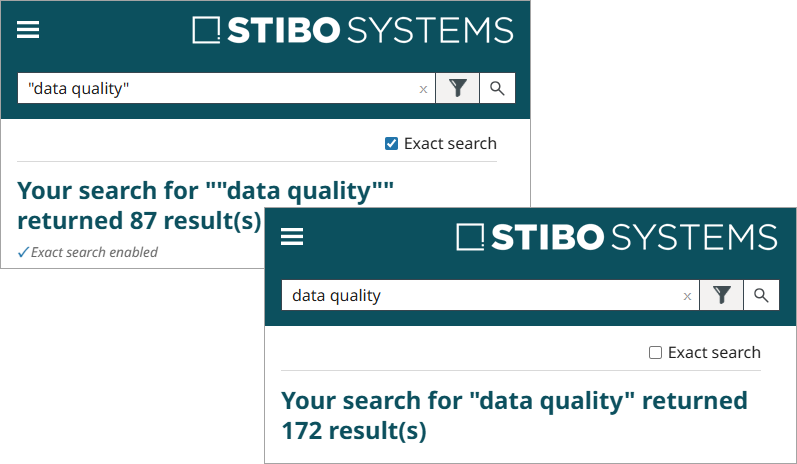
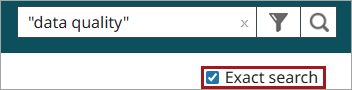
Use the search field in the upper right corner of the page to find help topics based on keywords. Manually surround search terms with double quotation marks to find exact matches or use the 'Exact Search' checkbox that displays in the top right corner of the search results page. Checking the box adds double quotation marks on either side of the search text and updates the results to show only exact-phrase and word-order matches; when unchecked, results also include near matches.
-
Use keyboard shortcuts (ctrl+F / cmd+F) to search for terms in search results sets or within topic displayed on the screen.
The information above helps you quickly find the information you need. Keep reading for more detailed information about using the online help search features and common words to avoid using in the search field.
Text Field, Version, Filter, and Search Button

-
The text field allows you to limit the search result topics based on the text entered.
-
The current online help version is displayed. Click the STEP version number button to display a dropdown and select online help for another supported STEP version.
When any version other than the current version of online is viewed, the STEP version number button displays a warning.

-
The filter button (
 ) limits your search to the selected section of online help. When a filter is active, the title of the filter displays in the search box and the filter button color changes (
 ):
):
Note: Once a filter is activated, to remove all filtering, select the 'All Topics' filter option.
The following filters are available:
-
All topics - by default, searches are performed on every topic
-
Current Update Notes - the most recent Update Notes for all platforms and solutions
-
All Update Notes - all Update Notes in the Stibo Systems Online Help Documentation
-
Artificial Intelligence (AI) - topics focused on artificial intelligence functionality
-
Customer Experience Data Cloud (CXDC) - topics applicable to a customer-focused solution
-
Product Experience Data Cloud (PXDC) - topics applicable to a product-focused solution
-
New UI for STEP - topics applicable to the newest user interface
-
Product Data Exchange (PDX) and Enhanced Content - topics applicable to connecting data pools to retailers
-
CXDC Solution Enablement - topics applicable to a technology-enabled discipline which is required to create and maintain an accurate, timely, complete, and unified view of a customer or supplier entity
-
PXDC Automotive Solution Enablement - topics applicable to support of the AutoCare and TecDoc standard formats
-
PXDC Solution Enablement - topics applicable to a technology-enabled discipline that allows products to be tracked, managed, enriched, and exported
-
-
The magnifying glass button (
 ) initiates a search.
To search online help:
-
Type a search query (single keyword or multiple words) in the text field.
-
Click the magnifying glass button (
) or press Enter to initiate a search. -
Click the 'Exact Search' checkbox to update the search results with only exact matches. Uncheck the box to return to the original result set.
-
Review the results list for topics related to your search.
-
Perform a new search while leaving the filter unchanged by clicking the clear search text button (x) to remove the current search text.

Searching Full Text and Phrases
Online help search is not case-sensitive and matches may include varying endings. As an example, entering the word 'limit' returns 'limits', 'limiting', and 'limitation'.
Within the list of returned topics, matches of the searched word(s) are highlighted. While viewing a topic that has been opened from a search result list, the enabled 'Toggle search highlighting' button (shown in the red box below) indicates if the search terms are included in the topic.

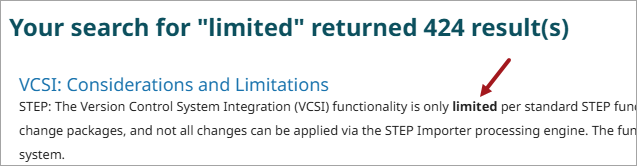
In some cases, there is no search highlighting. For example, when searching for 'limited', the topics with 'limit', 'limits', and 'limiting' are returned because they are variations of the searched term. If the word 'limited' is not in the topic, there is no highlighted content and the 'Toggle search highlighting' button is disabled ( ).
).
While viewing a topic that has been opened from a search result list and that contains the search term, click the enabled 'Toggle search highlighting' button ( ) to turn off the highlighting or restore the highlighting.
When a search term occurs in the topic description (as shown in bold text on the search result page), it may not be included in the topic itself. In this case, no search highlighting will be shown while reviewing the topic.
Searching Synonyms
Within online help, some words are used interchangeably (like 'BGP' and 'Background Process'), and some have been updated over time ('Portal' and 'Web UI'). To account for these scenarios, synonyms allow you to find the topics that likely address the search you are performing. For example, the words 'environment' and 'platform' are recognized as synonyms in online help. Searching for 'environment' can return topics where that word is not found, but 'platform' is, and it is likely that the topics include data about environments and/or platforms.
Searching Common Words
The common words below are ignored when entered alone in the online help search field. If you use the words within a multi-word search, results are returned. For example, entering "Create From Template" in the search field yields the expected results, but searching for the word 'From' as a standalone word returns zero results.
Words ignored when searched alone
- a
- about
- after
- against
- all
- also
- among
- an
- and
- are
- as
- at
- be
- became
- because
- been
- between
- but
- by
- can
- come
- do
- during
- each
- early
- for
- found
- from
- had
- has
- have
- he
- her
- his
- however
- in
- include
- into
- is
- it
- its
- late
- later
- made
- many
- may
- me
- med
- more
- most
- near
- no
- non
- not
- of
- on
- only
- or
- other
- over
- several
- she
- some
- such
- than
- that
- the
- their
- then
- there
- these
- they
- this
- through
- to
- under
- until
- use
- was
- we
- were
- when
- where
- which
- who
- with
- you
- your
Searching Scenario Videos
The following table and accompanying videos illustrate searched words and the results returned by the online help search option.
For more information on effective search methods, click the video below. This video describes six methods of searching the online help users can deploy to make the search results more relevant.
For each method listed in the table below, a short video segment from the longer video above is embedded in the cell for the 'Description' column. Each video segment demonstrates an example of the search method described in the table row.
| Text in search field | Results include topics containing | Description |
|---|---|---|
|
"data quality" or data quality with the 'Exact search' checkbox enabled |
'data quality' but not 'quality data' nor 'data for enhanced quality' |
" " (double quotes) indicate an exact phrase and an exact order match is required
Note: If searching multiple keywords and any of them, but not all, contains some sort of formatting (e.g., data quality), then that instance is not considered an exact match. |
|
data quality data AND quality |
both words 'data' AND 'quality' regardless of the order in which they appear |
When separating terms with a blank space, the AND is always inferred. Additionally, AND between words indicate both words must appear in the same topic.
|
|
data OR quality |
either word 'data' OR 'quality' |
OR indicates that only one of the words must appear in a topic
|
|
data NOT quality |
the word 'data' and NOT the word 'quality' |
NOT indicates that the following word must not appear in a topic
|
|
data AND (sort OR tools) |
the word 'data' AND either the word 'sort' OR the word 'tools' |
( ) (parentheses) combines multiple search functions
|
|
data AND "sort tools" |
the word 'data' AND the phrase 'sort tools' |
Multiple search functions with an exact phrase search
|
|
"data quality" but only in release notes |
"data quality" in release and maintenance patch notes |
Selecting from the filtering dropdown which section of the online help to search
|