Products and their data can be imported into PDX in one of the following ways:
Pushing Data from STEP
Primary Users
Organizations that use STEP as their primary product information system can transfer product data directly from STEP to PDX through an integration. One of the key benefits of this integration is that it is a two-way integration. This allows users in the STEP system to monitor the status of their products across various channels. For more information on this functionality, refer to the PDX Channel Status Monitoring documentation topic.
Setup
For more information on the setup of the integration from STEP to PDX, refer to the Setting Up the PDX OIEP documentation topic.
Important: The Source System ID should be left blank when creating an API key for STEP, as channel config promotion from a lower life-cycle environment will otherwise not be possible.
PDX Feed API
Primary Users
Organizations that maintain product information outside of STEP can use the PDX Feed API to transfer product data directly into PDX. By integrating external systems with the PDX Feed API, organizations can reduce manual data entry and keep product information synchronized across systems.
Setup
For more information, refer to the Feed API documentation.
Manual Import of Files
Primary Users
Manual file imports are intended for organizations and users who need to load product information into PDX without implementing a system integration. This approach is commonly used by organizations that:
-
Manage product information in spreadsheets
-
Find system integration unfeasible
-
Want to leverage manual imports to complement STEP and Feed API integrations when specific data sets need to be uploaded independently
File Types Supported in Manual Import
PDX supports the manual import of the following:
| File Types | Supported Extensions |
|---|---|
| JSON files | .json |
| ZIP files | .zip |
| Spreadsheets | .xls, .xlsx, .xlsm, .csv |
Import of JSON files
PDX supports the import of JSON-formatted files provided the following are true:
-
The file contains a list of objects.
-
Each object consists of a set of key-value pairs representing attribute name and attribute value.
Refer to the example below:
[
{
"Id": "Product1",
"Name": "Product number 1",
"Color": "Red",
"Size": "Small",
"Price": 10.0,
"Category": "General"
},
{
"Id": "Product2",
"Name": "Product number 2",
"Color": "Blue",
"Size": "Medium",
"Price": 20.0,
"Category": "General"
},
{
"Id": "Product3",
"Name": "Product number 3",
"Color": "Green",
"Size": "Large",
"Price": 30.0,
"Category": "General"
}
] Note: JSON files are imported to a single user-determined language layer in PDX.
Import of ZIP files
PDX supports the import of zip files, provided that:
-
The zip file only contains one file.
-
The zipped file must be eligible for import according to the requirements previously described.
-
The zipped file does not contain spreadsheets exported from a PDX channel (channel data enrichments).
-
The uncompressed file does not exceed 1 GB.
Note: The maximum file size allowed when uploading files as part of product import to PDX is 300 MB, making file compression mandatory between 300 MB and 1 GB.
Import of spreadsheets
The most commonly used upload format is spreadsheets, which are used as the upload example in this topic.
- Spreadsheets: An Excel spreadsheet can be used for the initial import of products. The product and its data will appear in the master data. Spreadsheets can also be used to update existing products previously imported. The spreadsheet import process can import products and their data through:
Key-based Import - This import type will update all products with the same ID.
Match-based Import - This import type will update all products based on a matching value in an attribute of choice.
Note: When updating existing master data through the regular product import, a common 'ID' must be identified in all spreadsheets so that PDX can connect the new data to existing products. If you are using data from both STEP and external sources using spreadsheets, the common 'ID' must be the STEP ID.
Organizing Data For Import With Spreadsheets
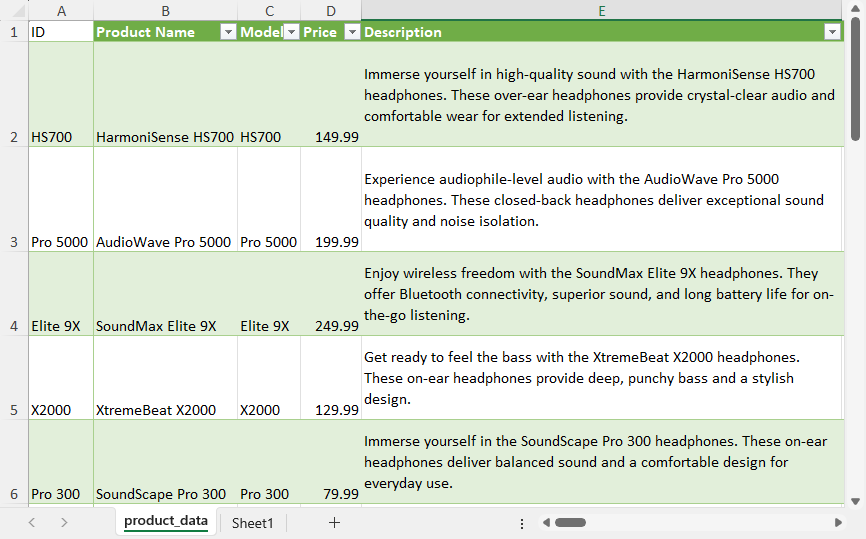
Before importing product data into PDX with a spreadsheet, it is important to properly organize the data. Listed below are requirements and suggestions to enable this method:
-
Include a product 'ID' column with unique IDs for each product being imported.
-
Ensure the first row includes the attributes being imported, also known as column titles.
-
Use Excel files (XLSX recommended), which support structured data and multiple sheets, instead of CSV files.
-
Ensure data does not span multiple cells in the spreadsheet.
-
Remove all macros and hidden columns.
-
Add more tab sheets to the spreadsheet file if the product data is in multiple languages. Add the same product IDs to all of the sheets, and populate the language-specific data in each sheet.

Once the data for import is organized, import the data into PDX Syndication either by Key-based Import or Match-based Import.
How to: Manually Import Files
To import data:
-
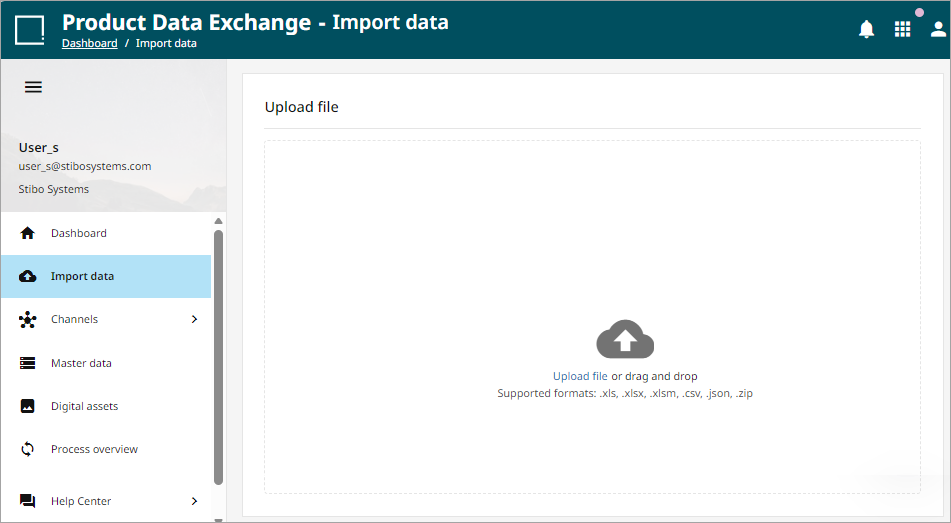
Select 'Import data' from the left-hand menu.
-
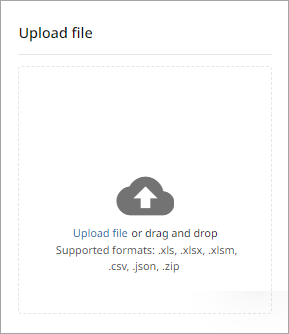
Upload the file or drag and drop the file into the window.
-
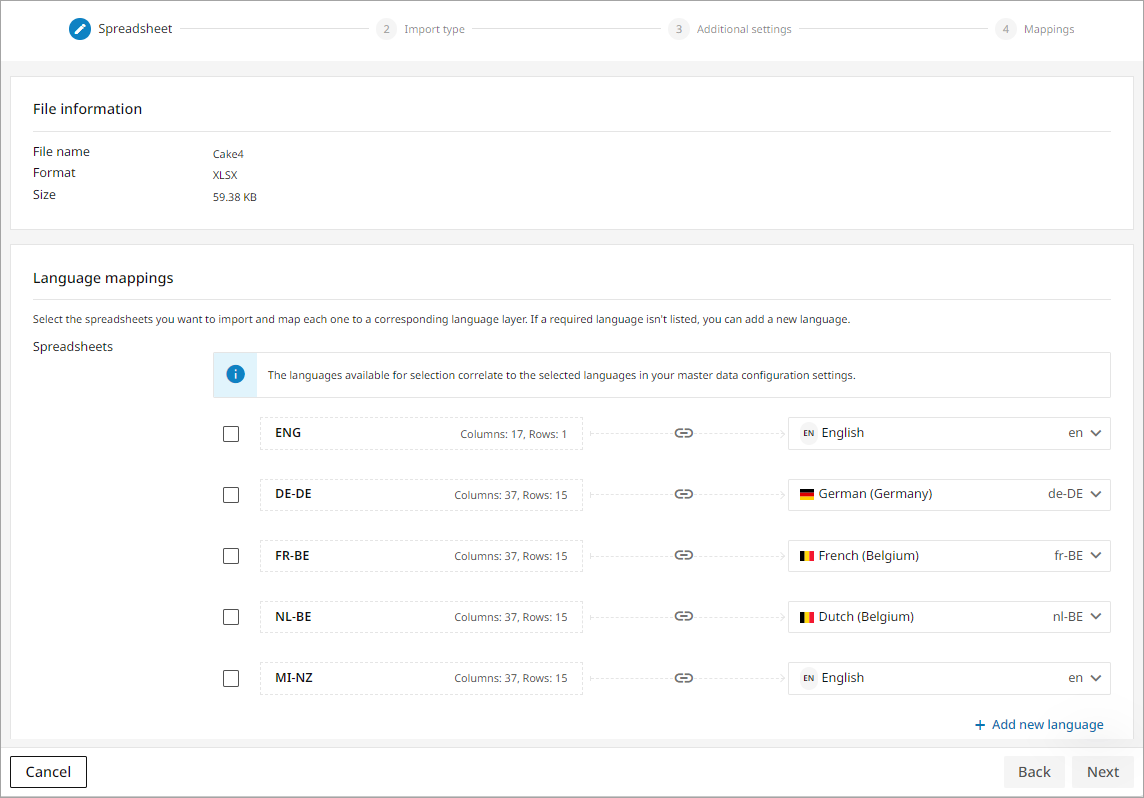
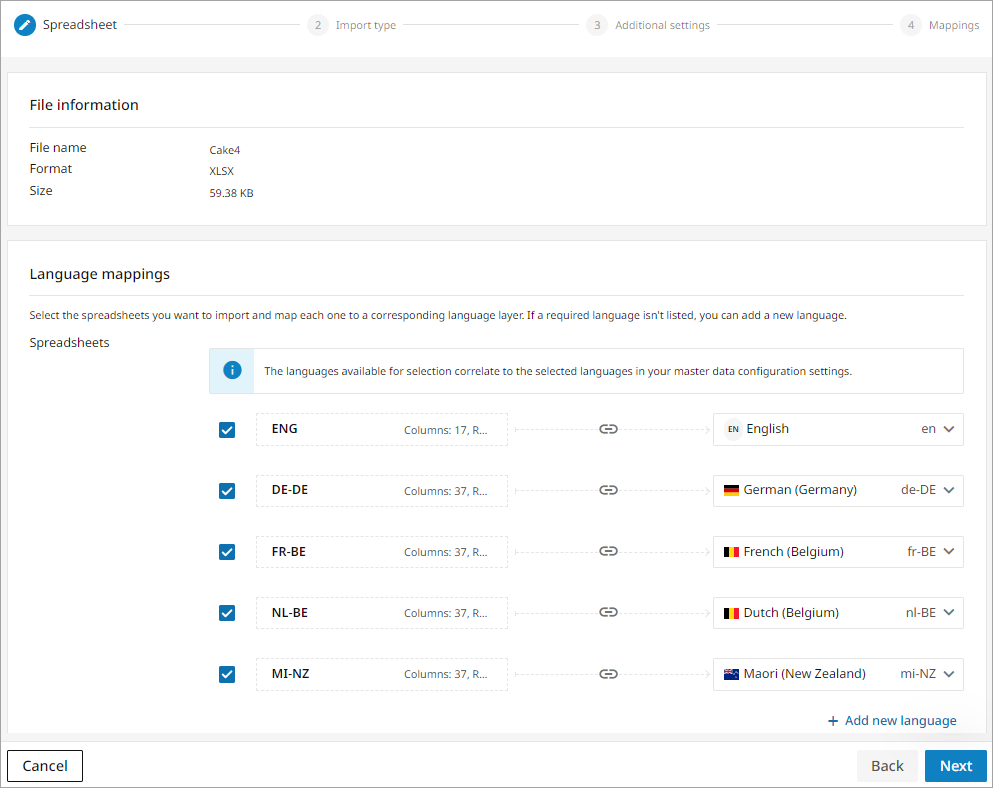
The spreadsheet title, file type, and file size will display as the uploaded file, with summary information below. If there are multiple tabs in the spreadsheet, each tab will display as a separate sheet.
-
Language tabs will be matched with the appropriate country / language designation in master data. If a language or country / language combination identified in a sheet does not exist in master data, the default match will be English. However, users can add additional languages by following the steps below.
-
Click the
 button to open a list of available languages and country / language combinations that are not currently in master data.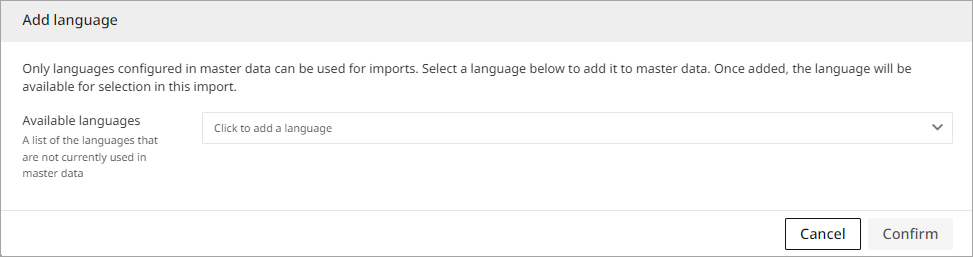
-
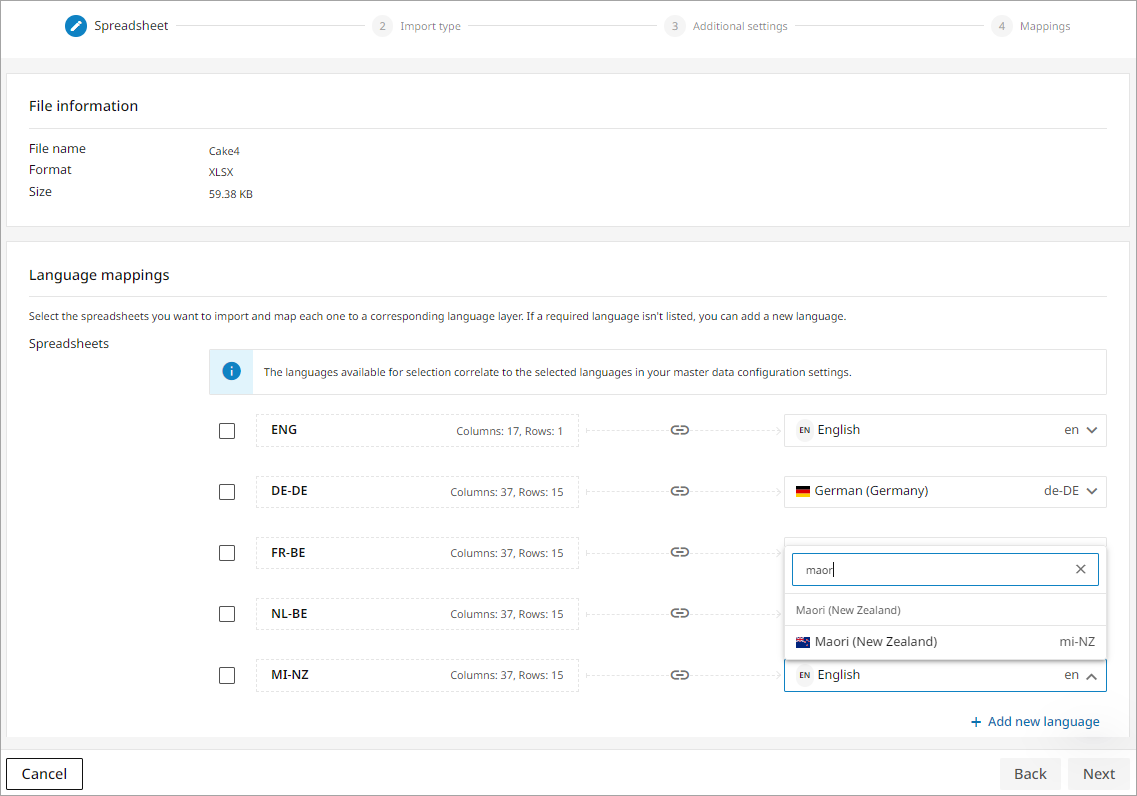
Open the Click to add a language dropdown to view the languages available to add.
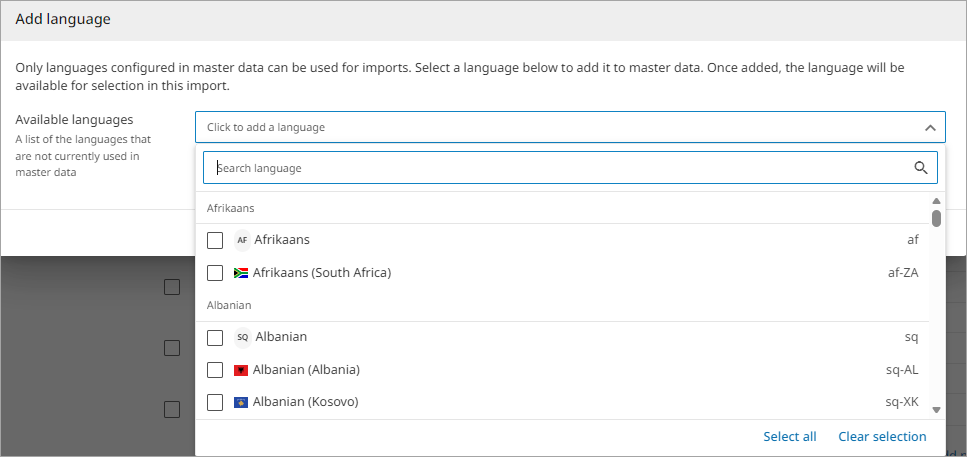
-
You can search or scroll through the list to find the match for your spreadsheet language. The search is not case sensitive. In this case, the language to be uploaded is Maori (New Zealand).
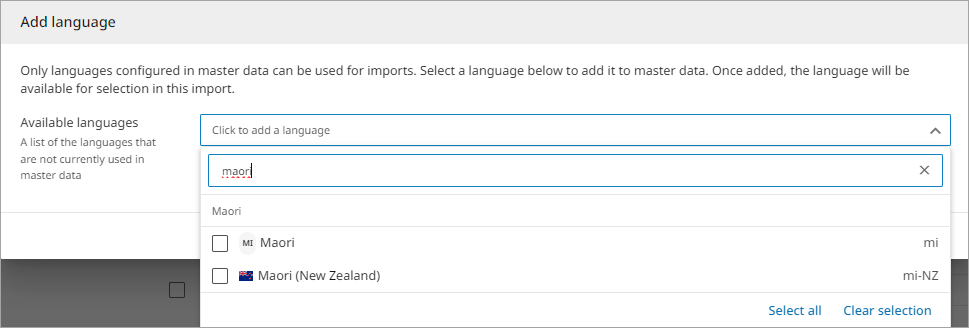
-
Check the correct language and click anywhere in the space to return to the confirm dialog.
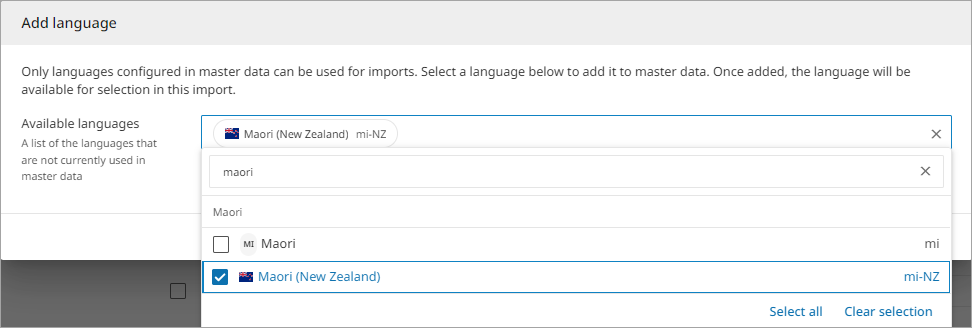
-
Click
 to add the language to master data.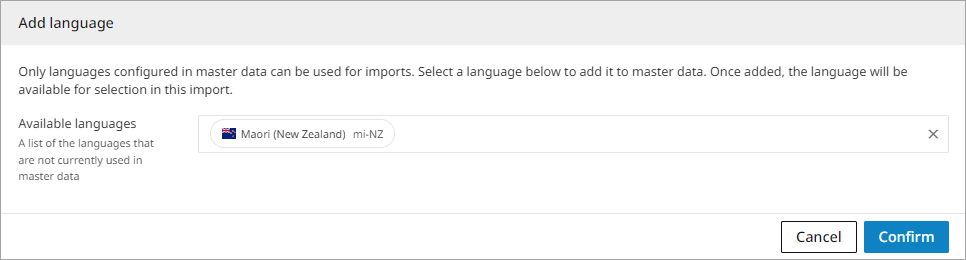
-
The language will be available to select for the spreadsheet language.
Now, all checked sheets will import Excel containing data for the appropriate languages.
-
Click
 to continue to the next step.
-
-
On the 'Choose import type' step, select either Key-based Import or Match-based Import and proceed.
Key-based Import
The Key-based import can be used to upload new products and their data and/or modifications to existing products.
-
Ensure that Key-based import is selected and click
to continue.
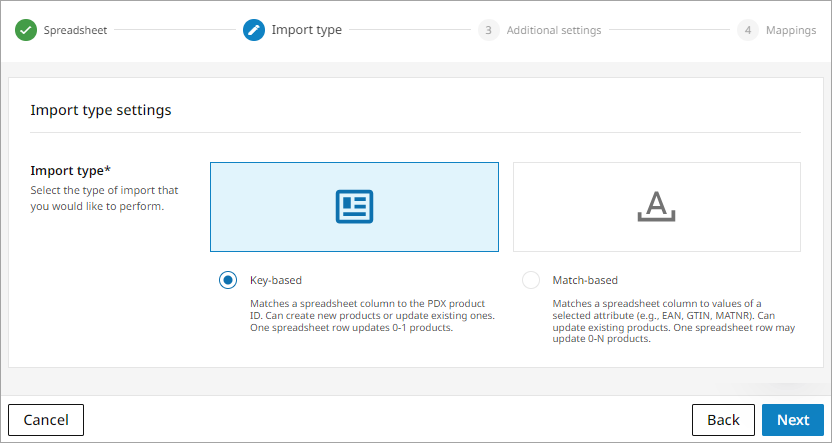
-
The next screen provides additional settings for Auto-assignment and Auto-submit. The default setting is 'Disabled.' Enable those options if desired. For more information on Auto-assignment rules, refer to the Auto-assignment Rules documentation topic. For more information on the Auto-submit process, refer to the Auto-Submission of Products documentation topic. Once you have made the appropriate selection, click
to advance to import type selection. 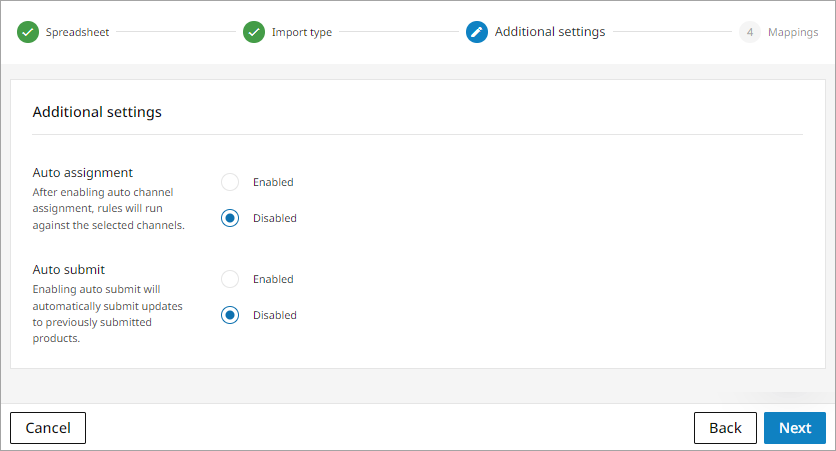
-
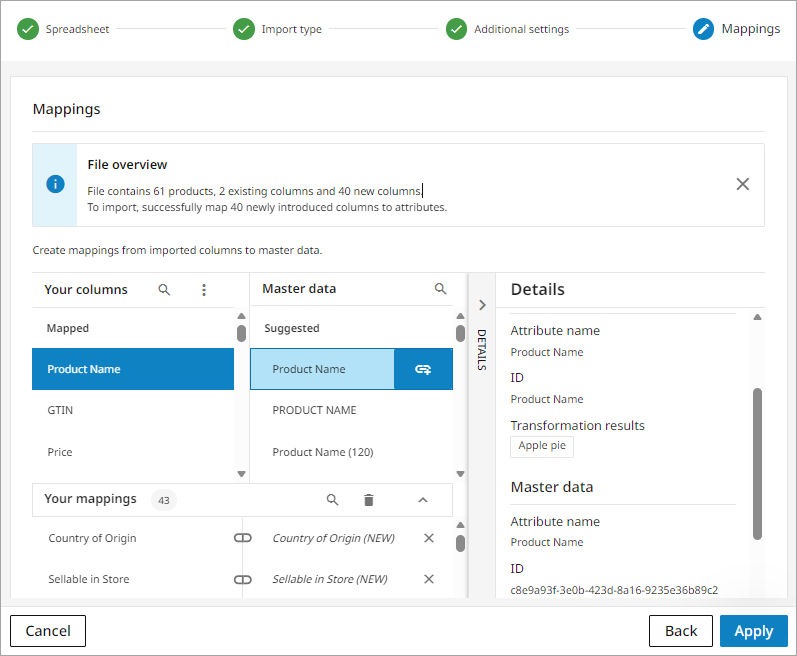
The process will automatically progress to the Mappings step of the import flow. Verify or update mapping information and click the 'Apply' button. For more information on mapping attributes, refer to the Mapping Attributes topic.
-
If this is the first import to PDX, all of the attributes will be auto-mapped. Under 'Your columns,' all attributes should be listed under Mapped. In the lower pane called 'Your mappings,' all attributes uploaded for the first time will display with (NEW) appended to them. Additionally, for initial imports, one column must be mapped to the master ID attribute. For more information on mapping attributes after import, refer to the Mapping Attributes documentation topic.
-
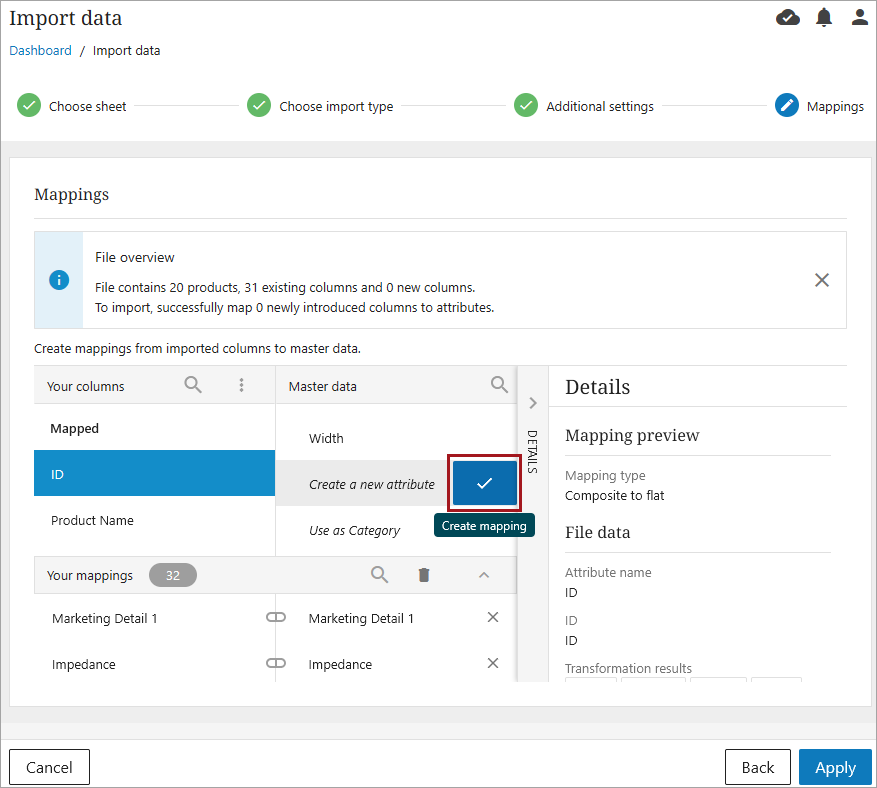
If this is not the first import but new attributes are being adding, they will need to be mapped on the Import Mapping screen or they will not be imported. Select the new attribute under 'Your Columns' and then click the checkmark on 'Create a new attribute' in the Master data column.
-
Click
 to continue.
-
-
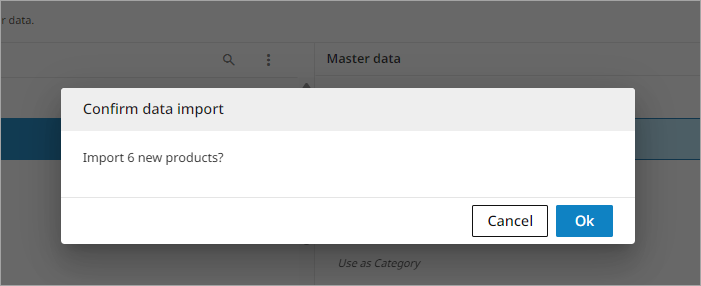
The final screen will ask you to confirm the data import. If import information is correct, click
 .
. 
-
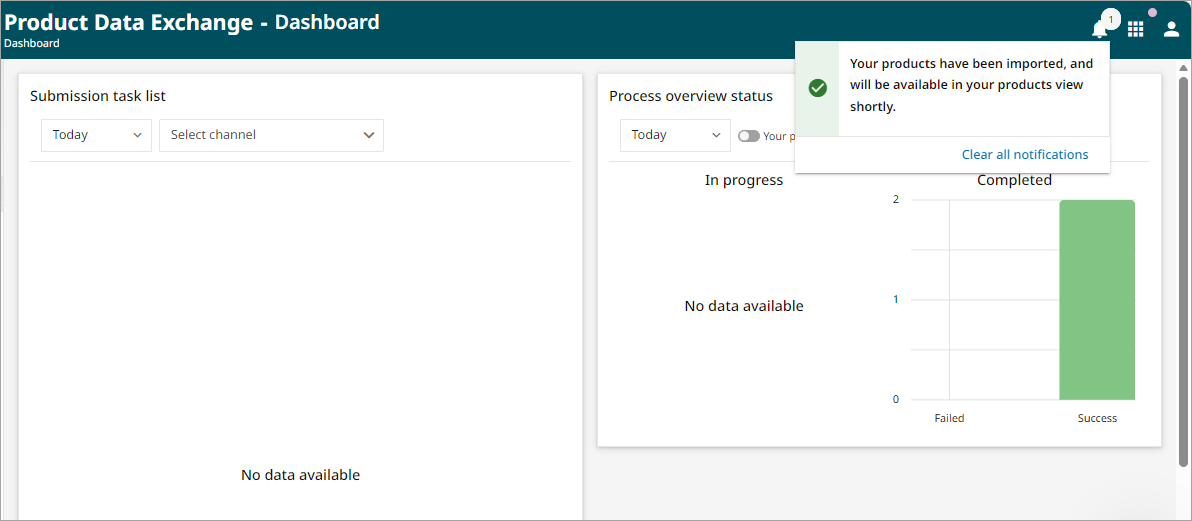
Once the import has completed, you will be returned to the Dashboard. If the upload has completed successfully, a success bar will show in the Process overview status section. A notification will also appear in the top right-hand corner advising that the products have been uploaded.
-
Products can be viewed in Master Data. You can use the Products lifecycle dates section under the Products filters (
 ) to locate your products efficiently.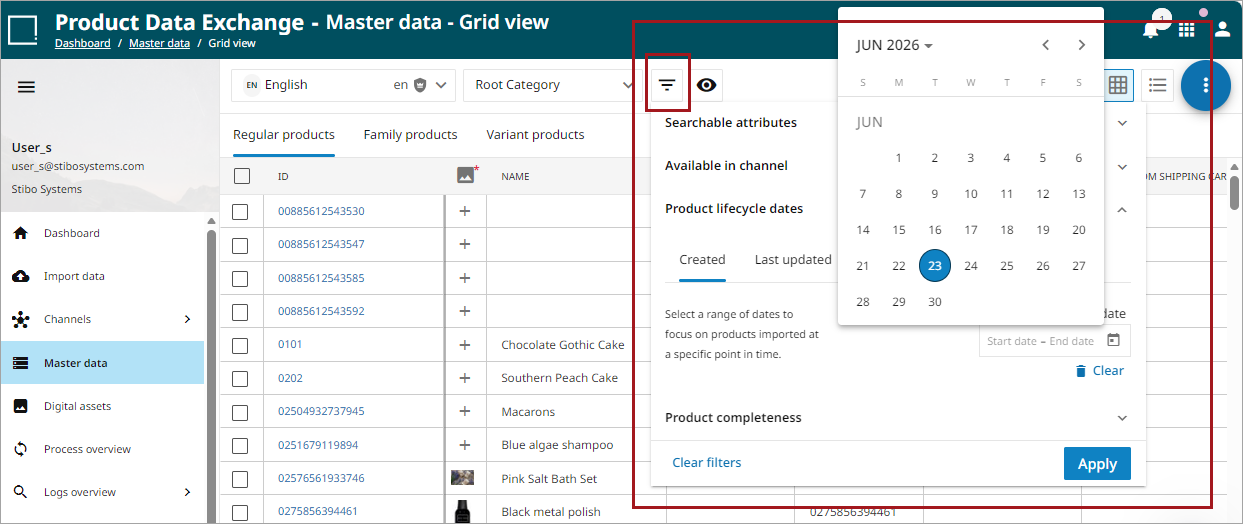
Match-based Import
Match-based import allows users to augment additional data to existing items that are already in PDX based on matching values for a single attribute that already exists in PDX. This process will not import new products.
The match-based import allows updates to existing product records by matching values from your spreadsheet to a specific attribute in PDX. You select a column in your file to act as the identifier, and its values are compared against the default language layer of your master data (English). Every time a match is found, the import updates only the attributes in the chosen language layer.
-
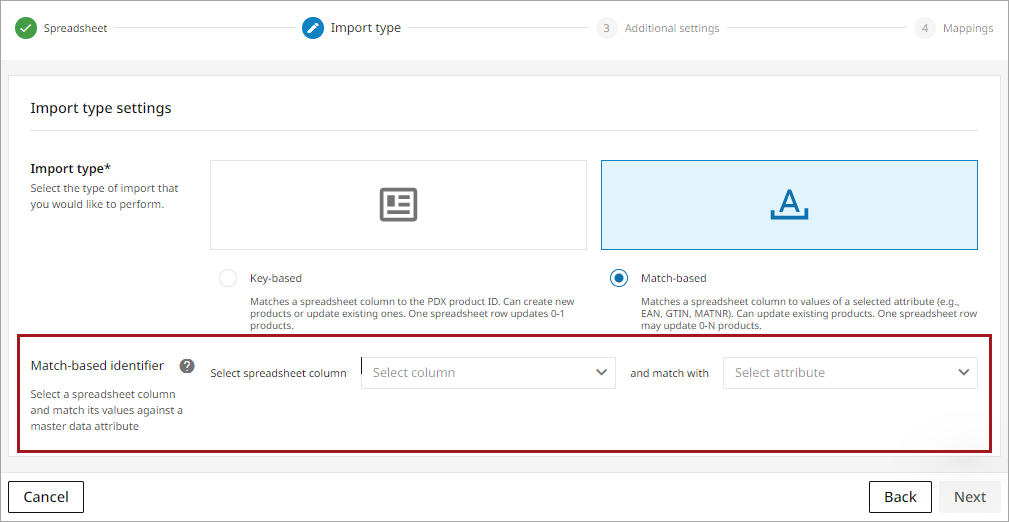
After importing the spreadsheet, choose the Match-based import option and select the identifier match – a spreadsheet column to match with an attribute that already exists in Master data. Click
when done.
-
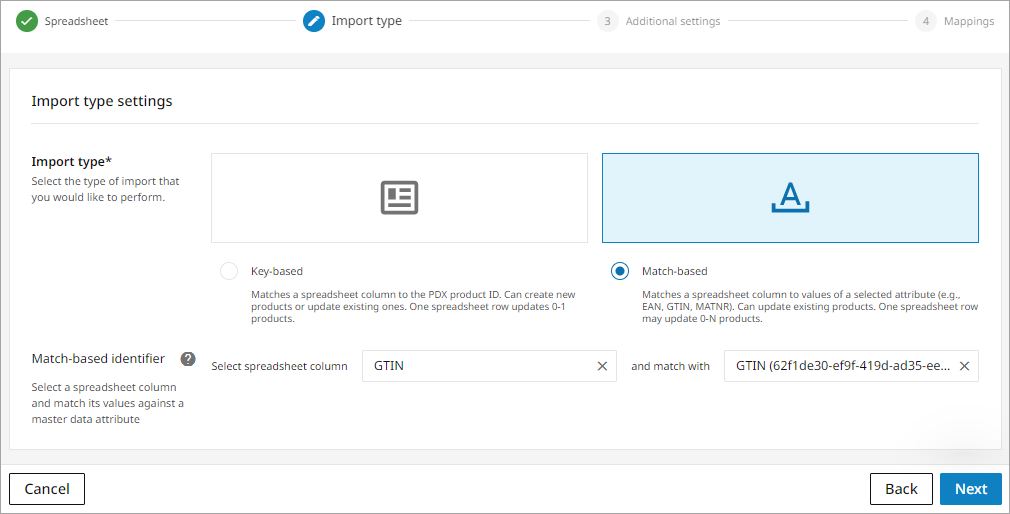
Once the pair has been selected, click
.
-
The next screen provides additional settings for Auto-assignment and Auto-submit. The default setting is 'Disabled.' Enable those options if desired. For more information on Auto-assignment rules, refer to the Auto-assignment Rules documentation topic. For more information on the Auto-submit process, refer to the Auto-Submission of Products documentation topic. Once you have made the appropriate selection, click
to advance to import type selection.
-
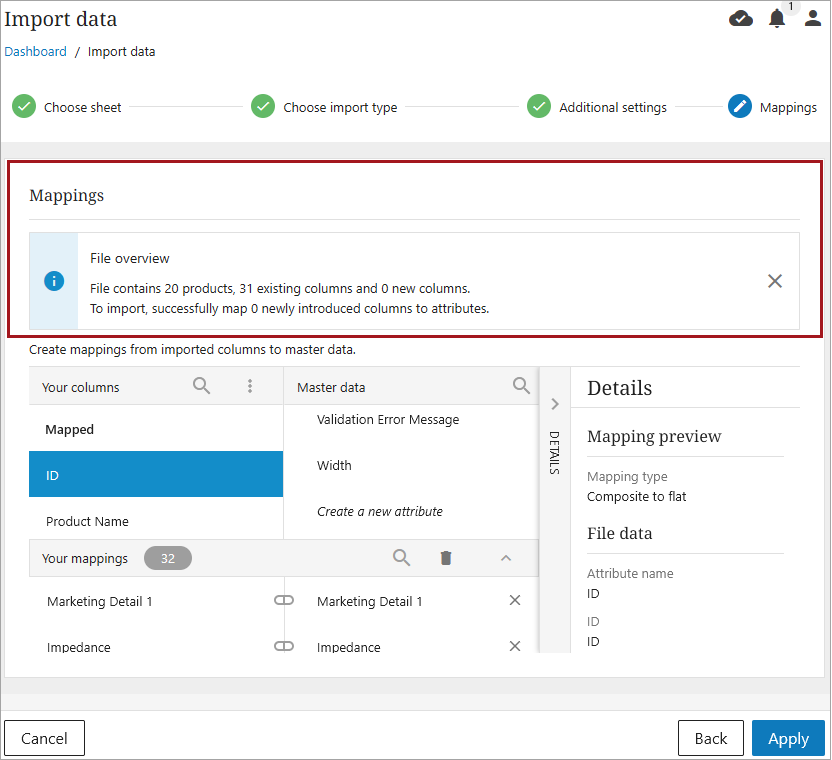
The Mappings screen displays, with the 'File overview' notification at the top. This notification reports the number of products affected by the match-based import. If desired, this window can be closed to provide more space on the Mappings screen. Click
to continue to the next step.
-
Once the import has completed, you will be returned to the Dashboard. If the upload has completed successfully, a success bar will show in the Process overview status section. A notification will also appear in the top right-hand corner advising that the products have been uploaded.