Maintaining a digital catalog involves more than publishing products. The brand is responsible for addressing issues that can impact product availability or retailer access. The following sections provide guidance on addressing maintenance tasks:
Unable to See Images in a Digital Catalog
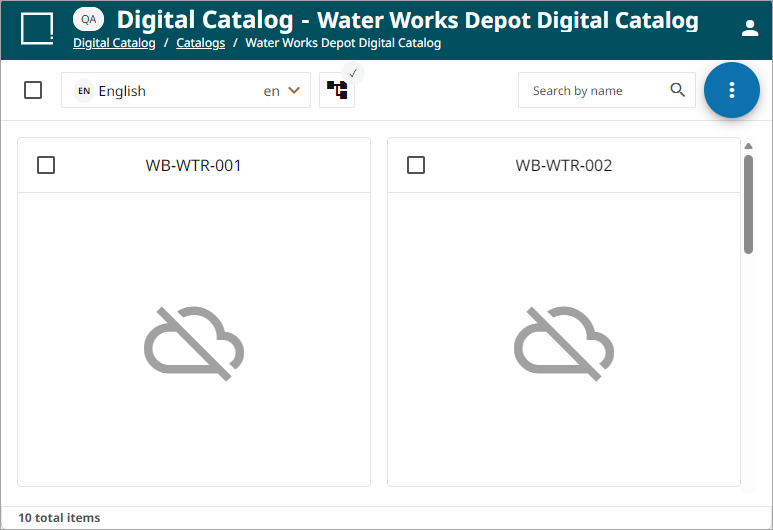
If you are unable to see images as expected in the digital catalog, you will want to check the following:
-
Verify that there is a populated digital asset field for the product within master data. For further information on importing data into Master data, refer to the Import Data Screen topic.
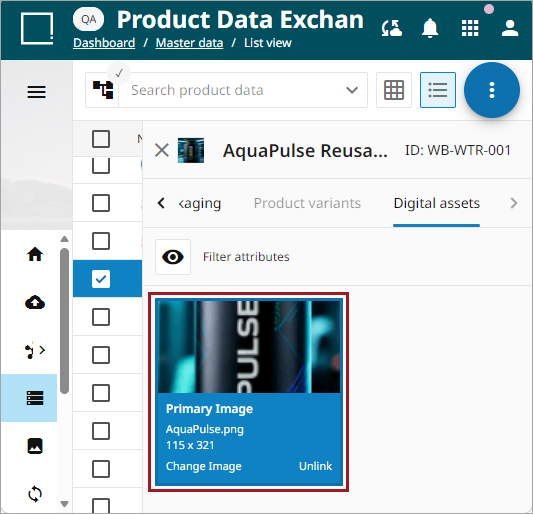
-
Verify the image for the product has been added to the configured channel. For more information on adding products to a configured channel, refer to the Adding Products to a Channel topic.
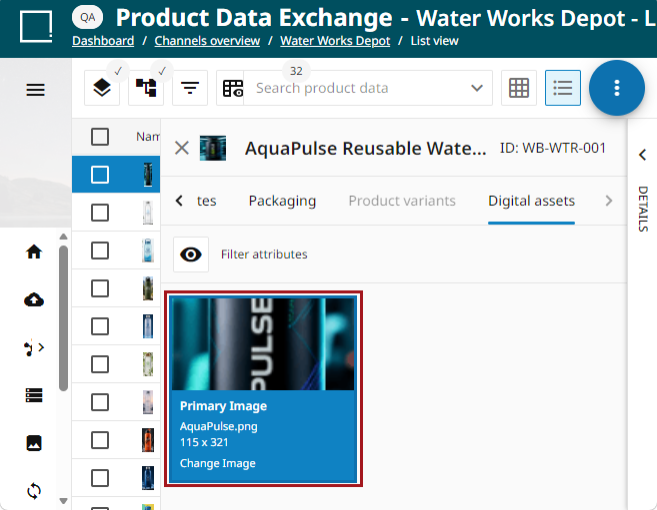
-
If it is not populated accurately check the following items:
-
Verify the image field is set to the 'Asset' type.
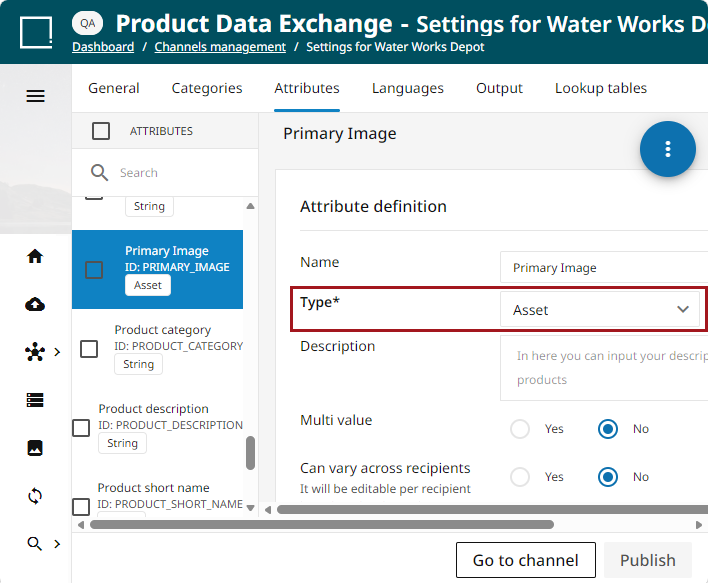
-
Verify the image field for the configured channel has been mapped to the 'Primary asset attribute' in the configured channel settings.
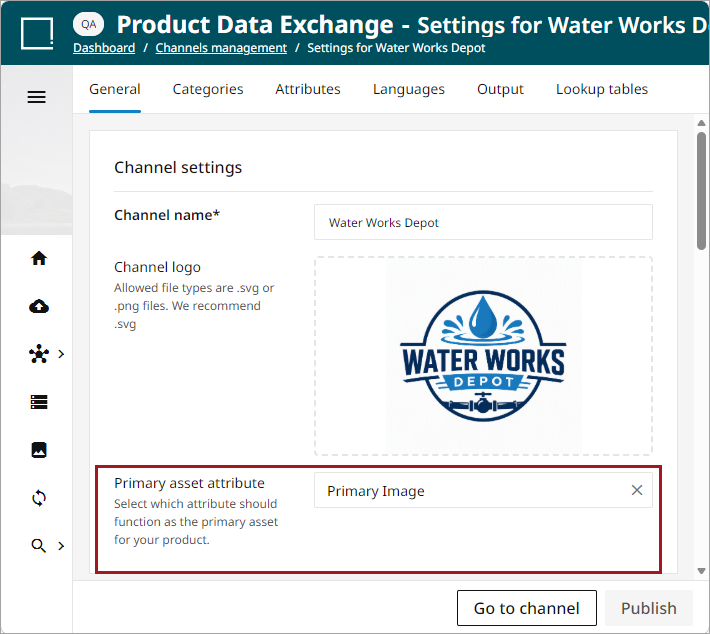
-
Verify the image field from Master data is mapped to the image field for the configured channel hosting the digital catalog.
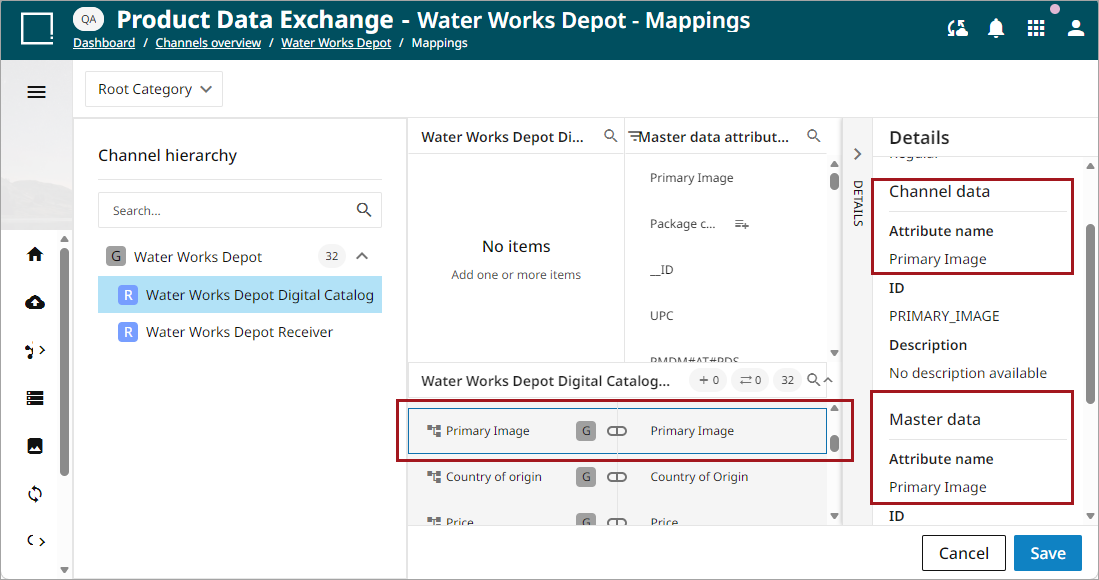
-
Disabled by Administrator Message
The brand can temporarily disable all access to the product information of a given catalog, preventing the retail partners from browsing and exporting product records. Some brands leverage this functionality as part of their launch process for new or updated products or for preventing the spread of bad information. The brand can open it back up at a later point in time.
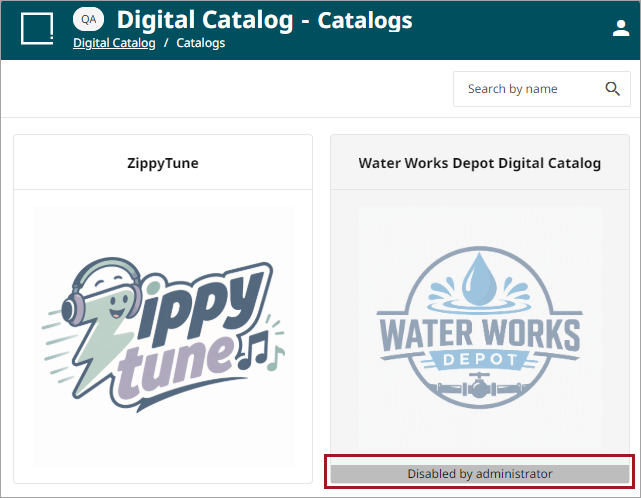
To utilize this feature:
-
Navigate to the Digital Catalog Tab under the Output tab of the configured channel.
-
Set the digital catalog control toggle to the appropriate setting.
-
Enabled - the digital catalog is accessible
-
Disabled - the digital catalog is not accessible
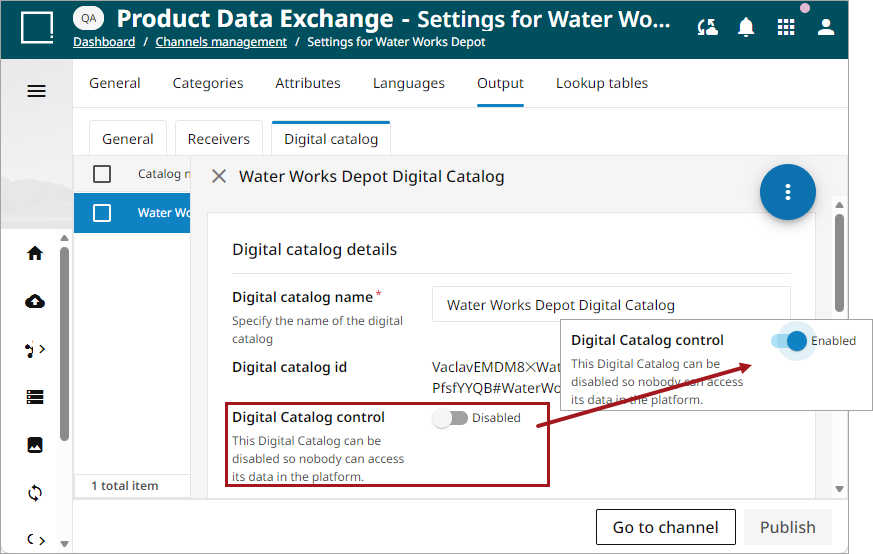
-
-
Click the 'Publish' button to save changes.