Reference table configurations for end users can be maintained by admins in the Configuration tool under the Specific views tab. These tables are displayed in the Reference tab from the Details view of a perspective. The reference table configurations are reference type specific. For further information on the Configuration Tool, refer to the Configuration Tool topic.
-
To create a new reference table configuration, select the Specific Views tab.
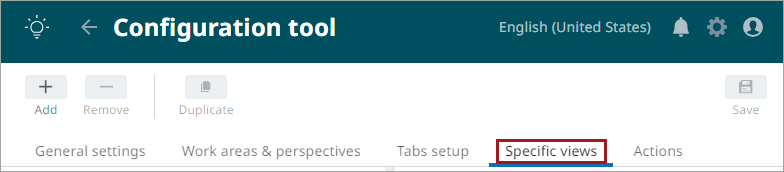
-
Select the 'Reference table' root item in the tree and click the '+' in the upper left corner of the page or click the ‘Add reference table’ link in the right window.

-
A 'New reference Table' dialog opens. Enter a name for the configuration, select the relevant reference types, and click 'Create'.

Note: A reference table configuration can be assigned to one or more reference types. Each reference type can be assigned to only one reference table configuration.
-
Customize the table vie in the 'Table settings' section:
-
Columns: displays the default reference columns: ID, name, and object type. Customize the column display by adding reference metadata and referenced object attributes using the search field or Item Picker. In the Item Picker, admins can reorder columns in the 'Selected Columns' section by dragging and dropping them.
Note: If a reference type has not been included by an admin in a reference table configuration in the configuration tool, the references will be displayed in a compact view only within the 'Attribute' tab. For more information, refer to the References topic.
-
Gallery view: enable this setting to view the reference table as a gallery.

-
-
Click the Save (
 ) button in the top right corner.