Info panels can render the output of an HTML business function, allowing users to view contextual information alongside an attribute tab without leaving their current workspace. The output is displayed in a read-only Info panel and is automatically refreshed when data on the associated attribute tab change.
Configuration
Administrators can create Info panel configurations in the Configuration tool under the Specific views tab. The Info panel can then be associated with an attribute tab. When users open the attribute tab in the details view of a perspective, the Info panel is displayed automatically. For more information about configuring an Info panel for an attribute tab, refer to theAttribute Tab Page topic.
Before configuring an Info panel, ensure that an HTML business function is available in the system. Creating an HTML business function is outside the scope of this topic. For information about creating a business function, refer to the Creating a Business Rule, Function, or Library topic.
Note: Only business functions that use Node as the input type and String as the return type can be selected in an Info panel.
-
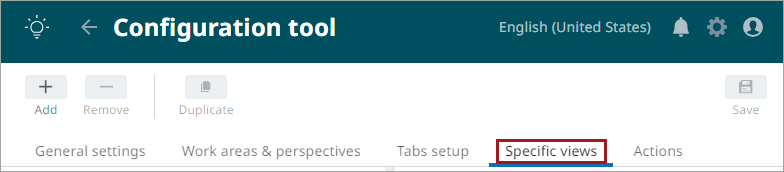
To create a new Info panel configuration, select the Specific views tab.
-
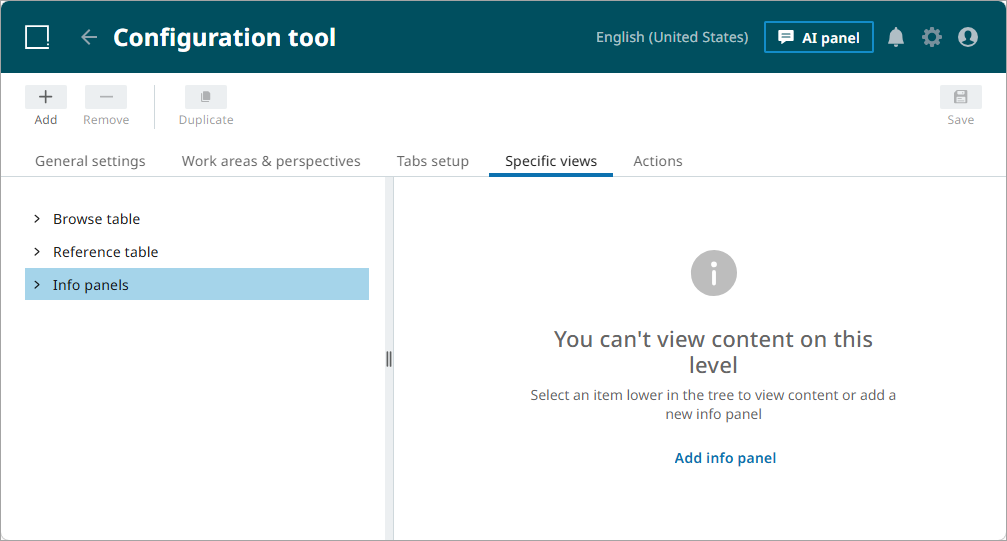
Select the 'Info panels' root item in the tree and click the '+' in the upper left corner of the page or click the ‘Add info panel’ link in the right window.
-
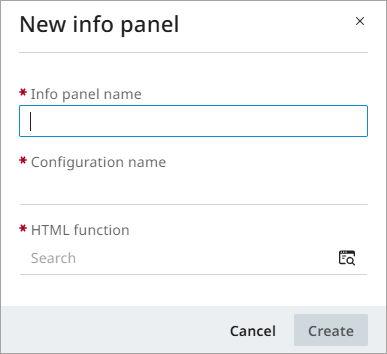
The New info panel dialog opens. Enter a name, select an HTML business function, and click Create.
-
Click Save (
 ) in the upper-right corner to save the Info panel configuration.
The Info panel must be associated with an attribute tab before it can be displayed in the details view. Open the attribute tab configuration, select the Info panel in Additional Settings, and then save the tab configuration. For more information about configuring an Info panel for an attribute tab, refer to theAttribute Tab Page topic.
Result
When a user opens the configured attribute tab, the Info panel is displayed automatically in the details view. The panel renders the selected HTML function and updates its content whenever values on the associated attribute tab change. Users can expand, collapse, and resize the panel as needed. The following example shows an Info panel in the details view.
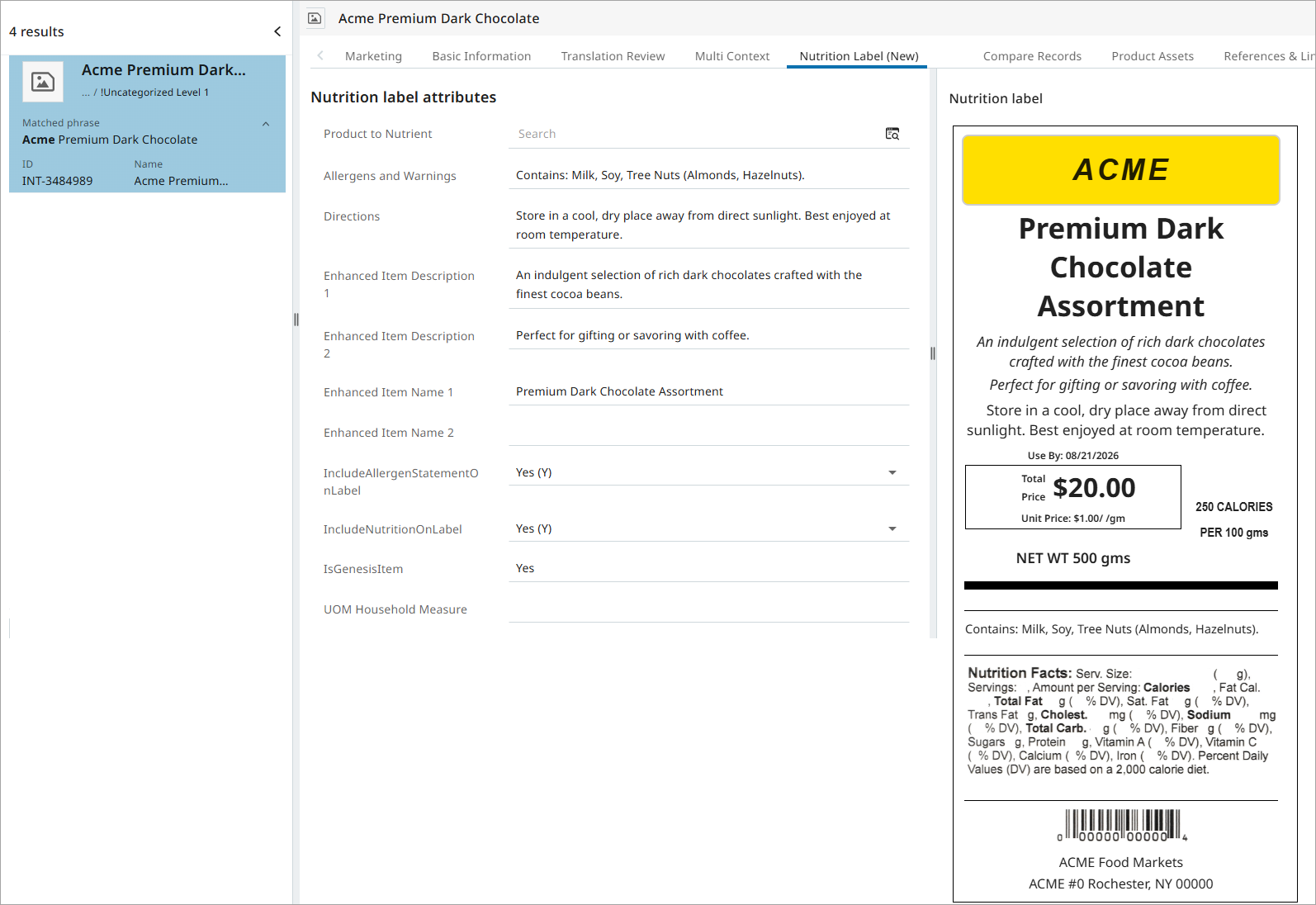
Example
You can use an HTML business function to display contextual information such as validation results or product summaries related to the currently selected object. This information is displayed alongside the attribute tab, enabling users to review data without navigating to another view.