AI Prompt Templates in Next Experience UI - Creating and Applying Prompts
AI prompt templates, available on the Next Experience UI (formerly New UI or Instrument) with the ProductGen AI license, enables users to create reusable AI prompt templates for single-value, text-based attributes. Prompts created from the prompt template can generate content for the attribute automatically, allowing users to enrich complex textual product attributes with a single click.
AI prompt templates are available in any details or focus view on all single-value, text-based product attributes. To start or continue the process of creating an AI prompt template, users can click one of three AI prompting buttons that display to the right of the attribute field. These buttons display when the cursor is placed over any part of the parameter:
-
if no prompt has yet been added to a viable attribute, the 'Create prompt template' button will display:

-
if a prompt is currently in draft but has not yet been approved for the attribute, the 'View prompt template' button will display:

-
if a prompt is approved and content is ready to be generated, the 'Generate text' button will display:

Creating a new prompt template
An AI prompt is a natural-language request directing a configured large language model (LLM) to do a specific task. For this feature, the prompt template should be written to direct the LLM to enrich a product attribute by generating a text value. Attributes that support AI prompt templates but do not yet have a linked prompt template will display with two buttons: the 'Create prompt template' button (on the left) and an arrow button (on the right).

-
Click the
 button to open the 'Create prompt template' dialog.
 -
Click the
 button to open a dropdown with two options: 'Create prompt template,' and 'Browse prompt library.'
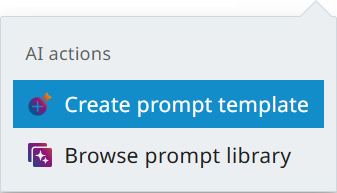
The 'Create prompt template' displays, as shown in the screenshot below. By filling out the fields in this form and clicking the 'Save' button, the prompt template created in this step will be linked to this attribute and saved in a 'prompt library,' a feature that will be described later in this topic.
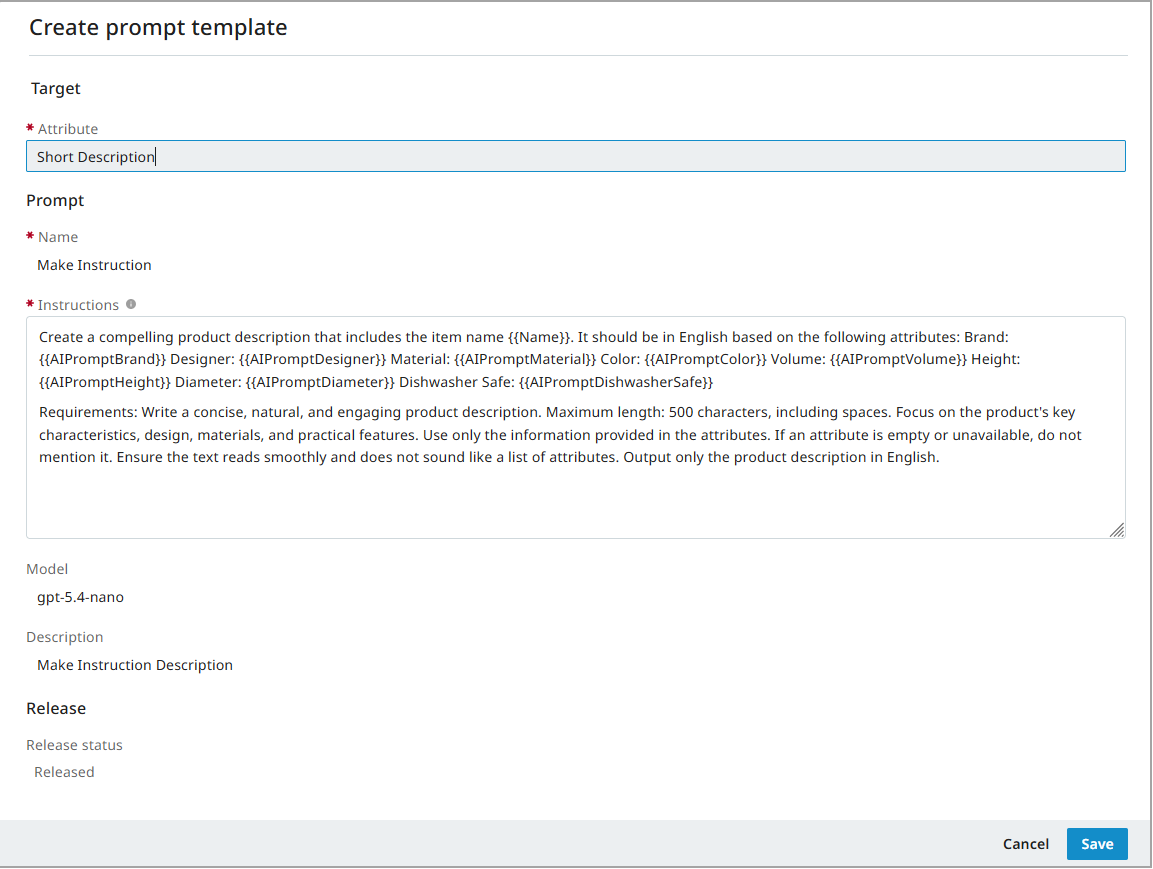
The fields in the 'Create prompt template' are listed and described below:
-
Attribute - A mandatory field, click into the field to display a dropdown. Start typing the name of the desired attribute in the 'Search' field, and the typeahead functionality will auto-filter the available attributes (only those that are shown in the details view for the example product) until the desired attribute is visible in the list to be selected.
-
Name - Add the name of the prompt template in this mandatory field. This is the name under which the template will be available (and identifiable) in the prompt library. When saved, this name appears as the header for the prompt template's 'Edit prompt template' dialog.
-
Instructions - Enter the prompt text in this mandatory field. Information on how to populate this field is available in the next section, 'Writing a prompt'.
-
Model - Click into the field to display a dropdown containing all LLMs configured on the system.
-
Description - Add a short description of the prompt template. This will display with the prompt template when viewed in the prompt library.
-
Release status - Click the field to display a dropdown containing two options:
-
Released - If selected and saved, the prompt activates on the attribute and is made accessible in the prompt library by all appropriately privileged users.
-
Draft - If selected and saved, the prompt template goes into draft status, which means it will not enable content generation in the UI for the linked attribute. The prompt template will display in the library for appropriately privileged users.
-
When a prompt template is set to 'Released' status and saved, the prompt is ready to generate content for the linked attribute. An attribute with a completed prompt will display with this icon to the right of the attribute name:
When the prompt template for a given attribute is in 'Draft' status, this icon will display as gray and will only be visible to users with the privileges required to create and edit prompt templates.
Writing a Prompt
When a user clicks into the 'Instructions' field, additional options become visible at the bottom of the field that assist users with drafting, testing, and validating the prompt.
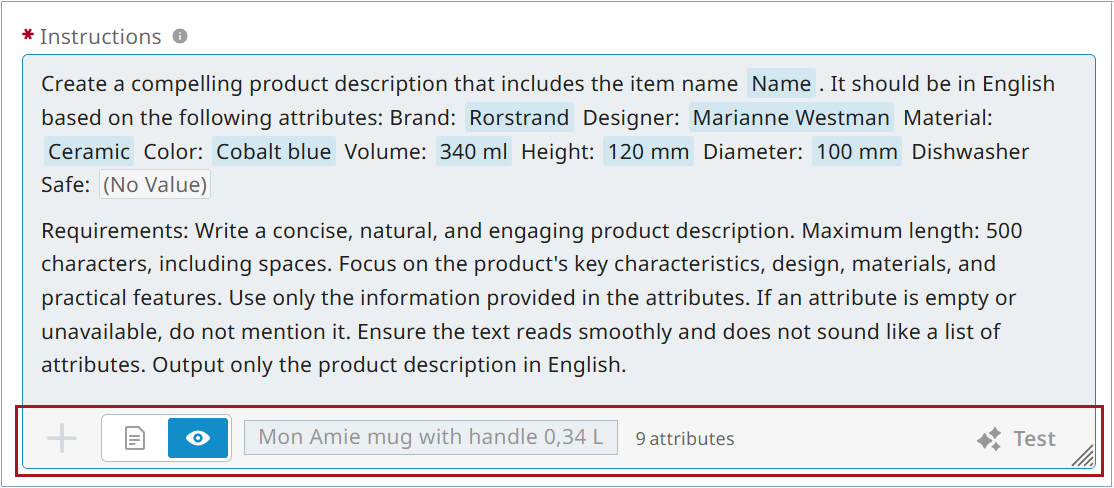
Below are the prompt field options:
-
Plus sign (
 ) - Clicking this button brings up a typeahead dropdown listing attributes from the example product's list of attributes shown in the details view. By typing the desired attribute, the list of attribute auto-filters until only the desired attributes remain. Typing the forward slash in the 'Instructions' field also displays the typeahead dropdown.
 This button is only active when:
-
the prompt is viewed in the 'Edit template' view (described below)
-
the 'Edit' button has been clicked (applicable in the 'Edit prompt template' dialog, which displays when editing prompt templates in 'Draft' status).
-
-
Views toggle button (
 ) - Users can toggle between an 'Edit template' view and a 'Preview example' view of the in-draft prompt template. When in the 'Edit template' view, users can add text and attributes to their prompt template. In 'Preview example' view, the attributes added in 'Edit template' view now display the attribute values from the associated product (chosen using the field described in the next bullet), giving the user an accurate view of the information that will be sent to the LLM.
 -
Product field - This field displays the example product that determines which attributes are available to add to the prompt template. If users navigate to prompt creating / editing via the product, this field will be auto-populated with the product being viewed. If the user removes the example product from this field, the 'Add example item' (
 ) button displays. Click the 'Add example item' button to display a Node Picker from which users can select an example product that will supply the attributes needed to select from when creating / editing the prompt template. If no product is selected, the dropdown that displays when clicking the 'Plus sign' button or when typing a forward slash ('/') will show all attributes a user has access to.
 -
Attribute counter - This textual element (not a button) displays the number of attributes added to the prompt template.
-
Test (
 ) - Click this button to generate a preview of AI-generated text from the LLM. Users can review the output to determine if the prompt is effective or if additional changes must be made.
To write an effective prompt that directs the LLM to produce the desired content output in as few iterations as possible, it is useful to follow a few guidelines:
-
Be explicit. If a user is, for example, creating a prompt for a short description attribute, the user should specify in the prompt what tone the text should take, what perspective the LLM should create the content from, how many characters the desired text should be, etc. The more focused direction provided, the sharper the output will be.
-
Include attributes. AI prompting supports the ability to reference attributes, directing the LLM to review relevant product information when generating content. When drafting a prompt, users can click the '+' button or type a forward slash ('/') to display a dropdown with all attributes in the system. Begin typing the name of the desired attribute in the 'Search' field, and the typeahead functionality will auto-filter the results until the desired attribute is visible in the list to be selected.
For more information on best practices for writing prompts, refer to the AI Recommended Practice topic.
Completing a prompt template in 'Draft'
If the AI prompting icon to the right of the field is the 'View prompt template' button ( ), this means the prompt is not yet active, and must be completed and saved before users can generate content for that attribute.
When the 'View prompt template' button is clicked, the 'Edit prompt template' dialog displays with the dialog header populated with the value added to the 'Name' field:
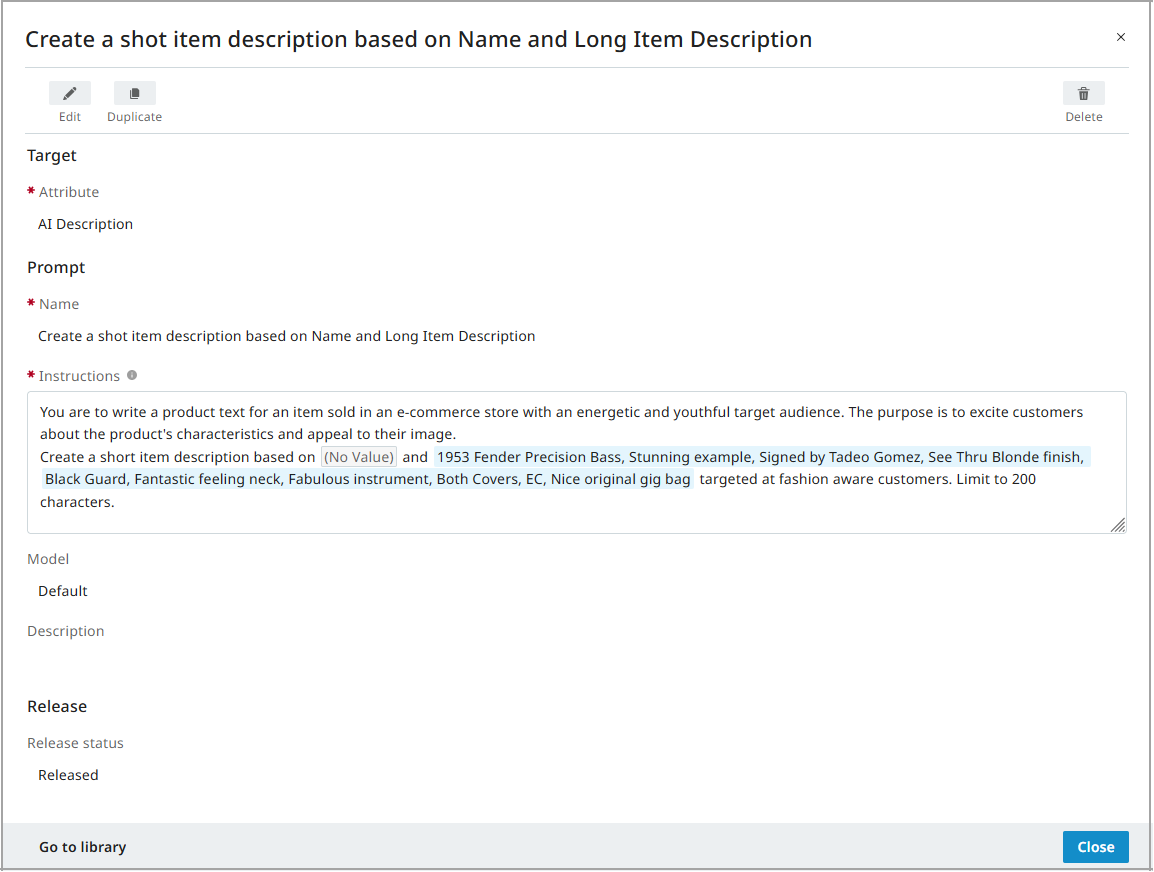
In this dialog, there are three buttons at the top of the dialog: 'Edit', 'Duplicate', and 'Delete'.
-
Edit - Click this button to allow edits to be made to the 'Edit prompt template' dialog. The 'plus-sign' button (
) is only active when the user has clicked 'Edit' and is viewing the prompt in the template view. -
Duplicate - Click this button to generate a new prompt template with identical information. Users can then select a new attribute to link the prompt to, make the needed edits to the prompt itself, assign a new title to the prompt template, and then save the prompt template as a new prompt. The new prompt is then linked to the selected attribute and is also available in the prompt library.
-
Delete - Click this button to delete the prompt template.
At the bottom of the dialog are two buttons: 'Go to library' and 'Close'. 'Close' ends display of the dialog. 'Go to library' opens the prompt library.
Prompt library
Accessed via the 'Edit prompt template' dialog when drafting a prompt template, the prompt library is where users can access all prompt templates saved on a system. In the library users will find a screen containing all templates users have saved in the system.
In each prompt template, the following data points from the saved template are listed:
-
the name of the prompt template
-
the name of the attribute to which the template is linked
-
the selected LLM model
-
the prompt description (if included)
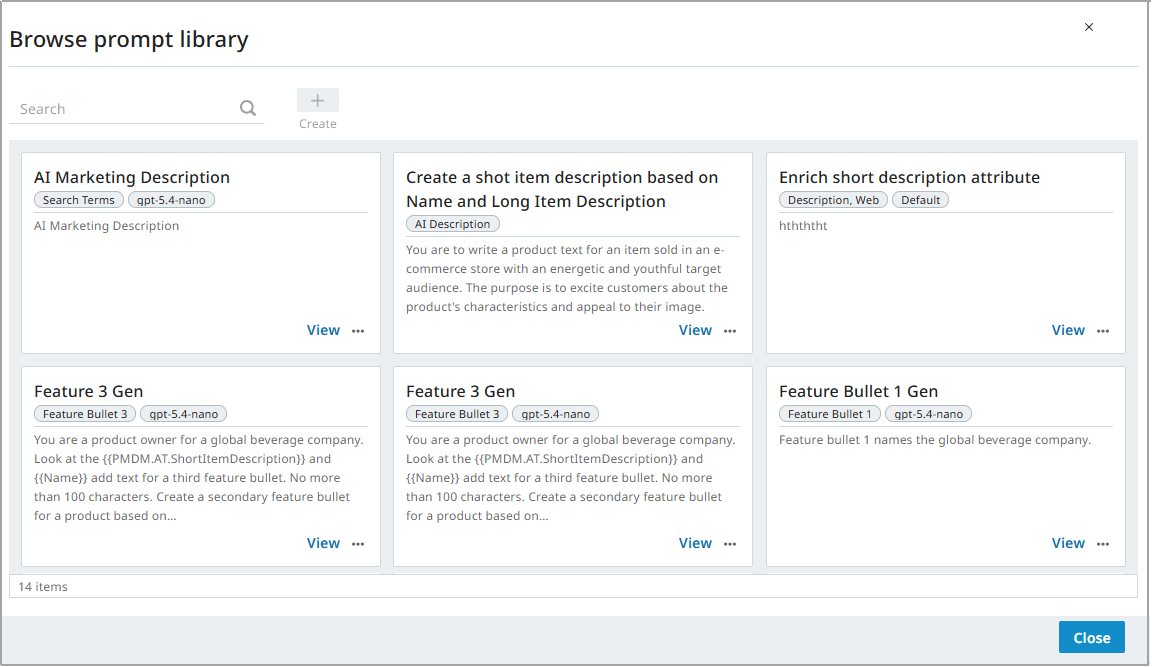
At the top of the 'Browse prompt library' window are two elements: a search field and a 'Create' button.
-
Search - Type the desired prompt template's name, description, or relevant tags into this field to locate the desired prompt. As the user types in the search field, the prompts displayed in the library narrow until only the prompt that aligns with the search term remains.
-
Create - Click the 'Create' button to open a new 'Create prompt template' dialog; this allows users to create a new prompt that can then be added to the prompt library.
At the bottom of each prompt template panel are two buttons that enable actions users can take:
-
View - Click to open the prompt configuration to review and/or edit the template.
-
... - Click to open a dropdown with three options: 'Edit prompt', 'Duplicate prompt', and 'Delete prompt'.
- Edit prompt - Click this button to allow edits to be made to the 'Edit prompt template' dialog.
- Duplicate prompt - Click this button to generate a new prompt template with identical information. Users can then select a new attribute to link the prompt to, make the needed edits to the prompt itself, assign a new title to the prompt template, and then save the prompt template as a new prompt. The new prompt is then linked to the selected attribute and is also available in the prompt library.
- Delete prompt - Click this button to delete the prompt.
Generating values using AI prompt templates
If the AI prompting button to the right of the attribute field is the 'Generate text' button ( ), this means AI-generated content can now be created by the AI model. Click the button to generate content.
When the button is clicked, the system takes a moment to generate the text as the LLM is called.

If the user decides they do not want to generate content, they can click the 'Stop' button, located to the right of the response-generation dialog. Clicking 'Stop' ends the content generation process.
When the AI-generated text is ready, the new draft is displayed in an expanded version of the dialog:
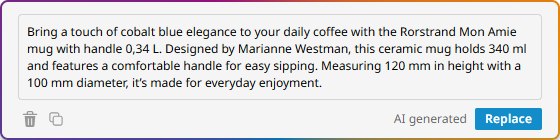
The content generated by the configured LLM displays in the text field. At this stage, users can review the content and then use the buttons below the field to take action.
-
Delete - (
 ) Deletes the generated content.
 -
Copy - (
 ) Copies the generated content to the clipboard.
 -
Replace - Adds the generated content to the attribute field. If content already exists in the field, the AI-generated content in this field will overwrite the existing content.
Notes and Considerations
If the attribute has no AI icon to the right of the field, the potential reasons are as follows:
-
the attribute is multi-valued. AI prompting is only available on single-value attributes.
-
the attribute is not a text-based attribute. AI prompting enables an AI model to generate values that can then be used to enrich the attribute.
-
the attribute is an LOV. Lists of Values (LOVs) have pre-configured values users can select from, and do not allow new content to be generated from within the Next Experience UI.
-
the user does not have privileges to create or edit AI prompting.
-
the attribute does not have a prompt template set up for it.