The 'Modular services' page displays a table of all modular services available for all your environments.
Prerequisites
-
For 'Modular Services' to be relevant, at least one of your systems must be on a 2025.3 update or later.
-
At least one modular service must be developed following the instructions in the 'Modular Service Platform API Guide.' For STEP environments running version 2025.3 or later, these instructions are in the 'Modular Service Platform' section of the Technical Documentation available at [system]/sdk or accessible from the Start Page.
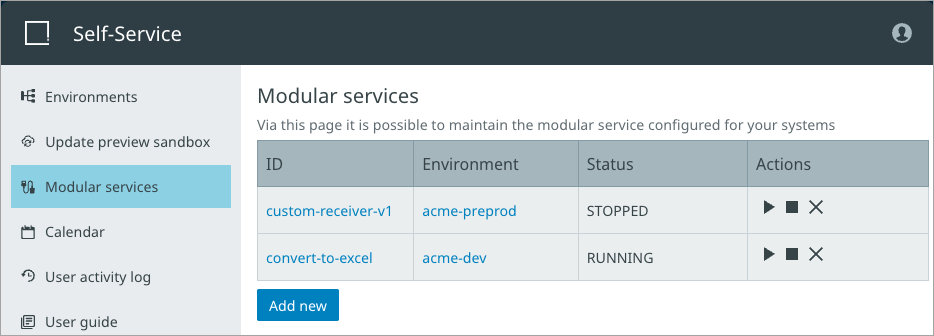
The table includes the following information:
-
ID – The ID of the modular service as a link. Click to display the General tab for the modular service.
-
Environment – The environment name as a link. Click to display the General tab for the environment that is assigned to the modular service.
-
Status – The state of the module, stopped or running.
-
Actions – Click one of the buttons to start (
 ), stop (
 ), or delete (
 ) a module. An additional 'Update' action is available from the modular service General tab defined in the next section.
The 'Add new' button displayed below the 'Modular services' table allows developers to add a new module for tracking and use in STEP.
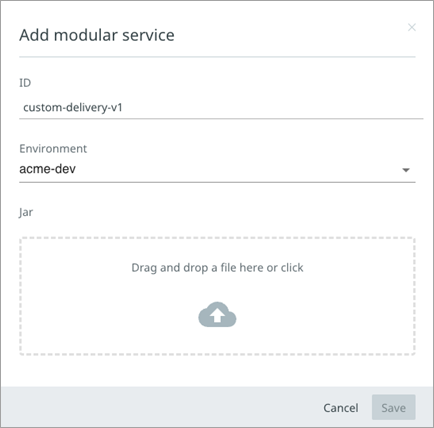
On the 'Add modular service' dialog, provide the following information:
-
ID – enter the identification for the modular service.
-
Environment – use the dropdown to select the environment that will use the modular service.
-
Jar – drag and drop a .JAR file or click to browse to the .JAR file.
Click the 'Save' to add the modular service to the 'Modular services' table and make it available for selection from STEP.
Modular Services - General Tab
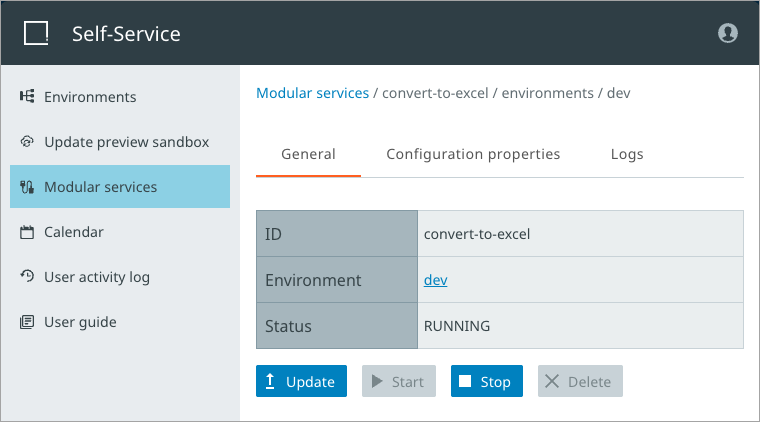
The General tab for a modular service includes the following information about the selected modular service.
-
ID – The ID of the modular service.
-
Environment – The environment name as a link to the Environments page for the modular service.
-
Status – The state of the modular service, stopped, or running.
The following buttons are available to manage the modular service:
-
Update – click to replace the current .JAR with a new one to benefit from new modular service code.
-
Start – click to set the modular service to RUNNING status.
-
Stop – click to set the modular service to STOPPED status.
-
Delete – click to remove the modular service – there is no 'undo'.
Modular Services - Configuration Properties Tab
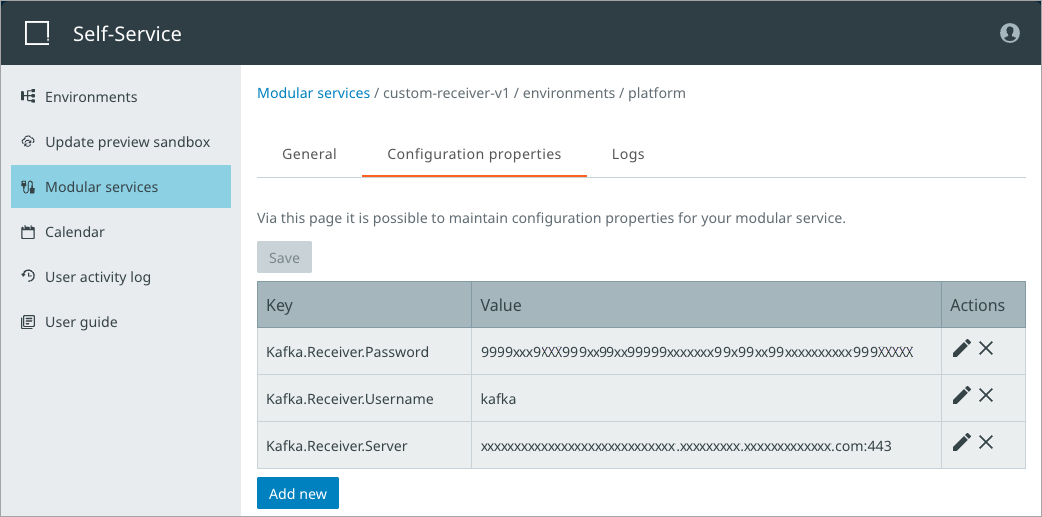
Configuration properties can be created for use within the modular service. For details on creating configuration properties, refer to the 'Modular Service Platform' section of the Technical Documentation available at [system]/sdk or accessible from the Start Page. Values for properties can be added by clicking the 'Add new' button ( ), updated by clicking the edit action button (
 ), and removed by clicking the delete action button ().
Note: After adding, updating, or deleting properties, click the 'Save' button above the properties table to complete the configuration.
Clicking the 'Add new' button displays the 'Add configuration property value' dialog.
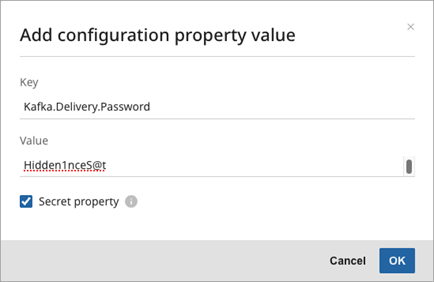
To obfuscate a sensitive value in the properties table (as shown in the Kafka.Delivery.Password key in the image above), check the 'Secret property' checkbox. Click OK to save the properties and close the dialog. Once the dialog is closed, the value cannot be accessed, and the secret option cannot be unchecked.
Modular Services - Logs Tab
Log entries for modular services from the last hour appear chronologically, with the oldest entries first. To view a specific time period, use the calendar buttons to change the selected 'from' and 'to' date-time (UTC) options. Click the 'Now (UTC)' button to display the most recent entries.
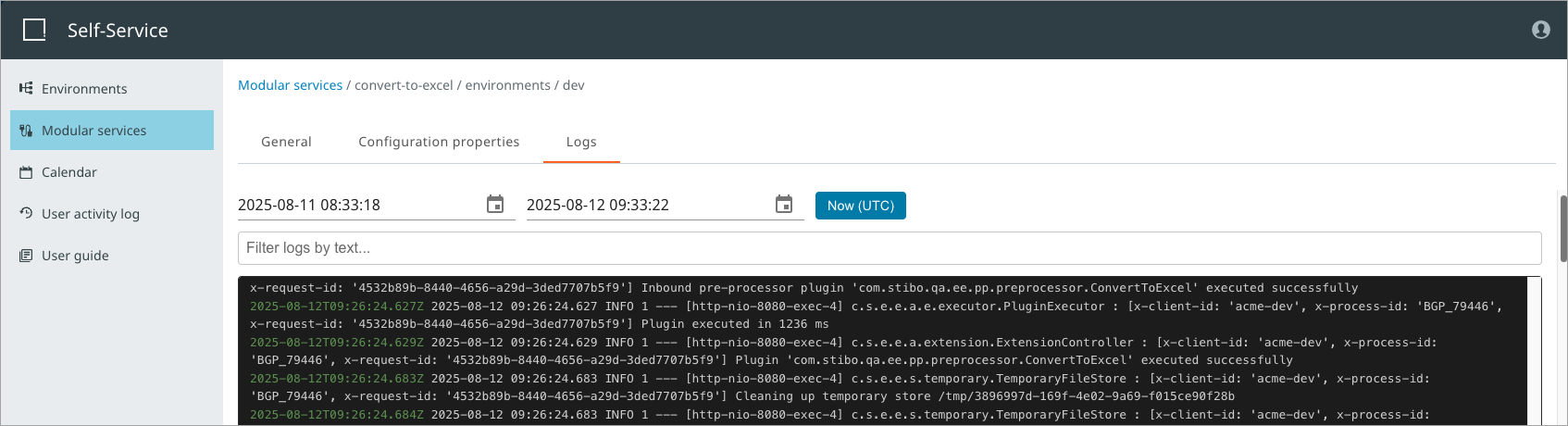
To filter the logs, enter the required text in the 'Filter logs by text' parameter and/or in the 'Exclude logs containing text' parameter, depending on what needs to be included and/or excluded.
Important: Logs are available for the last 30 days.