The 'Update environment' tab enables users to update an environment to a newer image within the current STEP version or on a newer STEP version. The following update stages navigate the user through the update process:
Update options
This step displays the images to which users may update the environment and includes a system-generated remark. The InDesign Support column displays when InDesign is used with STEP and includes the InDesign versions supported by the selected image for upgrade. It is recommended that the STEP version selected for upgrade supports the current environment's InDesign version, which is displayed on the General tab and is further noted in the Remark column. It is possible to upgrade STEP separately and before InDesign is upgraded.
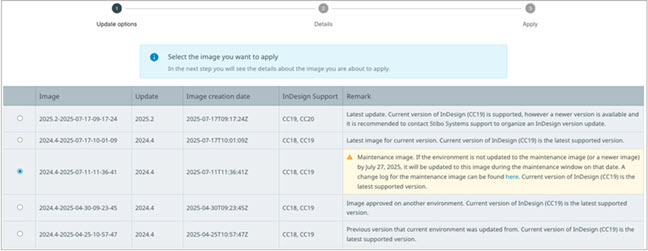
The listed images include:
-
An image to update to the latest STEP version (provided that the environment is not already using the latest STEP version).
-
The latest image for the current STEP version (provided that the environment is not already using this image).
-
The maintenance image for the current STEP version (provided that the environment is not already using this image or a newer image). A warning is displayed in the Remark column to highlight the fact that the environment will be updated to the maintenance image on the Planned Maintenance window date or Pre-Maintenance window date for lower-level environments. The specific change log link, when available, is also displayed. For more details, refer to the SSUI Environments - General Tab topic.
-
Additional images approved on lower environments that are newer compared to the image that is currently used on the environment; the 'Approved' designation is assigned to images via the 'General' tab, described in the the SSUI Environments - General Tab topic.
-
For Sandbox and Pre-Production environments, a row lists the image the environment used previously and may be reverted to. This is only available when the same STEP version was used; reverting to a previous STEP version is not allowed.
Note: When the latest image for the current STEP version or an approved image matches the maintenance image, it is only listed once. The 'Remark' text contains concatenated information that confirms the image meets various criteria.
Important: Before you update an environment to a new STEP version, seriously consider the possible impact of such an update. It is NOT possible to revert to a previous STEP version and certain configuration, or custom extensions might not yet be compatible with the new STEP version, which may cause the update to fail and the environment to become unavailable. Contact Stibo Systems Support if you are unsure or have issues with an attempted update.
Details
This step displays information on the image selected from the 'Update options' table.
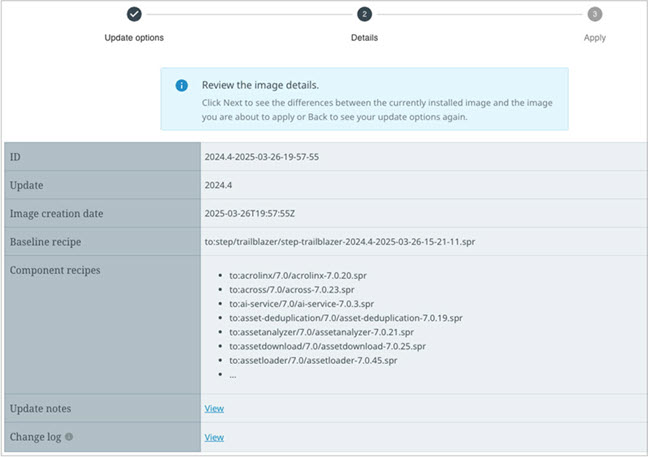
Details – Displays details of the selected image in the following rows:
-
ID – The ID value assigned to the image.
-
Update – The STEP update that is used in the image.
-
Image creation date – The date the current image became available.
-
Baseline recipe – The recipe associated with the image; this does not include the hotfixes and components contained in the baseline.
-
Component recipes – A bullet list of all components (and their version-levels) included in the image.
-
Additional hotfixes – This section includes a bullet list of hotfixes that were added in addition to the changes included in the baseline, mostly for add-on components. In case this section is not visible, no additional hotfixes are included in the image, and the change log provides a full listing of all changes included. Click on an individual hotfix link to view the description of the hotfix if available.
-
Update notes – Click the 'View' link to open a new tab in your browser that displays a set of update notes for the STEP update contained in the image.
-
Change log - Click the 'View' link to open a new tab in your browser that displays what changes have been included in the image. When the target image STEP version is the same as one of the current images used by the environment, for the more recent STEP versions, the changes listed are the ones between the selected target image and the image used by the environment.
 The 'Back' and 'Next' buttons are below the table.
-
Click the 'Back' button (or your browser's back button) to end the update process and navigate back to the 'Update Options' step.
-
Click the 'Next' button to navigate to the 'Apply' stage of the update process.
Apply
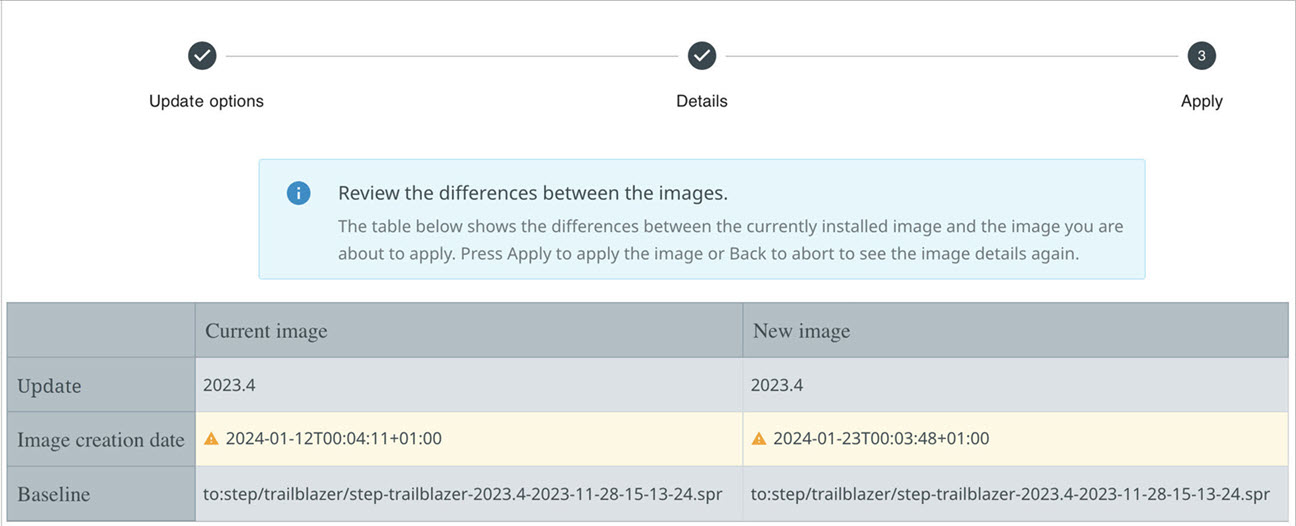
This step displays a table with three sets of information. The InDesign row displays when InDesign is used with STEP. The 'Current image' column displays the installed InDesign version, and the 'New image' column displays the InDesign version supported by the selected image. When the installed InDesign version is not supported, contact Stibo Systems for upgrade assistance.
The screenshot below is the first set of information and includes columns for the current and new image update name, and a single row that includes the baseline recipe for the current image and the baseline recipe for the image to which the environment is being updated.
The screenshot below is the second set of information and lists all the components (and version) included in both images. The current image's components are listed in the left-hand column, and the new image's components are listed in the right-hand column. In instances where the component versions differ between images, the cells in the two columns are highlighted yellow for quick identification.

Note: Although the table lists all available STEP components, only components that are included in the currently active STEP license or components that do not require a specific license are activated on the environment.
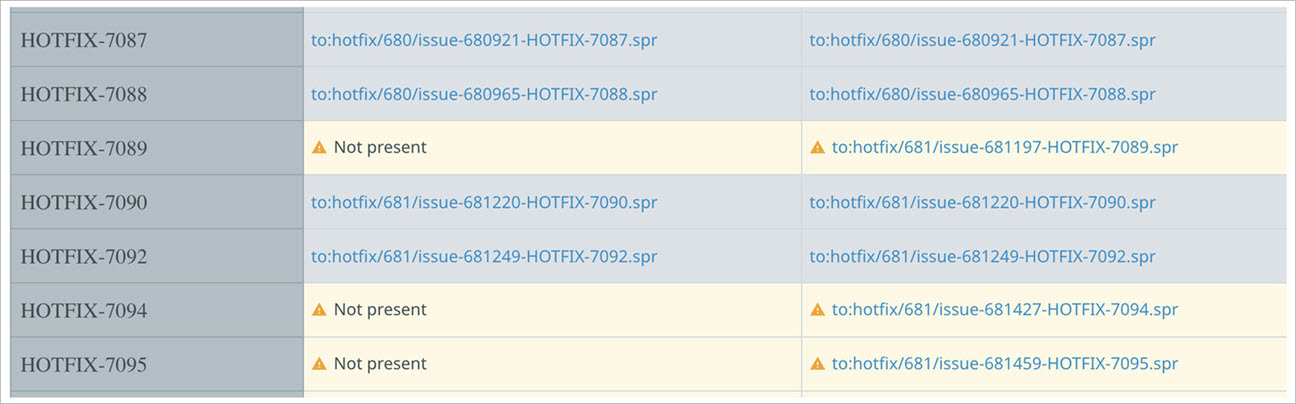
The screenshot below is the third set of information and lists the additional hotfixes that have been included in both images, when applicable. The left-hand column shows the hotfixes included in the current image, and the right-hand column shows the hotfixes included in the new image.
-
If a hotfix has been included in both images, the cells are not shaded (light gray background) and either the hotfix link is displayed or the text 'Included in image' is displayed.
-
If a hotfix has been included in one image but not in the other, the cells are shaded yellow, and 'Not present' is displayed in the column for the image in which that hotfix has not been included.
Note: When updating to a new STEP version, the current image might list hotfixes that are not present in the new image. This only indicates that these are not separately included but instead part of the new STEP version already.
In rare instances, no differences are highlighted in the component and hotfix tables. This occurs when the image available for the update contains infrastructure changes, but there are no changes to the STEP software itself.
The screenshot below is the final set of information and includes documentation links:

-
Update notes – Click the 'View' link to open a new browser tab that displays the set of update notes for the STEP update contained in the current and new images. These links are particularly useful when updating to a new STEP version and if update notes were not accessed for the new image using the link presented in 'Details.' When the link is the same for both images, the cells are not shaded.
-
Change log - Click the 'View' link to open a new browser tab that displays the changes that have been included in the current and the new images. Use these links to help determine the difference between the current image and the new image when both images are on the same STEP update. The links are anchored on the associated image (id) or baseline. Each link opens a new tab - one opens info for the current image, and the other opens info for the new image. This enables isolating the two image (id)s or baselines to review and interpret the differences. The change log present in the 'Details' step may be easier to work with since it presents changes between current and target images.
 The 'Back' and 'Apply' buttons are available below the table.
-
Click the 'Back' button to navigate back to the 'Details' stage of the update process. Click a different tab on the page to end the update process.
-
Click the 'Apply' button to continue with the update. A confirmation dialog displays including details about the update.
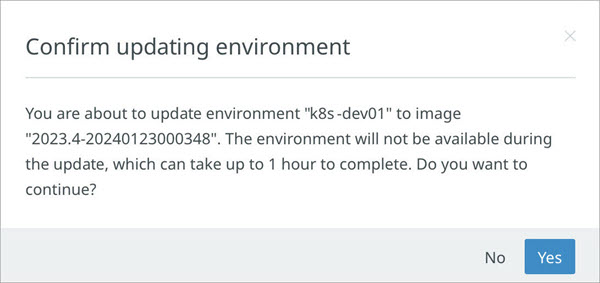
Click 'No' to cancel the update or click 'Yes' to validate the environment to be updated. If current activity is detected, an additional 'Environment in use' dialog with details is displayed, as shown in the screenshot below.
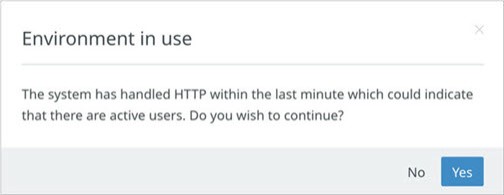
Click 'No' to cancel the update. Click 'Yes' to proceed with the update operation and validate if a Lock-Free Scheme Change (LFSC) operation is running on the environment. LFSC is usually the result of a large data operation that has not completed. If detected, a warning message displays that the update cannot proceed. When the update process is running, the SaaS SSUI displays 'The environment is currently being updated.' The associated STEP environment is unavailable until the update is complete and some environment-specific self-service features (like accessing the STEP environment) are disabled.
Note: The process of updating an environment can take up to one hour to complete, and the environment is not available while that process is running.
Custom add-ons
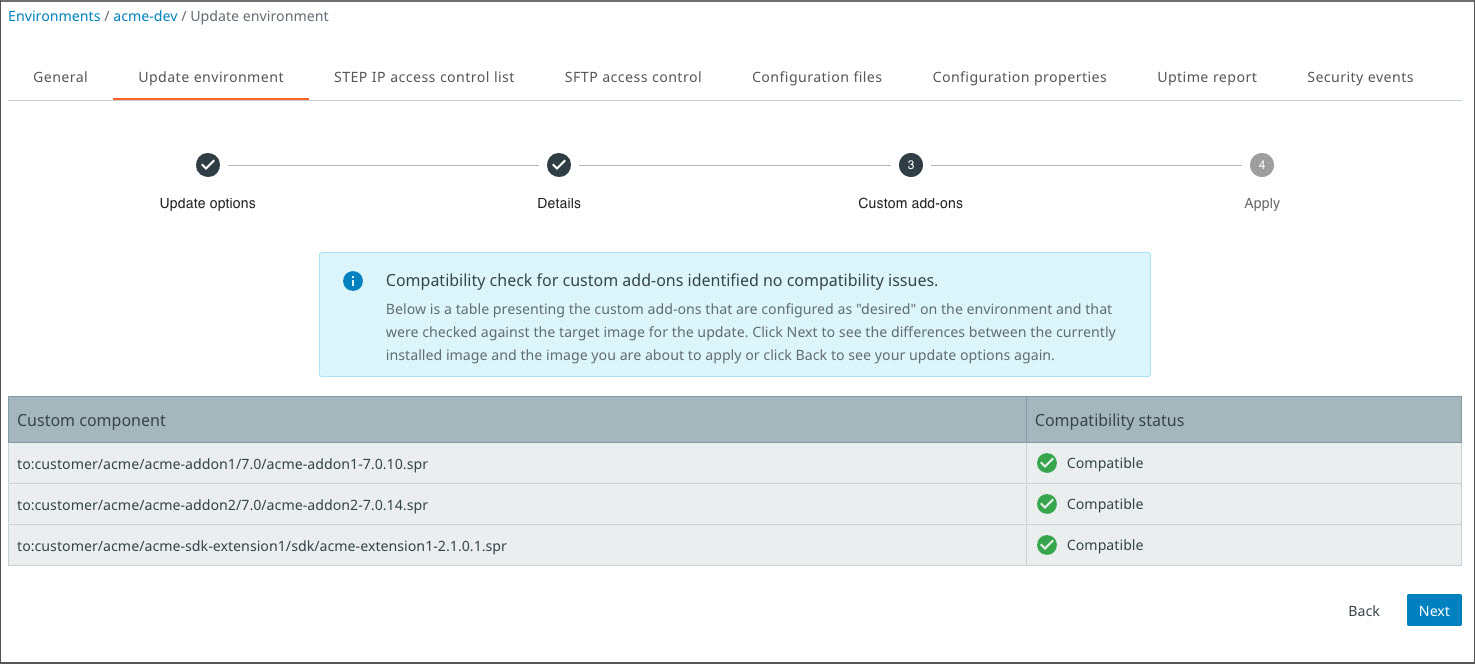
If custom add-ons (Stibo customizations or Extension API) are configured as 'desired' on the environment, the update process includes the 'Custom add-ons' stage, which checks the compatibility of the target image with the add-ons.
This extra compatibility check stage takes place between 'Details' and 'Apply' stages and can result in different states:
-
The compatibility check for custom add-ons identifies no compatibility issues: The add-ons that were checked are listed and all appear with a green checkmark (
 ) icon; the update process can safely be continued.
-
The compatibility check identifies incompatible custom add-ons: the update process cannot resume with the selected target image until add-ons are made compatible. The incompatible add-ons are marked with a red exclamation mark (
 ) icon and the compatible add-ons are marked with a green checkmark () icon.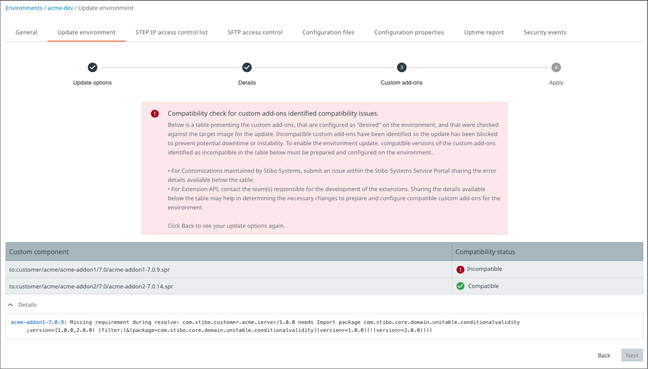
A details section below the table displays information on the incompatible items.
For customizations maintained by Stibo Systems, submit an issue within the Stibo Systems Service Portal sharing the error details available below the table.
For Extension API, contact the team(s) responsible for the development of the extensions. Sharing the details available below the table may help in determining the necessary changes to prepare and configure compatible custom add-ons for the environment.
-
The compatibility check cannot complete: the update process can be continued, understanding the risk that it may lead to update failures due to incompatible custom add-ons.
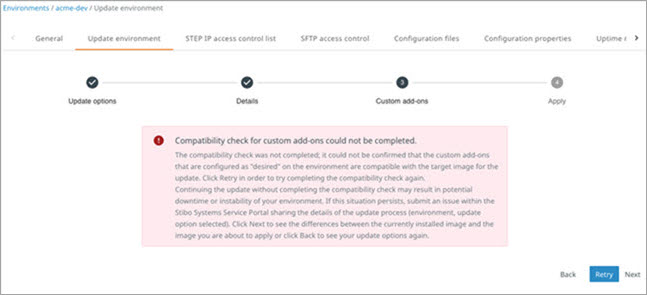
Due to multiple add-ons and/or dependencies to the STEP code base, the compatibility check may take a while to complete, and the time-out mechanism may be triggered. It is recommended to click the 'Retry' button to run the compatibility check again. If the 'Retry' mechanism cannot complete after repeated attempts, contact Stibo Systems Support.
Note: To avoid completely blocking an update, it is possible to proceed with an incomplete compatibility check, at your own risk.
Revert
For Sandbox and Pre-Production environments, following an update within the current STEP version, it is possible to revert to the previously used image. The revert option will display as a selectable image in the 'Update options' stage on the 'Update environment' tab in the table with other images to which the environment can be updated.
Important:
-
It is not possible to revert to the previously used image on an environment when that image is using a different STEP version.
-
The revert option should only be used when no changes to the STEP configuration were made since the environment was last updated. Reverting after having made STEP configuration changes can cause the environment revert process to fail, requiring the assistance of the Stibo Systems Support team.