This mapping plugin provides the user with the ability to apply advanced logic and complex automated structure to products using business rules. The eClass Business Action Mapping plugin takes a business action as a configuration and when executed, executes the business action on the target object. This mapping plugin is configured on the Onboarding Mappings Details Screen for the selected Mapper Configuration and is only available when using data that has been autogenerated for ECLASS Advanced.
For more information, refer to the STEP Path to IRDI Path Autogeneration Mapping Plugin topic.
The data that is copied from a Source object is determined by the business action that is defined in the Select Business Action parameter within the Business Action Mapping plugin. This business action is manually created and configured independently in the workbench.
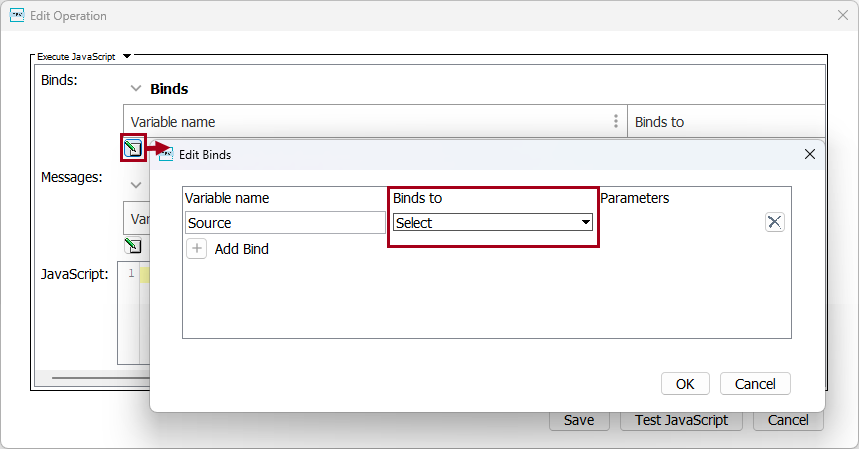
The business action can use the Source Object bind to gain access to the Source object. This bind is available within the 'Binds to' dropdown, as shown below.
Prerequisites
First, create a business action to define the Source node using Execute JavaScript > Add Bind > Mapping > Source Object. The Source Object bind provides access to the Source node. For information on accessing a source object via the Source Object bind, refer to the Source Object Bind topic within the Resource Materials documentation.
For more information on adding other binds, refer to JavaScript Binds Resource Materials documentation.
Important: The ECLASS Application Mapping bind must be included in the business action; otherwise, an ECLASS output will not be created. Use this application bind instead of using ECLASS Home to get access to the application.
Configuration
Only one business action can be configured in the mapping plugin. To execute multiple business actions, add multiple eClass Business Action Mapping plugins to the Mapper Configuration setup entity.
Note: A setup entity definition can be exported as comments and submitted to an external source control system for comparison purposes. For details, refer to the Configuration Management documentation.
To configure the eClass Business Action Mapping plugin, follow these steps:
- With the required Mapper Configuration selected, click on the New mapping option that is available within the Mappings tab of the Onboarding Mappings Details screen.
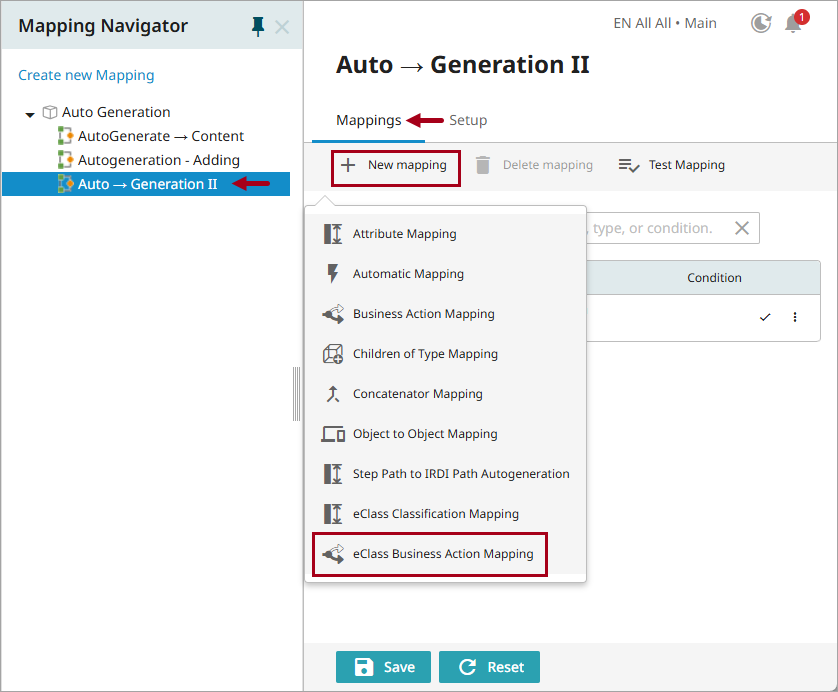
- Select eClass Business Action Mapping, and a screen is displayed prompting the user to further configure the plugin (as shown below).
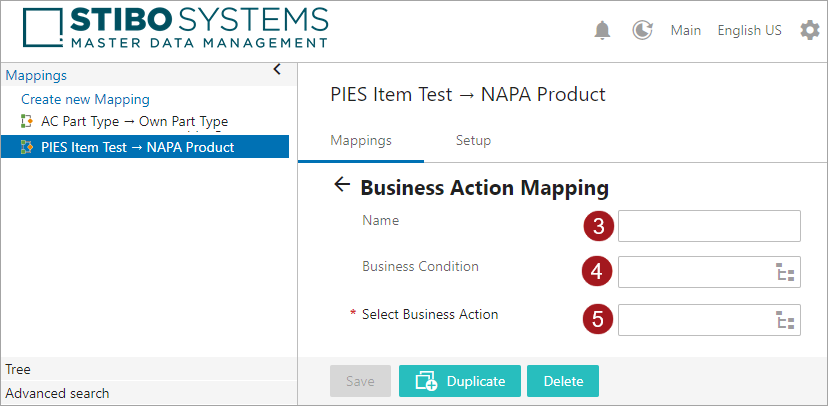
- In the Name parameter, type in a unique and suitable name. This should clearly describe the mapping functionality.
- In the optional Business Condition parameter, populate a business condition that must be true for the object for the mapping plugin to run.
- In the 'Select Business Action' parameter, type in the initial letters of the business action name to activate the typeahead functionality, or use the node picker to select and populate the desired business action. The 'Select Business Action' parameter allows the specified business action to run on the Source objects.
Note: If the business action is not valid for the source object, an error will display.
- Click Save to save the changes. The newly added mapping will be listed as shown below.
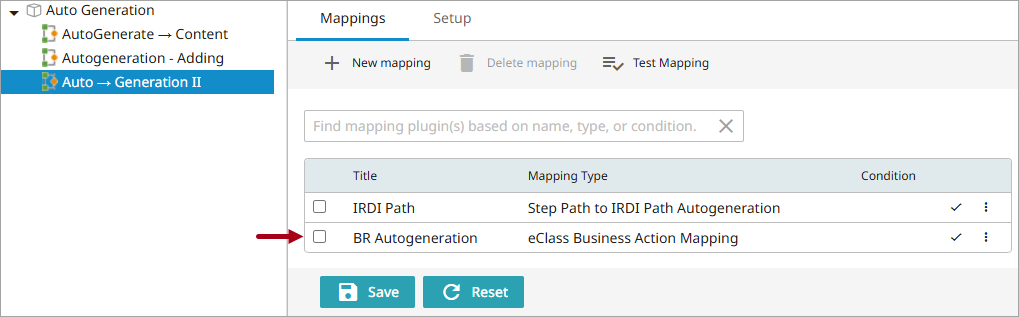
The health of the eClass Business Action Mapping plugin is displayed next to each mapping plugin. The user can disable, delete, or rearrange the listing order of the mapping plugins. The check mark displayed in the image above indicates that the mapping was successful.
- If multiple business actions are required, repeat the steps above to add multiple eClass Business Action Mapping plugins to the Mapper Configuration setup entity.
Example Business Rule
An example business rule's binds and JavaScript are detailed below:

// Object to create (IRDI PATH)
var propertyIrdiPath = ":0173-1#01-ADN292#012/0173-1#02-AAQ669#012*1/0173-1#02-AAS191#003";
var dataContainerIrdiPath = ":0173-1#01-ADN292#012/0173-1#02-AAQ669#012*1/0173-1#02-AAN501#004";
var polymorphicPropertyIrdiPath = ":0173-1#01-ADN293#013/0173-1#02-AAS252#008/0173-1#02-AAQ676#010*1/0173-1#02-AAQ678#006:0173-1#01-ADX097#013/0173-1#02-AAN539#005";
var cyclicPolymorphicPropertyIrdiPath = ":0173-1#01-ADN293#013/0173-1#02-AAS252#008/0173-1#02-AAQ521#010*1/0173-1#02-AAQ521#010*1/0173-1#02-AAQ521#010*1/0173-1#02-AAQ676#010*1/0173-1#02-AAQ678#006:0173-1#01-ADX097#013/0173-1#02-AAN539#005";
var cardinalPolymorphicPropertyIrdiPath = ":0173-1#01-ADN292#012/0173-1#02-AAQ668#012*1/0173-1#02-AAQ675#007*1/0173-1#02-AAQ682#005:0173-1#01-ADS416#012*1/0173-1#02-AAQ683#012*1/0173-1#02-AAN351#004";
// Ask the eclass home to create the objects
var propertyEclassId = eclassHome.createEclassPathId(propertyIrdiPath);
var dataContainerEclassId = eclassHome.createEclassPathId(dataContainerIrdiPath);
var polymorphicPropertyEclassId = eclassHome.createEclassPathId(polymorphicPropertyIrdiPath);
var cyclicPolymorphicPropertyEclassId = eclassHome.createEclassPathId(cyclicPolymorphicPropertyIrdiPath);
var cardinalPolymorphicPropertyEclassId = eclassHome.createEclassPathId(cardinalPolymorphicPropertyIrdiPath);
// Insert the element into the Application for the value to be available when a user loads the product
var property = targetApplication.getOrCreateElement(propertyEclassId);
property.setValue(property.createValue("AUTOGENERATED FIXING VARIANT"));
var dataContainer = targetApplication.getOrCreateElement(dataContainerEclassId);
dataContainer.setValue(dataContainer.createValue("ECLASS_RotationY", 222, "0173-1#05-AAA117#004"));
var polymorphicProperty = targetApplication.getOrCreateElement(polymorphicPropertyEclassId);
polymorphicProperty.setValue(polymorphicProperty.createValue("0173-1#07-CAA017#004"));
var cyclicPolymorphicProperty = targetApplication.getOrCreateElement(cyclicPolymorphicPropertyEclassId);
cyclicPolymorphicProperty.setValue(cyclicPolymorphicProperty.createValue("0173-1#07-CAA016#002"));
var cardinalPolymorphicProperty = targetApplication.getOrCreateElement(cardinalPolymorphicPropertyEclassId);
cardinalPolymorphicProperty.setValue(cardinalPolymorphicProperty.createValue("0173-1#07-AAR851#002"));
// the way to get values from the product
//var nodeValue = node.getSimpleValue("attribute_length");