Important: To use e-Signature with External Authentication through an Identity Provider (IDP), since additional configuration is required, submit a ticket to the Stibo Systems Service Portal.
Using e-Signature forces users to re-authenticate prior to taking action in the Web UI and ensures the security of the data being committed. e-Signature can be used in a global business action on a transition in a workflow.
With e-Signature, users can customize how they want the re-authentication of data to be captured. Some examples are storing the data at the instance it was captured for audit purposes, recording who authenticated and when, or configuring it to archive and submit the signed data as per customer and industry requirements. As standard global business action rules are used for e-Signature, it is fully at the discretion of the customer for how to implement the rule to ensure that the desired data capture and/or logging occurs. Using the standard e-Signature business rule action option prompts the re-authentication dialog to require that a user provide username and password login credentials before taking action.
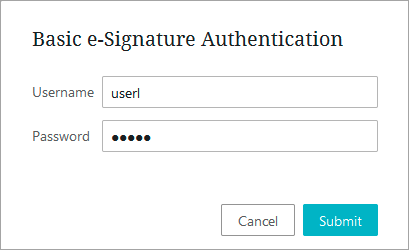
Note: If an Identity Provider (IDP) is configured on a given system, the user will be redirected to the IDP to complete the authentication. Refer to the e-Signature with external authentication section below.
Global business rules using e-Signature are applied in STEP Workbench; however, re-authentication using e-Signature is only available in the Web UI. Users attempting to call a business rule using e-Signature in the workbench will receive an error.
For more on how to configure e-Signature, refer to Applying e-Signature to a Transition in a Workflow.
For more on using e-Signature, refer to Using e-Signature in the Web UI.
e-Signature with external authentication
The following example includes required configuration and a scenario to demonstrate the end-to-end process for using e-Signature with external authentication within a STEP workflow.
Configuration
-
A STEP workflow is configured with e-Signature.
-
A Web UI screen is configured that allows users to submit a STEP workflow task.
-
Two separate IDP registrations / connections (Entra ID: Enterprise Applications) per environment:
-
one for regular external authentication
-
one for the e-signature re-authentication
-
The advantage of using a separate IDP registration for re-authentication is that it can be enhanced with additional requirements, such as a fingerprint or face scan, which may not be required for basic authentication.
Scenario
In Web UI, users submitting a STEP workflow task to the next workflow state receive a popup prompting them to authenticate.
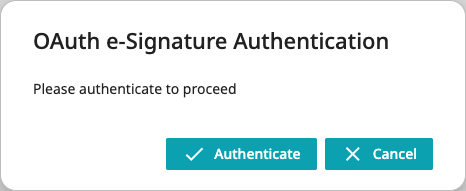
Clicking the 'Authenticate' button redirects them to their Identity Provider authentication login page (Entra ID in the image below).
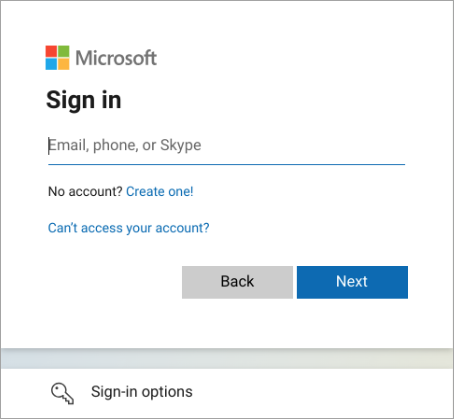
Once authentication is successful, the workflow task is submitted, and the user is returned to the Web UI screen where they initiated the task submission.