Summary
The 2026.3 update introduces several features to the New UI, to expand the functionality and improve efficiency and the user experience.
The following updates have been made:
-
AI Chat, an AI-powered chatbot for use in the New UI, has entered limited availability.
-
A new Translation tab enables users to review, manage, and edit their translations across contexts in a single tab page.
-
Attribute configuration in Attributes tabs now includes showing nested sub-attribute groups, significantly reducing manual maintenance, lowering the risk of errors, and improving configuration scalability.
-
Configure a Multi-context tab to view, compare, edit, and approve data across multiple contexts from a single workspace.
-
Access product information directly from attribute tabs using a configurable Info panel.
-
Attribute values in Attribute tab are now easier to read and maintain through improved field sizing and responsive layouts.
-
Improved workspace loading and responsiveness across work areas and perspectives.
-
The following enhancements have been made to references in the details view of a perspective to improve navigation and relationship data visibility:
-
'Referenced by' table within a references tab allows users to add, remove, sort, filter, and add referenced objects to workflow.
-
Referenced objects within an attribute tab can be viewed in a table or gallery view.
-
Details
Conversational AI Assistant for New UI for STEP
For customers interested in a free-trial period, users can now bring the power of AI directly into their day-to-day New UI experience with a powerful new feature: Conversational AI Assistant. For implementations with the ProductGen AI license, New UI users now have the ability to interact with an AI chatbot capable of executing a wide range of tasks when managing their STEP product data.
Conversational AI Assistant is accessible via a button in the utilities bar. Because the utilities bar displays regardless of the page, view, or work area currently viewed, Conversational AI Assistant can be accessed and used at any time while navigating through the New UI.

When engaged, the Conversational AI Assistant displays in a column to the right of the interface. In the chat field, users can directly question their product data to not only gain a deeper understanding of their product offerings, but also to manage and edit their product data.
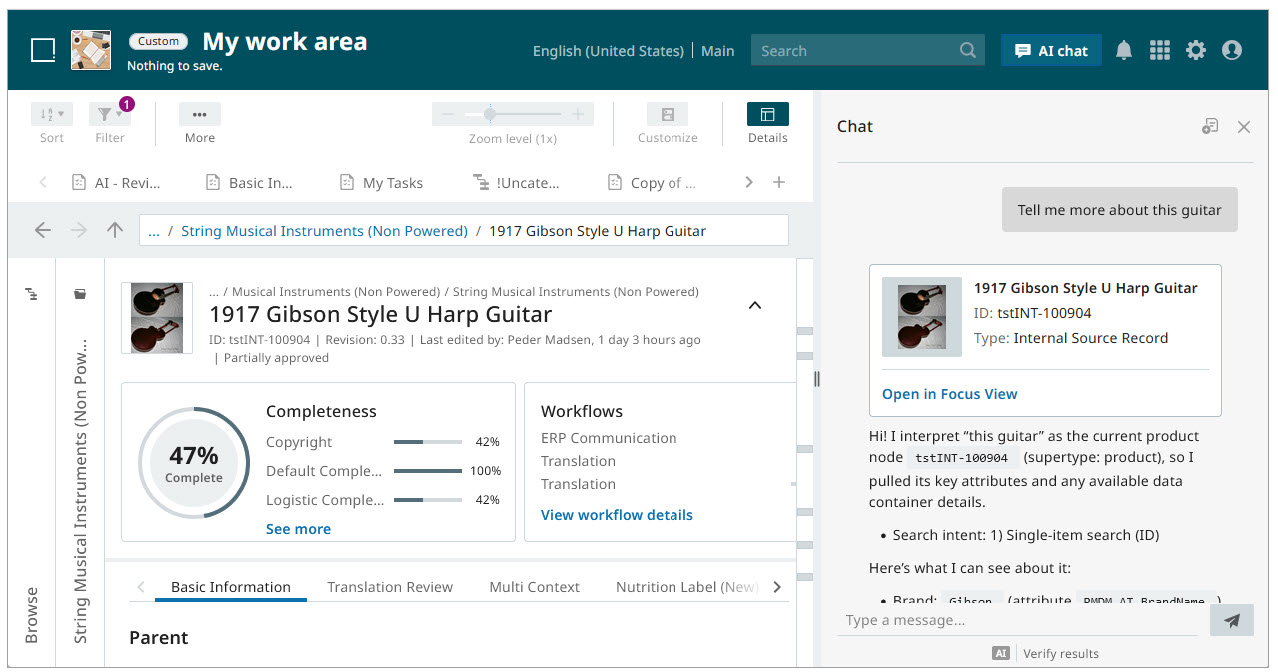
For instance, if a user wanted to gather a list of all products in a given product line, Conversational AI Assistant can quickly compile that list from a plain language query entered into the Conversational AI Assistant prompt field. With that list in hand, users can then create a collection or run a business rule on the AI-compiled products. Or, because Conversational AI Assistant is context-aware, users can prompt the chatbot to tell them more about the product they are viewing (as shown in the screenshot above). The chatbot will then provide a detailed description of the current product without requiring users to pore over a potentially long product details page filled with attributes and references. In short, Conversational AI Assistant empowers product managers, data stewards, and sales engineers to accelerate their efficiency, shortening workflow windows, and speeding delivery times throughout the product lifecycle.
Conversational AI Assistant for ProductGen AI is currently looking for design partners. If this feature is of interest, reach out to a Stibo Systems representative for next steps.
For additional information on Conversational AI Assistant, refer to the Conversational AI Assistant topic.
New Translation tab
The New UI's translation capabilities have expanded to give content stewards and global market managers a robust tool to oversee product translations across languages. Where previous functionality only allowed users to view their translations, the new Translation tab gives users the ability to view, approve, and manually edit translations.
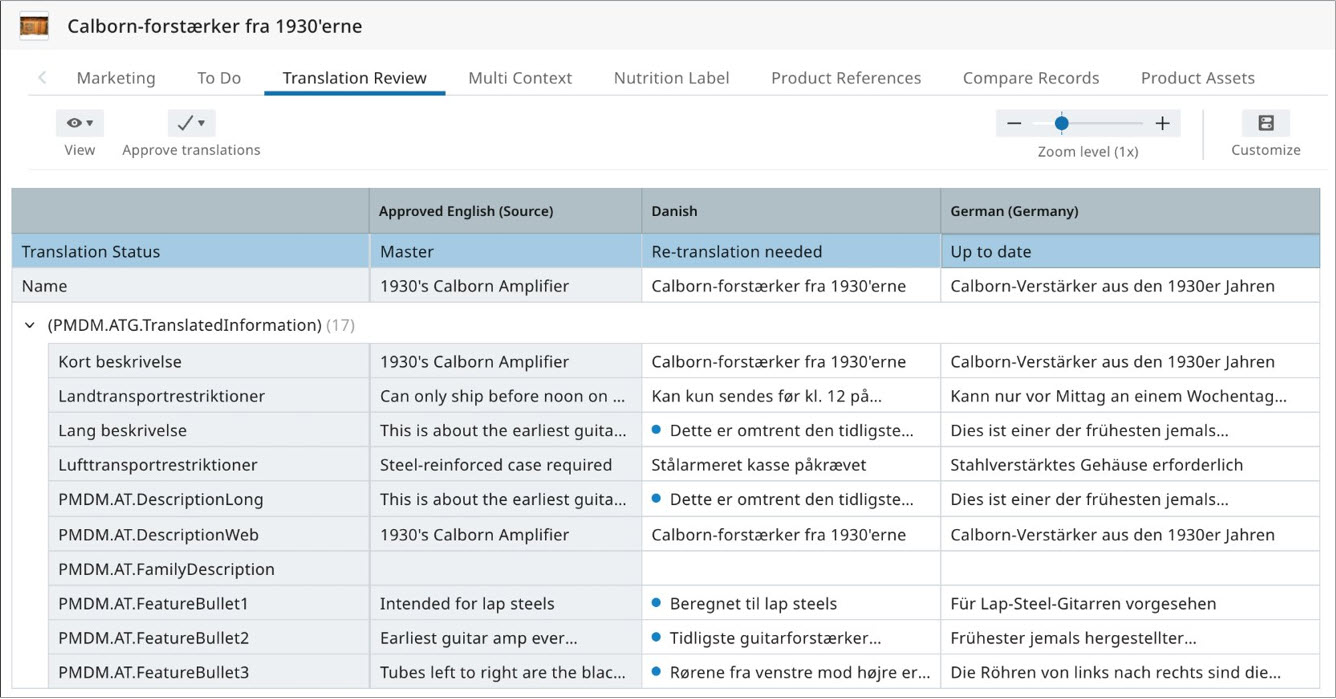
Configured in the New UI's Configuration tool, the Translations tab gives users the ability to:
-
select up to four translation languages to view within the table, in addition to the source language column
-
review and approve one or more languages within the table
-
see at a glance which attributes require review via a blue dot indicator (as shown in the screenshot above)
-
edit translated values
Additionally, display of the translation table in the Translation Tab is dynamic: the table only shows if the user is:
-
in a relevant context
-
there are translations to display
-
the user has the required privileges to view translations.
Previous translation functionality in the New UI did not provide users with the ability to manage their translations, requiring users to switch interfaces to get a complete picture of their translation status, resulting in extended review times and delays. With the new Translations tab, users can now enjoy close control of their translations while working in the New UI for STEP.
For more information on the Translation tab, review the Tabs topic. For more information on configuring the Translation tab, refer to the Configuration Tool topic.
Adding attributes by attribute groups now includes attributes in nested sub-attribute groups
Previously, when an administrator added attributes using a parent attribute group, only attributes directly in that group were included, leaving out any attributes in any nested sub-attribute groups. As a result, whenever the data model changed in workbench and attribute groups were reorganized, administrators had to manually review and update tabs across the New UI, adding or removing attribute groups one by one. This was time-consuming and increased the risk of errors.
With this update, selecting a parent attribute group in a tab configuration now automatically includes the attributes contained in its nested sub-attribute group(s). Administrators can configure tabs at the parent attribute group level, and changes to the underlying group structure will be reflected automatically, with no need to update tabs individually.
This reduces manual maintenance effort, lowers the risk of configuration errors, and makes it easier to scale configuration as data models grow more complex. For more information, refer to the Data Containers topic in the New UI documentation.
References improvements in details view of a perspective
Users are now able to add or remove a referenced object, add a referenced object to a workflow, and filter and sort data in a 'referenced by' table within a references tab in the details view of a perspective. This aligns with the functionality that is already available in the 'references' tables.
Additionally, referenced objects in an attribute tab of the details view of a perspective can now be viewed in a table, gallery or compact table view mode. The columns displayed and view methods can be customized by an administrator for each reference type. By default, referenced objects are displayed in a compact table view.
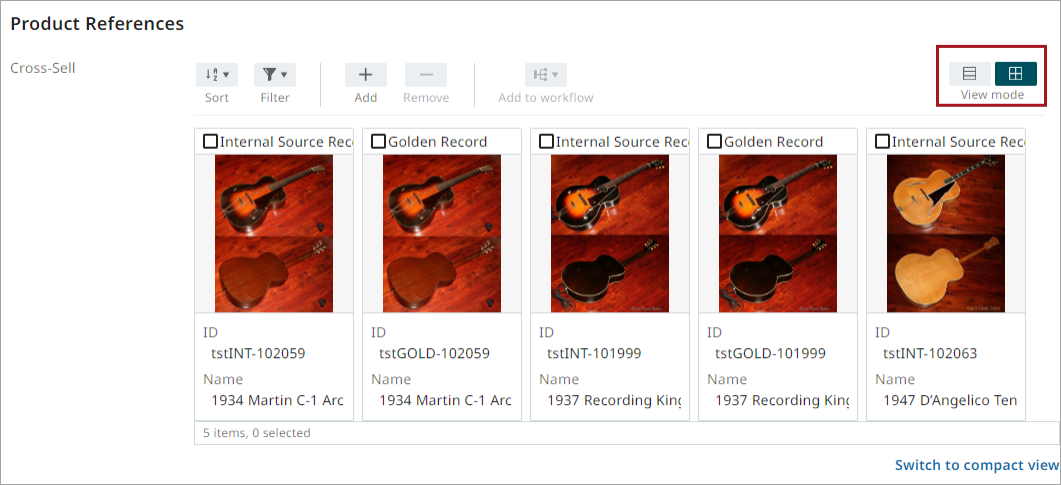
Within the attribute tab, users will also be able to add or remove referenced objects, edit metadata, add referenced objects to workflow, and filter and sort the table. These changes improve navigation and provide a better way to view relationship data. For further information, refer to the References topic in the New UI documentation.
Added a new Multi-context tab in details view
Release Notes in progress...
You can now configure a Multi-context tab in the Details view that enables users to view, compare, edit, and approve data across multiple contexts. The tab displays context-specific values side by side, reducing the need to switch contexts when reviewing or maintaining data. Users can perform cross-context updates and approval actions directly within the tab and customize the column layout to suit their workspace.
Managing context-dependent data in New UI traditionally required users to switch between contexts to compare, review, and update values. The new Multi-context tab simplifies this work by providing a consolidated view of data from multiple contexts in a single tab.
Add image
For further information, refer to the Multi-context Tab Page topic in the New UI documentation.
HTML functions can now be rendered directly in the attribute tab page through the Info panel.
Release Notes in progress...
The New UI now supports a configurable Info panel that appears as a contextual sidebar alongside attribute tabs in the details view. The Info panel provides access to relevant read-only information while users work with product data, reducing the need to navigate between tabs or views. Administrators can configure the panel to render the output of a business function as HTML.
You can create and manage reusable Info panel configurations and associate them with specific attribute tabs. When you open a tab that has a linked Info panel, the panel is displayed automatically and presents contextual information tailored to the selected object and context.
The Info panel can be expanded, collapsed, and resized to suit individual preferences. It also stays synchronized with changes made on the associated attribute tab, ensuring that displayed information remains current as data is updated. By editing key information directly within the details view, the Info panel helps you to review and validate data while still maintaining focus on their primary task.
Add Image
For further information, refer to the Info Panel in Details View topic in the New UI documentation.
Access Pproduct information is now accessible directly from attribute tabs using a configurable Info panel.
Improved Attribute tab readability through better field sizing and value presentation
The Attribute tab has been enhanced to improve readability, consistency, and responsiveness in the details view. Attribute fields now use standardized widths based on attribute type, creating a more visually balanced layout in both editable and read-only modes.
The presentation of read-only values has also been improved. Empty attributes are clearly identified, and multi-valued attributes provide better visual separation between values, making it easier to understand the displayed data.
In addition, attribute names now adapt more gracefully to limited space by wrapping when necessary while maintaining readability and alignment with related controls. These enhancements provide a cleaner experience across different screen sizes and layouts.
Improved work areas and perspectives performance for faster and more responsive tailored experiences
Performance improvements have been made to work areas and perspectives in the New UI to provide a faster and more responsive experience when working with tailored user configurations. These enhancements optimize the loading and rendering of configured workspaces, helping users access and navigate personalized views more efficiently.