The list processing component allows users to leverage STEP functionality to process lists of entities without having to add the entities as master data. List processing can help responsible parties, such as marketing personnel, to prepare lists of prospects by processing large rented customer lists and help CPG and manufacturing companies to process and analyze lists of indirect customers provided by their direct customers, such as distributors.
With the list processing component, users can:
-
Import lists of records
-
Assess quality of the list records using data profiling
-
Remove records of poor data quality
-
Bulk update records
-
Deduplicate records
-
Export processed lists
Important: Lists can contain anywhere from a few records with very few attributes up to hundreds of millions of records, each with a large number of attributes. Processing time depends on the size of a list. Lists are processed in Background Processes to manage time-consuming operations and use parallel processing. Users can monitor the progress of a background process and/or perform other duties while the list processing executes.
Configuring List Processing
To use list processing, complete the following configuration:
At a high level, configuring list processing involves the following steps:
-
Prepare the file of records
Ensure the file that contains the records to import is available for the intended record object type, as described in the Creating Lists topic.
-
Create the list and record object types
Create an entity object type for the list and one or more child entity object types for the records in the list, as described in the List Processing Lists and Records topic. Define the attributes, references, and/or data containers required for the records.
-
Configure the List Processing component model
Add the list object type to the List Processing component model to define which object types can hold lists, as described in the List Processing Component Model topic.
-
Create import and export configurations
Define a saved import configuration to import records into the list. This configuration maps the file of records to the record object type and its values. For details, refer to the Maintaining a Saved Import Configuration topic in the Data Exchange documentation.
Define a saved export configuration to export the processed lists. For details, refer to the Maintaining a Saved Export Configuration topic in the Data Exchange documentation.
-
Configure list processing in Web UI
Create the Web UI screens and mappings to import, process, profile, and export lists, as described in the topic Configuring List Processing in Web UI.
-
Create a List Processing Configuration
Create a List Processing Configuration that defines the operations that can be applied to the list, as described in the List Processing Configuration topic.
Add the relevant list processing operations, such as filter or bulk update, as described in the List Processing Operations topic.
-
Define the default profiling configuration
Configure a default data profile on the list object type, as described in the List Processing Lists and Records and Data Profiling topics. This configuration is used to generate profile findings for the list after import and after processing.
Considerations
Before processing lists, be aware of the following information :
-
List processing cannot be reverted
-
Background process logs include statistics, warnings, and errors
List Processing Cannot Be Reverted
Use caution when creating the list process configurations. In the following example, a business rule that always returns a value of false purges the entire dataset. Since the business condition was valid on the record object types, the process proceeded without errors.
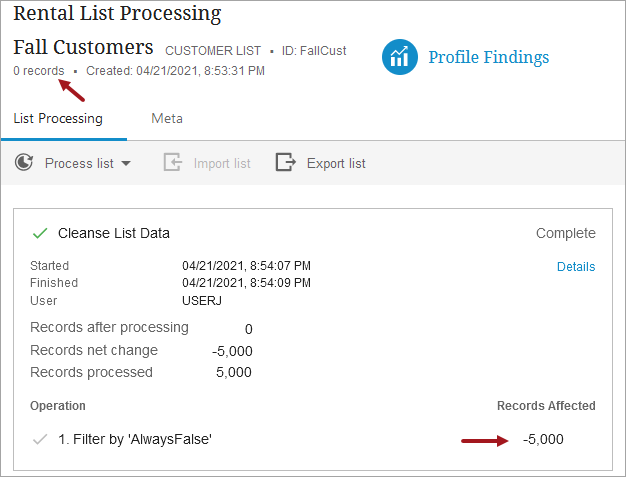
Important: While there is no method to revert a list processing operation after it has been completed, you can upload the original file to a new list entity and apply all processing operations again.
Background Process Logs Include Statistics, Warnings, and Errors
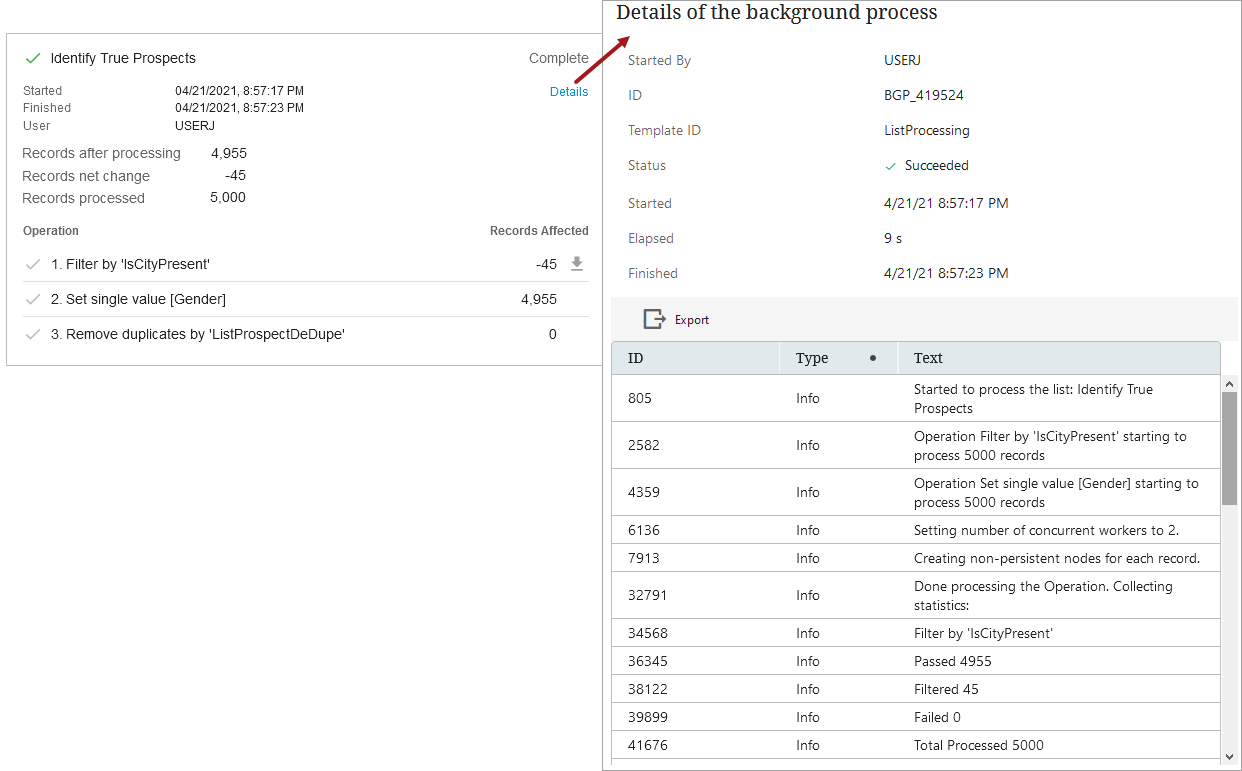
When a list process operation fails or completes with errors, review the BGP logs by clicking the Details link on the process. Users with a successful list process may also view useful information in the logs. For more information, refer to the Background Process Node Details Screen topic in Web User Interfaces documentation.