After data has been published to DaaS, you must configure a DaaS service. The service defines how consumers can access the published data and includes the following:
-
a scope, which determines what data is available
-
a GraphQL schema, which determines how that data can be queried and returned
To configure a DaaS service:
-
Open the Management API for your DaaS instance using a URL formatted as follows: https://<daas-url>/api/doc/help/swagger?code=<management-api-key>
-
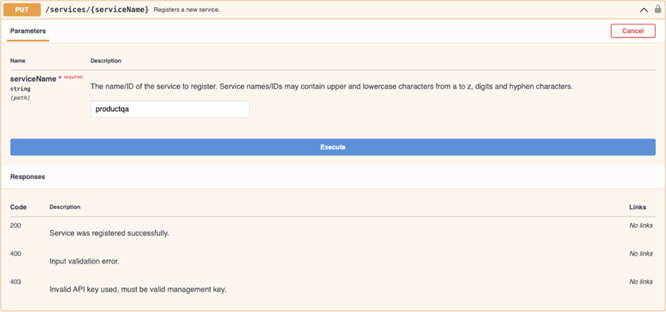
Create a new service using the PUT /services/{serviceName} endpoint. In the following image, the new service is named 'productqa'.
-
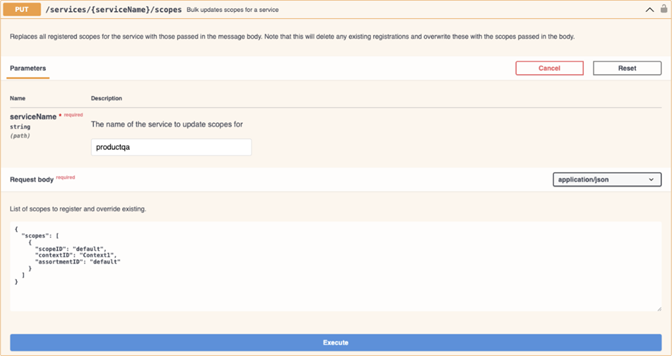
Configure a scope using the PUT /services/{serviceName}/scopes endpoint.
The scope determines what data can be accessed through a service using:
-
the STEP context ID
-
the assortment definition configured in the STEP to DaaS data publisher Event Processor.
A service can define multiple scopes, but by default a single request for data on DaaS resolves one scope. In this example, one scope is configured against the default assortment and assigned the scope ID “default”.
-
-
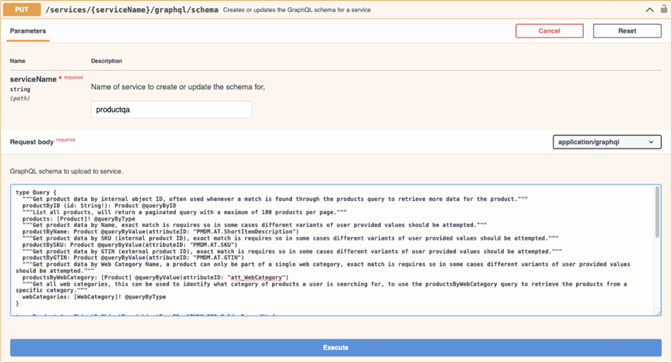
Configure the service's GraphQL schema using the PUT /services/{serviceName}/graphql/schema endpoint.
The schema defines the queries, object types, fields, and mappings exposed by the service using binding directives. Schema changes can take a few minutes to take effect. For the full list of binding directives, refer to the 'Binding Directives' section of the 'DaaS User Guide' available from the DaaS instance.
For Consumer MCP Server use cases, the schema should be designed so that it is easy for an LLM / agent to understand and use the data. Clear query names, field names, and descriptive comments help the agent determine which data is available and how it should be retrieved.
Important: The reference schema below is only an example based on a specific product Q & A scenario and STEP data model. Each implementation should define a schema that matches their own relevant STEP data model, use cases, and terminology.
In this example, specific field mappings are implemented, and explanatory descriptions (shown in green) are added so that LLMs and agents can better understand the available data and how to access it. The schema looks up products by Name, SKU, GTIN, and Web Category using value-based queries (@queryByValue). These queries only work on indexed attributes and must be indexed through the DaaS Management API before the schema can be configured. For further information, refer to the 'Query Types' section of the 'DaaS User Guide' available from the DaaS instance.
type Query { """Get product data by internal object ID, often used whenever a match is found through the products query to retrieve more data for the product.""" productByID (id: String!): Product @queryByID """List all products, will return a paginated query with a maximum of 100 products per page.""" products: [Product]! @queryByType """Get product data by Name, exact match of partial value is required so in some cases different variants of user provided values should be attempted.""" productByName: Product @queryByValue(attributeID: "PMDM.AT.ShortItemDescription", useContains: true) """Get product data by SKU (internal product ID), exact match of full value is required so in some cases different variants of user provided values should be attempted.""" productBySKU: Product @queryByValue(attributeID: "PMDM.AT.SKU") """Get product data by GTIN (external product ID), exact match of full value is required so in some cases different variants of user provided values should be attempted.""" productByGTIN: Product @queryByValue(attributeID: "PMDM.AT.GTIN") """Get product data by Web Category Name, a product can only be part of a single web category, exact match of partial value is required, so in some cases different variants of user provided values should be attempted.""" productsByWebCategory: [Product] @queryByValue(attributeID: "att_WebCategory", useContains: true) """Get all web categories, this can be used to identify what category of products a user is searching for, to use the productsByWebCategory query to retrieve the products from a specific category.""" webCategories: [WebCategory]! @queryByType } type Product @mapObjectByObjectType(objectTypeID: "PMDM.PRD.GoldenRecord") { id: String! @mapID name: String @mapName sku: String @mapValueAsString(attributeID: "PMDM.AT.SKU") gtin: String @mapValueAsString(attributeID: "PMDM.AT.GTIN") brand: String @mapValueAsString(attributeID: "PMDM.AT.BrandName") longDescription: String @mapValueAsString(attributeID: "PMDM.AT.DescriptionLong") webDescription: String @mapValueAsString(attributeID: "PMDM.AT.DescriptionWeb") featureBullet1: String @mapValueAsString(attributeID: "PMDM.AT.FeatureBullet1") featureBullet2: String @mapValueAsString(attributeID: "PMDM.AT.FeatureBullet2") featureBullet3: String @mapValueAsString(attributeID: "PMDM.AT.FeatureBullet3") price: String @mapValueAsString(attributeID: "PMDM.AT.SellingPrice") websiteCategory: String @mapReferenceTargetValueAsString(referenceTypeID: "PMDM.P2CLT.WebsiteLink", attributeID: "PMDM.AT.PageTitle") """List all accessories (which are separate products), can be one or multiple, that are available for the listed product.""" accessories: [Product]! @mapReferenceTarget(referenceTypeID: "PMDM.PRT.OptionalAccessory_GR") """Contains a URL to a product image, URL is only available for 5 minutes, can have different image file formats.""" productImage: String @mapReferenceTargetAssetContentURL(referenceTypeID: "PMDM.IDRT.PrimaryProductImage", pathAttributeID: "att_Asset_Path", resolveBlobStorageUrl: true) """Contains a URL to a product owners manual, URL is only available for 5 minutes, commonly a PDF file but can also have different file formats.""" ownersManual: String @mapReferenceTargetAssetContentURL(referenceTypeID: "PMDM.IDRT.OwnersManual", pathAttributeID: "att_Asset_Path", resolveBlobStorageUrl: true) } type WebCategory @mapObjectByObjectType(objectTypeID: "PMDM.CLS.WebsiteCategory") { id: String! @mapID name: String @mapName } -
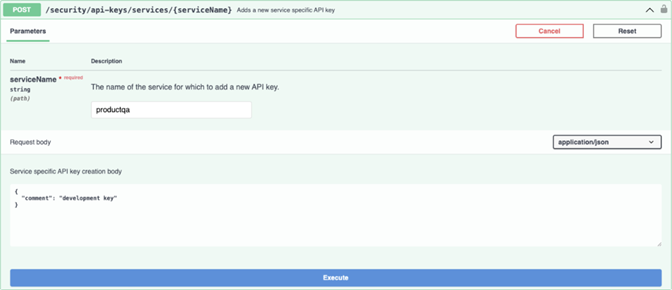
Create a service-specific API key using the POST /security/api-keys/services/{serviceName} endpoint.
Service-specific API keys are used by data consumers to authenticate against the GraphQL endpoint; they are separate from the Management API key used for configuration of a DaaS instance.
-
Test the service using the built-in Apollo Studio client (or any other GraphQL client) available on each DaaS Instance.
Apollo Studio client URL: https://<daas-url>/api/services/<service>/graphql/api?code=<service-api-key>
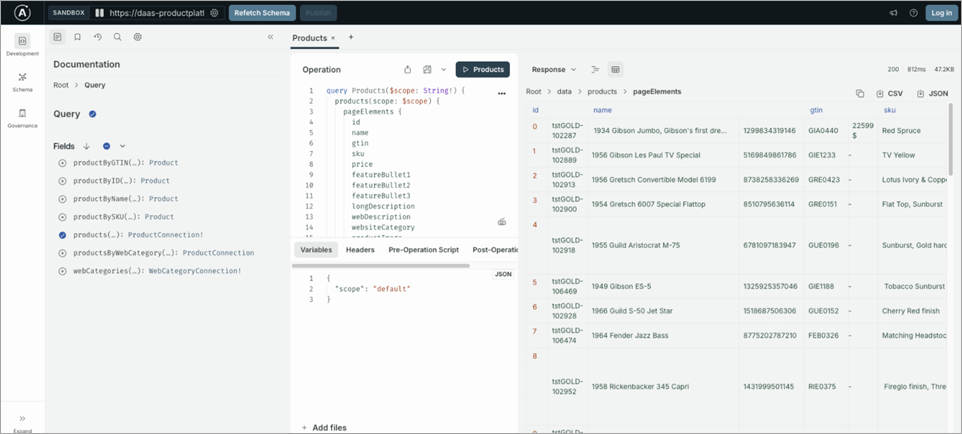
For more information about DaaS service configuration, refer to the 'DaaS User Guide' available from the DaaS instance: https://<daas-url>/api/doc/help?code=<management-api-key>