Asset content (product images, manuals, etc.) can be made available through DaaS and the Consumer MCP Server. The actual files are published to the DaaS asset storage, so the service can return links to them alongside the master data.
Note: The DaaS asset storage is optional and may not be available for your DaaS instance by default. If your DaaS or Consumer MCP Server use case requires asset content to be served through DaaS, submit a ticket in the Stibo Systems Support portal to have the DaaS asset storage and the corresponding connection on your STEP environment configured.
To create a new gateway integration endpoint (GIEP) for the asset publishing connection to your DaaS instance:
-
Create and enable a new GIEP for asset publishing:
-
In System Setup, right-click a GIEP node and select the 'Create Gateway Integration Endpoint' option. For details, refer to the Creating a Gateway Integration Endpoint topic in the Data Exchange documentation for details.
-
Add an ID and a name.
-
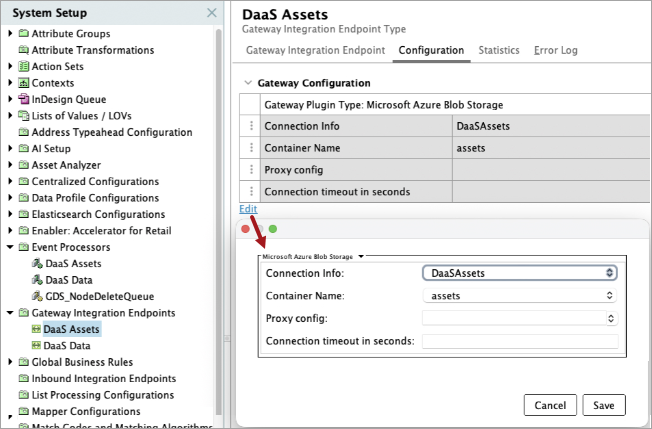
On the Configuration tab, click the Edit link and add the required information to access the DaaS instance and click the Save button.
-
Click the Gateway Integration Endpoint tab, click the Enabled parameter, and select 'Yes' from the dropdown. The GIEP icon in the System Setup panel displays with a green icon.
-
On the Configuration tab, click the 'Check Connectivity' button to test the GIEP connectivity to your DaaS instance.
-
In the Java Script Check Code field, add gateway.checkConnectivity(), and click the 'Check Connectivity' button to confirm the connection succeeds.

-
-
Create an asset event processor using the Event Processor Wizard:
-
In System Setup, right-click an event processor node and select the 'New Event Processor' option. For details, refer to the Creating an Event Processor topic in the System Setup documentation.
-
Add an ID and a name.
-
On the Configure Event Processor step:
-
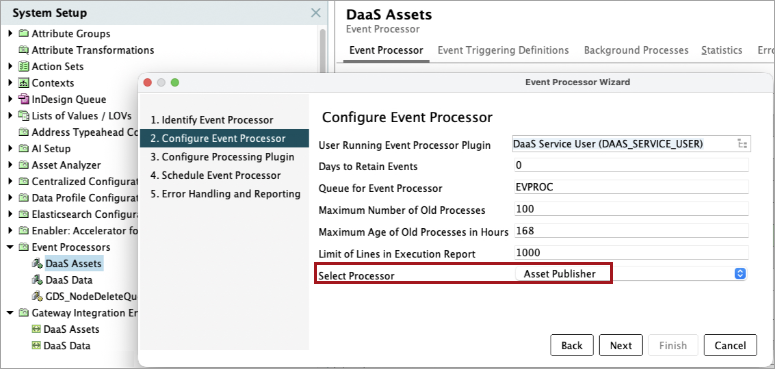
For the User Running Event Processor Plugin parameter, select a user.
Important: The user account running the DaaS publisher Event Processor must have 'view' permission for the Path attribute; otherwise, the asset content location cannot be resolved by DaaS.
-
For the Select Processor parameter, choose the Asset Publisher option from the dropdown.
-
-
On the Configure Processing Plugin step:
-
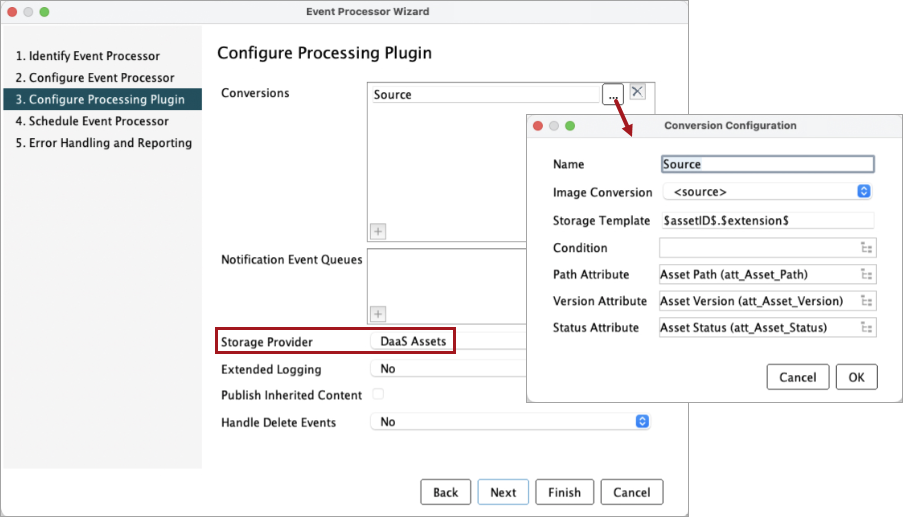
In the Storage Provider parameter, select the previously created 'DaaS Assets' gateway integration endpoint.
-
In the Conversions parameter, create one or more conversions to specify how asset content should be transformed upon publishing.
In the image below, the conversion configuration will transfer the source image files without actual format conversion, storing the files using the asset ID as filename configured through the storage template. The Path, Version, and Status attributes that are valid on the asset object are specified to hold relevant meta data.
-
-
On the Schedule Event Processor step, set the desired schedule. This event processor can be used to manually publish data or can be scheduled to continuously publish data to DaaS based on the triggering rules you define. Refer to the EP - Schedule Event Processor topic in the System Setup documentation for details.
-
On the Error Handling and Reporting step, configure as desired. Refer to the EP - Error Handling and Reporting topic in the System Setup documentation for details.
-
Click the Finish button to close the wizard.
-
-
Configure and enable the DaaS Asset event processor:
-
Select the new DaaS Asset event processor to display the available tabs.
-
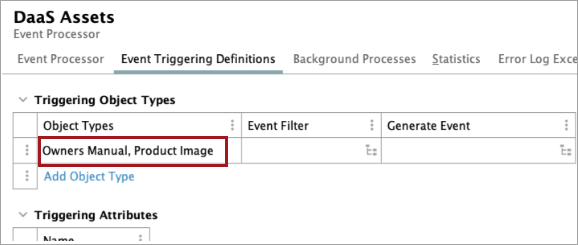
On the Event Triggering Definitions tab, in the Triggering Object Types section, add the asset object types you want to publish. This determines which asset objects generate publishing events and are therefore sent to DaaS.
For more information, refer to the Asset Publisher Processing Plugin Parameters and Triggers topic in the System Setup documentation.
-
On the Event Processor tab, set the Queue Status parameter to Read Events.
-
In the System Setup panel, right-click the new event processor and click the 'Enable Event Processor' option. The Processor Status parameter shows 'Running' with a green background.
-
-
Generate the required asset events:
-
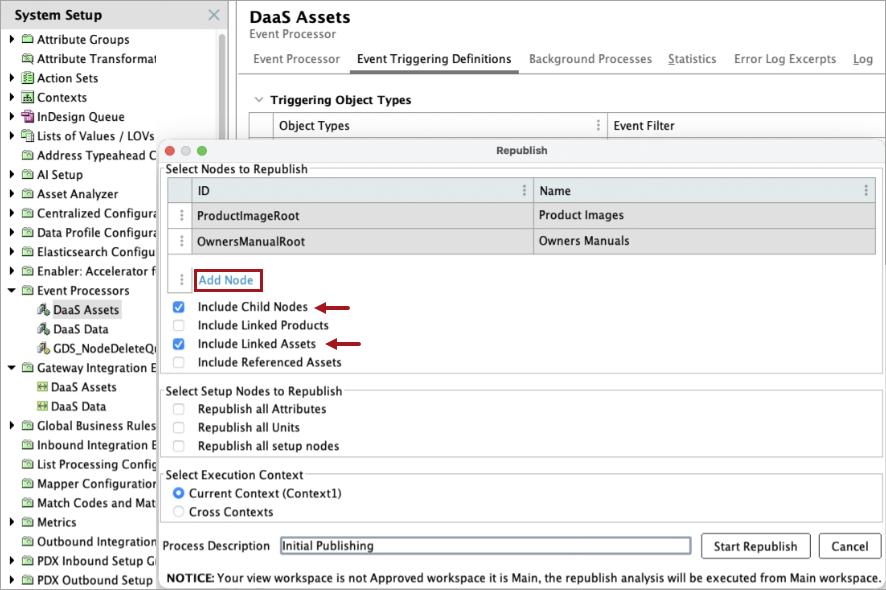
Right-click the new event processor and choose the Republish option to generate events for an initial set of data.
-
In the Select Nodes to Republish parameter, click the Add Node link and select part of the asset hierarchy. Check the 'Include Child Nodes' and/or the 'Include Linked Assets' if required.
Note: The asset metadata attributes (Path, Version, Status) are only populated once an asset is published by the DaaS Asset Publisher event processor. This means you may need to publish the asset objects again, this time through the event processor used for data publishing, so that DaaS can determine where each asset's content is stored.
-
Click the 'Start Republish' button.
-
-
Publish the desired assets:
-
Right-click the event processor, click the 'Invoke Event Processor' option.
-
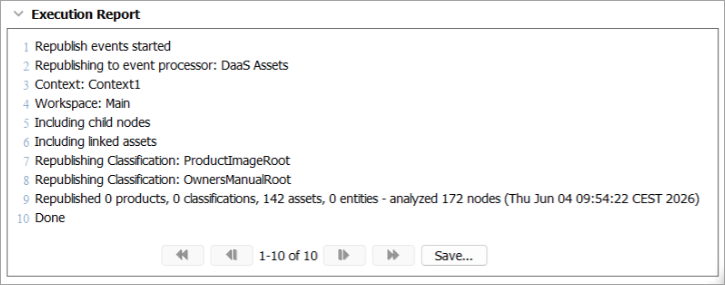
Review the execution log to confirm that the assets were published successfully.
For more information about the configuration required to publish asset content from STEP to DaaS, refer to the Publishing to Data as a Service topic.
-