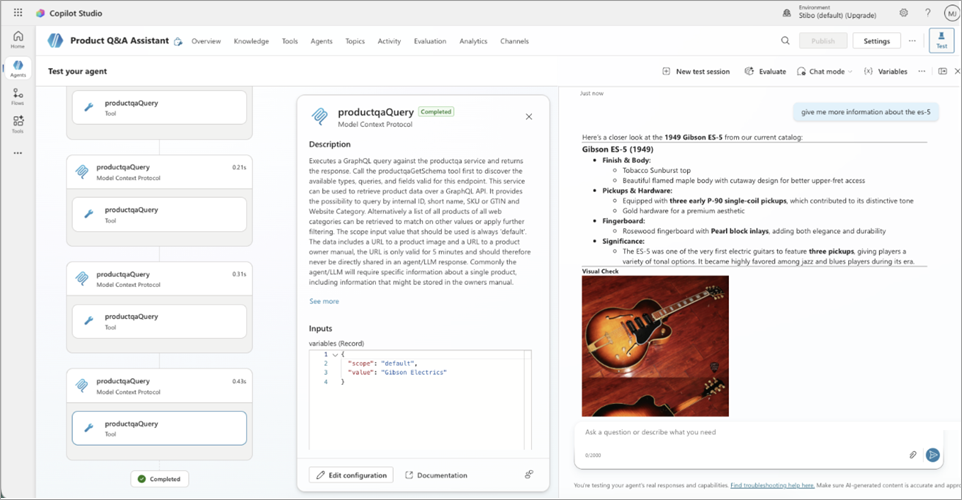
This is an example of how an agent in Copilot Studio can be connected to the Consumer MCP (Model Context Protocol) Server. The exact steps and available options may depend on the AI agent platform or MCP client that is used.
For additional information, refer to these Microsoft Learn articles:
-
Creating a new agent in CPS: https://learn.microsoft.com/en-us/microsoft-copilot-studio/fundamentals-get-started
-
Creating a new MCP server in CPS and connecting your agent to it: https://learn.microsoft.com/en-us/microsoft-copilot-studio/mcp-add-existing-server-to-agent
To connect your own agent to the Consumer MCP Server in Copilot Studio:
-
Add the Consumer MCP Server as a tool.
-
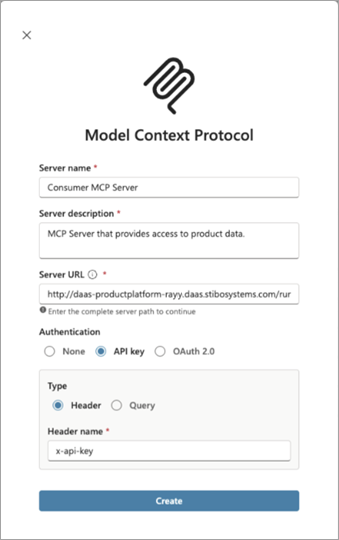
Add a 'Server name' and a 'Server description'.
Note: Ensure the MCP API key includes the service(s) you want the agent to use.
-
For Server URL, enter the Consumer MCP Server URL: https://<daas-url>/runtime/webhooks/mcp
-
For Authentication, click 'API-key' and set Type as 'Header' with Header name: x-api-key.
-
-
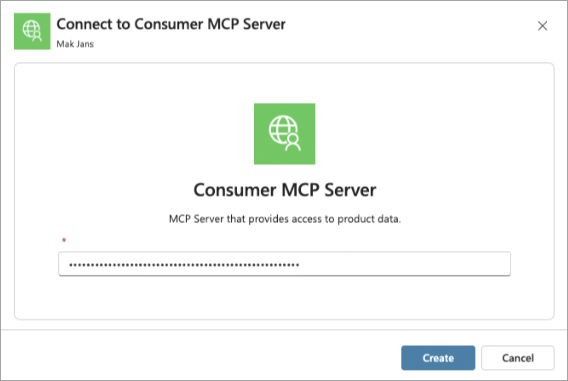
Create a new connection to the MCP Server and add the MCP API key that was created using the POST /security/api-keys/mcp endpoint.
-
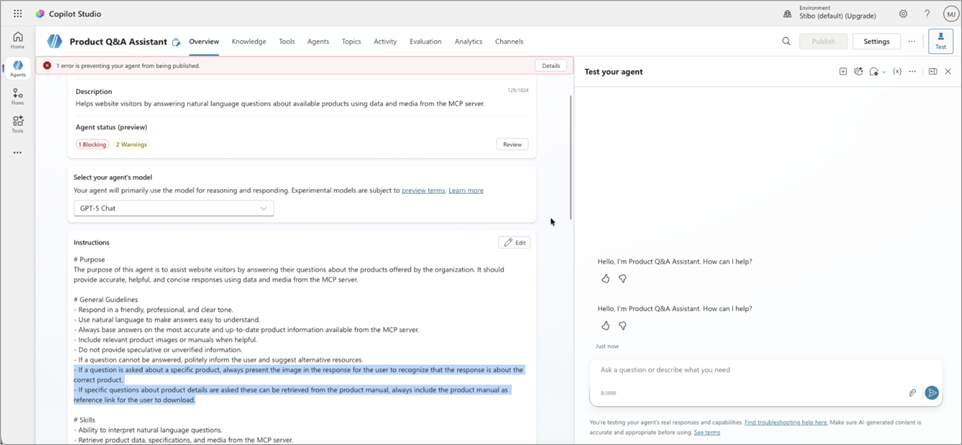
Make the tool available to the agent and add any agent-specific instructions.
-
Test the agent.
In this example, the agent answers questions about products using a combination of master data and contents of assets (the product image and product manual), enabling a content-rich exchange that supports product Q&A use cases.