Data cards can be created in bulk using the Import Data Cards feature.
To create data cards via an Excel import, follow the steps described below.
-
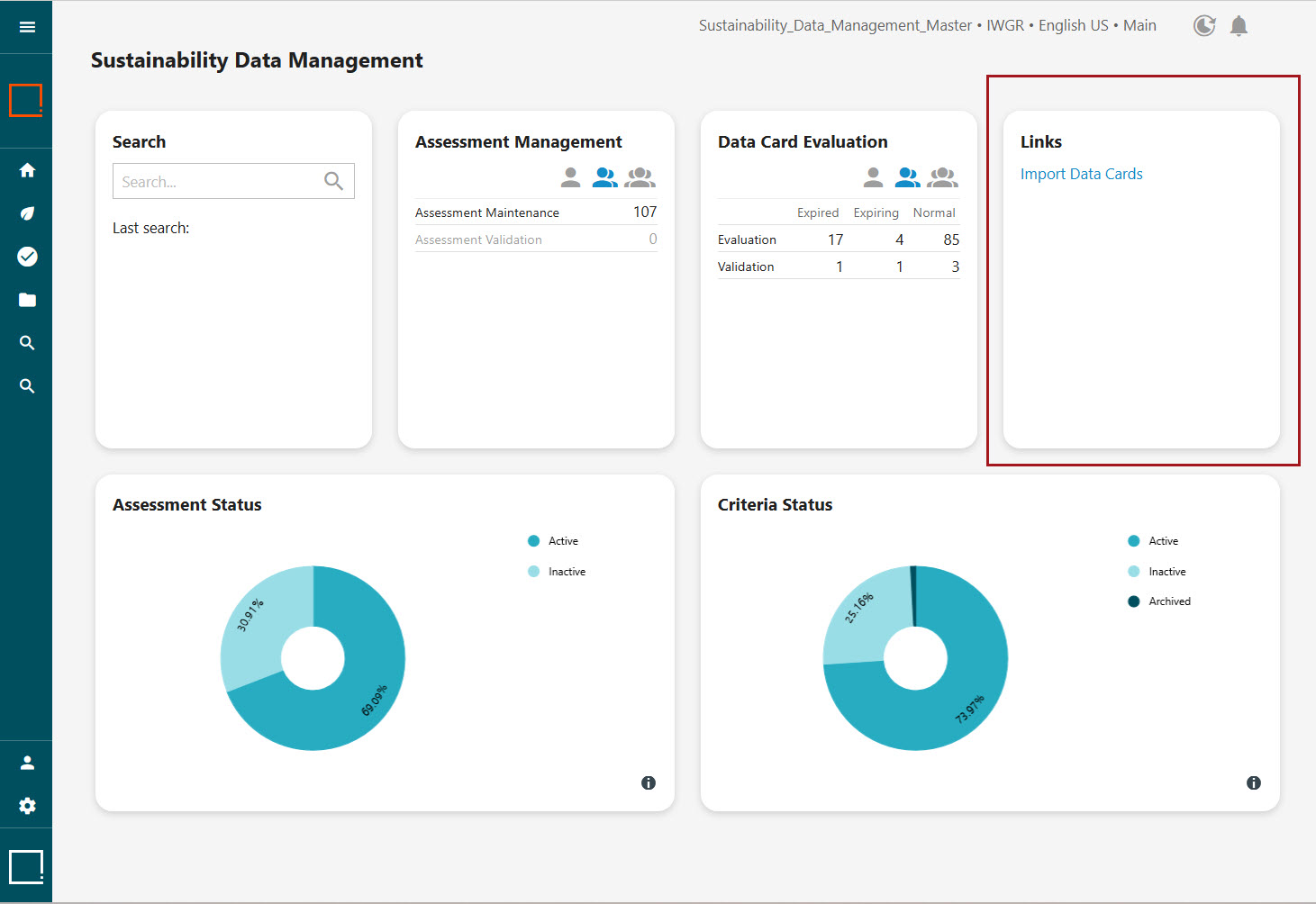
To start a bulk import of data cards, click the 'Import Data Cards' link in the 'Links' homepage widget in the Web UI, as shown in the screenshot below. This take you to an 'Import Configurations' page.
-
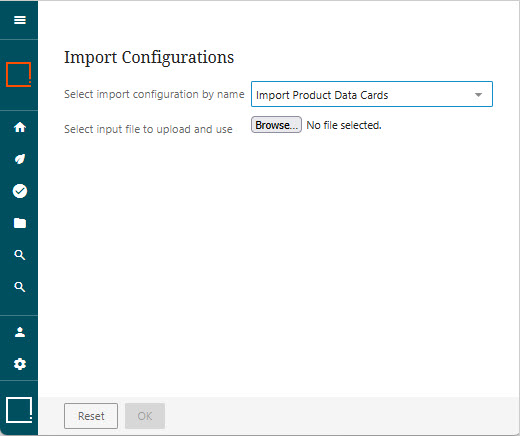
On the 'Import Configurations' page, two settings display, each required to enable import of data cards:
-
'Select import configuration by name' - Select from a dropdown of all available import configurations. The import configuration provided with the Sustainability solution for bulk creation of data cards is called 'Import Product Data Cards.'
-
'Select input file to upload and use' - Select the Excel file containing the data card information to be imported.
Setting up the Data Card Import configuration
For information on the basics of imports, refer to the Creating a Data Import topic.
When importing data cards into STEP, the solution is configured to enable new data cards to be created and moved directly through the Data Card Evaluation workflow, provided all mandatory data is correctly filled out in the Excel document.
To specify which attributes are mandatory, the attributes must be linked to one of two 'Mandatory for Submission' attribute groups:
-
Mandatory for Submission: Location Data Card
-
Mandatory for Submission: Product Data Card
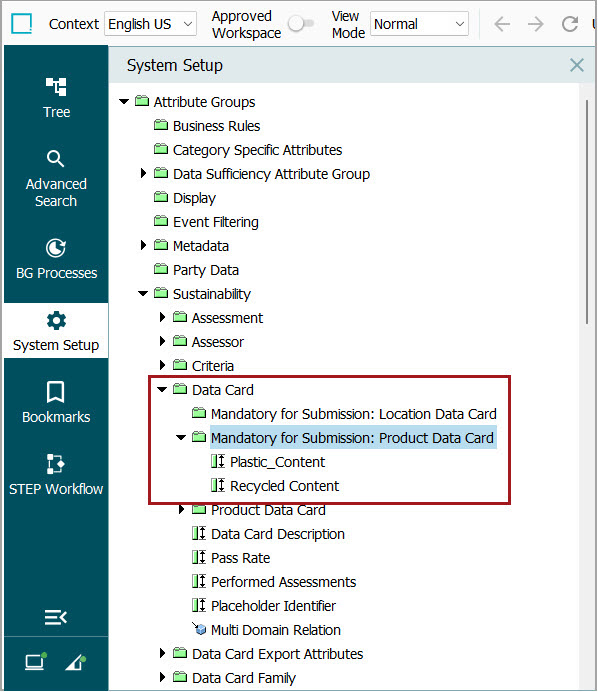
With attributes linked to one of these attribute groups (location data card-related attributes into the 'Mandatory for Submission: Location Data Card' attribute group and product data card-related attributes into the 'Mandatory for Submission: Product Data Card attribute group'), then Excel import files must include these attributes and attribute values upon import. If the attributes are not present and contain no values, the import will stop in the ‘Evaluation’ state of the ‘Data Card Evaluation’ workflow.
Non-mandatory attributes can also be included, but failure to provide data for these attributes will not prevent the data card from being created and moved through the Data Card Evaluation workflow.
The Excel file used for import must include a first column named 'Data Card Name,' followed by columns for the names of attributes, mandatory and non-mandatory. In the preconfigured import setup, the mandatory attribute column is 'Recycled Content.'
Information added using the data card import will only create data cards but cannot amend data cards already in STEP.