Sustainability Data Cards (SDCs) are compliance objects that can be structured in many ways to fit the customer’s requirements. A Sustainability data card is a grouping of data that is then assessed by linking the card to one or more assessments. Based on the criteria in the assessment, the data card is either compliant with the assessment (pass), or non-compliant (fail). Data cards can be linked to data already existing in a linked PIM system, or to data created within the Sustainability Data Management tool. Data cards can be linked to:
-
Products
-
Suppliers
-
Locations
-
Multiples of each
-
Multiples of all
To create a new data card, follow the instructions described below.
-
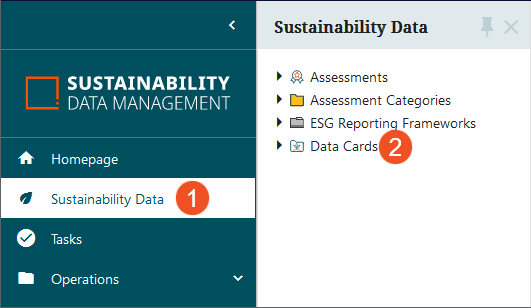
In the Global Navigation Panel, click on ‘Sustainability Data’ and then ‘Data Cards’.
-
On the ‘Data Cards’ screen that displays, all data card families included in the Sustainability Data Management tool, both pre-configured and customer-created, are listed.
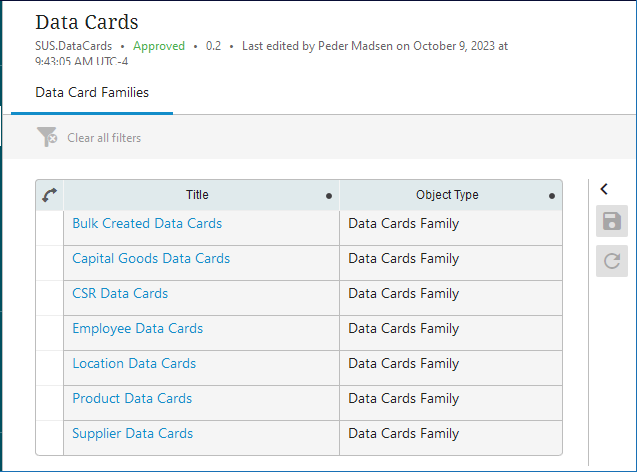
The pre-configured data card families are:
-
Bulk Created Data Cards
-
Capital Goods Data Cards
-
CSR Data Cards
-
Employee Data Cards
-
Location Data Cards
-
Product Data Cards
-
Supplier Data Cards
Data card families can be created and removed, as needed, in the STEP Workbench. If any of these families are not required for a given implementation, they can be removed.
-
-
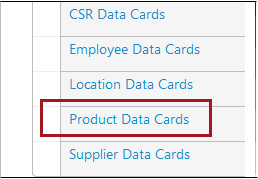
Click the data card family relevant to the kind of data card to be created. For this example, a product data card will be created; to do so, click on the ‘Product Data Cards’ data card family.
-
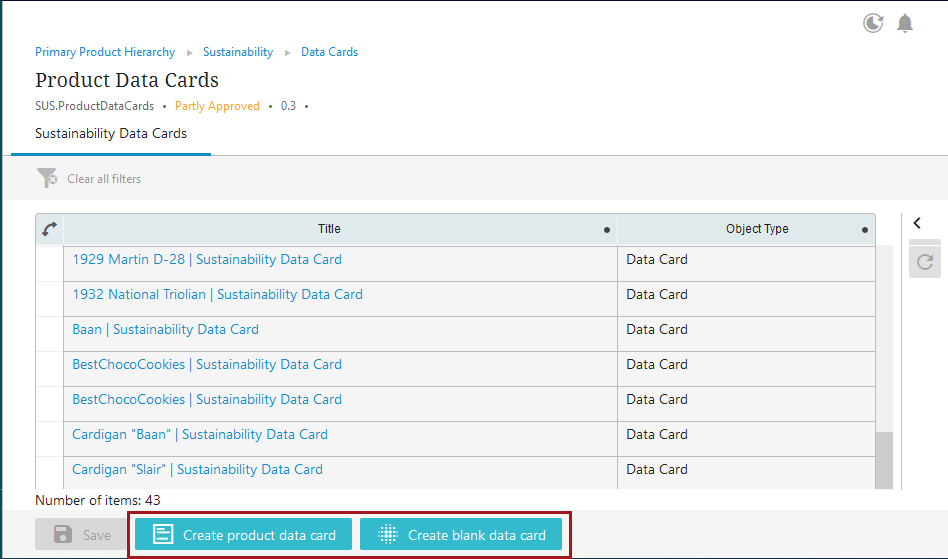
On the ‘Product Data Cards’ screen that displays, a list of all existing product data cards is shown. At the bottom of the screen are two buttons related to creating data cards: ‘Create product data card’ and ‘Create blank data card’.
-
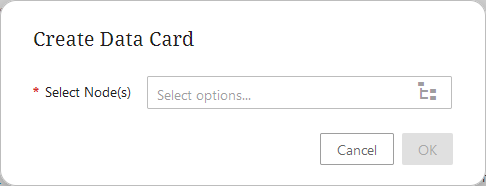
‘Create [product / supplier] data card’ – If the information to be assessed exists in STEP, in this case product information, click the ‘Create product data card’ button. It should be noted that the ‘Create [product / supplier] data card’ button will only display if the data card is created in either the ‘Product Data Cards’ or ‘Supplier Data Cards’ groups. When the button is clicked, a ‘Create Data Card’ dialog displays. Click the node picker button inside the field.
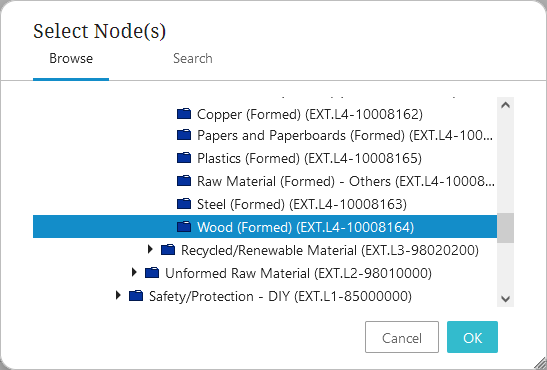
In the node picker dialog that displays (called ‘Select Node(s)’), browse the hierarchy or search for the object to be linked to the data card, and then click ‘OK’.
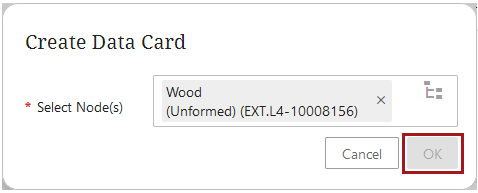
On the ‘Create Data Card’ dialog, if the correct object is showing in the ‘Select Node(s)’ field, click ‘OK’.
-
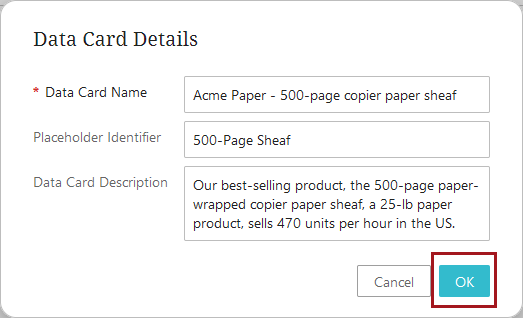
‘Create blank data card’ – If there is no existing product- or supplier-related system data that can be used to populate a data card, click the ‘Create blank data card’ button. A ‘Data Card Details’ dialog displays three parameters, one of which is mandatory.
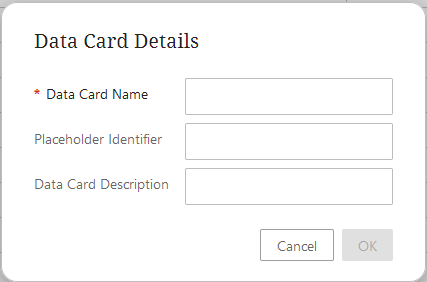
Populate the fields with the requested information.
Data Card Name (mandatory) – When exporting data cards from a workflow task list screen, the data card names are included in the export while the IDs are not. Therefore, when creating a blank data card, users must enter content in the name field. If eventually the name value must be different, users can return to the data card later to revise the name.
Placeholder Identifier (optional) – If creating a data card for an object that is not in the linked PIM system but will be, assign a name to the data card that is associated with the soon-to-be accessible object.
Data Card Description (optional) – Text that briefly describes what objects are linked to the data card and / or details of related sustainability data.
With the requested data added, click ‘OK’.
-
-
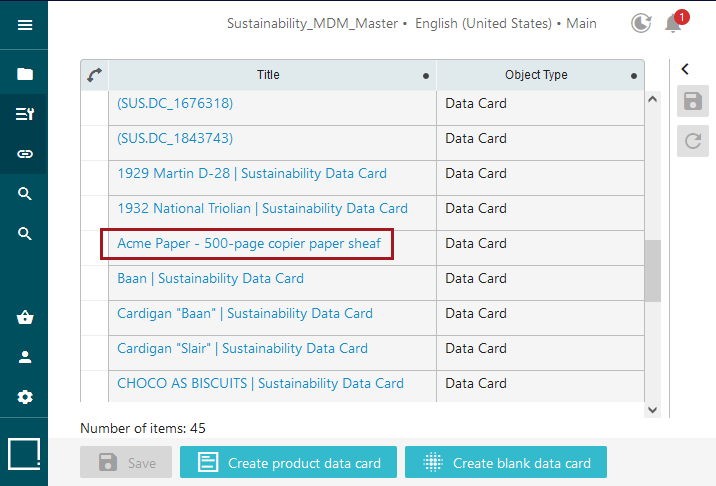
Whether creating a product (or other type of) data card or a blank data card, the newly created data card will display in the list of data cards specific to the data card family selected in step three (3).
-
To enrich the data card and link assessments (and their criteria) to it, click on the relevant data card to open it. The data card details page displays three tabs of information: ‘Basic Information’, ‘Compliance’, and ‘Data Card Profile’.
‘Basic Information’ tab
This tab contains informational fields that can be filled out or that allow users to select values.
Name – the name of the data card. The name assigned to the data card should reflect the object being assessed. In this example, it is Acme Paper’s paper product.
Data Card Description – a description of the data card. Allows for up to 300 characters.
Placeholder Identifier – if there is no connection to a PIM system that will automatically provide an identifier, users can add a placeholder identifier.
Performed Assessments – will display the number of assessments linked to the data card. When building a data card for the first time, this parameter will display no information.
Pass Rate – will display a percentage of the number of passed assessments out of the total number of linked assessments.
Origin – if applicable, users can click the ‘Plus” button (‘+’) to select a country of origin for the object associated with the data card that will be assessed.
Multi Domain Reference – connects the data card to other related data cards in the system.
‘Compliance’ tab
This tab enables users to link assessments and displays all linked assessments and criteria. Sub-tabs are available on the ‘Compliance’ tab that enable users to initiate evaluations of data cards.
‘Data Card Profile’ tab
This tab shows a visual representation of the data card and any other data cards, referenced assessments, and referenced products, suppliers, and / or locations connected to it.
-
On the ‘Basic Information’ tab, fill out as much information in the available fields as required to appropriately enrich the data card.
-
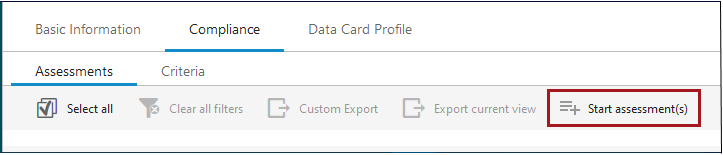
On the ‘Compliance’ tab, click the ‘Start assessment(s)’ button from the toolbar.
-
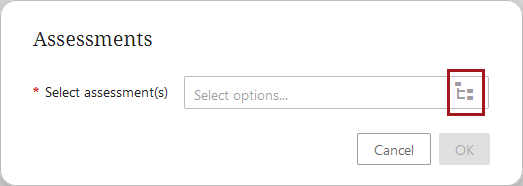
On the ‘Assessments’ dialog that displays, click the Node Picker button that displays inside the field.
-
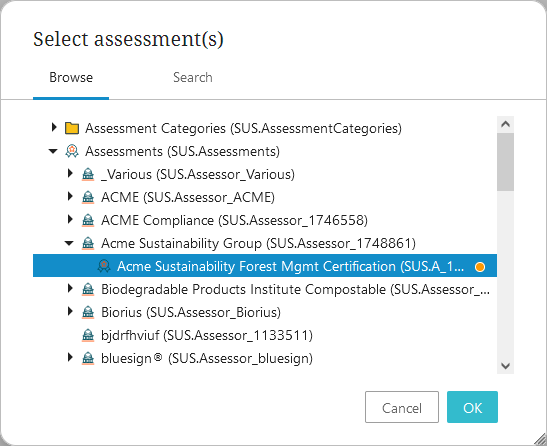
In the ‘Select assessment(s)’ dialog that displays, navigate to the assessment (or assessment category) to be linked to the data card. In this example, the ‘Acme Sustainability Forest Mgmt Certification’ assessment is selected. Click ‘OK’. It should be noted that if an assessment category is selected, then all assessments within the assessment category are linked to the data card, but the assessment category itself is not.
-
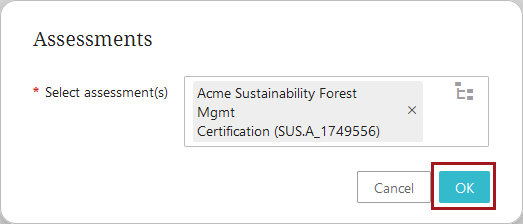
The ‘Assessments’ dialog displays again, showing the selected assessment in the ‘Select Assessment(s)’ field. Click ‘OK’ to link the selected assessment to the data card.
-
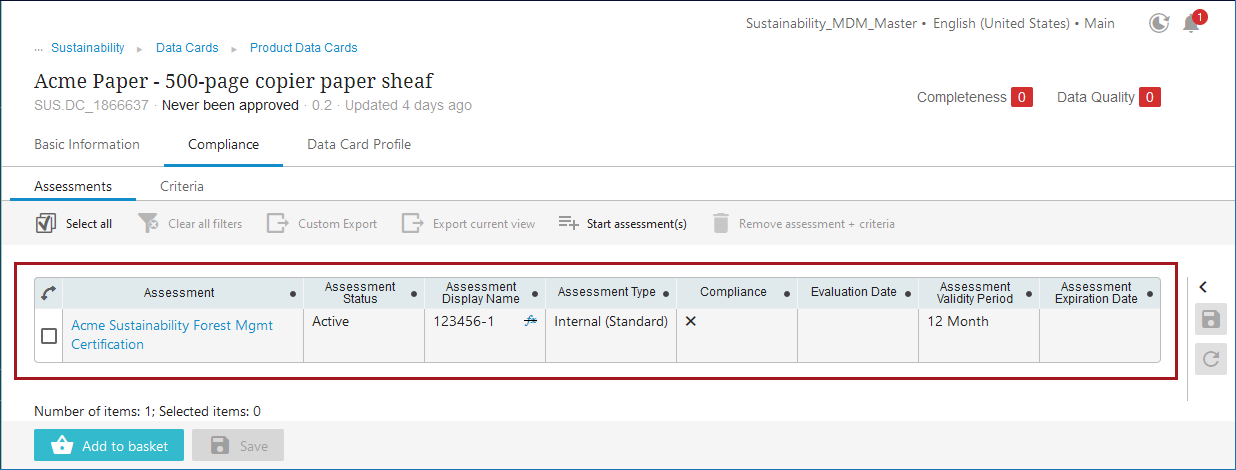
The linked assessment displays. Additionally, all criteria linked to the assessment are now also linked to the data card.
-
If more assessments or assessment categories must be linked, repeat steps 8 through 11.
Note: If the assessment being linked has not moved through the ‘Assessment Management’ workflow, it will be in ‘inactive’ status and cannot be linked to a data card. If this is the case, the system will display this error, or one like it:
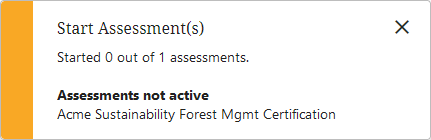
To successfully link the inactive assessment to the data card, be sure to progress the assessment through the final validation stage of the workflow.
Inherited Assessments
In scenarios where a location data card passes or fails an assessment, the Sustainability solution can automatically add or remove the assessment compliance asset (usually a logo) from all product data cards related to that location.
This is done by first linking assessments to a location-linked Location Data Card, and then creating and linking inherited versions of those same assessments to the Product Data Cards for products manufactured at that location.
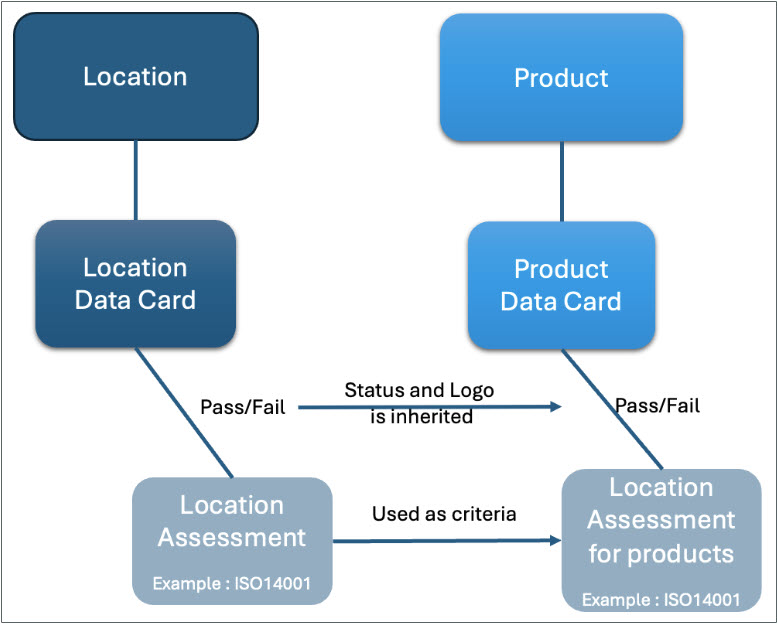
As an example, if a factory location fails an International Organization for Standardization (ISO) assessment, when properly configured, all products (and their product data cards) associated with the factory will automatically have the ISO logo removed from their product data cards.
To set up this configuration, follow the steps described below:
-
Create assessments -- As described in the Creating Assessments topic, create two assessments. (The example used for these instructions will be the primary use case for inherited assessments, which is the automation of updates to location-linked products based on the assessment status of the location.)
-
Create one standard assessment that is relevant to the location and will be linked to the Location Data Card.
-
Create a second assessment that is a duplicate of the first. This assessment will be linked to the Product Data Cards that are linked to the Location Data Card.
-
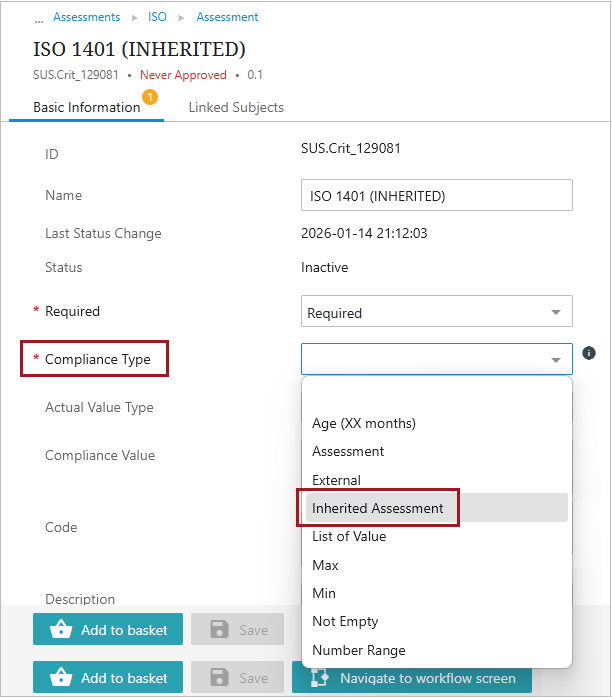
Create criteria - Create and link a criterion to the Location Data Card-linked assessment as described in the Creating Criteria topic. Then create a criterion for the Product Data Card(s)-based assessment and select 'Inherited Assessment' for the 'Compliance Type' parameter.
Then select the original location assessment created in step 1 for the 'Required Assessment' parameter.
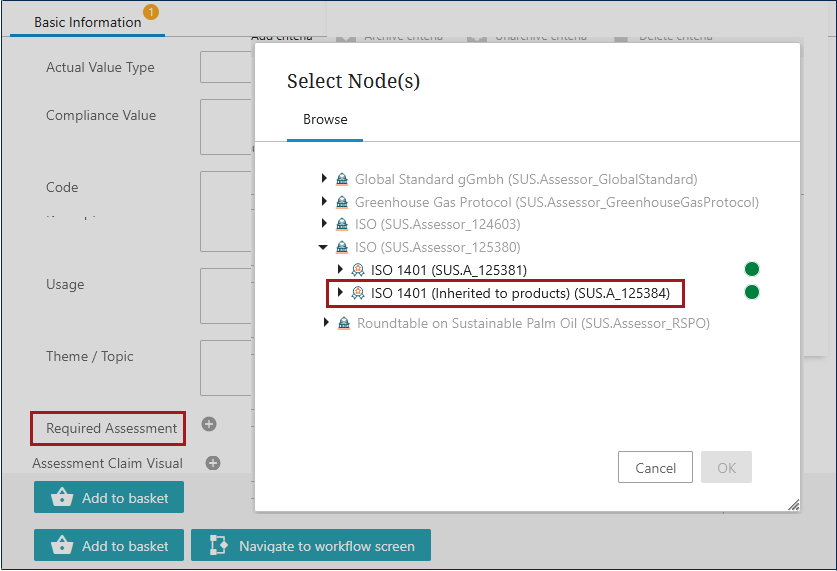
When the criterion is linked in this way, the inherited assessment will display the 'Assessment Claim Visual' asset (which is often an assessment's logo, i.e., the recycling logo), on the linked Product Data Cards based on whether the first location-based assessment (the first of the two assessments created in step two) is active / passed / in compliance.
Sufficiency and Data Quality
Data cards feature the data quality and sufficiency functionality included with STEP. These metrics, displayed in the upper right-hand corner of the data card, allow users to view whether the data card is properly enriched and if linked assessments have been passed.
For more information on sufficiencies and data quality, refer to the Sufficiency Scores for Data Quality and Completeness topic in the Data Governance documentation.