The Accelerator for Retail solution supports alternative methods of creating product records that do not involve processing records imported via PDX. These methods enable retailers to create their own product records in the Web UI.
Using one of two methods, retailers can create new products which will then be entered into the 'Buyer Review' state in the 'Internal Record Creation' workflow. As the products move through the various states of the workflow, the retailers charged with enriching the products onboarded via PDX can also enrich the product(s) they have created.
The process of enrichment that follows product creation is described in the topic that follows this one, Onboarding 5 - Retailer Adds Data.
Found on the Web UI homepage, there are two methods of creating products within the Accelerator for Retail Web UI:
-
Add one or more products at once using the Mass Create Internal Records homepage widget
-
Add one product at a time using the 'Initiate Single Product' found in the Internal Record Creation homepage widget
Mass Create Internal Records
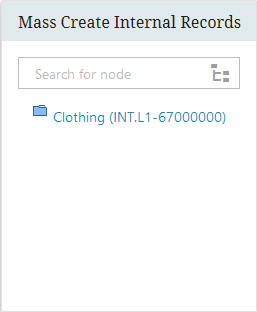
Retailers can create multiple new products at once using the Mass Create Internal Records widget.
-
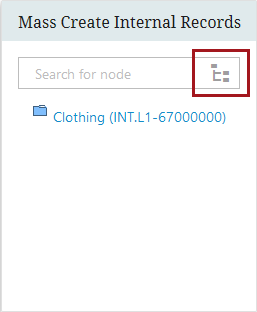
First, select which node in the product hierarchy the new products will be placed under. To make the selection, click the hierarchy button located to the right of the field.
-
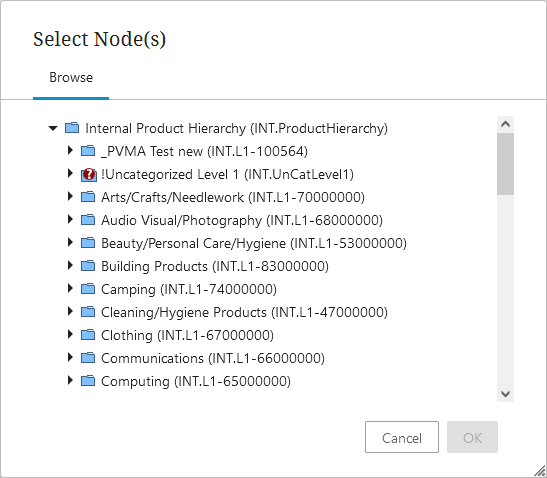
In the node picker dialog that displays, expand the hierarchy to locate the desired parent in the product hierarchy.
-
Once selected, a Mass Creation Screen displays with the beginning of a table. The headers are Id, Name, GTIN, and Short Item Description. This screen enables users to create a new line (by clicking the 'Insert new line' button), and adding values to the relevant cells.
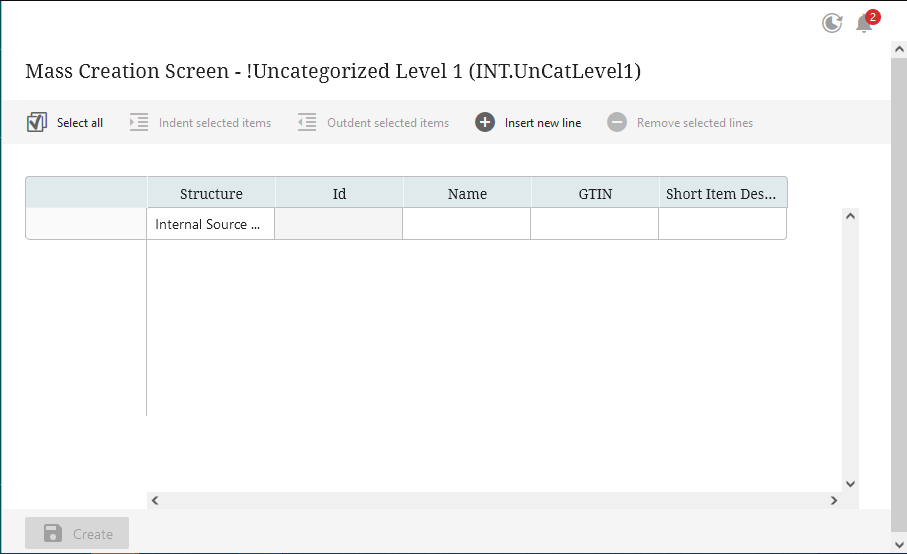
Users can also paste content from a properly formatted spreadsheet directly into the table by pressing CTRL+V.
-
When the desired products are properly populated and there are no errors, click the 'Create' button. The new products will simultaneously
-
display in the hierarchy under the selected parent node
-
be entered into the 'Internal Record Creation' workflow, accessible in the 'Buyer Review' task list
The newly created products can then be enriched by the assigned stakeholders as it progresses through each state of the workflow.
Initiate Single Product
On the Internal Record Creation widget, where users track products as they move through the product creation workflow, an 'Initiate Single Product' button displays as text.
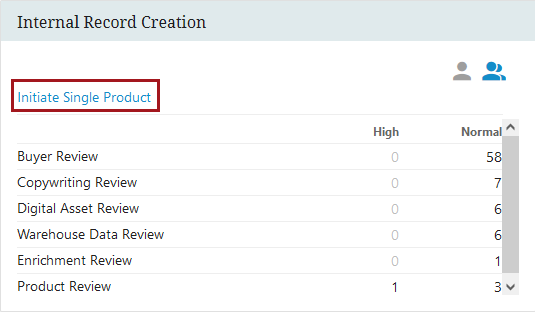
This button allows retail users to create new products, one at a time, and enter them into the Internal Record Creation workflow. When the 'Initiate Single Product' button is clicked, a few things happen simultaneously:
-
a new product, or internal product record, is created
-
the new product is added to the first state in the Internal Record creation workflow, 'Buyer Review'
-
the user is auto-navigated to the newly created product's details screen to begin the enrichment process
At this stage, the product can move through the enrichment workflow for new products in the same way that products provided by the supplier are.
Enterprise Resource Planning (ERP) System Products
Additionally, the Accelerator for Retail solution enables ERP systems to send product data to STEP via a hotfolder. A preconfigured business rule ingests the message file and either updates products or creates new ones. All new products created from an ERP system are automatically entered into the Internal Record Creation workflow.